
Speedtest Tracker
Your latest download, upload and ping reading on the Home dashboard and the Speedtest screen.
iPhoneMacOn this page
Speedtest Tracker runs Ookla speed tests on a schedule and keeps the history. Pocket Homelab shows its most recent result (download, upload, ping and when it was measured) on the Home dashboard and a dedicated screen.
What you get
- Home row “Speedtest” (yellow bolt icon): “↓ 300”, with “↑ 95 Mbps · 8 ms · 2025-03-04 15:02”.
- Home header option “Speedtest”:
↓ 300 ↑ 95 Mbps · 8 ms. - Spotlight entry “Speedtest” (internet, bandwidth, ping).
- In Settings → Home layout, the card’s Show on this card picks Download speed (the default), Upload speed or Latency.
- Mac: sidebar Speedtest (under Infrastructure) and an Internet widget for Home.
- No issue chip, no quick action, no notifications.
Set up
- Speedtest Tracker has no authentication for its API, so there is nothing to create in its own UI, just have it running its usual schedule.
- In Pocket Homelab: Settings → Services → Speedtest Tracker, paste the base URL, then Test connection.
| Key | Field | Required | Secret | Where to get it |
|---|---|---|---|---|
SPEEDTEST_URL | Speedtest Tracker URL | Required | — | Base URL of your Speedtest Tracker instance. Leave empty to hide Speedtest Tracker features. |
On iPhone
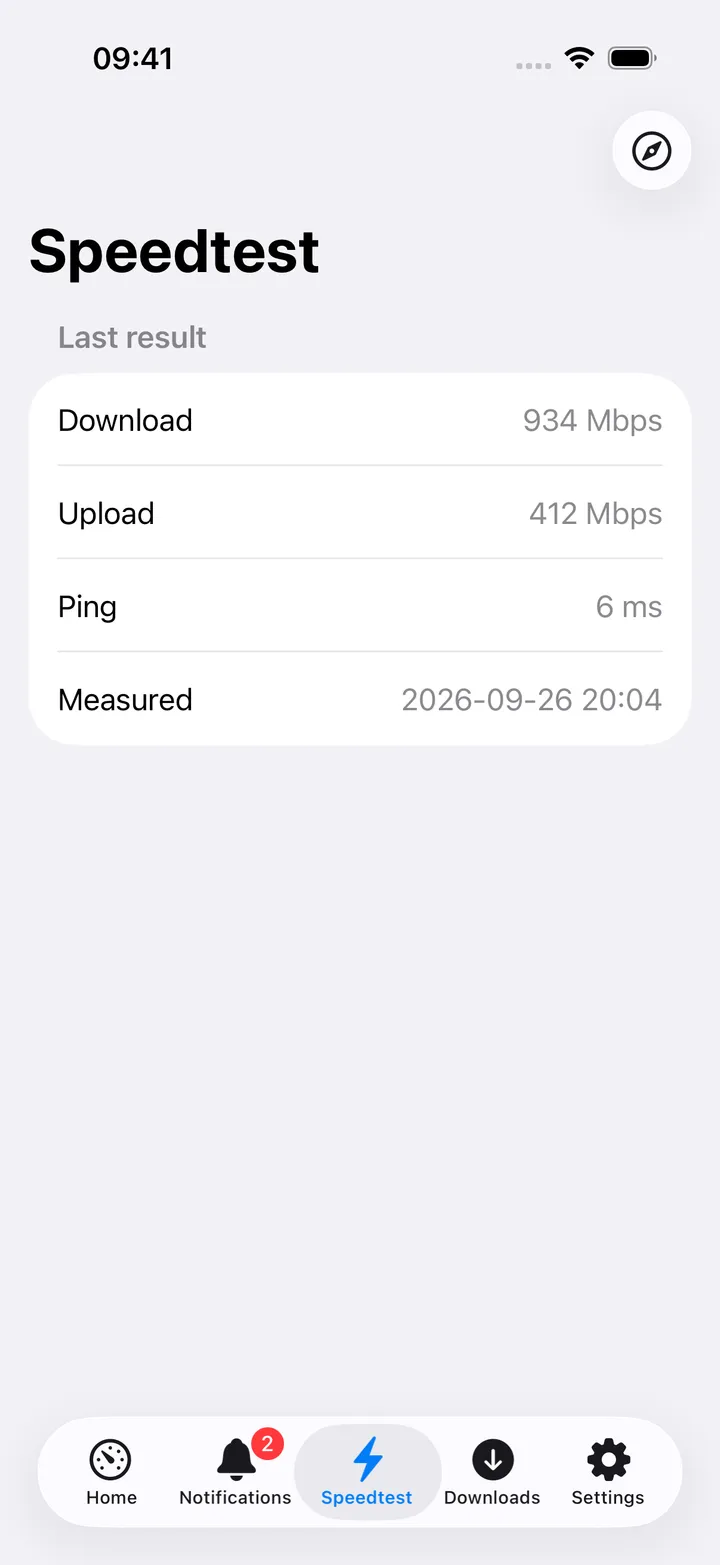
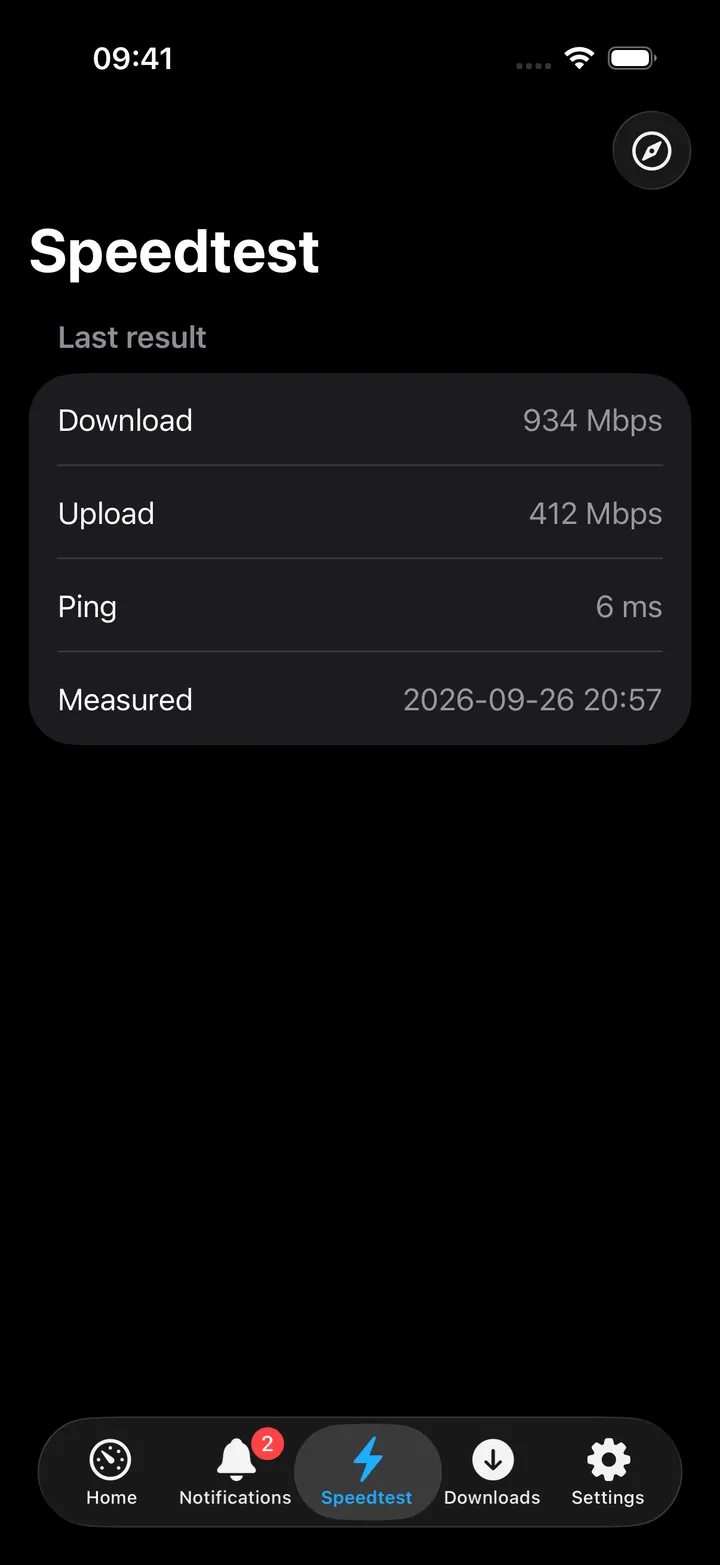
The Speedtest screen shows a single Last result section: Download, Upload, Ping and Measured (the timestamp of the reading). It does not poll on its own, it receives the same snapshot as the Home card, which refreshes every 30 seconds. Before any result exists, it shows “No result yet.” The toolbar has Open Speedtest Tracker.
On Mac
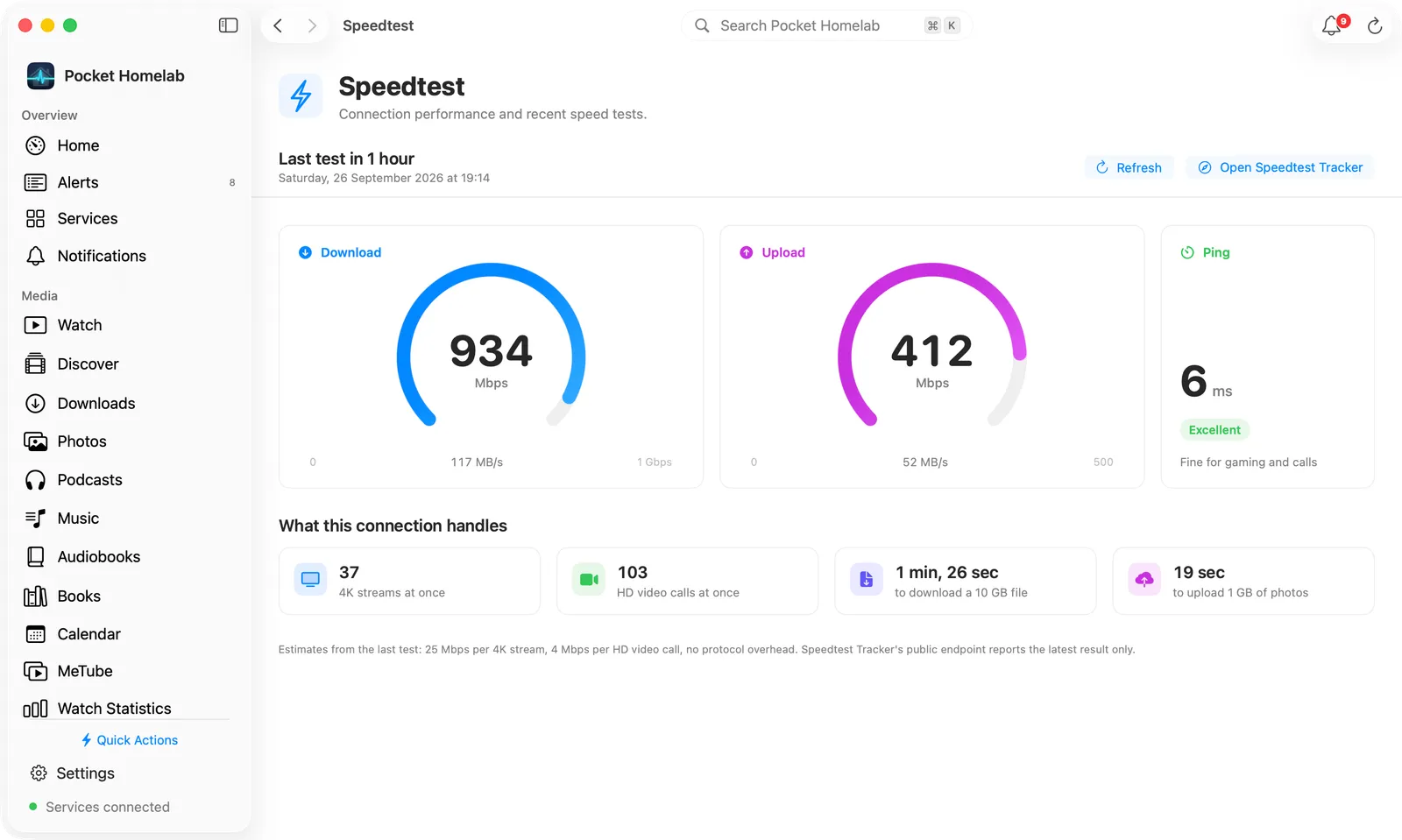
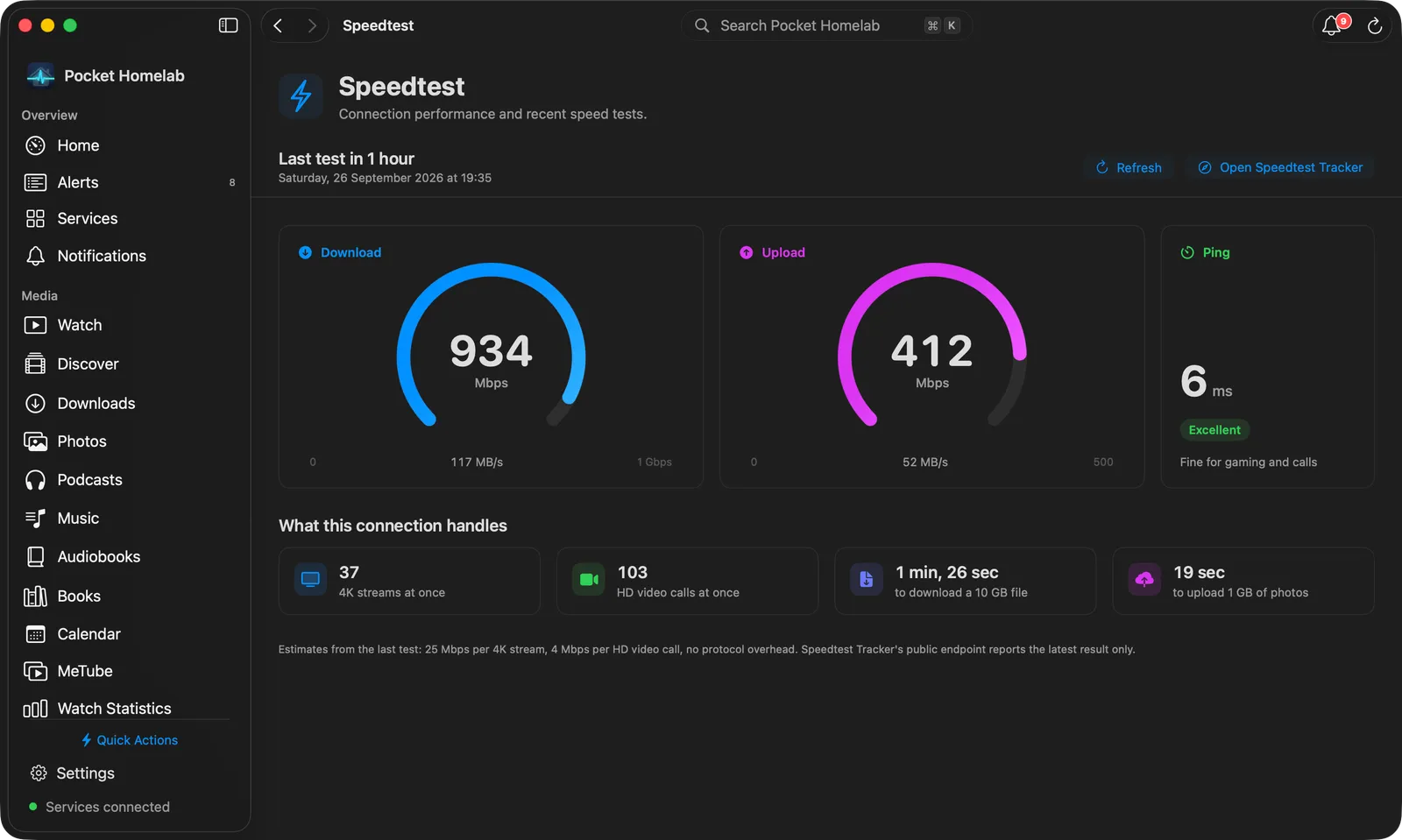
The Speedtest workspace (⌥⌘2 by default, under Infrastructure) opens with a bar that says when the last test ran (“Last test 2 hours ago”, with the full date under it), Refresh, which asks Speedtest Tracker for its latest result straight away, and Open Speedtest Tracker.
Below it:
- Download and Upload as gauges: the speed in Mbps on an arc scaled to the next round line speed (50, 100, 250, 500 Mbps, 1 Gbps and up), with the same speed in MB/s underneath.
- A Ping card with the reading and a rating: Excellent under 20 ms (“Fine for gaming and calls”), Good under 50 ms (“Fine for calls”), Fair under 100 ms (“Calls may lag”) and Poor beyond (“Expect lag”).
- What this connection handles: how many 4K streams and HD video calls the line carries at once, and how long a 10 GB download and a 1 GB photo upload take. The note under it gives the assumptions: 25 Mbps per 4K stream, 4 Mbps per HD call, no protocol overhead.
The Home Internet widget shows the download speed, then upload, ping, when it was measured and upload as a share of download. Sizes with room for more compare download and upload as bars; Wide & Tall adds a rating for each figure and small charts of the readings since the app opened (kept in memory only).
Actions
None: there is no “run a test now” button. Speedtest Tracker runs its own schedule; Pocket Homelab only reads the latest result.
Works with
- Nothing beyond the Home card and the Mac Internet widget: Speedtest Tracker is not cross-linked with any other integration.
Tips & troubleshooting
- The iPhone screen has no refresh control and no error display of its own: if the reading is stale or missing, look at the error on the Home tile instead. On the Mac, Refresh fetches the result again and shows an error above the gauges if that fails.
- Speeds are whole numbers on the tile, the header and the iPhone screen. The Mac gauges add one decimal below 10 Mbps.