
Nextcloud Notes
Read, write and organise your Nextcloud Notes in a rich editor, with tables, tasks, diagrams, attachments, daily notes, podcast notes and a Quick Note panel on the Mac.
iPhoneMacOn this page
Nextcloud Notes is the notes app that stores each note as a Markdown file in your Nextcloud. Pocket Homelab opens those same files in a rich editor: you write formatted text, the file stays plain Markdown, and the Nextcloud web app, the Nextcloud Notes apps and any text editor keep working on it. Notes uses the Nextcloud connection you already have, so there is nothing new to set up and no extra free-tier slot.
What you get
- “Notes” tab (optional, off by default): a library of every note, a folder tree, search and a daily-note calendar.
- Home card: a Notes tile that names the folder you work in and opens the library.
- Mac: a Notes workspace in the sidebar (⌃⌥⌘7), a Notes card on Home, a Notes pane in Settings and a Quick Note panel you can open over any app with ⌃⌥⌘M.
- Quick actions: Open daily note and Add to daily note (⌥⌘Y and ⌥⇧⌘Y on the Mac).
- Podcast notes: the Note button in the Podcasts and Audiobookshelf players writes a timestamped note into Nextcloud Notes.
- Event and photo notes: a calendar event and a photo each get a note of their own the same way, a line with the time added from the event or the photo’s Info sheet.
- Notes about this on the things you look at, from a Jellyfin title to a Deck card: the notes that link to it, and a way to start one.
- Notes are kept on the device, so everything you have opened can be read, and written, without a connection.
Set up
Notes shares its credentials with Nextcloud Files. If you have not connected Nextcloud yet, follow Nextcloud → Set up. The Notes app must be installed on your server (Nextcloud → Apps → Office & text → Notes).
The app asks Nextcloud whether Notes is installed and remembers the answer. Settings → Services → Nextcloud shows “Notes is on” once it is found, or “Notes is available” with Check again if you installed it after connecting. Without the Notes app there is no Notes tab, sidebar item, card, search entry, settings page or shortcut: nothing appears that cannot work.
There are no extra env keys. Notes reads the three Nextcloud keys:
| Key | Field | Required | Secret | Where to get it |
|---|---|---|---|---|
NEXTCLOUD_URL | Nextcloud URL | Required | — | Base URL of Nextcloud, including its subpath if any. |
NEXTCLOUD_USERNAME | Nextcloud Username | Required | — | Your Nextcloud user ID (not display name). |
NEXTCLOUD_APP_PASSWORD | Nextcloud App Password | Required | Secret | Create an app password in Nextcloud → Personal settings → Security. |
The library
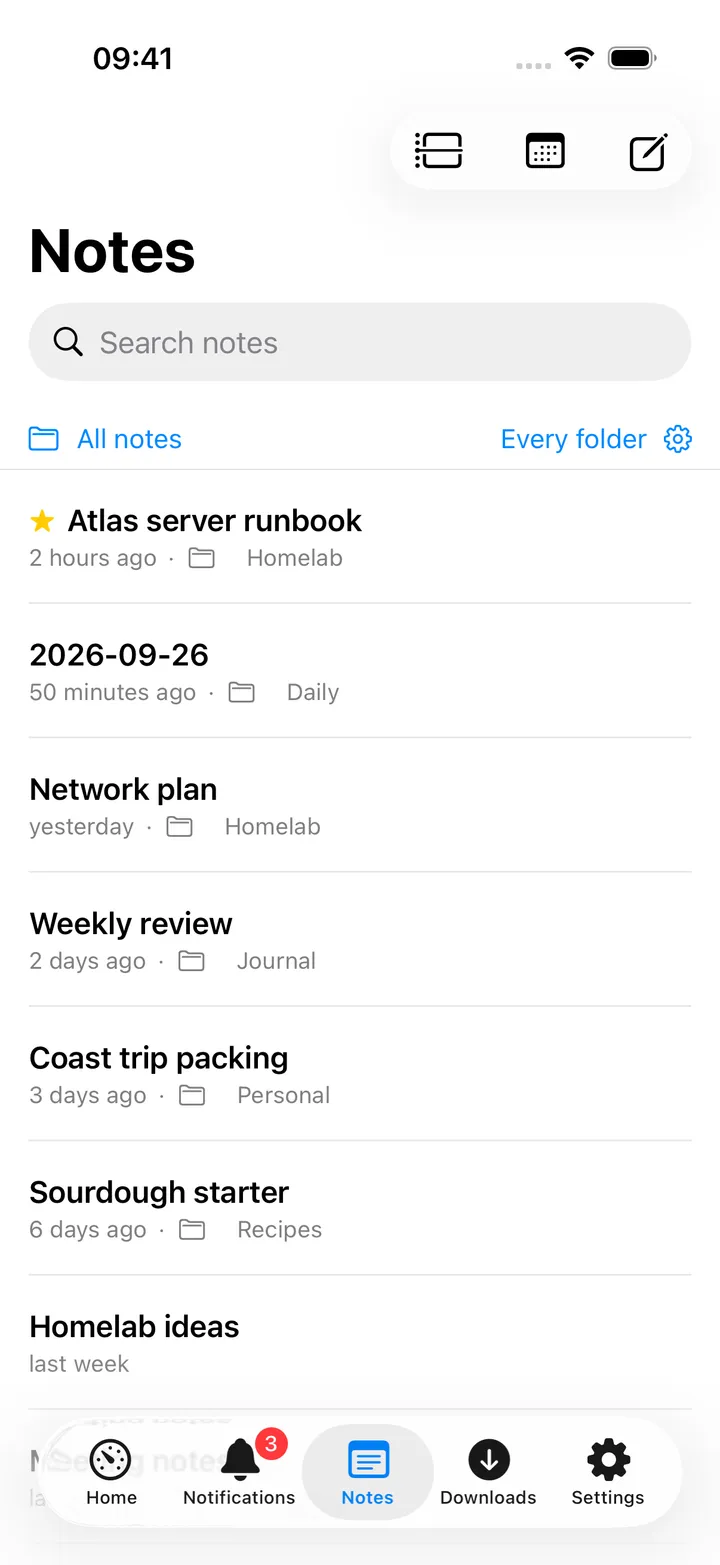
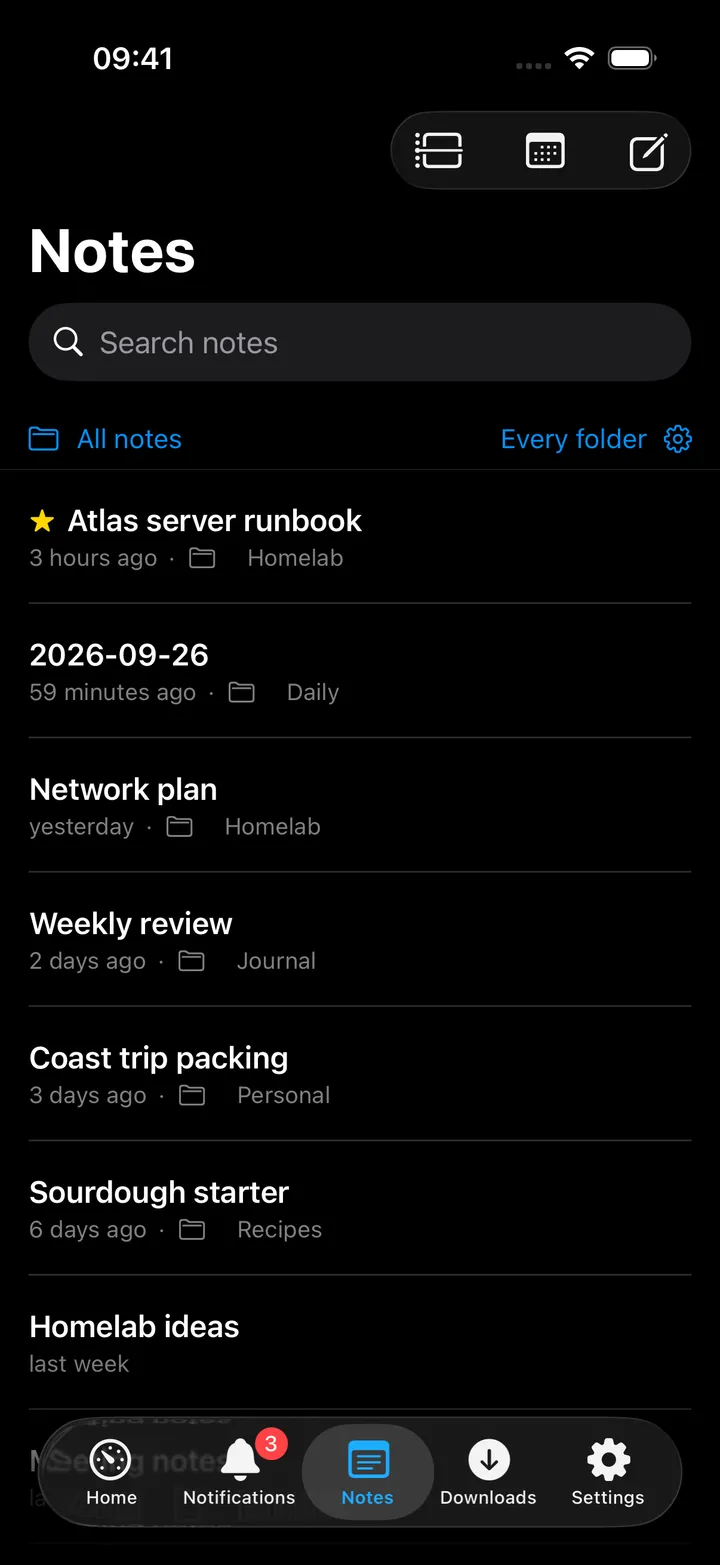
The library lists your notes newest first, each with its folder and how long ago it changed. Favourites are starred and sort to the top. The search field matches titles and folder names, and the folder button narrows the list to one folder and everything below it.
Folders are real folders in Nextcloud. You can create one from the app (it is remembered even while empty), move a note into another folder, and delete notes and folders, each with a confirmation first. On the Mac you can also drag a note onto a folder.
Settings → Notes → Folders sets where the app looks:
- Root folder: show only this folder and what is below it; new notes go there. The default is all notes. Nothing is moved on the server.
- Templates folder: where your own templates live (default
Templates). - Attachments folder: where pictures and files you add are stored (default
attachmentsin the root; leave it empty to store them beside each note). - Podcast notes, Photos and Calendar events: the folders inside the root where notes from the podcast
player, about photos and about calendar events go (defaults
Podcasts,Photos,Calendar). Every folder a note can land in is set here, in one place.
Reading and writing
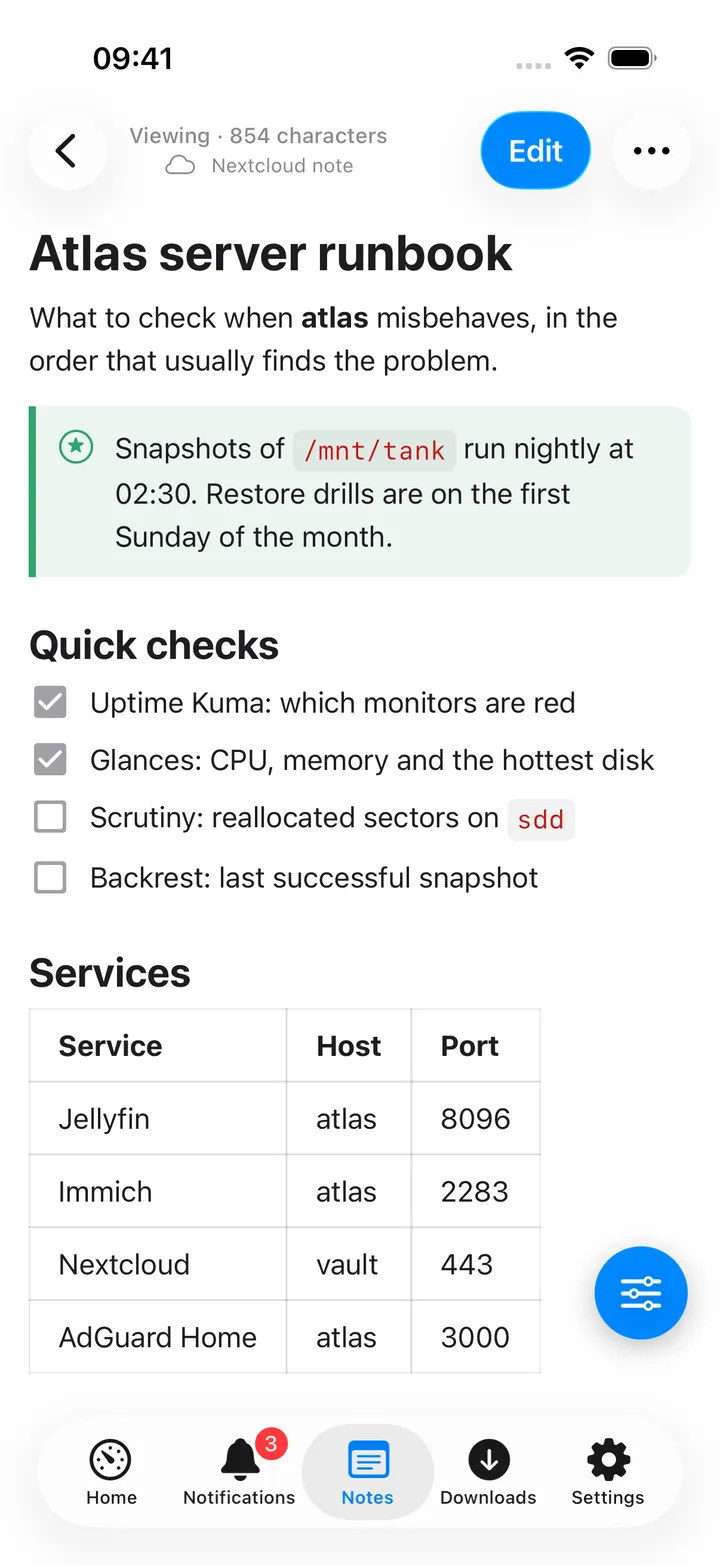
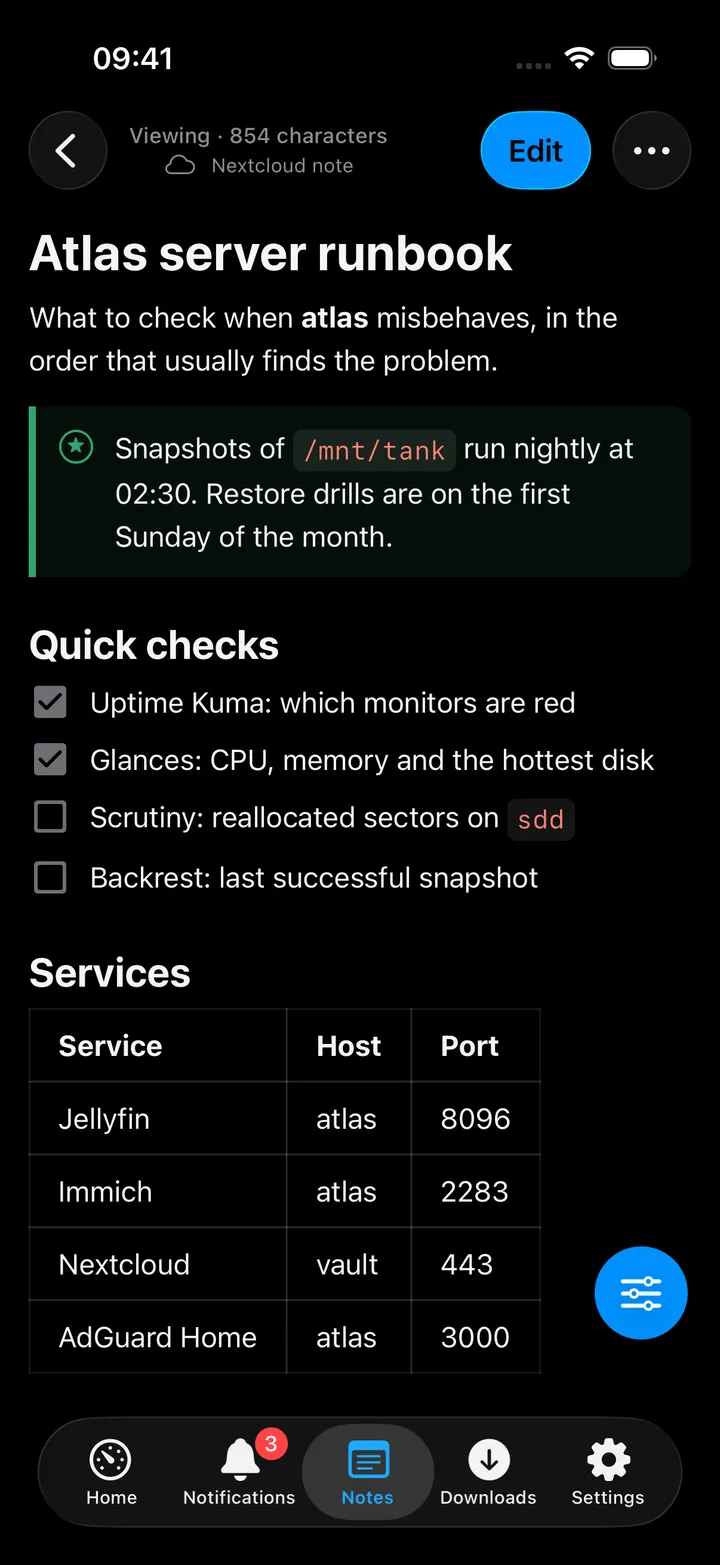
On the iPhone a note opens for reading: full width, rendered as it will look, with links and diagrams you can tap. The header reads Viewing and the blue Edit button switches to writing; in edit mode it says Editing in the accent colour and the button becomes Done. Task boxes can be ticked while reading, without switching to edit mode. New notes, daily notes and podcast notes open straight into editing.
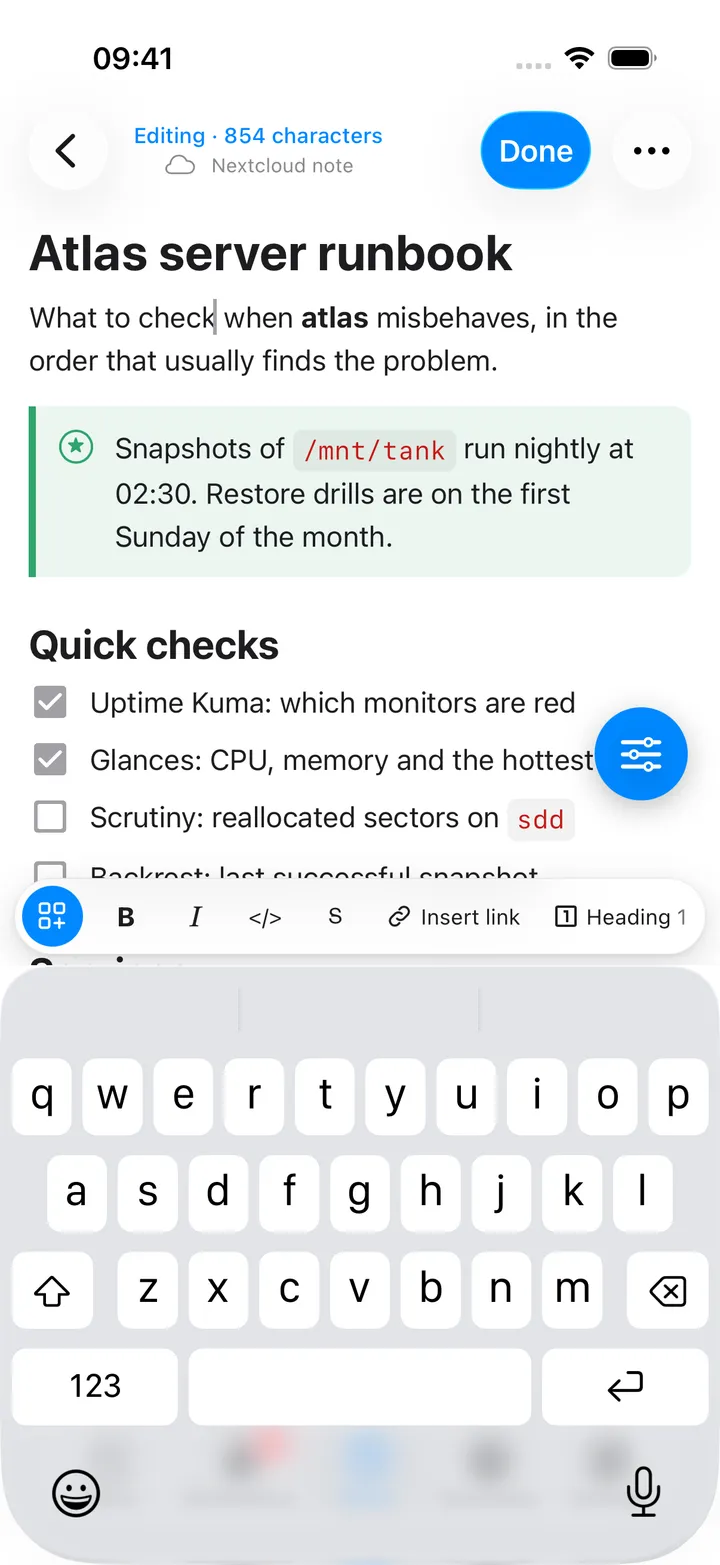
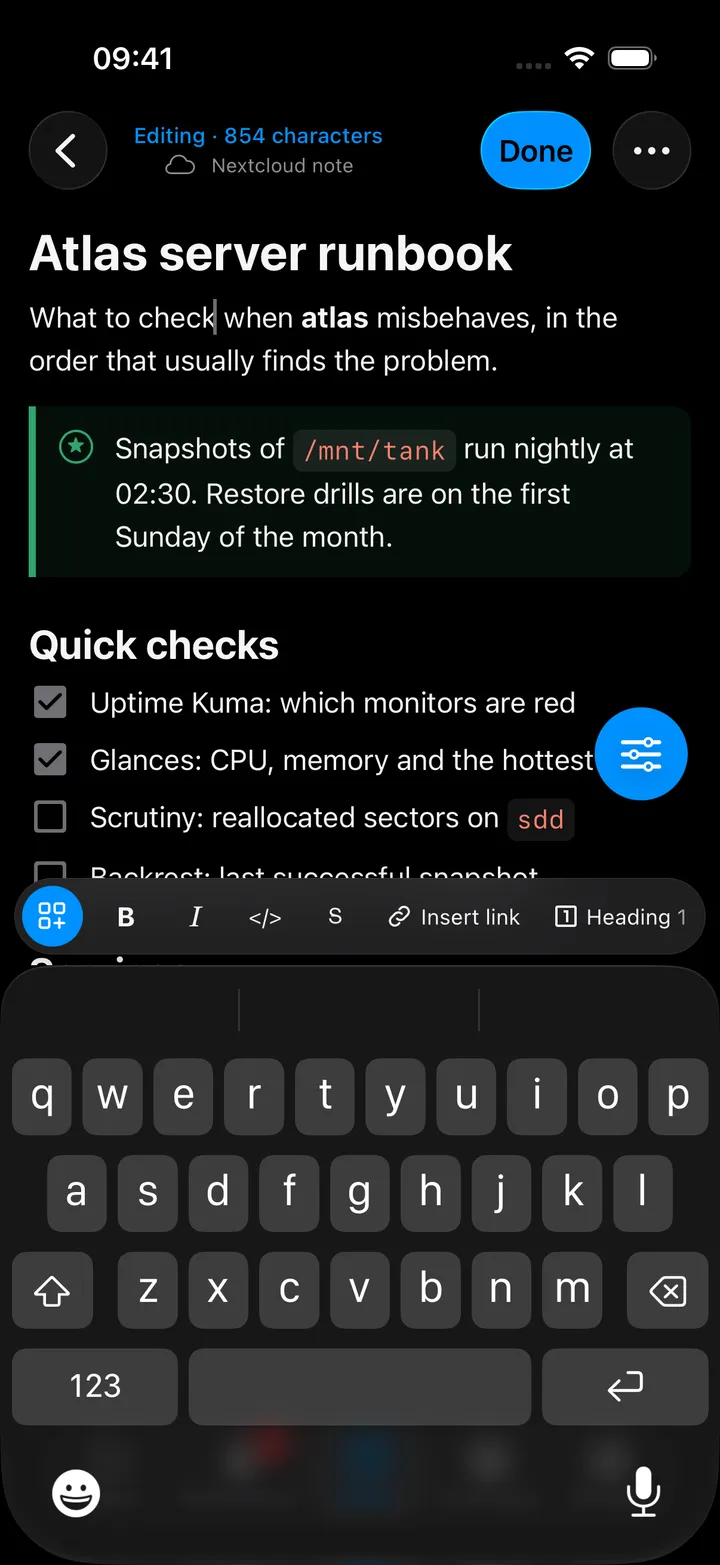
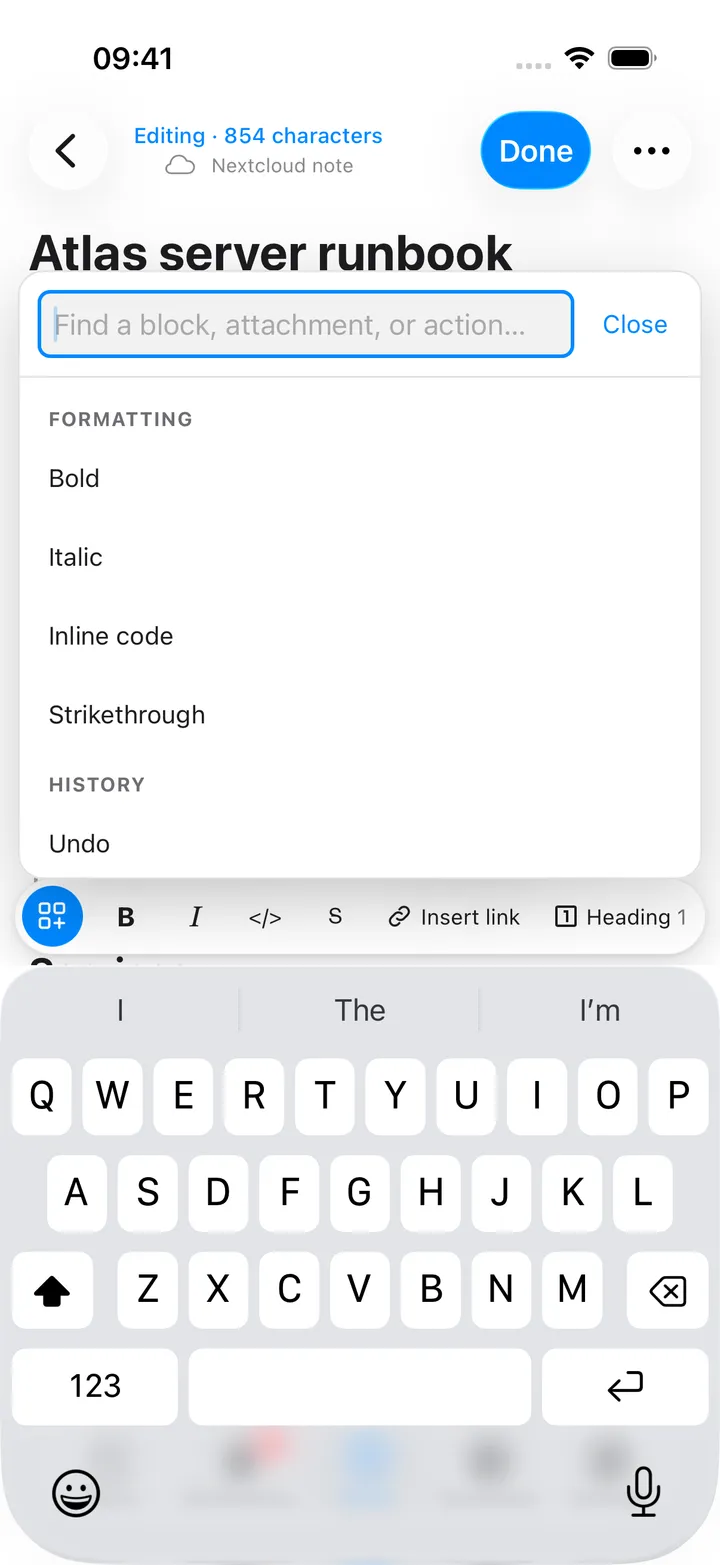
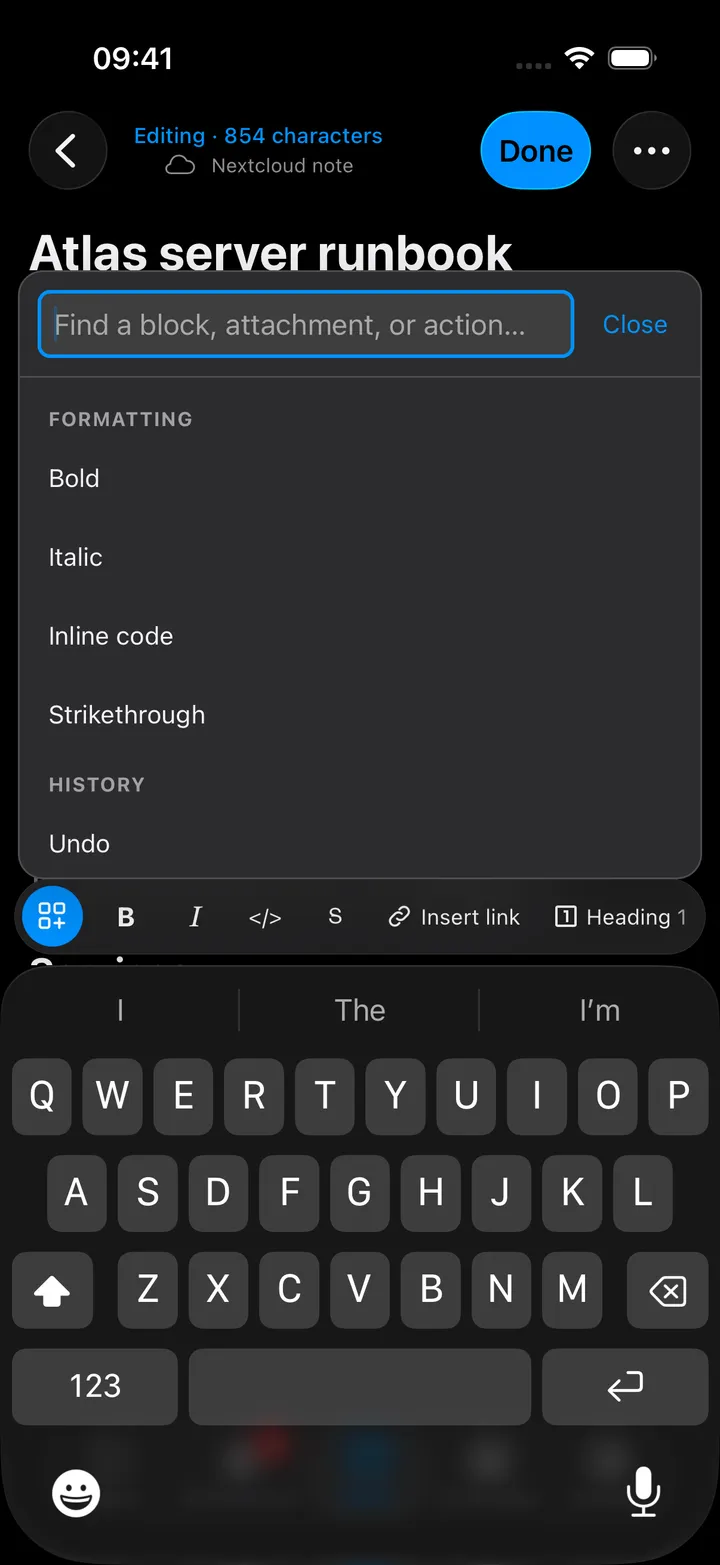
While you write, a formatting bar sits above the on-screen keyboard: the insert menu, Bold, Italic, inline code, strikethrough, Insert link, headings, task and bullet lists, tables, code blocks, diagrams, dates and your templates. Each format lights up while it applies, so bold italic text shows both. The bar goes away with the keyboard. Inside a table it turns into table controls: add a row above or below, add a column left or right, delete a row, a column or the table, and set the alignment.
On the Mac the toolbar offers Read, Edit and Markdown, and Settings → Notes → Editor → Note width chooses between full width and a readable line length. Open notes as (both platforms) picks the rich editor or plain Markdown as the default.
Saving
Notes save by themselves about two seconds after you stop typing, and again when you leave the note. A note is named after its first line. Opening a note never rewrites it. If the same note was changed somewhere else while you were writing, the app asks before overwriting: Keep mine or Use the other version. When Nextcloud has the file locked (open in Nextcloud Text, for example) the save is retried quietly; if the lock stays, the header says “Nextcloud is busy with this note. It is sent again in a moment.”
The editor
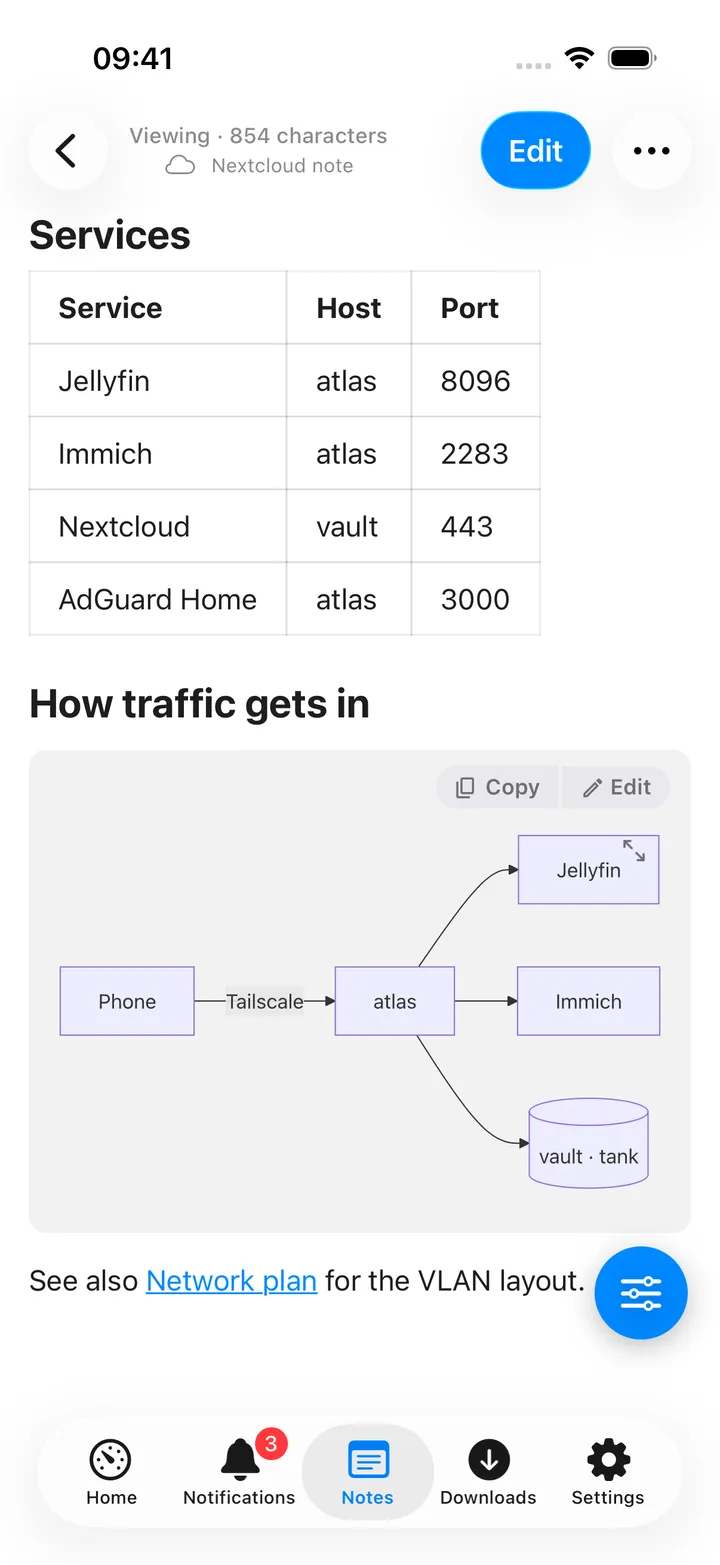
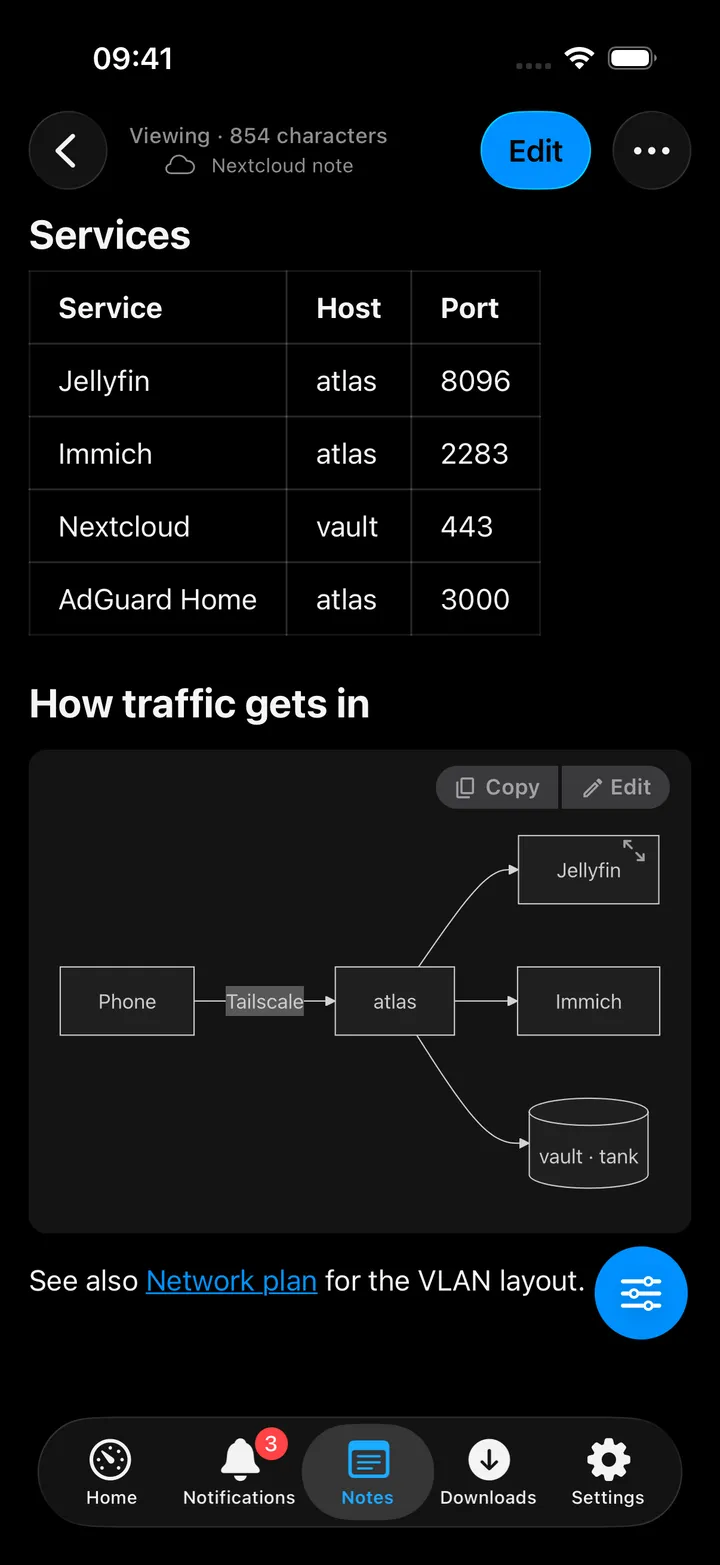
Everything below is stored as ordinary Markdown, in the forms the Nextcloud Notes web app understands.
- Blocks: paragraphs, headings 1 to 6, quotes, dividers, bullet, numbered and task lists, and code blocks with a language.
- Tables, edited in place: right-click a cell on the Mac, or use the table bar on the iPhone.
- Callouts: info, success, warning, error and question, in Nextcloud’s
::: infosyntax. - Diagrams: Mermaid flowcharts, sequence diagrams, Gantt charts, state diagrams, pie charts and mind maps, drawn as you type. The corner button opens a diagram full size, with zoom.
- Maths: KaTeX formulas, inline with
$…$or as a$$block. Prices such as$5stay text. - Collapsible sections, a table of contents and footnotes.
- Links: Insert link asks for the text and the address when nothing is selected, and pasting an address
over selected text links it. Type
[[to link to another note: the link opens that note in the app and still works in the Nextcloud web app. - Emoji from
/emojior by typing:rocket:, and dates from@today,@now,@tomorrowand friends. - Type
/for a searchable menu of every block and insert.
Templates
The editor comes with Meeting notes, Daily note, Checklist and Incident log templates, plus three for the server:
Runbook (steps with the commands to run), Open ports (a command that lists what listens on the server) and
Compose service (a docker compose service to fill in). Your own come from the templates folder under My
templates…. Keep this note as a template saves the current note there.
Placeholders such as {{date}}, {{time}} and {{weekday}} are filled in when a template is used.
Attachments
The paperclip (or / → Attach, or a paste or a drop) adds a picture or a file: Upload from this iPhone… (or
Mac), Choose from Nextcloud…, or Choose from Photos… from your Immich library. Files go into the
attachments folder; pictures appear in the note, other files as links that open in Quick Look. Pictures you have
seen stay visible offline.
Homelab tools
The wrench button (or / → Homelab) puts your homelab into the note. Each tool appears only when its service is
connected.
- Homelab snapshot: a table of what Home shows right now, for an incident log.
- Make this line a task: sends the line to Nextcloud Tasks or a Deck board and leaves a link behind.
- Link to something: a Nextcloud file, a Paperless document, a Forgejo issue or pull request, a Jellyfin title.
- Web bookmark: a page’s title as a link.
- Voice memo: records, stores the recording with the note and adds a transcript when the device can transcribe.
- On the iPhone: scan a document or take a photo straight into the note.
Report blocks write what your services know as of now, each offered when its service is connected:
- What needs attention: Uptime Kuma outages of the past week (the week needs a status page slug; with only an API key it says what is down now), Scrutiny disk warnings and Backrest plans that need a look.
- Watched and listened this week: from Jellystat, PinePods, Audiobookshelf and the podcasts on the device.
- Spending this month (Firefly III): spending by category and the largest payments.
- Vehicle log (LubeLogger): this month and the last twelve per vehicle, then recent fill-ups and services.
- Hosts on the network (AdGuard Home): the clients AdGuard has seen.
- Server processes (Glances): the heaviest processes by CPU and by memory.
Make this line a transaction… (Firefly III, templates from Firefly Pico) turns the line under the cursor into a transaction through the same sheet as Add Transaction, and leaves a link to it behind the line.
Run on server
On the Mac, with an SSH host set for Services & Jobs over SSH, a shell code block (sh, bash,
zsh, shell, console or terminal) gets a Run on server button. The app cannot run ssh itself, so it copies
the command and opens a terminal on the server; paste it there. Paste the output (in Homelab tools) then puts what
you copied back into the note as an output block. The Runbook and Open ports templates are made for this.
Notes about this
Jellyfin titles, Nextcloud files, Paperless documents, Forgejo pull requests, issues and repositories, Home cards, a photo’s Info sheet, Immich albums and people, Navidrome albums, artists and playlists, Audiobookshelf authors and series, Calibre books, Deck cards, Nextcloud tasks and contacts have a Notes about this section: the notes that link to that thing, and Write a note about this, which starts one with the link in place. An alert’s Write it up in Notes starts an incident note from it.
Sharing and secrets
Share as PDF and Share as HTML (in the insert menu, the / menu and the note’s menu) make one file of the note,
pictures and diagrams included. Notes are plain text on Nextcloud, so a line that looks like a password, token or key
is pointed out under the editor.
Daily notes
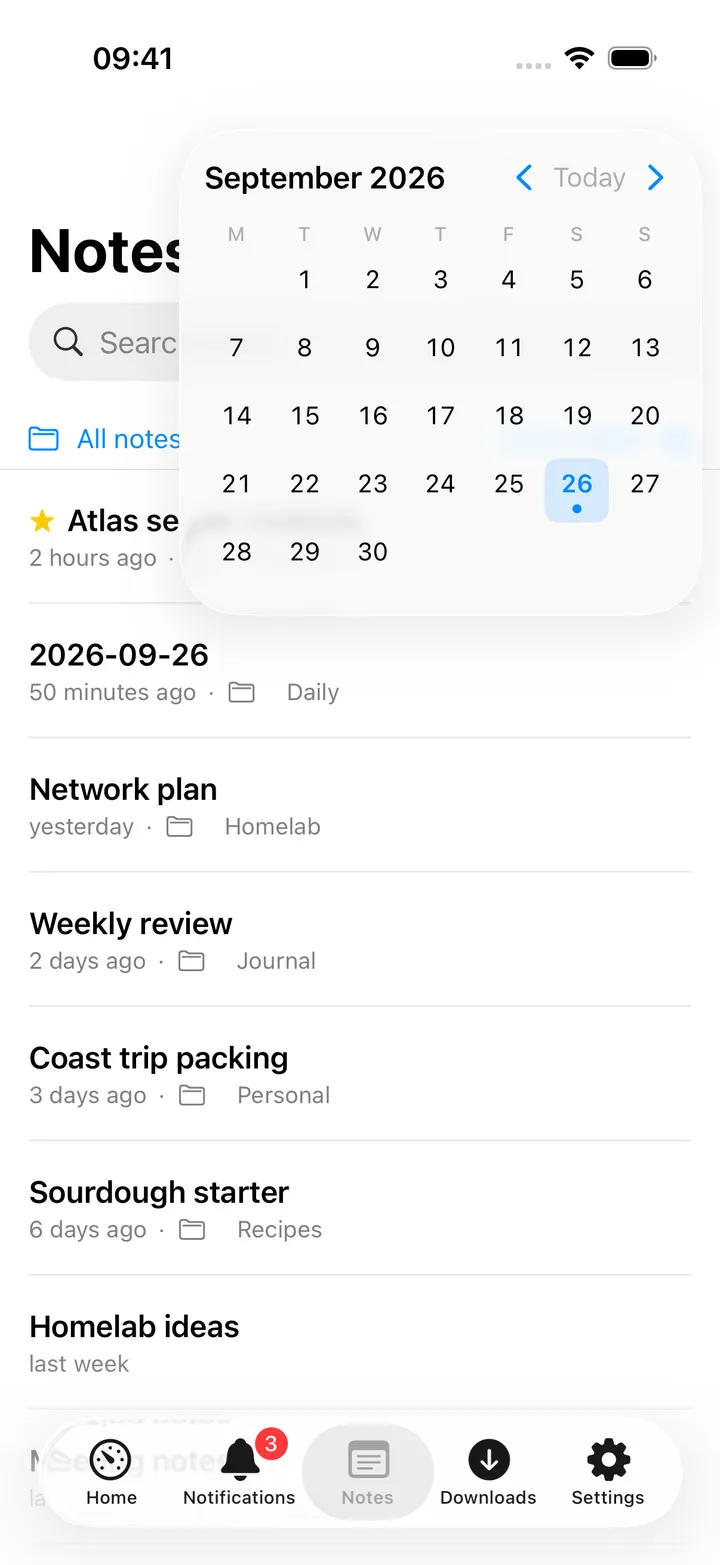
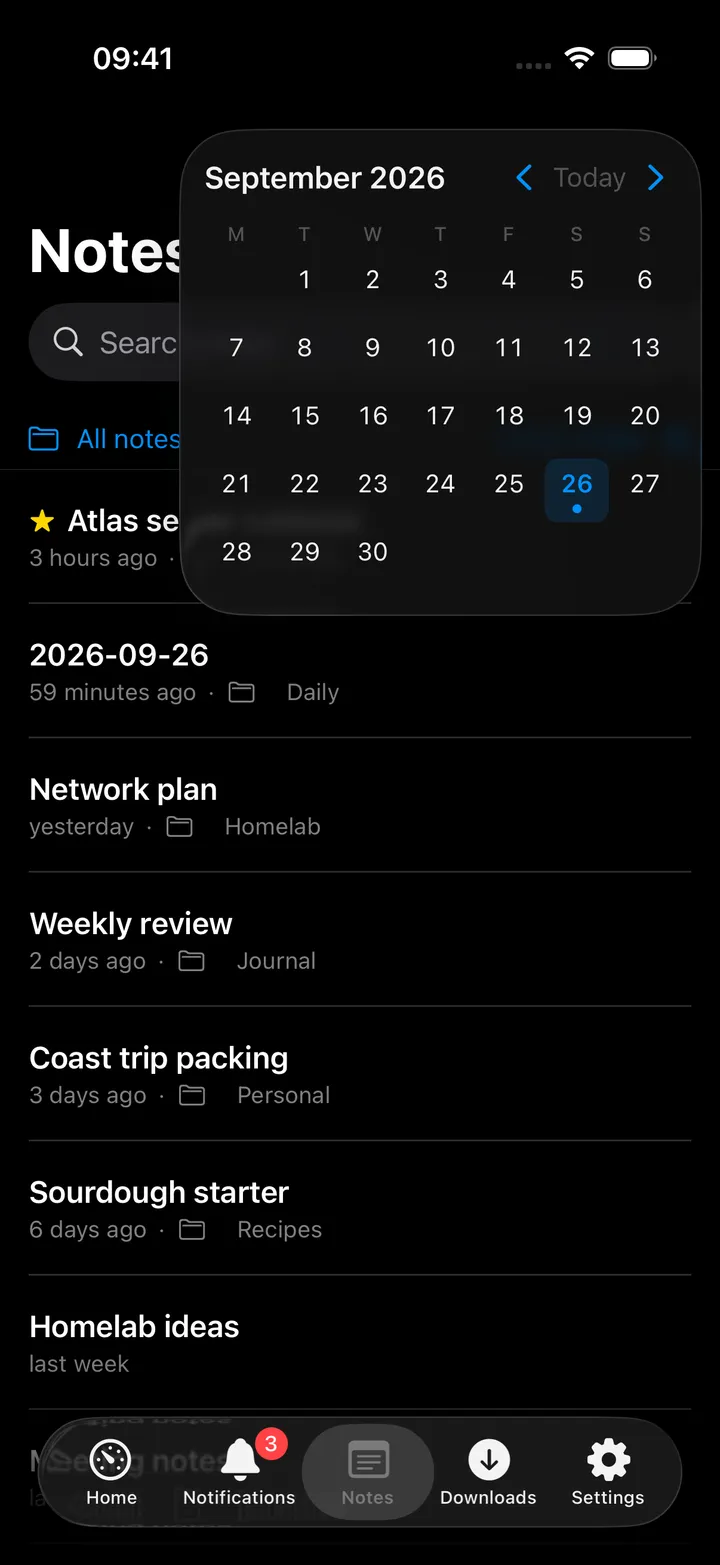
Open daily note opens today’s note, creating it if needed, with the cursor at the end. Add to daily note appends a line without opening it. The calendar in the library marks every day that has a note; any day, past or future, opens or creates its note.
Settings → Notes → Daily note sets the folder (default Daily), the name (default yyyy-MM-dd, or another
format), the template it Starts from, and what Added text becomes: a bullet with the time, a bullet, or a
plain line. On the Mac ⌃⌥⌘D opens the Add to daily note panel over any app. Lines added offline
wait until Nextcloud is reachable.
Podcast notes
The Note button in the Podcasts player, the Audiobookshelf player and the Mac’s now-playing bar writes a line
with the moment you were at, a few seconds early so the thought has context. Each episode gets one note in the
podcast folder (Settings → Notes → Folders, Podcasts inside the root by default), and every line starts with
a clock such as 12:34. Opening that clock, in the app, the
Nextcloud web app or Shortcuts, plays the episode from that moment. Podcast notes are saved on the device first
and sent to Nextcloud through the offline queue. See PinePods for the listening side.
Event and photo notes
A calendar event has a note of its own, written the way a podcast note is: a short text, added as a bullet with
the time to one note per event occurrence, named <event> – <day> in the Calendar events folder. The note is
made with the event’s heading, time and place the first time you write to it. On iPhone, an open event has an
Add a note bar under it, and the event’s long-press menu has Add a Note; on the Mac, the event’s detail
has a Note button and the right-click menu Add a Note, and the text is written inside the detail itself.
A photo gets the same from Add a note on its Info sheet: one note per photo, named after the file and the day it was taken, in the Photos folder, with the date and an Open in Immich link as its first lines.
Both wait on the device when Nextcloud is out of reach and go up with the next load, like an addition to the daily note. None of it appears unless your Nextcloud has the Notes app.
Quick Note on the Mac
Quick Note is a small notes window you can call up over any app with ⌃⌥⌘M. It floats above other windows, also over full-screen apps and on every Space, and typing in it does not switch you away from the app you were in. Pocket Homelab only has to be running; its main window can be closed. Everything you write goes straight into Nextcloud Notes, in the same rich editor as the Notes workspace.
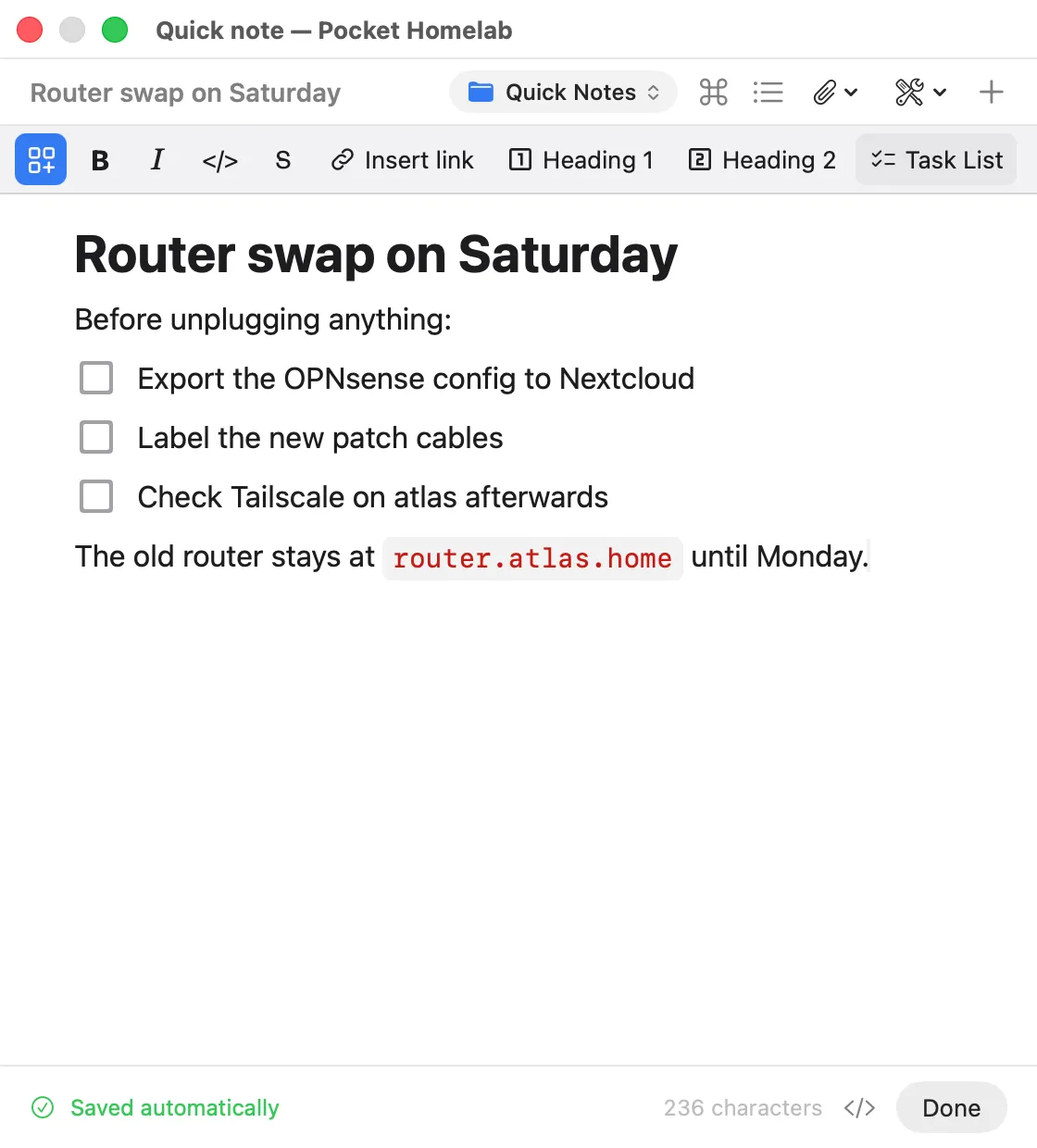
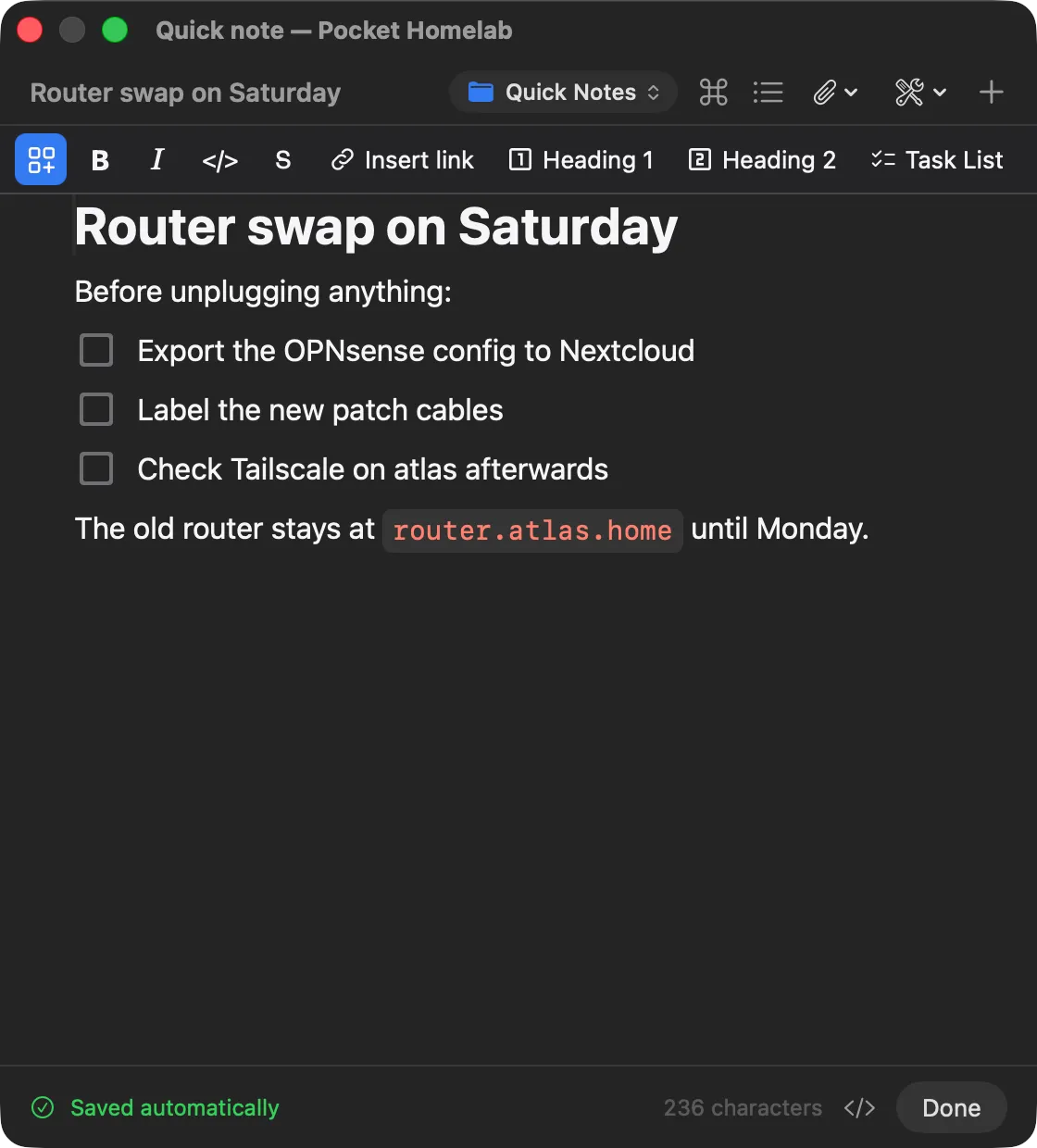
How it behaves:
- It opens on the note you had last. Press the shortcut again, or Esc, and it hides with the note kept; ⌘↩ (Done) saves and closes it. ⌘N starts a new note.
- It saves as you type. The footer says Saved automatically. Without a connection it says Saved on this Mac, sent when Nextcloud answers, and if the note was changed in Nextcloud meanwhile you choose Keep mine or Use theirs. ⌘S saves at once.
- The first line is the title, as everywhere in Nextcloud Notes. New notes go to the folder shown in the header
chip:
Quick Notesunless Settings → Notes → Quick Notes says otherwise. - It remembers where you put it. Drag it anywhere and resize it; position and size survive a relaunch.
- The header also has the attachment and homelab-tools buttons, the same as the Notes workspace. A password or token pasted into a note is pointed out in the footer.
Examples
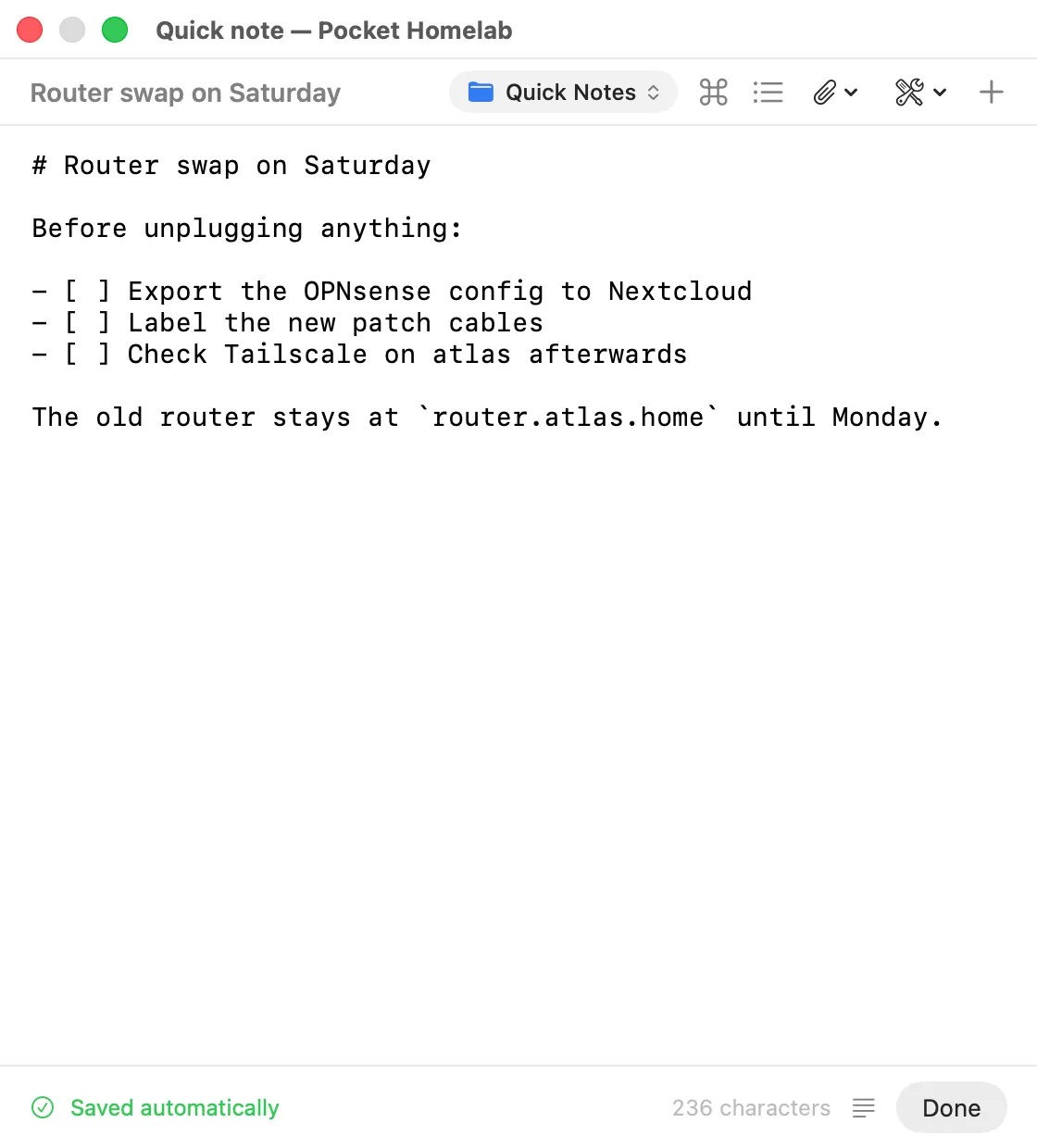
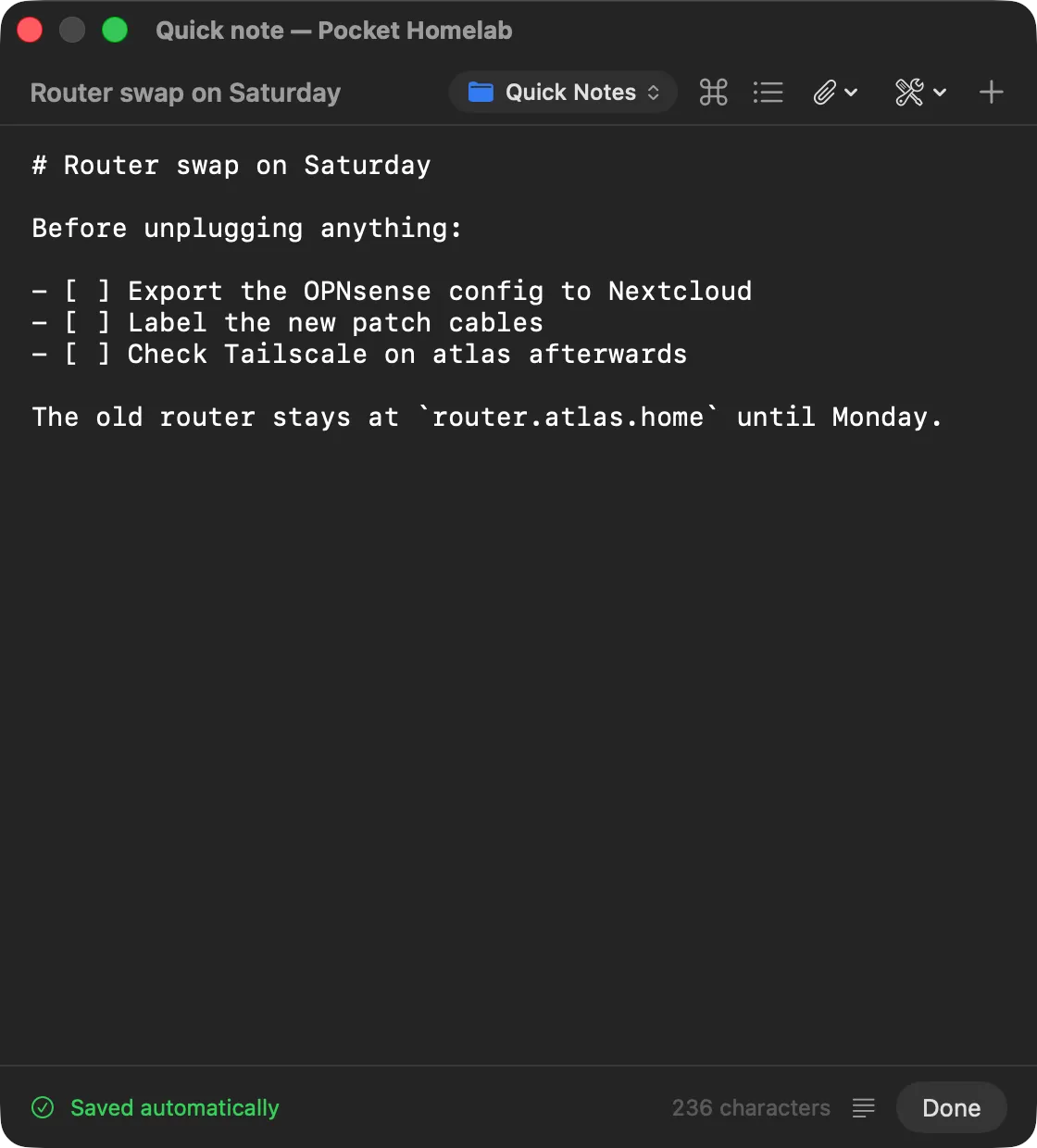
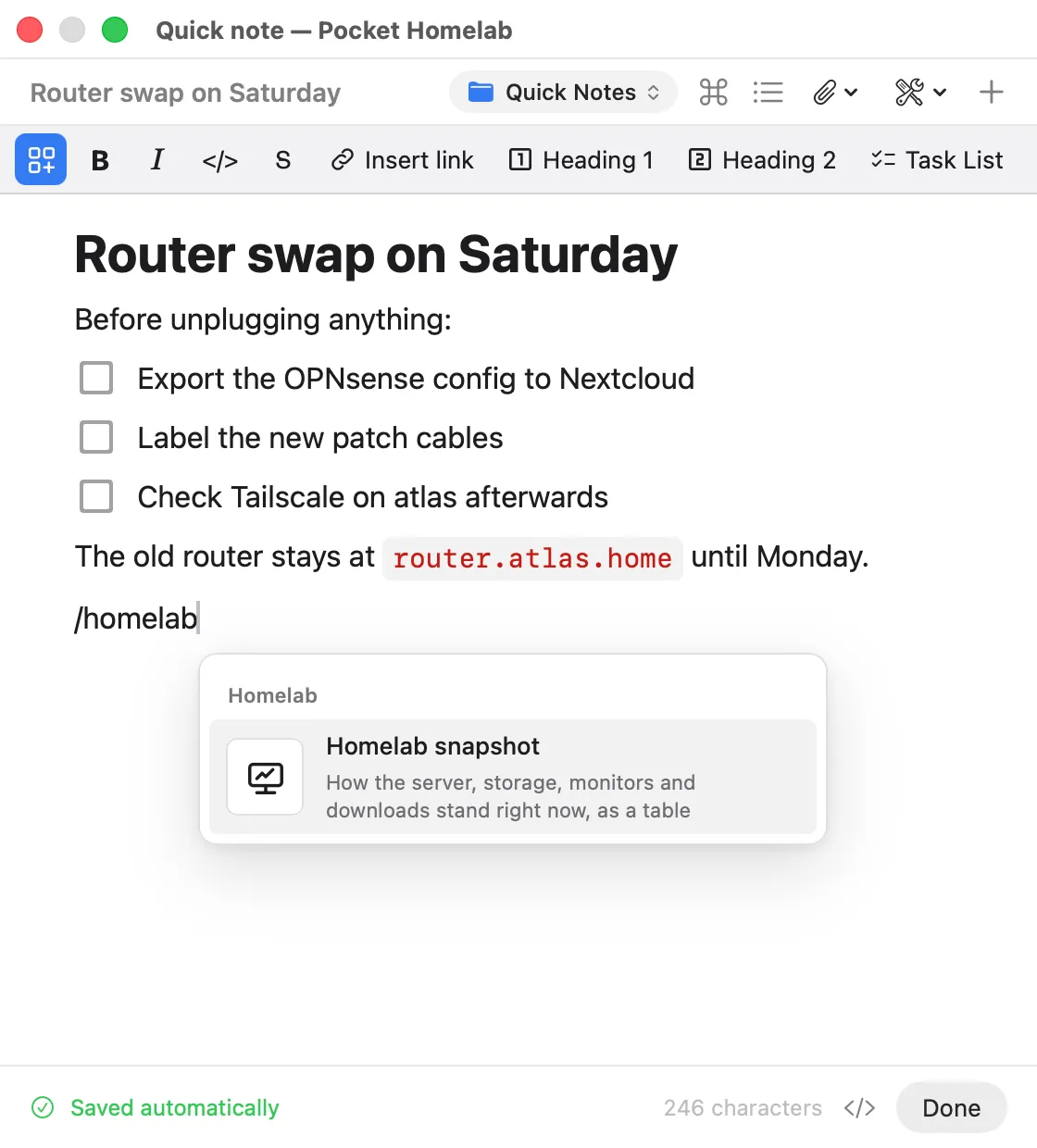
Write it down, get Markdown. The note above was typed as # Router swap on Saturday, a line of text, three
items after Task List in the toolbar, and a host name between backticks. ⌘E shows the file
exactly as Nextcloud stores it, and switches back.
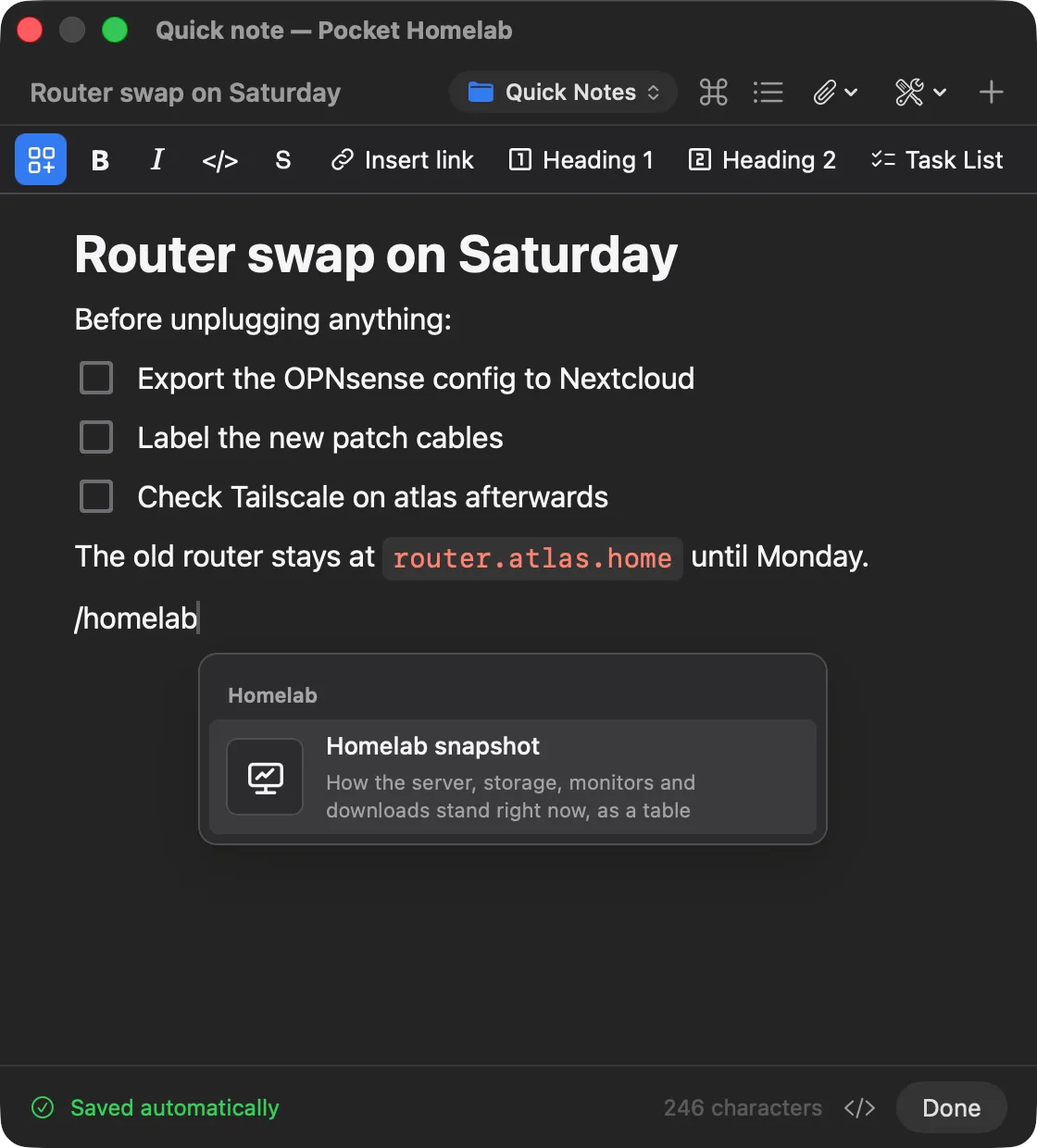
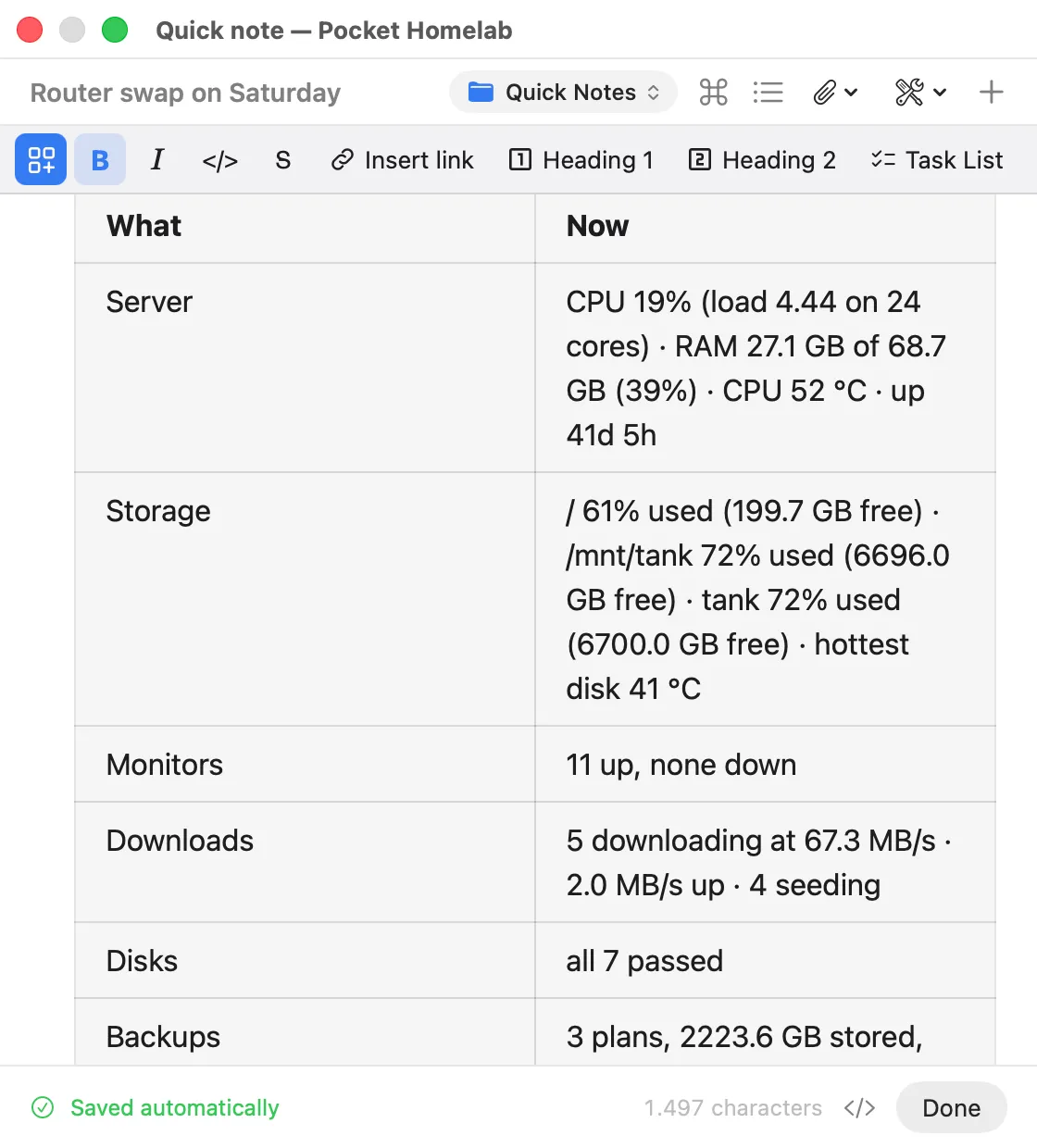
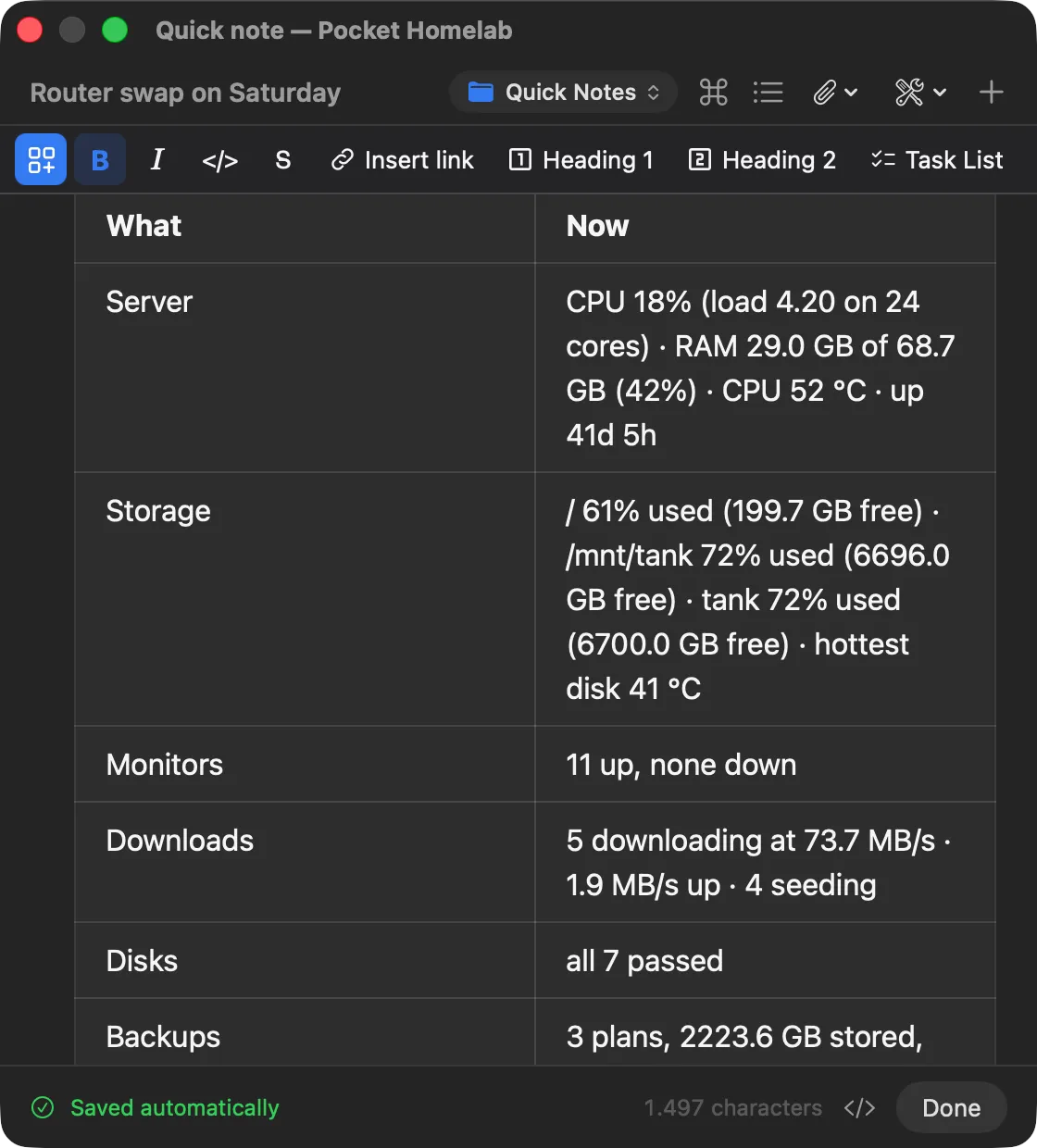
Pull in live numbers. Type / for blocks, then homelab to narrow the list. Homelab snapshot
drops in a table of how the server, storage, monitors, downloads, disks and backups stand right now, handy before
and after a change like this one. ⇧⌘P opens the same menu.
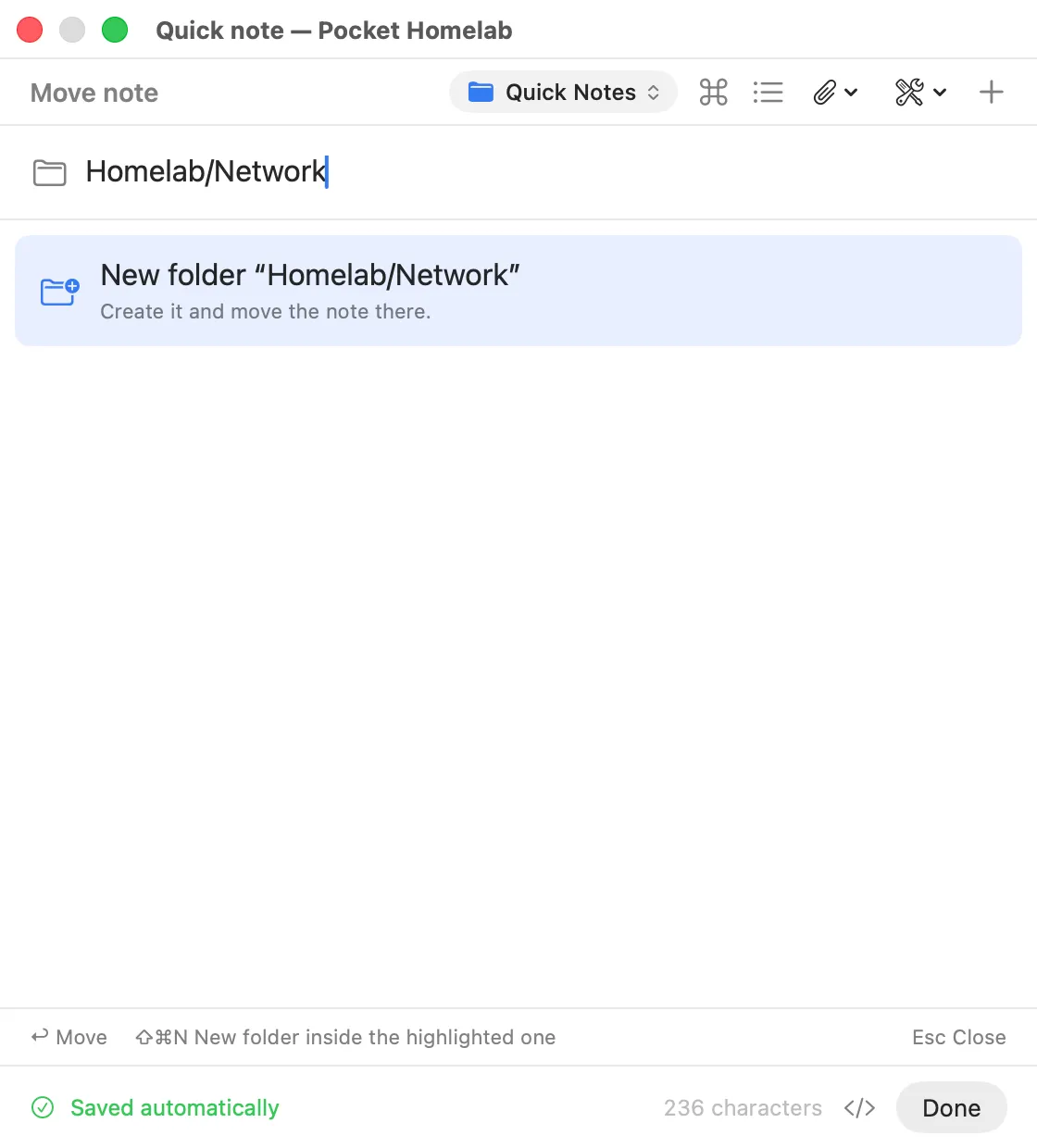
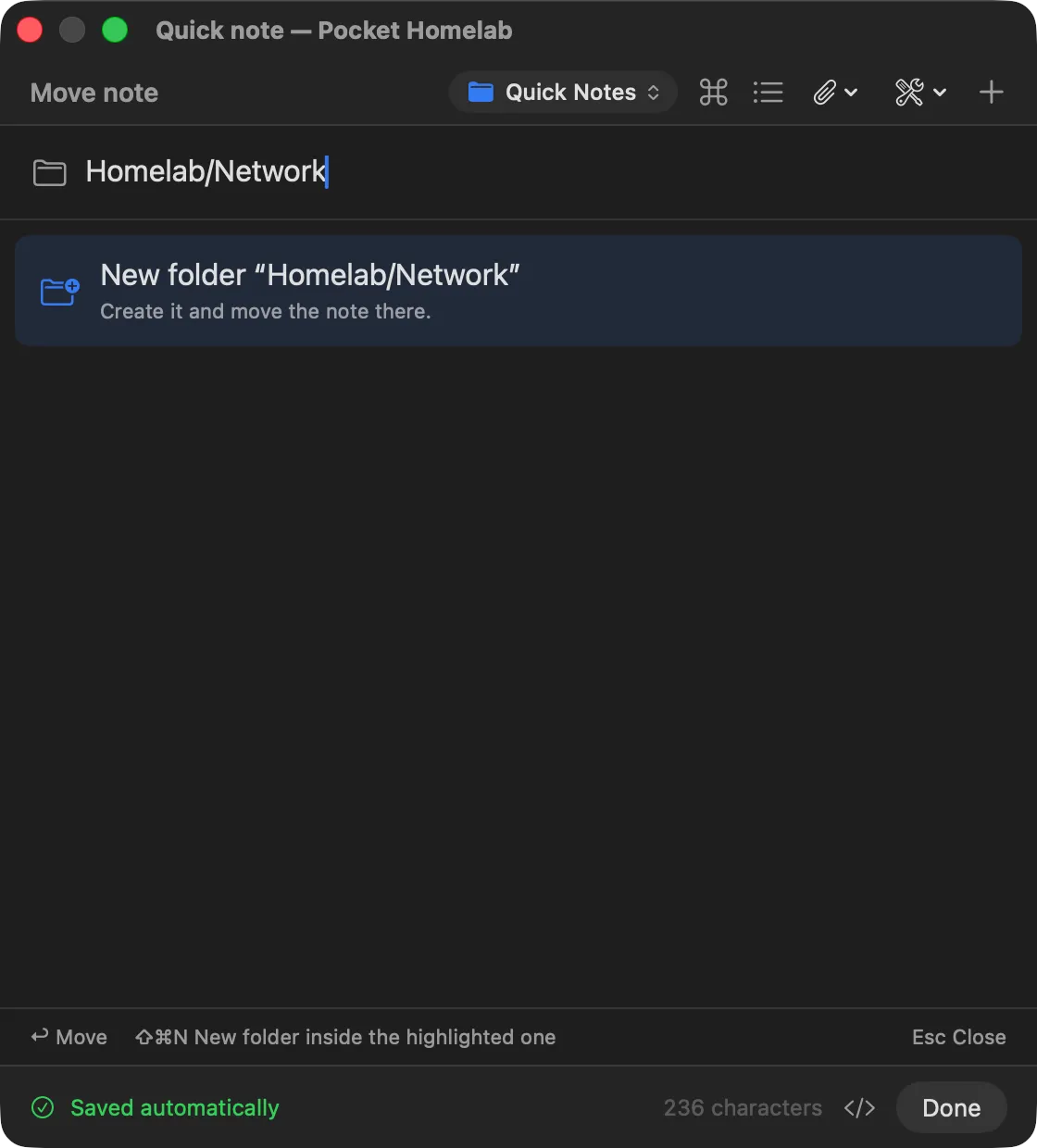
File it. Click the folder chip in the header, or choose Move to folder… in the actions. Type to filter the
folders and press ↩ to move the note. A name that is no folder yet, such as Homelab/Network, offers
New folder: it is created, nested, and the note moves into it. ⇧⌘N makes a folder inside the
highlighted one.
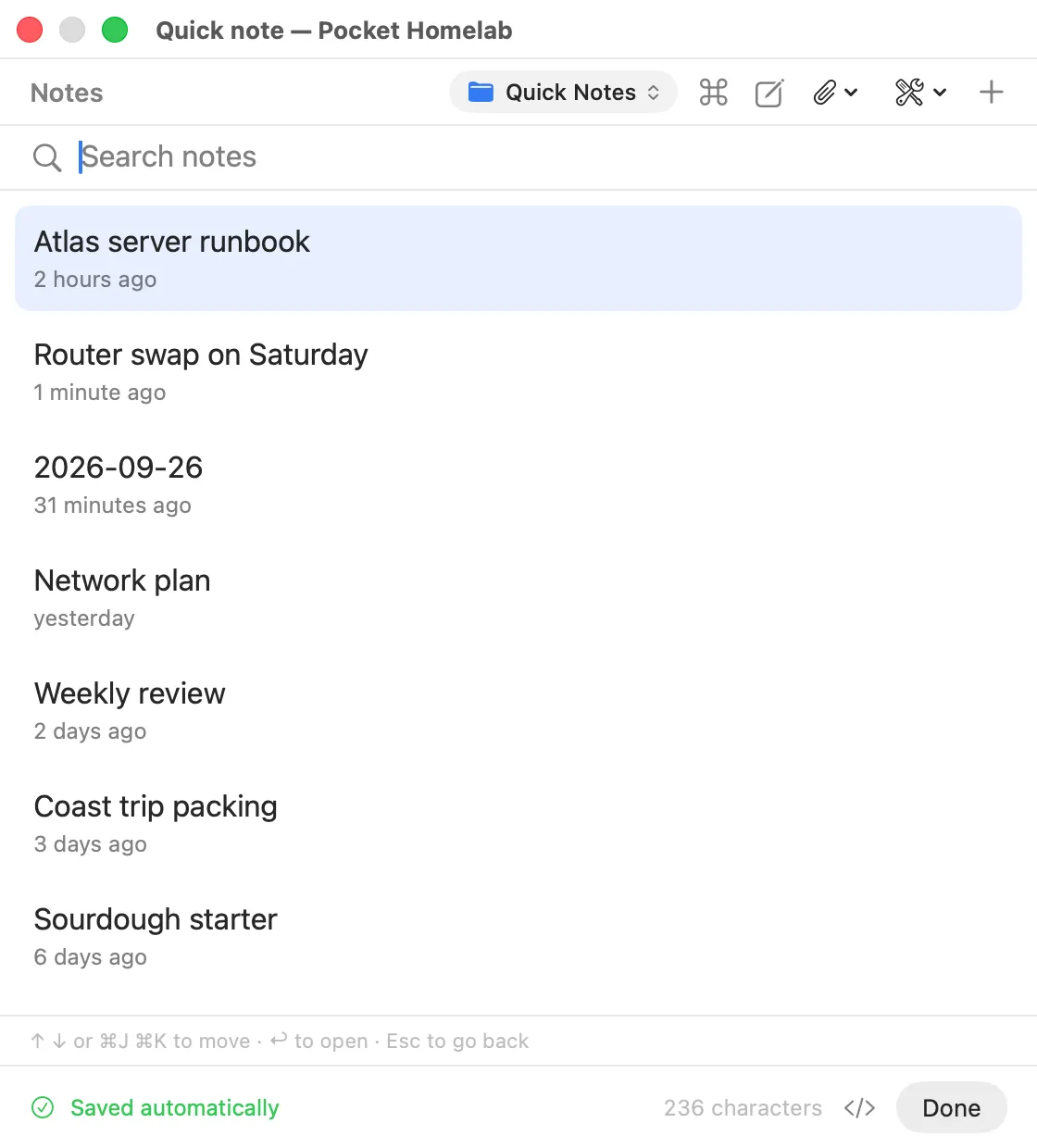
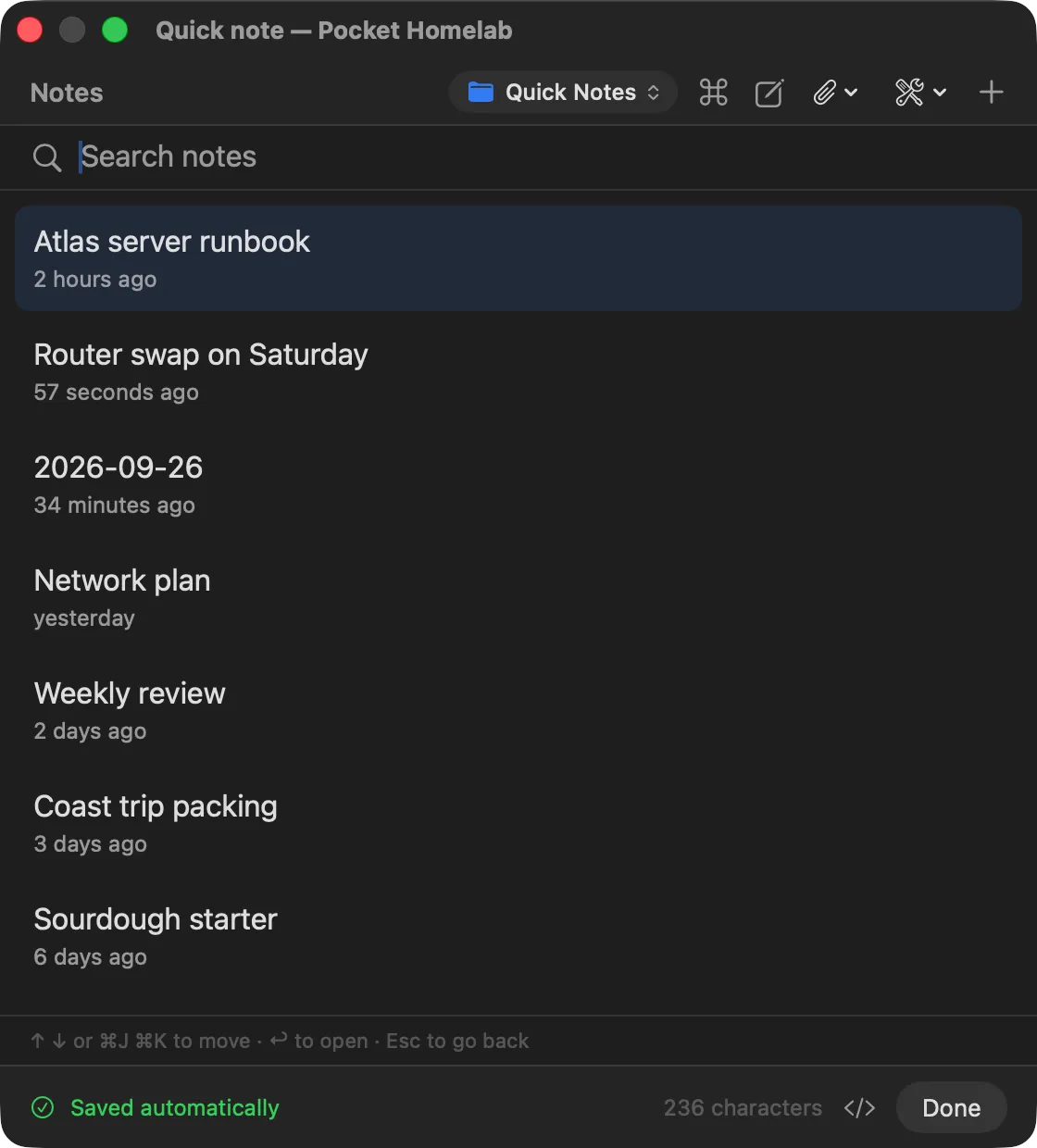
Find an older note. ⌘P lists your notes, newest first, and filters them as you type. ↑ ↓ or ⌘J ⌘K move through the list, ↩ opens the note in the panel and Esc goes back to the one you were writing.
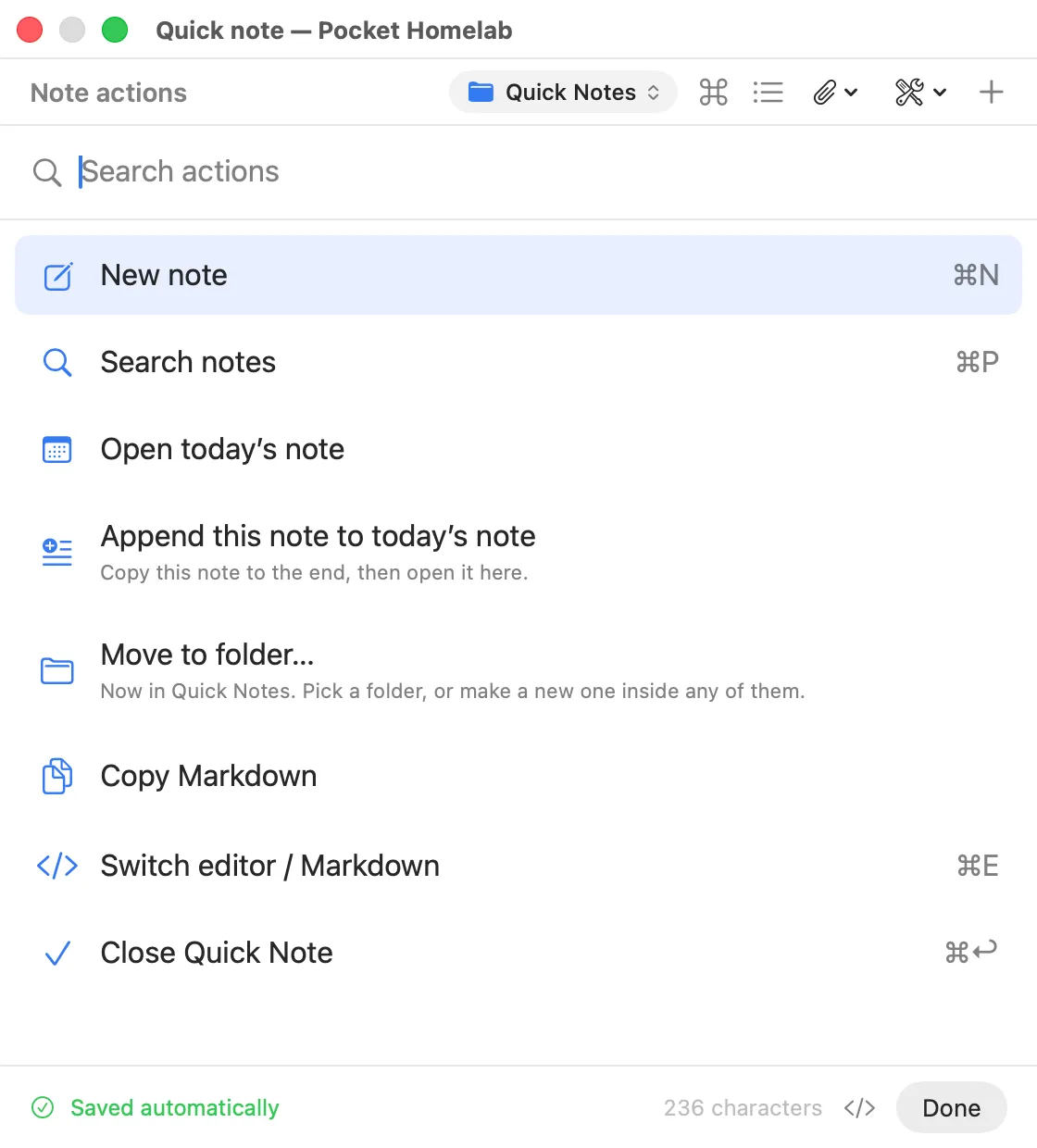
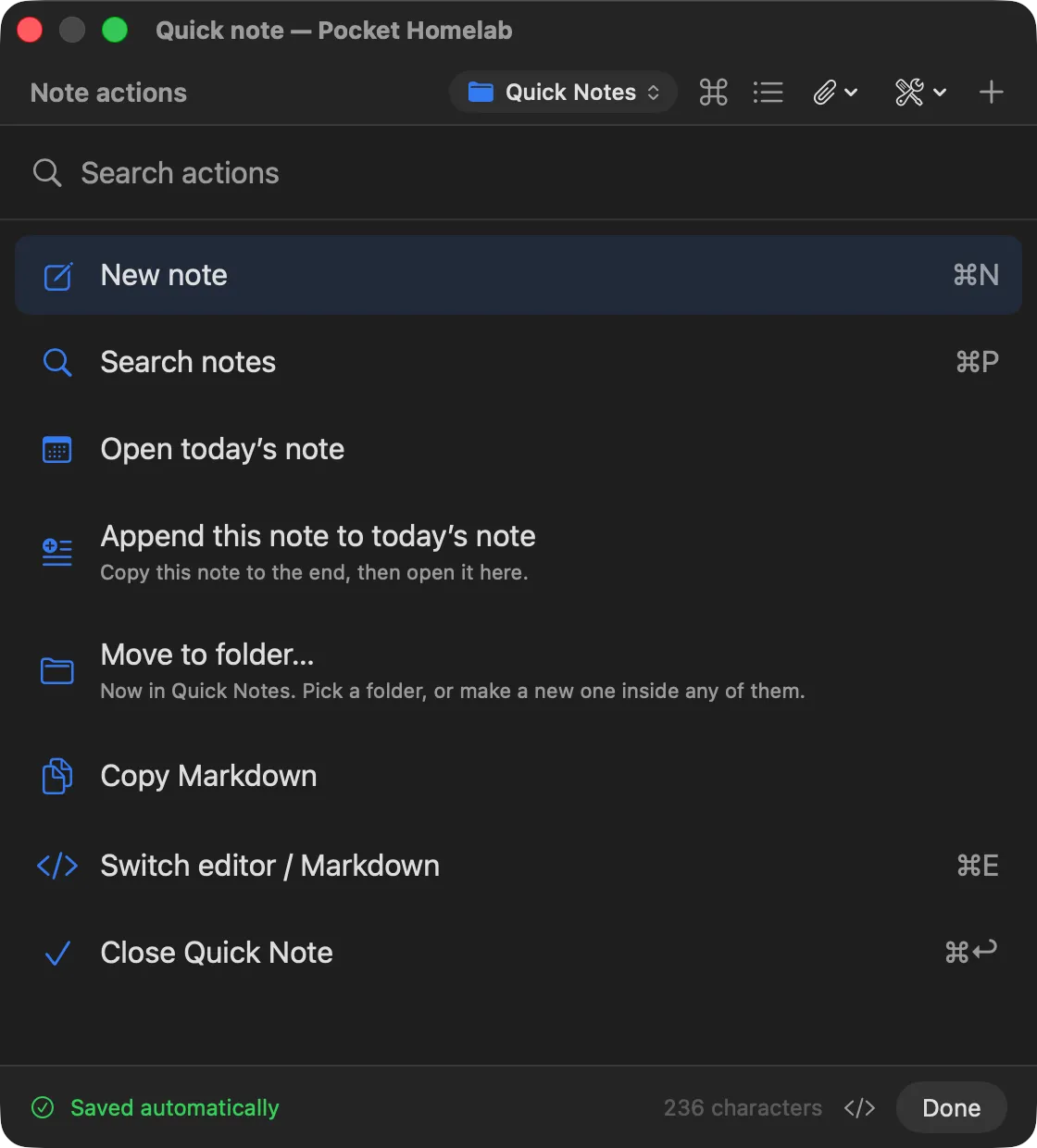
Do everything from the keyboard. ⌘K opens the note actions, searchable like a command palette. Append this note to today’s note copies the quick note to the end of your daily note and opens it there.
| Keys | In the Quick Note panel |
|---|---|
| ⌃⌥⌘M | Show or hide the panel, from any app |
| ⌘K | Note actions: new note, search, today’s note, append to today’s note, move, copy Markdown |
| ⌘P | Search notes; arrows or ⌘J ⌘K and Return open one, Escape goes back |
| ⌘N | New note |
| ⌘S | Save now |
| ⇧⌘P | Insert menu |
| ⌘E | Switch between the editor and plain Markdown |
| ⌘↩ | Done |
| Esc | Hide the panel; the note stays |
Add to daily note
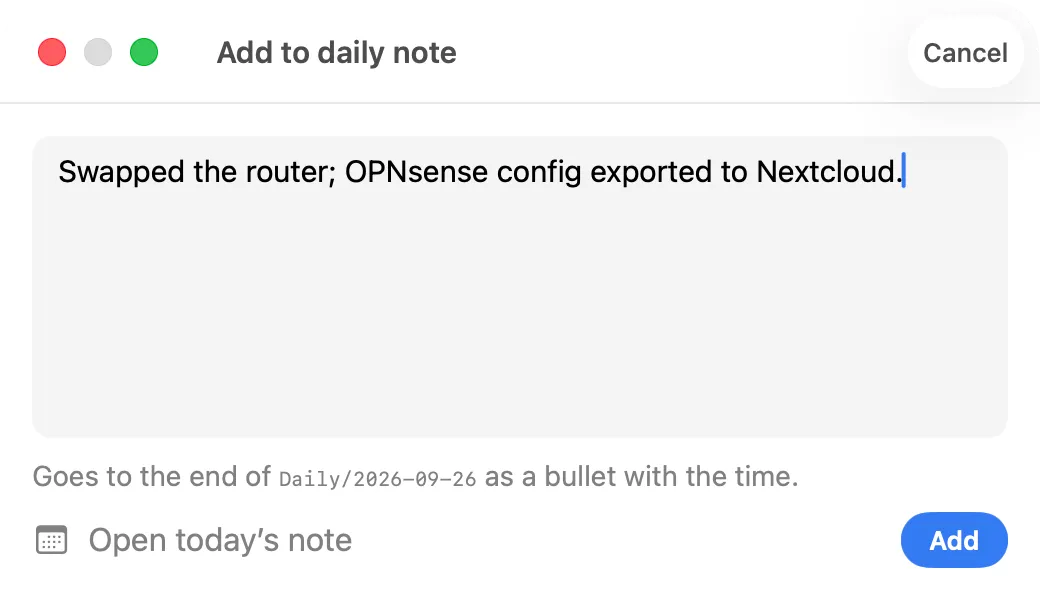
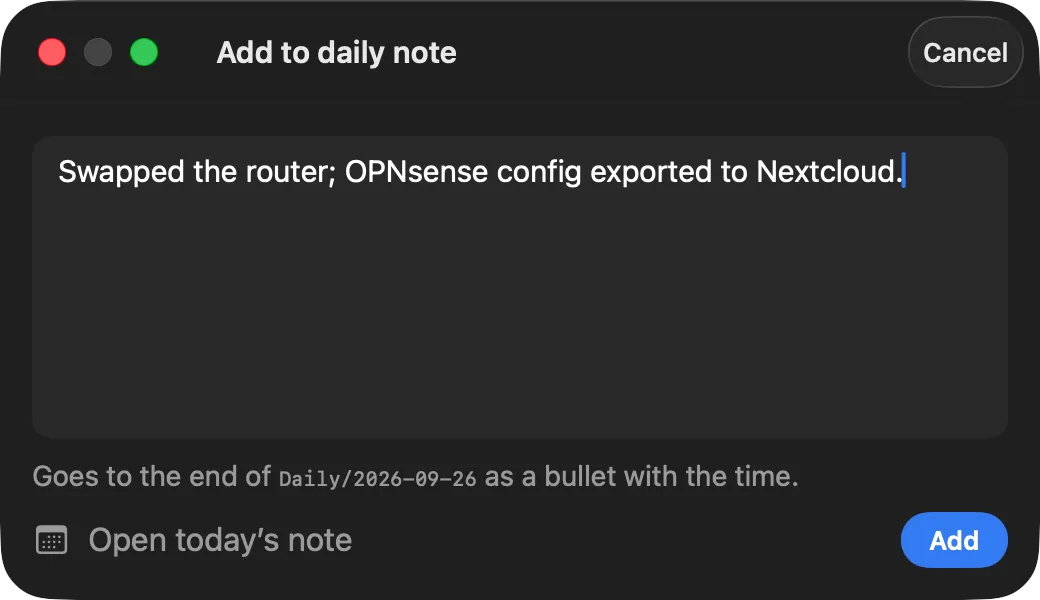
⌃⌥⌘D is the smaller sibling: one field over any app for a line in today’s daily note. Add puts it at the end of today’s note in the style set under Daily notes, a bullet with the time by default; Open today’s note opens the whole note instead. Escape hides the panel and keeps what you typed.
Changing the shortcuts
Settings → Quick Actions → From any application lists the floating windows (Quick note, Add to daily note, Add transaction and Add task) with their shortcuts. Click a shortcut to change it, use Open to try a window, or turn the system-wide shortcuts off. If another app already holds a combination, the row says so. Quick Note and Add to daily note only exist when your Nextcloud has the Notes app; without it their shortcuts stay free for other apps. ⇧⌘P and ⌘E work in the Notes workspace too, and can be changed in Settings → Quick Actions → Shortcuts. See the keyboard shortcuts.
The note controls on iPhone
While a note is open, a second floating button sits beside the quick-action button: tap it for a menu, or hold, slide onto an action and release. It switches between reading and editing, shows the Markdown, adds attachments and opens Notes settings. Customise reorders the actions and Settings → Notes sets how long the hold takes. While you edit, it takes the quick-action button’s place. The note controls work on the free plan.
Offline
Each device keeps the list, every note you have opened and any edit not yet sent. An edit made while Nextcloud is out of reach is kept (“Saved on this device. It goes to Nextcloud when the server answers.”) and sent as soon as the server is back; if the note changed on the server in the meantime, you are asked first. A note that never loaded on this device cannot be edited offline. Settings → Notes shows how many notes are kept and has Forget the notes kept on this iPhone (or Mac), which never touches the notes in Nextcloud.
Tips & troubleshooting
- No Notes tab after connecting Nextcloud: install the Notes app on the server, then press Check again in Settings → Services → Nextcloud, and switch the tab on in Settings → Tabs.
- A note shows as Markdown instead of formatted text: the editor could not read it. The header’s note details say why; the text is untouched and editable as Markdown.
- Pictures do not appear: check the attachments folder in Settings → Notes → Folders.