
Paperless-ngx
Browse, search, tag and upload Paperless-ngx documents, including scanning paper straight from the camera.
iPhoneMacOn this page
Paperless-ngx is a self-hosted document archive with OCR. Pocket Homelab gives you a Documents screen with the inbox, full-text search, tags, correspondents, bulk edit, plus an upload sheet that accepts a file, a photo, or (on iPhone) a live camera scan turned into a PDF on the spot. On Mac the document itself opens inside the page.
What you get
- Home row: value like “3 in inbox” or “128 documents”; orange when something is in the inbox, red when an upload failed.
- Home header option: “Documents inbox”.
- “Docs” tab (optional, off by default) with Inbox, All documents, Untagged, Uploads, tags, correspondents, document types and storage paths.
- Screen action button (iPhone): a round button beside the + on the Documents hub, with its pages and actions.
- Quick action: Documents (⌘⇧D on Mac).
- Spotlight/palette: a live full-text search section once you type 2+ characters.
- Mac: sidebar Documents (⌃⌘4), and a Documents widget on the Mac Home that lists the inbox or the latest additions.
- Home Links row: a Paperless link appears with just the URL set, before you add a token.
Set up
- In Paperless-ngx, open your profile menu → API Auth Token and copy it. The token inherits whatever permissions that user has, make sure the account can see the documents you want in the app.
- In Pocket Homelab, go to Settings → Services → Paperless, paste the URL and token, then press Test connection. You should see “Signed in as <username> · N document(s)”.
| Key | Field | Required | Secret | Where to get it |
|---|---|---|---|---|
PAPERLESS_URL | Paperless URL | Required | — | Base URL of your Paperless-ngx instance. Leave empty to hide Paperless features. |
PAPERLESS_TOKEN | Paperless API Token | Required | Secret | Your Paperless profile → API Auth Token. Documents must be visible to this user. |
On iPhone
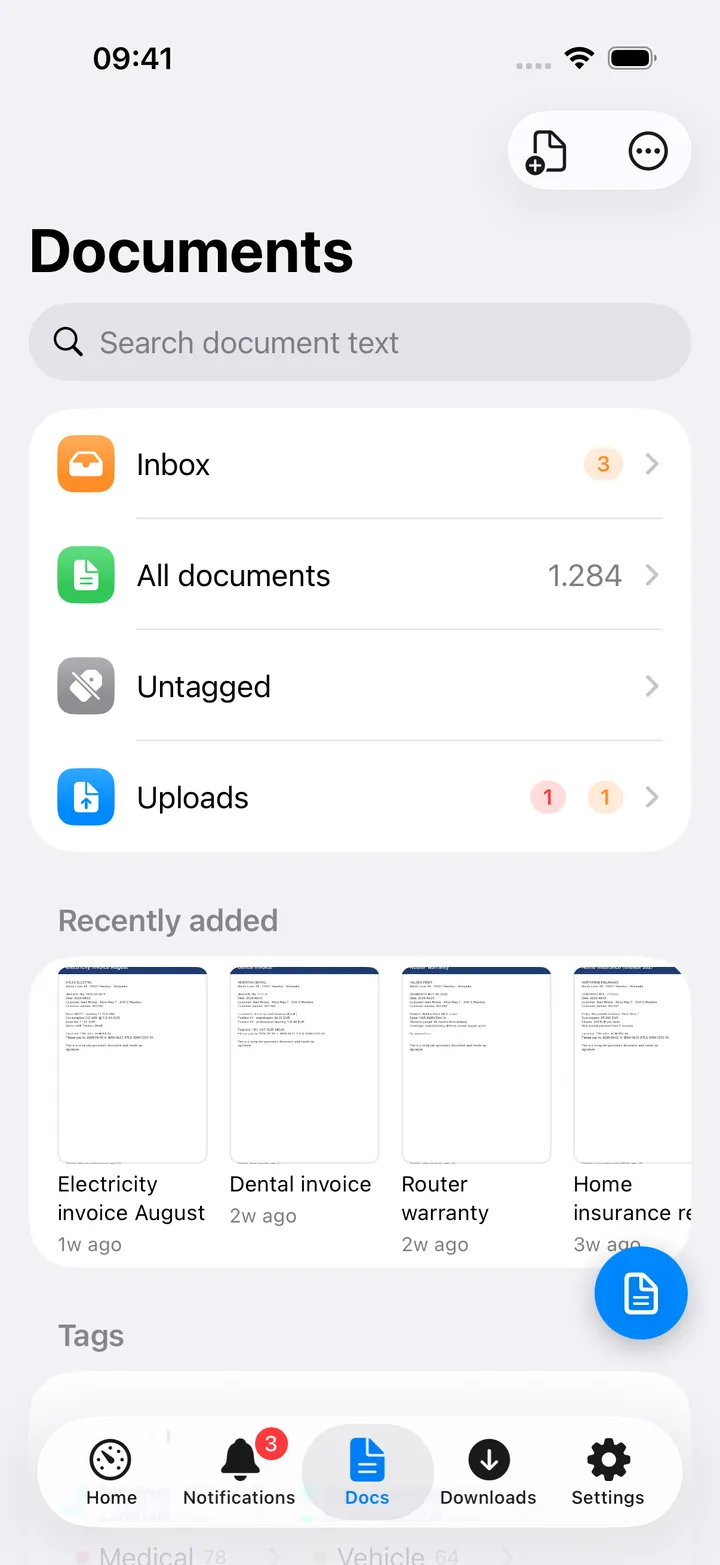
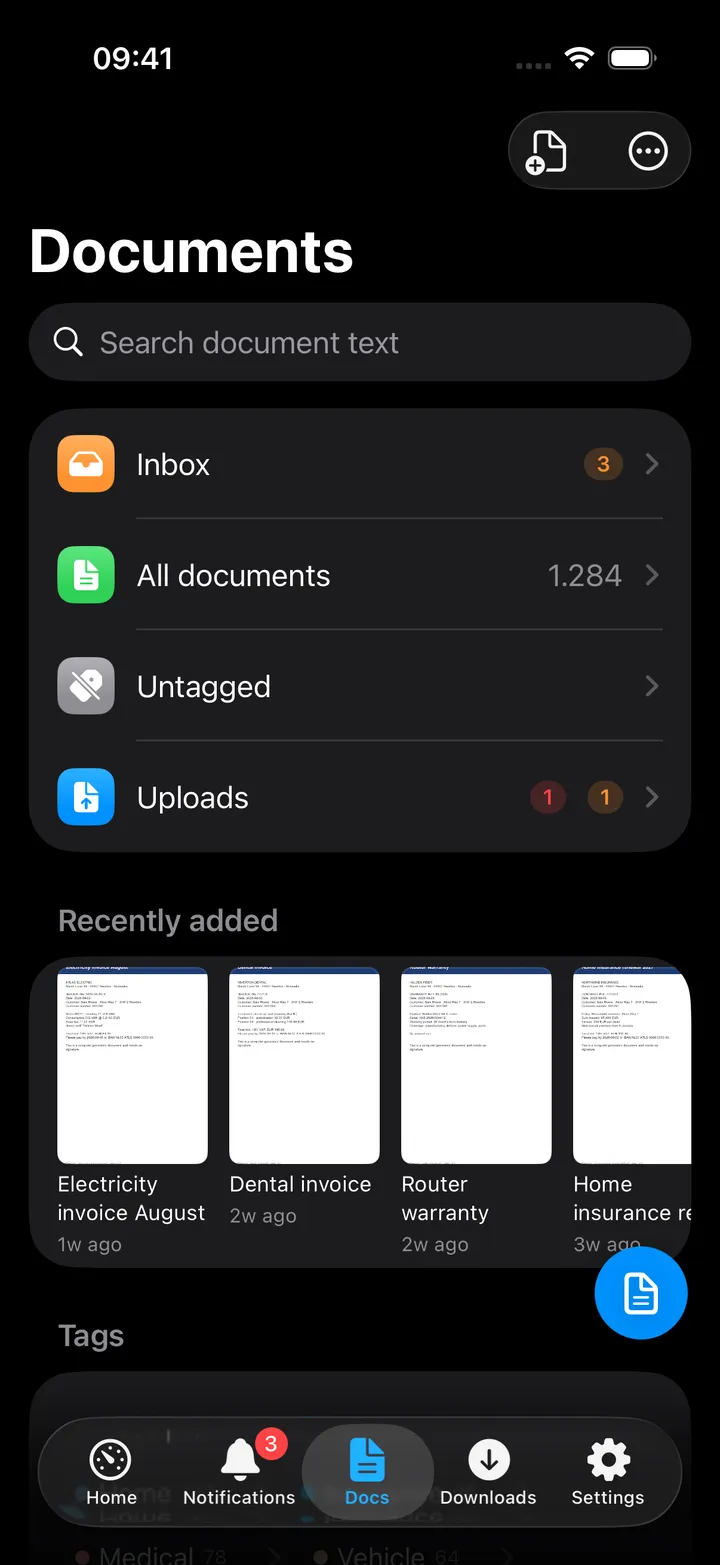
The Documents hub starts with four rows: Inbox (with an orange count, only when you have an inbox tag), All documents (with the total), Untagged and Uploads (a red badge for failed uploads, an orange one for uploads still processing). Below them come Recently added as a sideways strip of thumbnails, your 14 most used tags as chips, and the top five correspondents, document types and storage paths, each with an All … row when there are more. A footer sums up the archive: documents, characters of text and the most common file types.
The search field at the top searches the text of every document once you type two characters, and shows the matches with an excerpt. The toolbar has Upload and a ⋯ menu with Refresh and Open Paperless.
A document list (a tag, the inbox, everything) has its own Search within field, a Sort menu (newest or oldest added, newest or oldest created, title A–Z or Z–A, ASN, recently modified) and Select. Select mode puts a bar at the bottom for bulk Tags (add or remove a tag), Correspondent, Type and Delete (move to the trash).
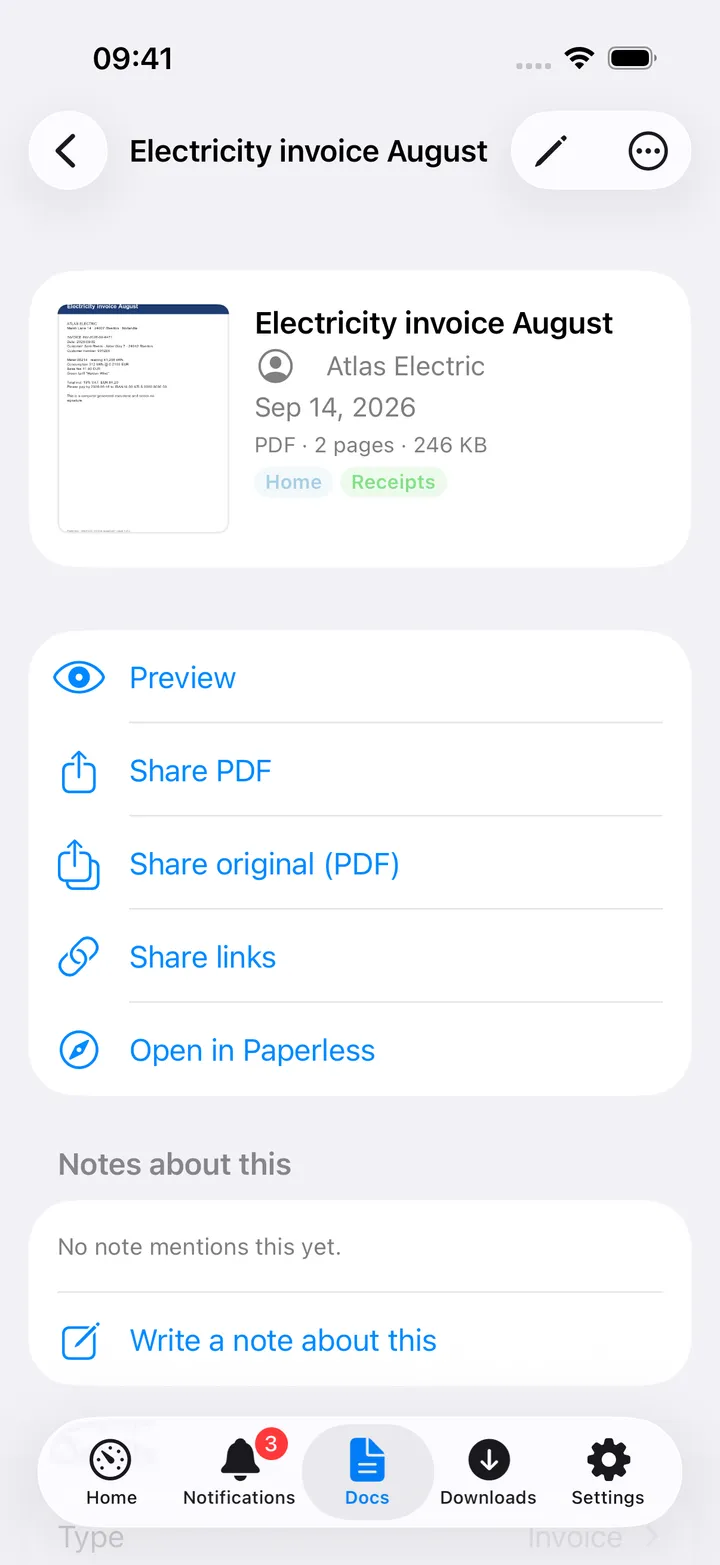
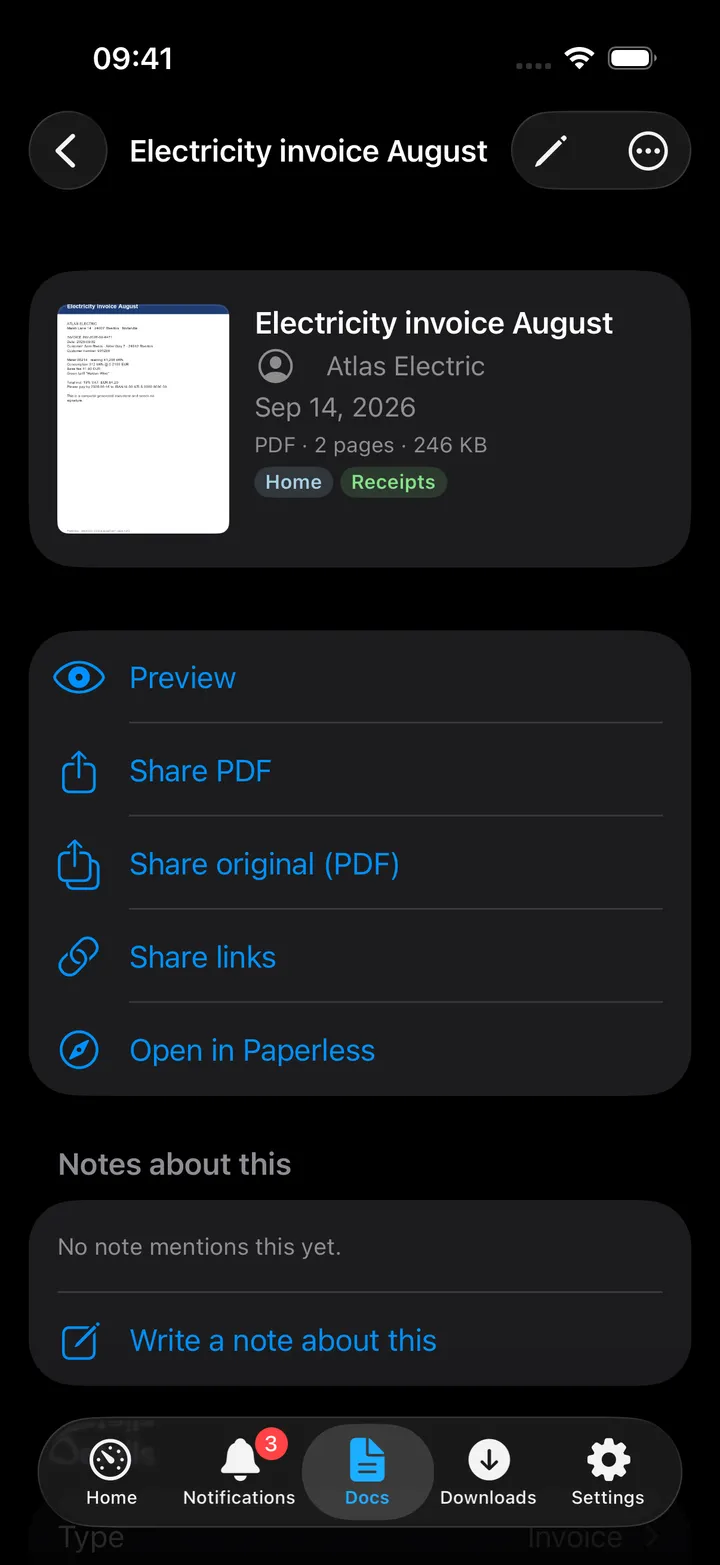
A document opens with its thumbnail, title, correspondent, date, file type, page count and tags. Tap the thumbnail or Preview to read it in a Quick Look sheet. Below are Share PDF, Share original (when Paperless kept an original next to the archive PDF), Share links and Open in Paperless, then Details (type, correspondent and storage path each open their documents), Notes, the OCR Text and Similar documents with More like this. The pencil opens the edit sheet; the ⋯ menu has Refresh, Copy title, Copy link and Move to Trash. When your Nextcloud has the Notes app, a Notes about this section lists the notes that link to the document and offers Write a note about this.
The upload sheet offers Choose file…, Photo library and, on iPhone, Scan with camera, every scanned page is combined into one PDF automatically. You can set the correspondent, type, tags and created date before sending; leave them on Auto to let Paperless match them.
On the Documents hub a round screen action button sits beside the +. Tap it for a menu, or hold, slide onto a row and release. It starts with five actions (Inbox with its count, All documents, Upload, Uploads, Refresh); Customise swaps in Untagged, Tags, Correspondents, Document types, Storage paths or Open Paperless. Turn it off in Settings → Screen action buttons.
On Mac
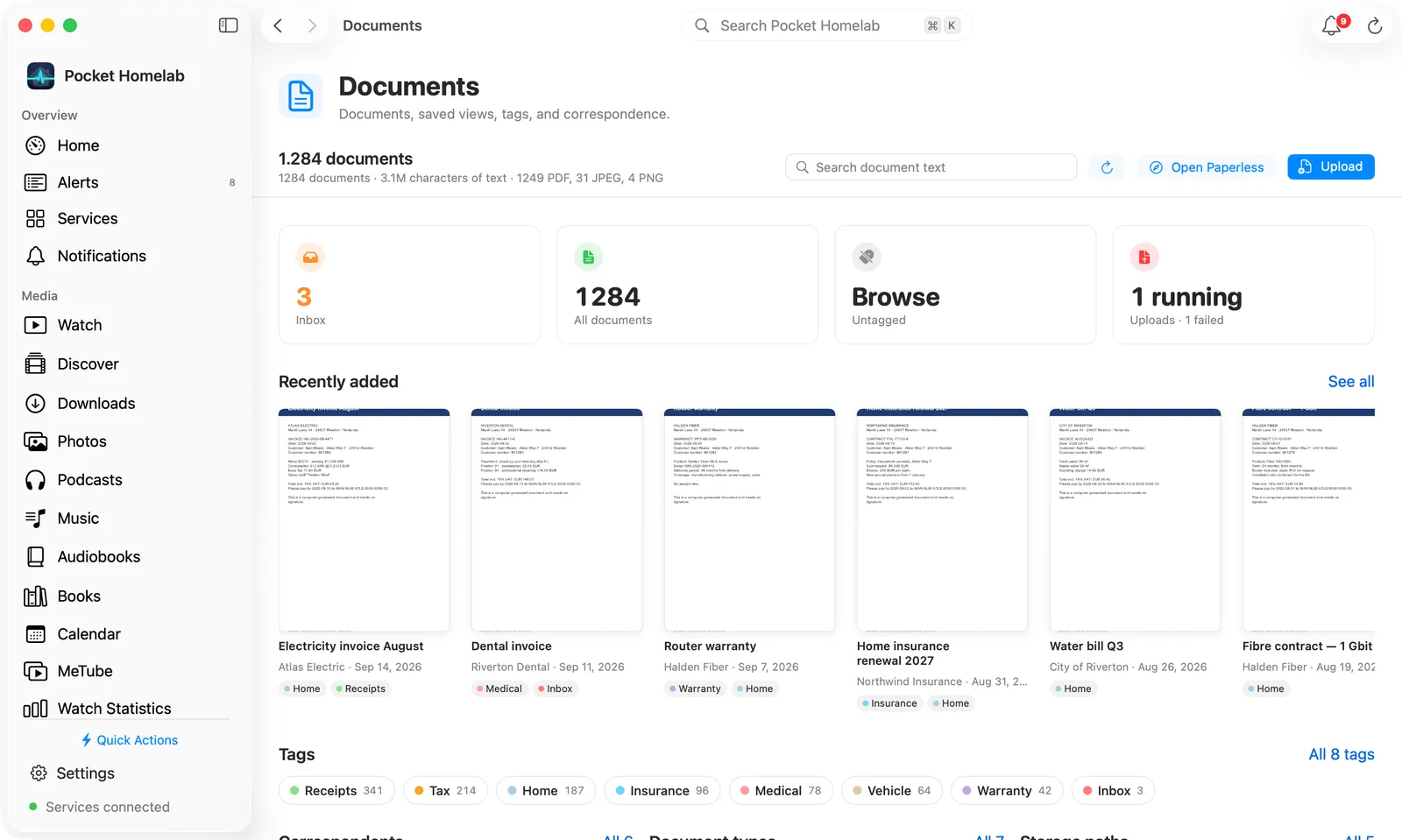
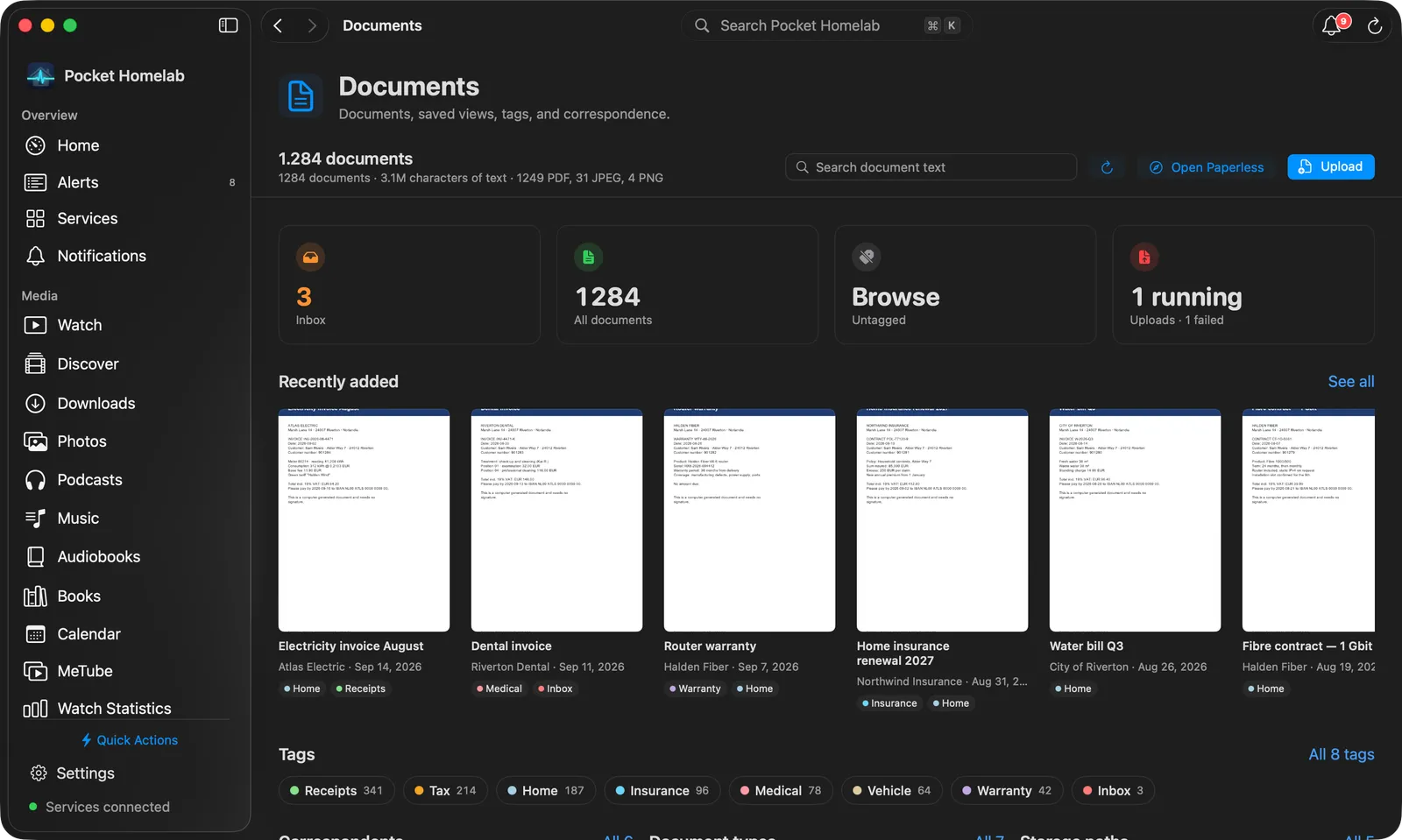
The Documents page opens with a bar: the document count and the archive summary on the left, then a Search document text field, Refresh, Open Paperless and Upload. Under it:
- Tiles: Inbox (the count in orange, or Empty; only with an inbox tag), All documents (the total), Untagged and Uploads (N running or Done; the tile turns red and reads Uploads · N failed when an upload failed). Click a tile to open that page.
- Recently added: a shelf of large thumbnails with title, correspondent, date and tags; See all opens every document.
- Tags: a cloud of your 30 most used tags with their counts; All N tags opens the full list.
- Correspondents, Document types and Storage paths: three cards side by side, each ranking the top six by document count with a bar, and an All N link.
Typing in the search field replaces the page with the results as a grid of documents, each with an excerpt of the matching text.
A document list (a tile, a tag, a correspondent) is a grid of thumbnail cards showing the title, correspondent, date and up to three tags; more documents load as you scroll to the end. Its bar has the count and sort order, a search within, the Sort menu, Refresh and Select. In select mode you click cards to check them and a bar at the bottom offers Select All, Tags (add or remove a tag), Correspondent, Type and Move to Trash.
A document opens inside the page: the archive PDF downloads when you open it and fills the left side as continuous pages fitted to the width. Pinch to zoom, and select text to copy it. Images show as images; a file that is neither offers Open with the Default App. A bar over the viewer has Open in Preview and Share. The column on the right holds the title, correspondent, date, file details and tags, then the same share actions, details, notes, text and similar documents as on iPhone. Edit and the ⋯ menu sit in the window toolbar.
The label pages (Tags, Correspondents, Document types, Storage paths) show every label as a card with its document count, most used first, under a bar with a Filter field, Refresh and New Tag, New Correspondent or New Document Type. The Uploads page is a table of recent uploads with their state, file name, Paperless’s message when one failed and how long ago; it refreshes every 3 seconds while anything is processing, Dismiss Failures clears failed ones, and a finished upload opens its document.
Camera scanning is not available on Mac; the upload sheet offers Choose file… and Photo library.
Actions
- Edit a document’s title, date, ASN, correspondent, type, storage path and tags.
- Move a document to the trash (single or bulk), Paperless keeps it for its own trash retention period.
- Bulk-add or remove a tag, or set/clear a correspondent or document type.
- Add or delete a note.
- Create a tag, correspondent or document type.
- Upload a document (file, photo, or camera scan) with optional metadata.
- Dismiss failed uploads (Paperless marks them acknowledged).
- Create or revoke a share link (archive PDF or original, expiring or not).
Storage paths cannot be created from the app, and there is no permanent delete or restore, only “move to trash”.
Works with
- Home dashboard, the Docs tab and Spotlight/Mac Spotlight all share one overview fetch; deleting a document removes it from the Home tile’s recent list immediately.
- Settings → Downloads: cached PDFs from Preview/Share appear under “Documents” and can be deleted there.
- No interaction with the app badge or push alerts.
Tips & troubleshooting
403reads “Not allowed for /<path>”, grant the token’s user that permission in Paperless → Users & Groups.- Upload badges and counts silently disappear for a token without task-list permission, that’s Paperless returning
403on/tasks/, not a bug. - Upload progress polling stops after about two minutes; check the Uploads screen directly for long OCR jobs.