
SearXNG
Search the web through your own SearXNG instance from the Home dashboard, the Web screen and Spotlight.
iPhoneMacOn this page
SearXNG is a self-hosted metasearch engine that queries other search engines on your behalf without tracking you. Pocket Homelab uses its JSON API to run web searches from inside the app, so results come back through your own instance instead of an unproxied third party.
What you get
- Home block “Search the web”, a search-bar look-alike (full width only) that opens the Web screen.
- Browser link “SearXNG” in Open in Browser.
- Quick action “Search the web” (⇧⌘G on Mac).
- Spotlight: a screen entry “Web search” / “SearXNG”, plus a live “WEB” section once you type two or more characters, a “Search the web for ‘…’” row and the top 5 results, opening straight in the browser.
- No header option, no issue chips, no notifications.
- Mac: sidebar Web under Workspace (⌃⌘9), desktop header “Search the web and explore results from your workspace.”
Set up
- In your SearXNG
settings.yml, make surejsonis listed undersearch.formats, the JSON API is disabled by default on many instances. - In Pocket Homelab: Settings → Services → SearXNG, paste the base URL, then Test connection.
| Key | Field | Required | Secret | Where to get it |
|---|---|---|---|---|
SEARXNG_URL | SearXNG URL | Required | — | Base URL of your SearXNG instance (JSON API enabled). Leave empty to hide web search. |
On iPhone
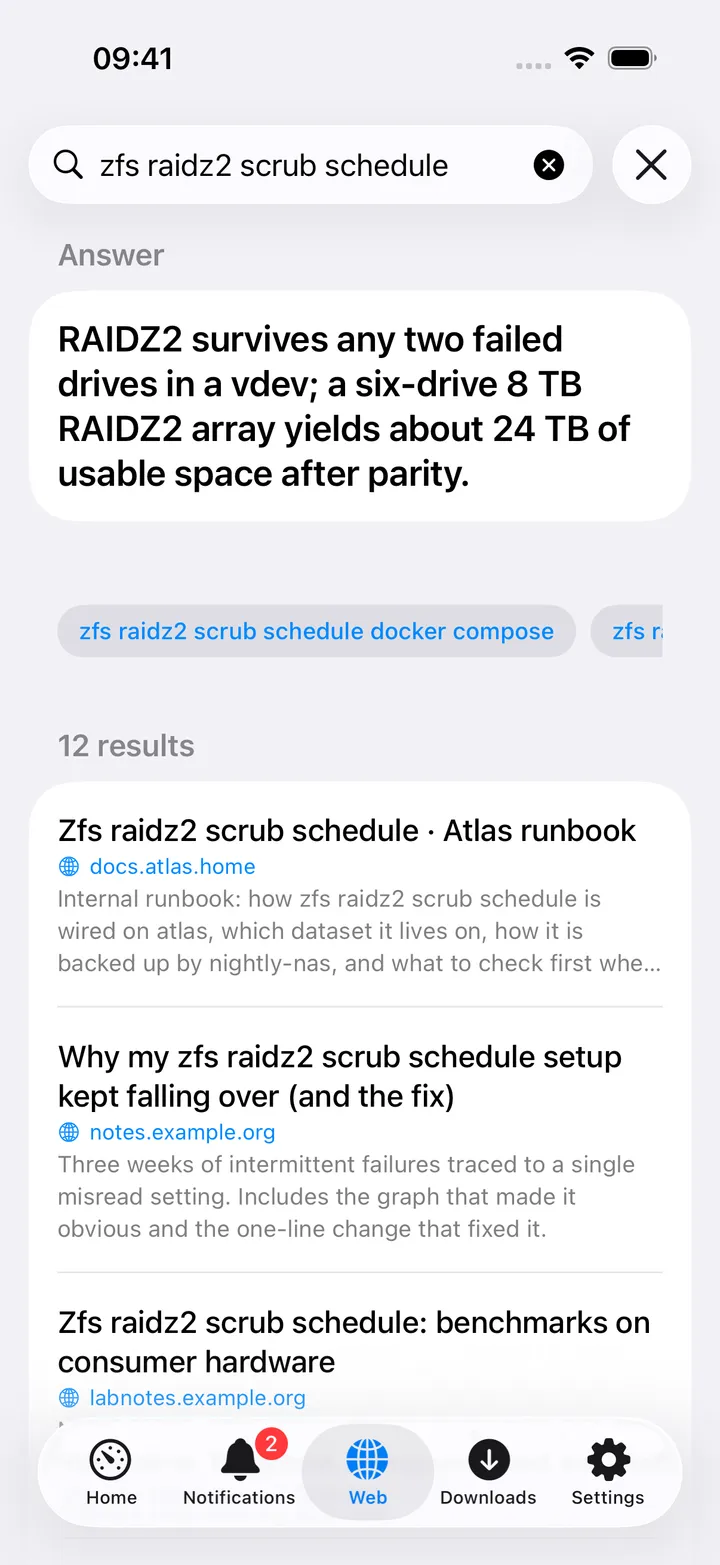
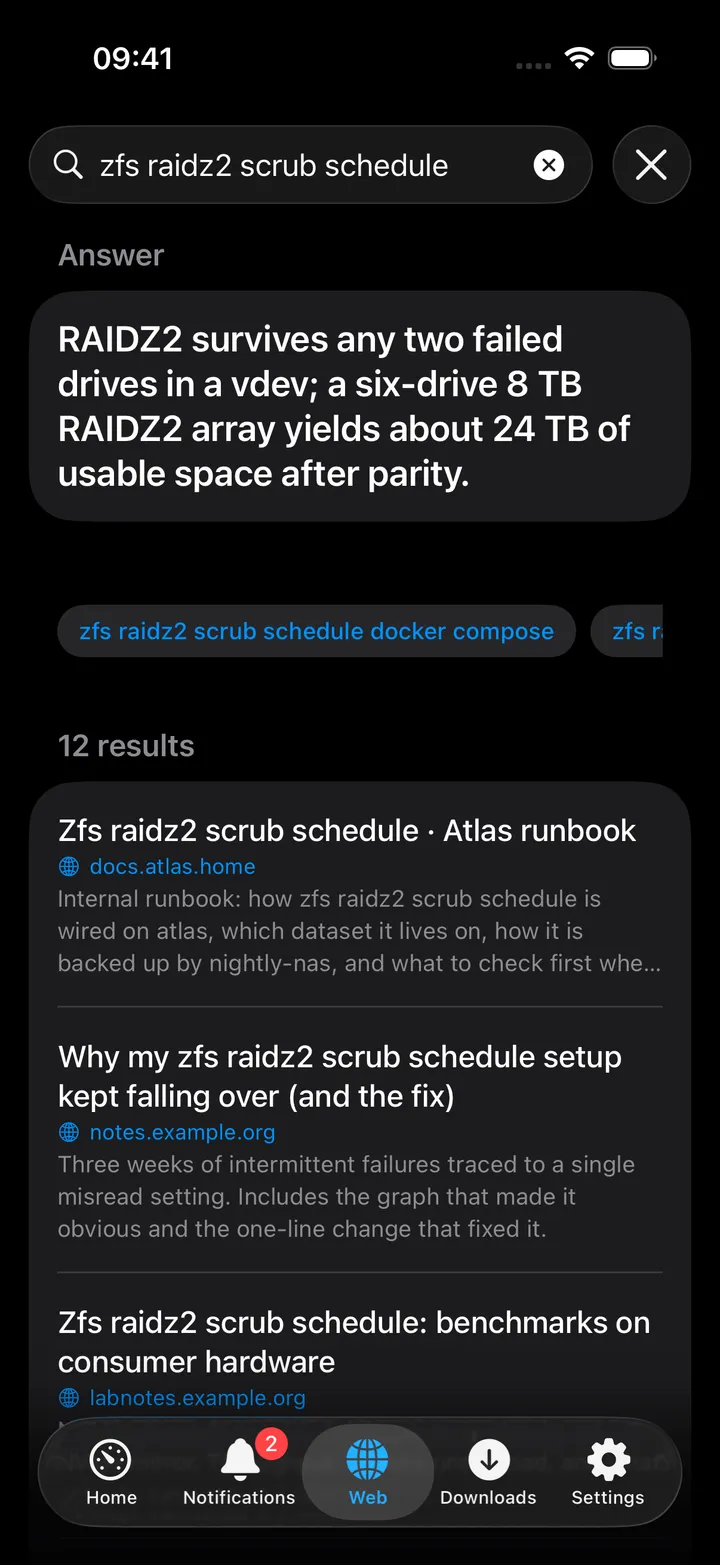
The Web screen has an always-visible search field (auto-focused when opened empty), searching automatically 350ms after you stop typing, or immediately on Return. Results are de-duplicated by URL and capped at 20, shown with title, host and a snippet; a direct Answer section appears above them when SearXNG has one, followed by up to eight suggestion chips you can tap to re-search. Tapping a result opens it in the in-app browser; a long press offers Copy link and Share. A footer button, Open all results in SearXNG, opens the same query directly in SearXNG, and the toolbar’s Open SearXNG button opens your instance.
On Mac
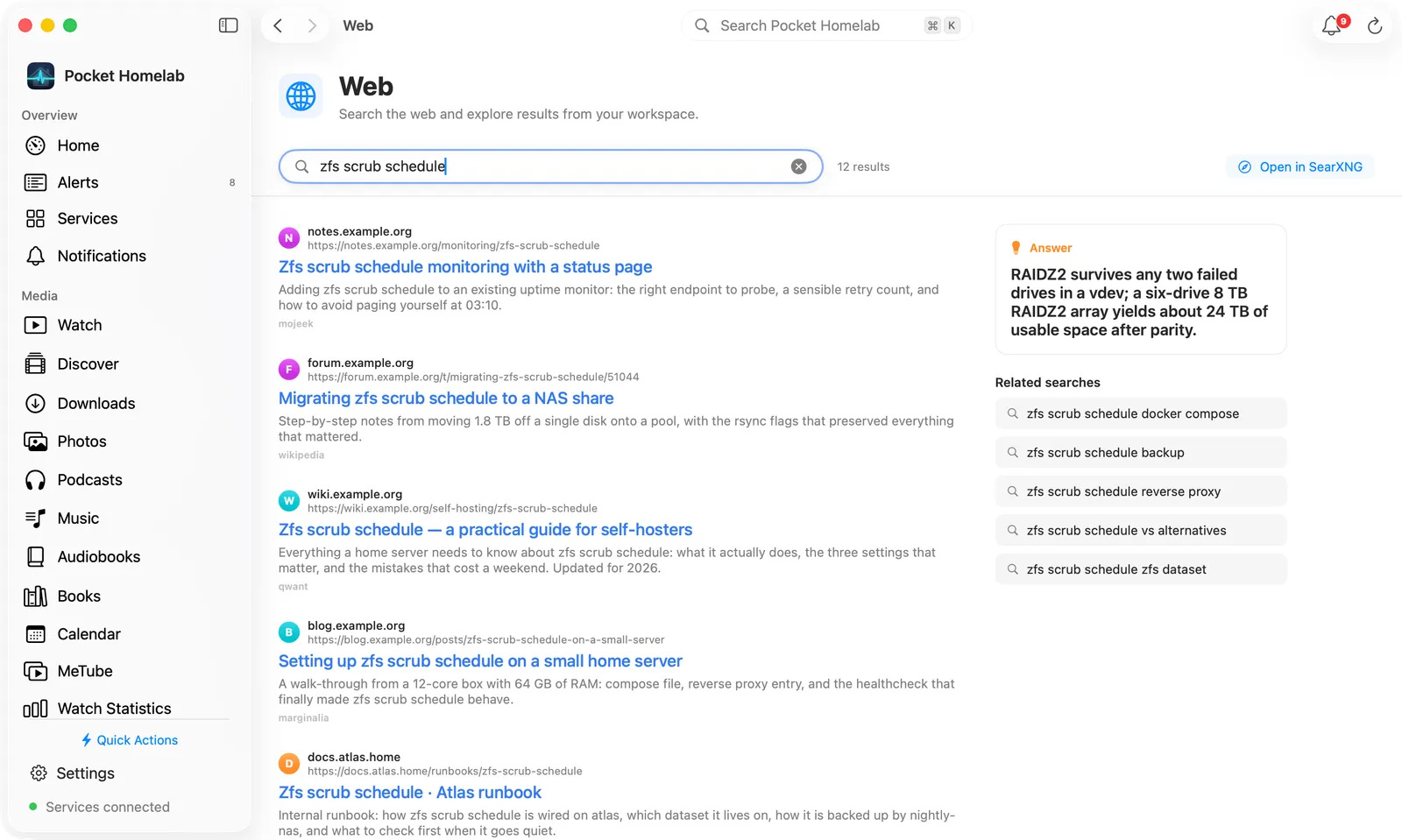
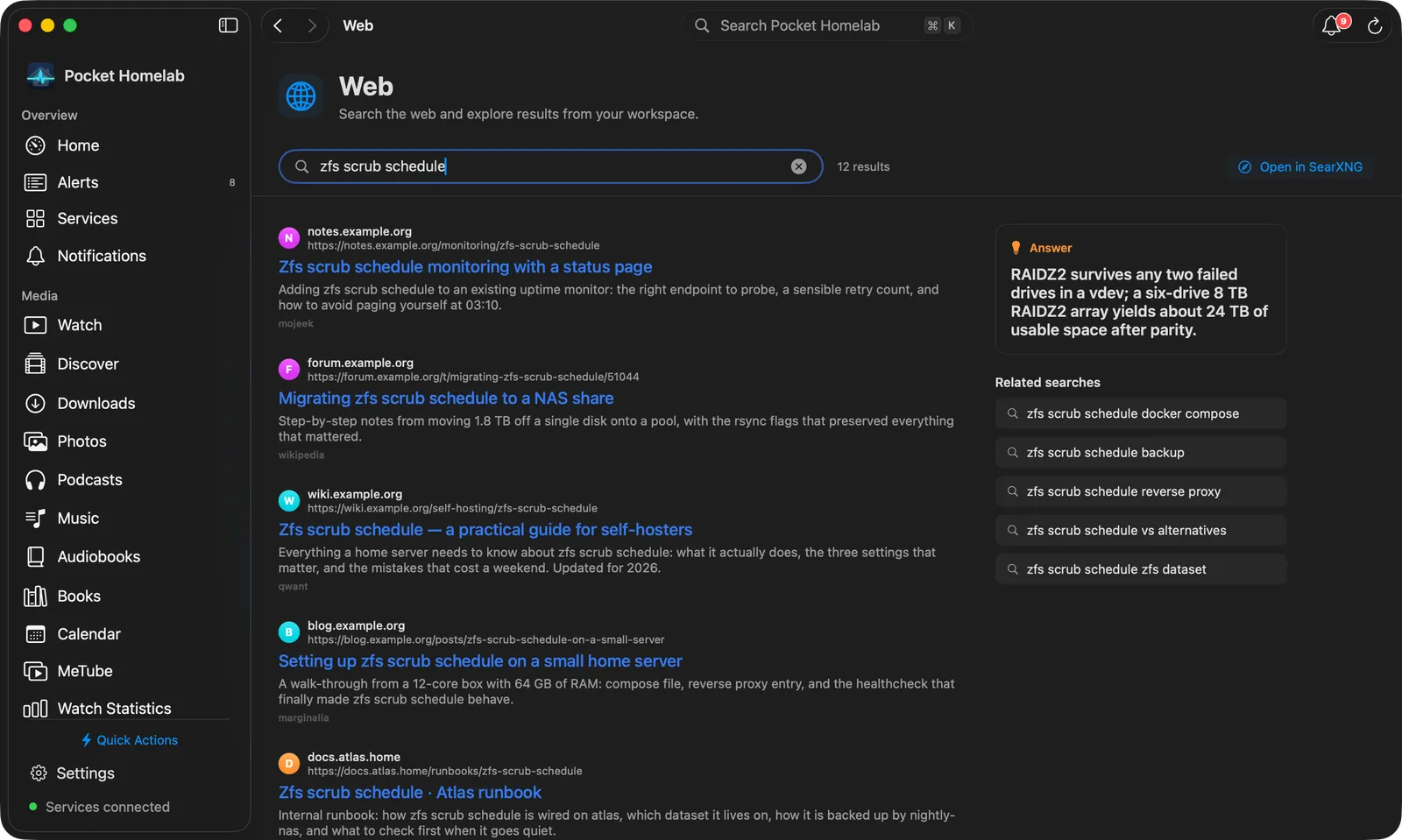
The Web page works like a search engine’s. Before your first search it shows one large Search the web field in the middle, with a note that results come from your SearXNG instance and an Open SearXNG link. Once you search, the field moves into a bar with the result count and Open in SearXNG, and the results fill a readable column. Each result shows a coloured letter badge for the site (a badge rather than the site’s icon, so no request goes to the site), the host and full address, the title as a link, the snippet and the engine that found it.
Beside the results, an Answer card shows SearXNG’s direct answer when it has one, and Related searches lists up to ten suggestions; click one to search for it. Searching follows the same timing as on iPhone.
Clicking a result opens it in your default browser. Right-click a result for Open in Default Browser, Share and Copy link.
Actions
None. Every search is read-only.
Works with
- Spotlight’s live web section and the Home search block both route through the same SearXNG client.
- The Open in Browser link and the Web screen’s own “Open all results in SearXNG” (iPhone) or “Open in SearXNG” (Mac) button all point at your instance’s own results page for the same query.
Tips & troubleshooting
- Hosts are shown without their
www.prefix; if a result has no title, the URL is shown instead. - Very old SearXNG instances may return
answersandsuggestionsas plain strings rather than objects, both shapes are handled, so this shouldn’t surface as an error.