Browse your ebook library, send books to your Kindle, download formats, and upload new books from your device.
iPhoneMacOn this page
Calibre-Web is your ebook library, reachable over its OPDS catalogue. Pocket Homelab gives it a Books tab for
browsing, sending to your eReader, downloading formats and uploading new books. It works with stock Calibre-Web
and with Calibre-Web Automated (CWA).
What you get
Home tile (“Ebooks”): value <n> books, caption shows the latest addition or the author/series counts.
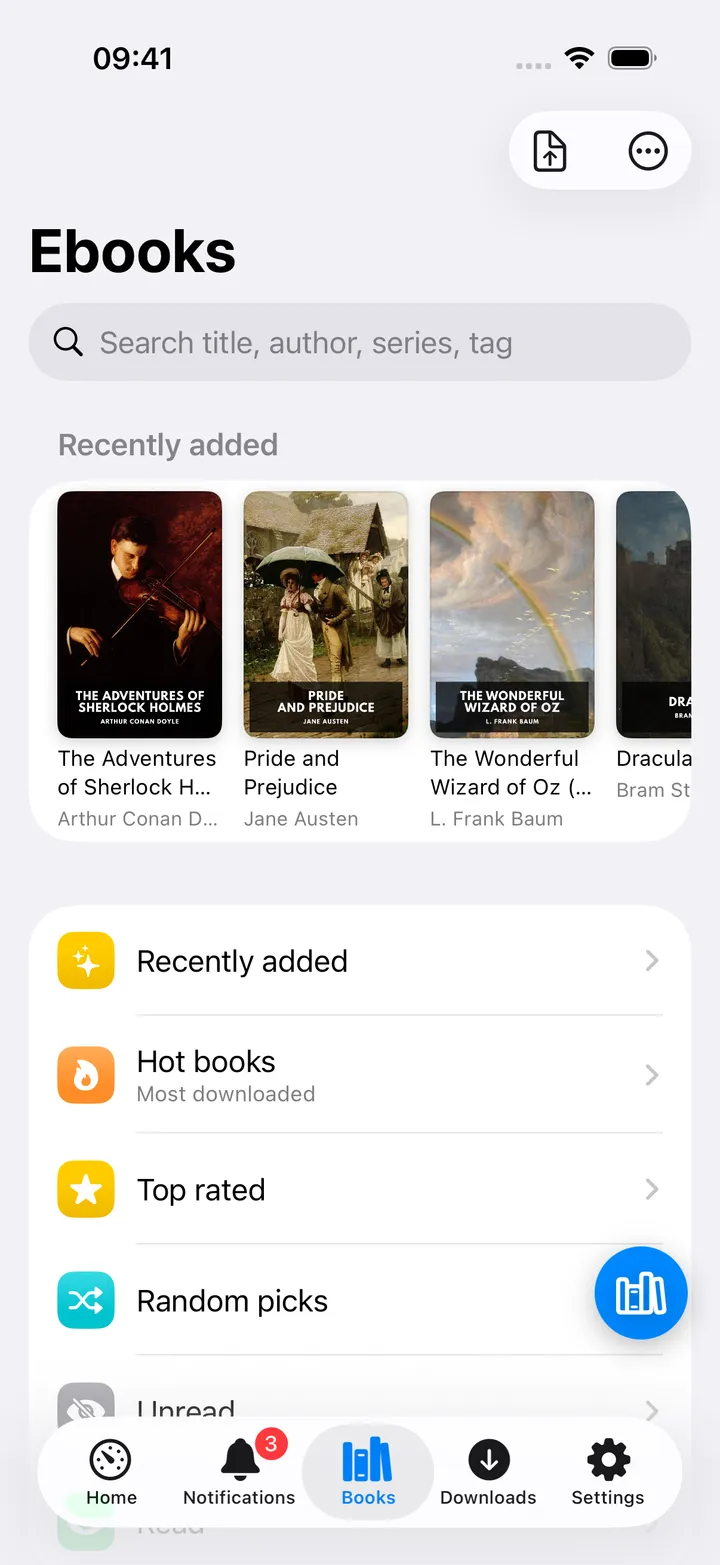
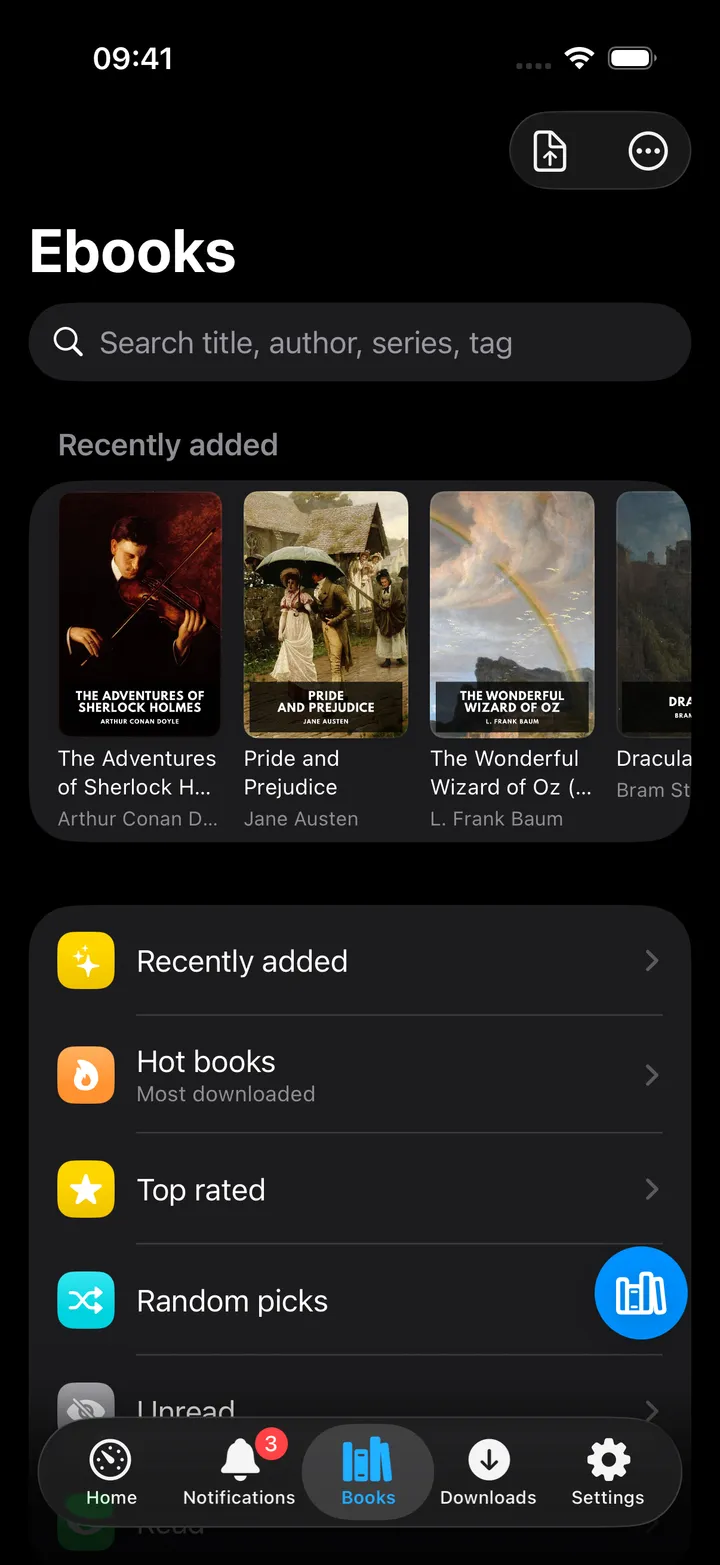
Books hub (titled Ebooks): a Recently added cover strip, Hot books, Top rated, Random picks, Unread/Read
shortcuts, and Browse by Series/Authors/Categories/Publishers/Shelves.
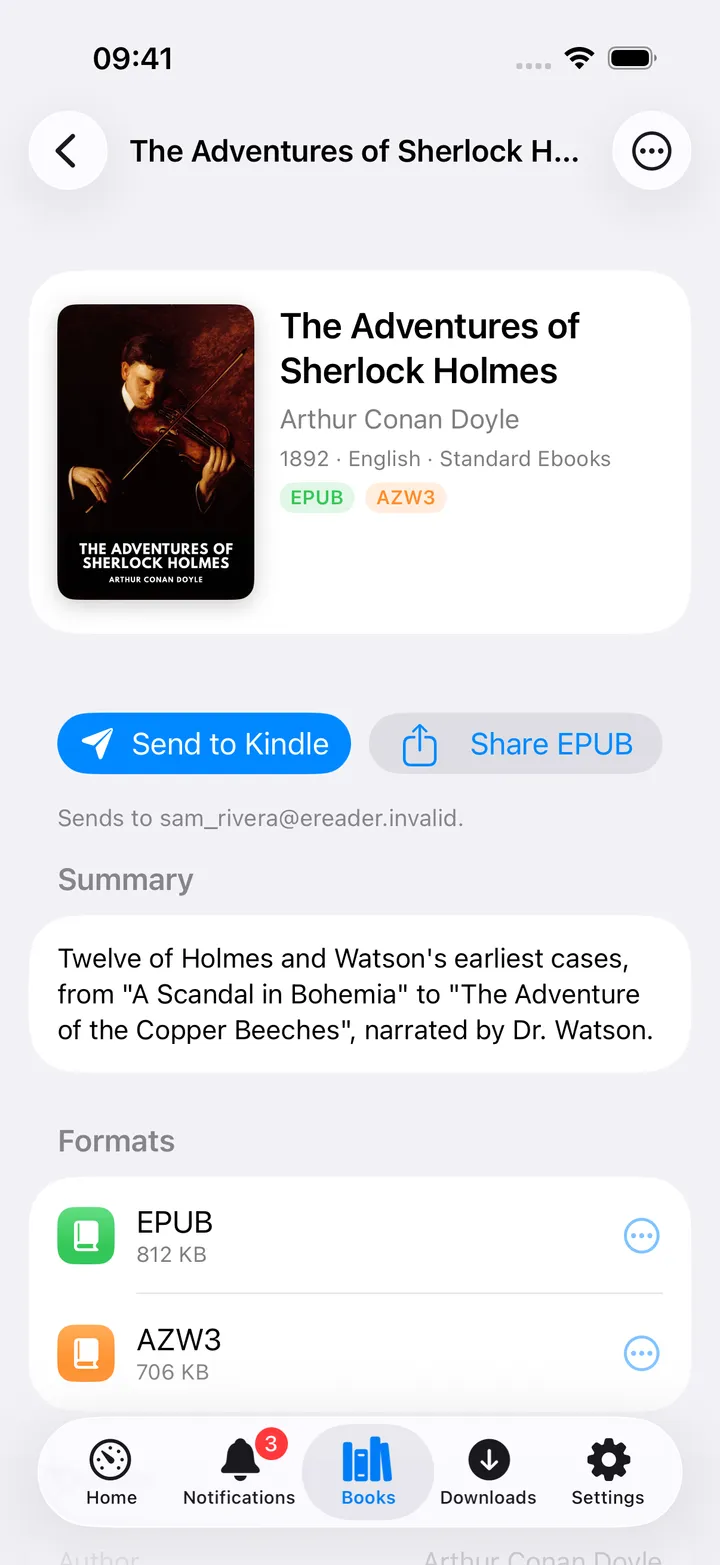
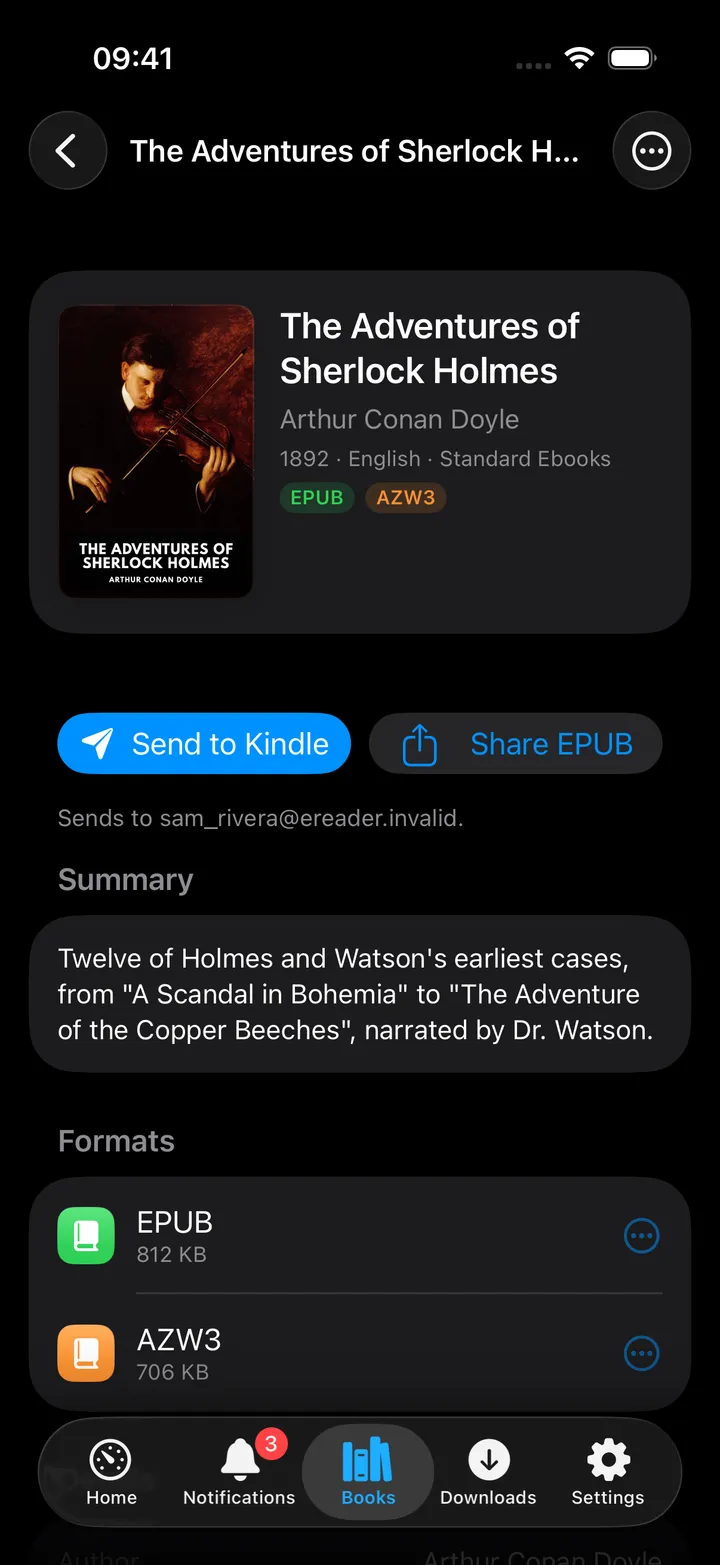
Book screen: Send to Kindle, Share, per-format download/preview/save, mark read/unread, delete.
Upload: pick a file and upload it straight to the library.
Quick action: Ebooks.
Set up
Use an existing Calibre-Web account, not the desktop Calibre app’s own login. Grant it the Download
permission at minimum (Upload and Delete too, if you want those actions from the app).
In the app, go to Settings → Services → Calibre-Web, enter the URL, username and password, then press
Test connection.
A URL alone only produces a browser link; the password is required for everything else.
Key
Field
Required
Secret
Where to get it
CALIBRE_URL
Calibre-Web URL
Required
—
Base URL of your instance. Leave empty to hide Calibre-Web features.
CALIBRE_USER
Username
Optional
—
Used for OPDS + Send-to-Kindle. Defaults to admin when left empty.
CALIBRE_PASSWORD
Password
Required
Secret
Password of that user.
A URL alone only produces a browser link; the password is required for everything else.
On iPhone
Ebooks hub: Recently added strip, Hot/Top rated/Random shortcuts, and Browse.
Book screen: Send to Kindle, format list, and book details.Send to Kindle picks the best available
format automatically (EPUB, then AZW3, MOBI, PDF, then anything else) and always shows a confirmation naming the
destination address and file size first.
Each format has its own menu: Send to Kindle as <FORMAT>, Share, Save to Files, Preview (PDF
only), Copy download link.
Delete from library, in the book’s More menu, removes every format for that book after a confirmation;
this cannot be undone.
Round button: beside the +, the Books tab has a round button with Recently added, Unread,
Authors, Upload a book and Refresh, and further Hot books, Top rated, Random picks,
Read, Series, Categories, Publishers, Shelves and Open Calibre-Web. The first five show
until you pick your own with Customise in the open menu; turn the button off in Settings → Screen action
buttons. The toolbar’s Upload and More stay.
On Mac
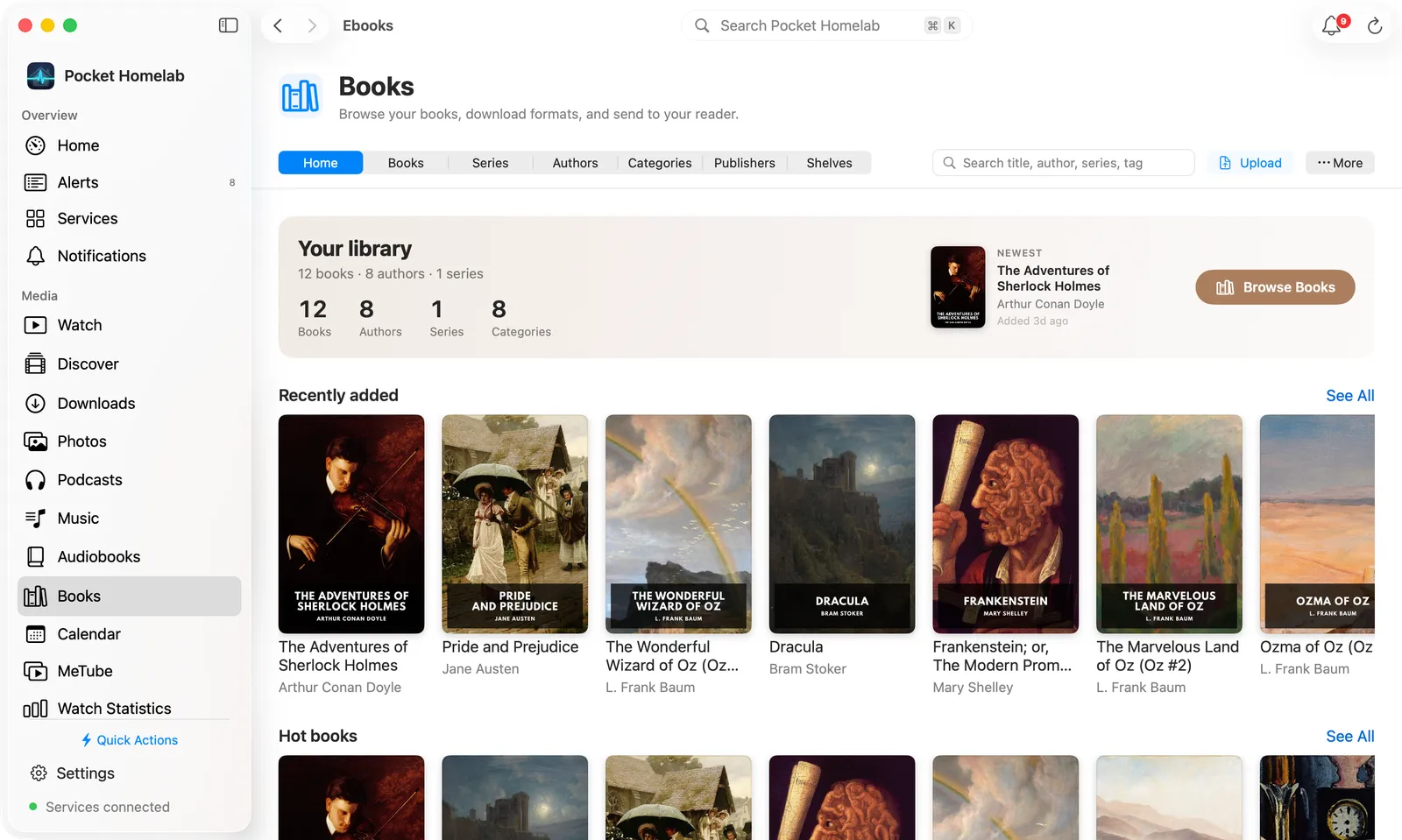
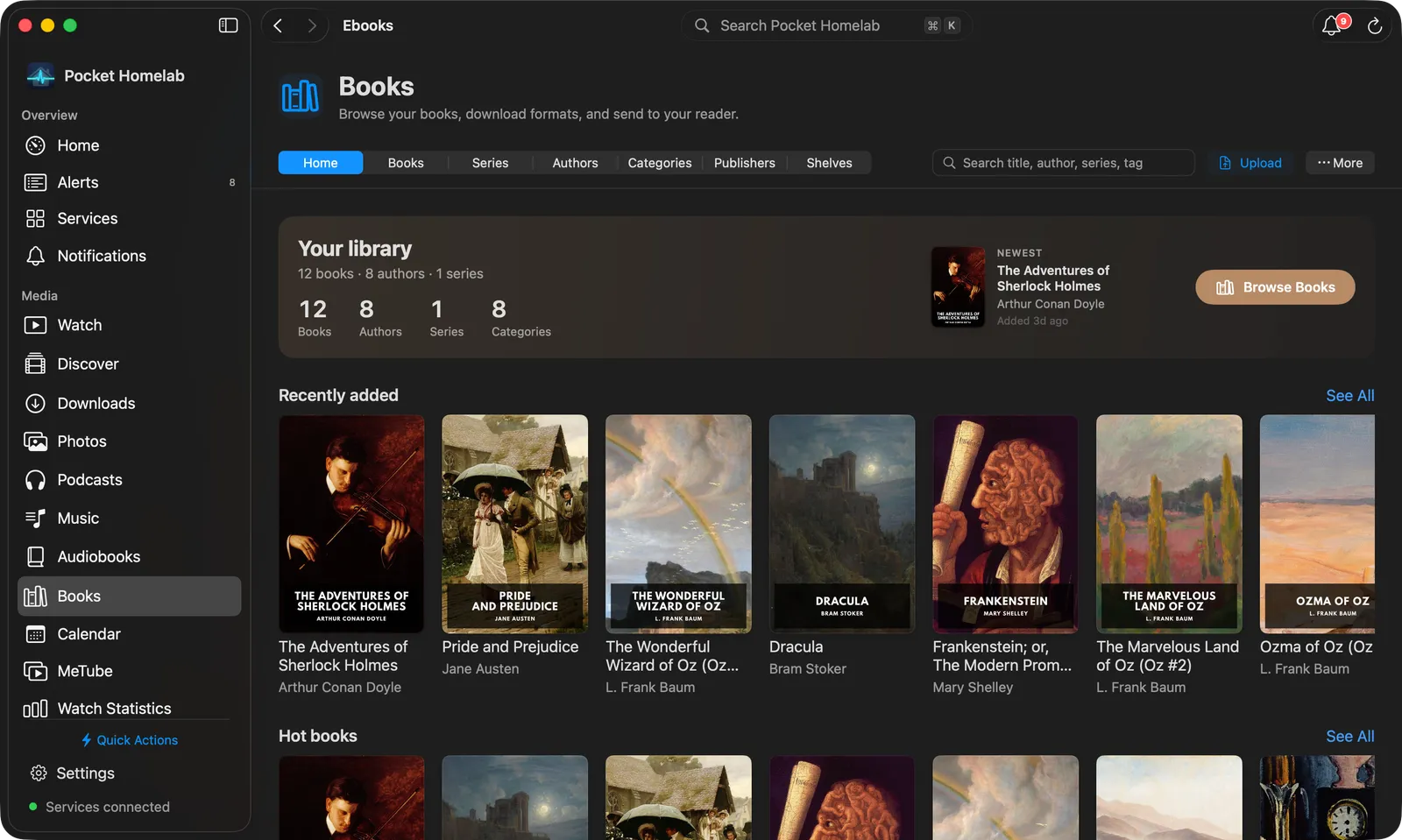
Books on the Mac: the views in one bar, a Your library hero with the newest book, and full-width cover shelves.
Books sits in the sidebar under Media (⌥⌘8; ⇧⌘E opens it from anywhere). The Mac
has its own layout, built for a desktop window:
One bar: the views Home, Books, Series, Authors, Categories, Publishers and
Shelves, a Search title, author, series, tag field with the results in place, Upload and ⋯
(Refresh, Upload a book, the six book lists, Open Calibre-Web).
Home: a Your library hero with the book, author, series and category counts, the newest book and Browse
Books; then full-width cover shelves for Recently added, Hot books, Top rated, Random picks, Unread and Read,
each with See All, and the browse trees as cards.
Books and the browse views: a cover grid across the full width that loads more as you scroll, with a
Filter field; the Books view has a menu to switch between the six lists. Series, authors and the other trees
show as cards, letters as a compact A to Z index. Right-click a cover for Open, Open in Calibre-Web,
Copy link and Copy author – title.
A book is one scrolling page: the cover beside the title, authors and facts, then Read (downloads the best
format and opens it in its default app), Download (its arrow lists every format), Send to Kindle, Mark
as read / Mark as unread, Share and ⋯ (Send to Kindle as, Open as, Copy download link,
Delete from library and the copy actions). Below, the Summary (with Show more) and Formats (each
with Open and Save…) sit beside a Details card; click a category there to search the library for it.
The Mac ⌘K palette has an “Ebooks · Calibre-Web” scope with live title/author/series/tag search.
Actions
Send to Kindle: needs an eReader e-mail set on that Calibre-Web user’s profile; without one you get a
reminder rather than a failed send.
Mark read / unread.
Upload a book: reads title/author from the file’s own tags unless you fill them in yourself.
Delete from library: removes every format, confirmed first, and cannot be undone.
Notes about this: a book’s page ends with the notes that link to it and Write a note about this, when
your Nextcloud has Notes.
Works with
No direct link to Chaptarr/Readarr; books requested there do not appear here, and vice versa.
Shares the same on-device download cache and Settings → Downloads storage view as Nextcloud, Paperless and
Immich.
Tips & troubleshooting
The Download, Upload and Delete actions each need the matching Calibre-Web permission on your
account; a rejected action names the exact permission to add under Admin → Users.
A reverse-proxy sign-in page in front of Calibre-Web breaks OPDS and downloads; the app tells you plainly when a
response looks like a web page instead of the expected catalogue or file.
Kindle’s format preference order is EPUB, then AZW3/MOBI/PDF as fallbacks; other formats like CBZ or TXT are
offered last.
Calibre’s placeholder date for an unknown publish year is hidden rather than shown as “0101”.