
macOS 15 or later
The whole homelab, in one window.
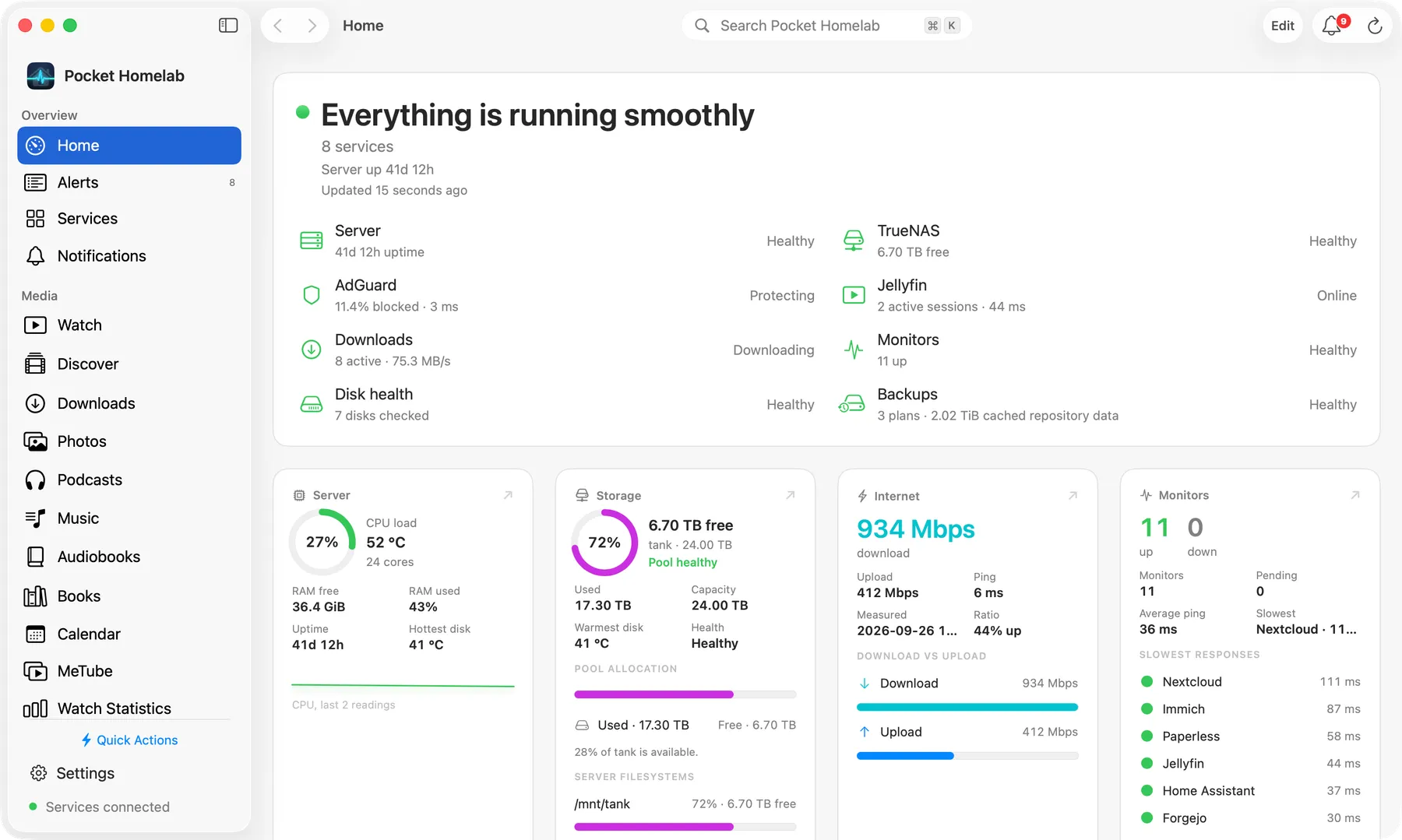
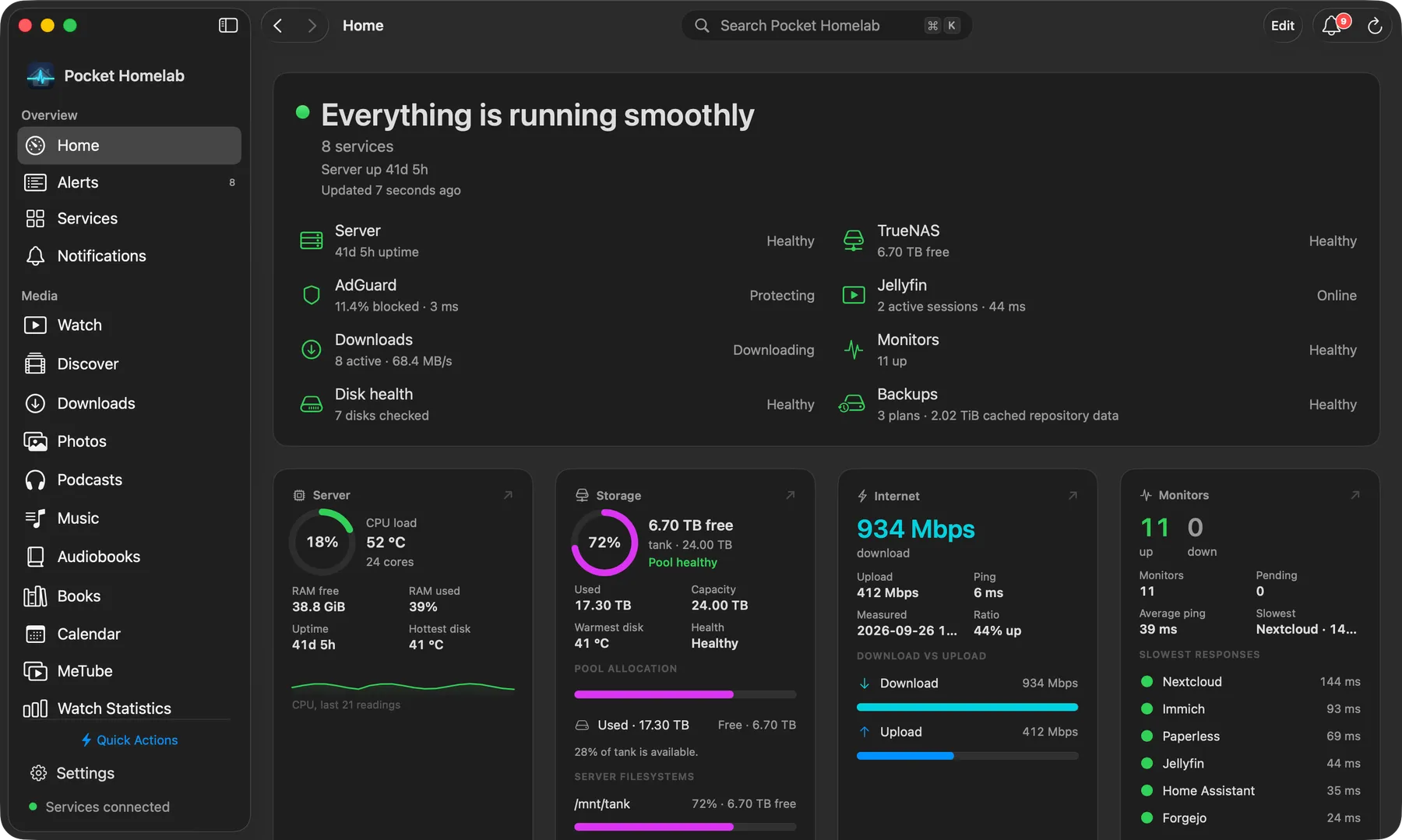
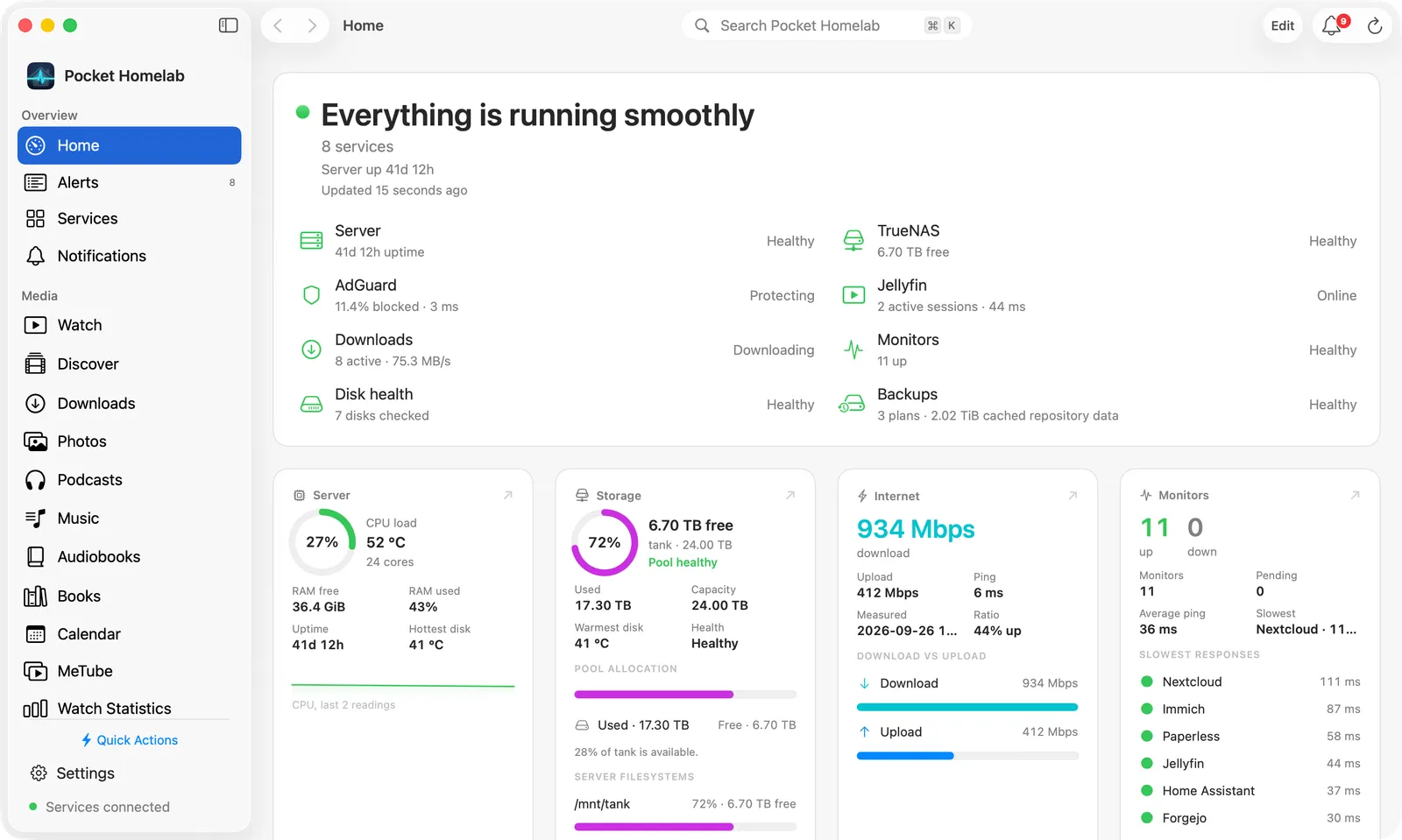
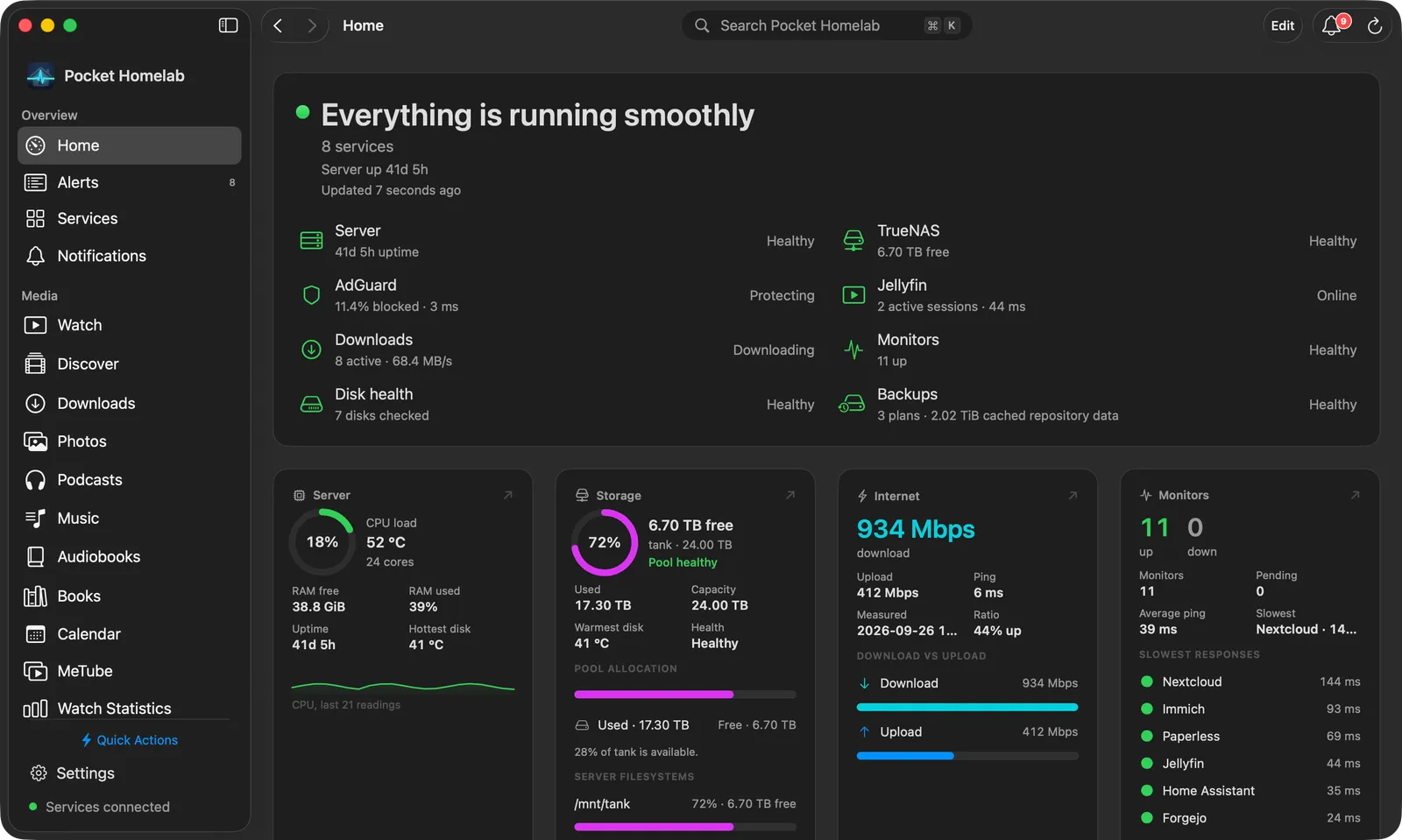
Pocket Homelab for Mac shares every service client with the iPhone app and puts a real desktop shell on top: grouped workspaces built from tiles, cards and sortable tables, a widget Home, menus, a Spotlight palette and windows that keep working when the main one is closed.
Want early access? Join the TestFlight beta.
Same purchase as the iPhone app · Sandboxed · No account
TestFlight beta
Help shape Pocket Homelab.
Want to try it with your own homelab? Get in touch for a TestFlight invitation on iPhone or Mac. Your feedback on setup, everyday use and anything that breaks will help make the app better.
- 1
Request an invite
Tell me which devices and self-hosted services you use. I’ll reply with the next steps for joining the beta.
- 2
Get your services ready
Download the complete env template and fill in the services you use. Leave the rest blank.
- 3
Import and test
Import the file in the app’s settings, use it day to day and let me know what works and what breaks.
Keep your completed file private — it holds your credentials.
Sidebar
Workspaces, grouped the way you think.
Home is a board of widgets. It starts from a suggested board for the services you connected; choose Edit to add widgets, drag them into place and resize them to Small, Medium, Large, Wide or Wide & Tall. Click a widget for its live details, right-click it for its options.
- Overview, Media, Infrastructure and Workspace groups; a workspace appears once its service is connected
- Customize… reorders items, moves them under another heading, hides them, and renames or adds headings
- Back and forward history across workspaces, with ⌘[ and ⌘]
- A live connection line: Services connected, Some services unavailable, Checking services…
Spotlight
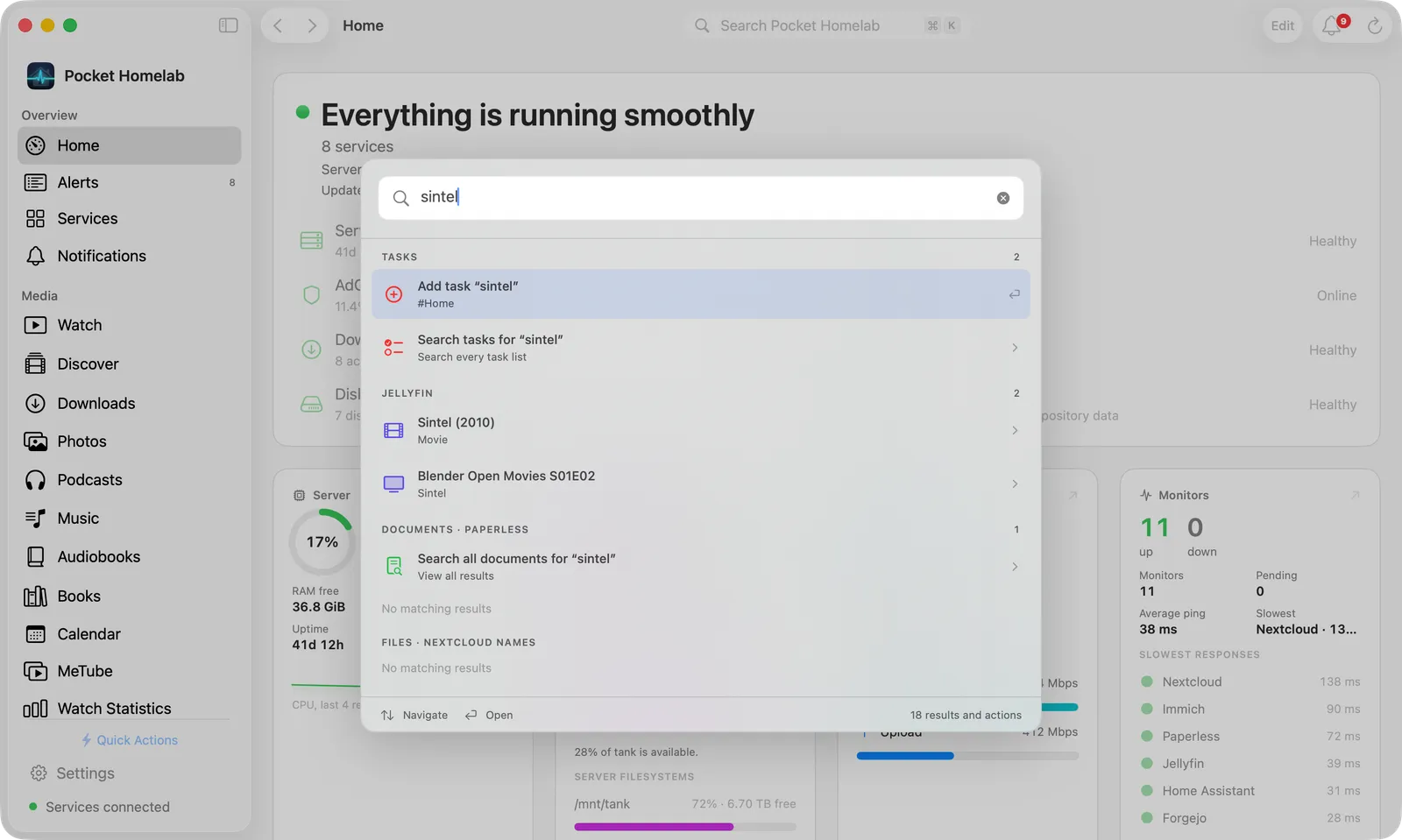
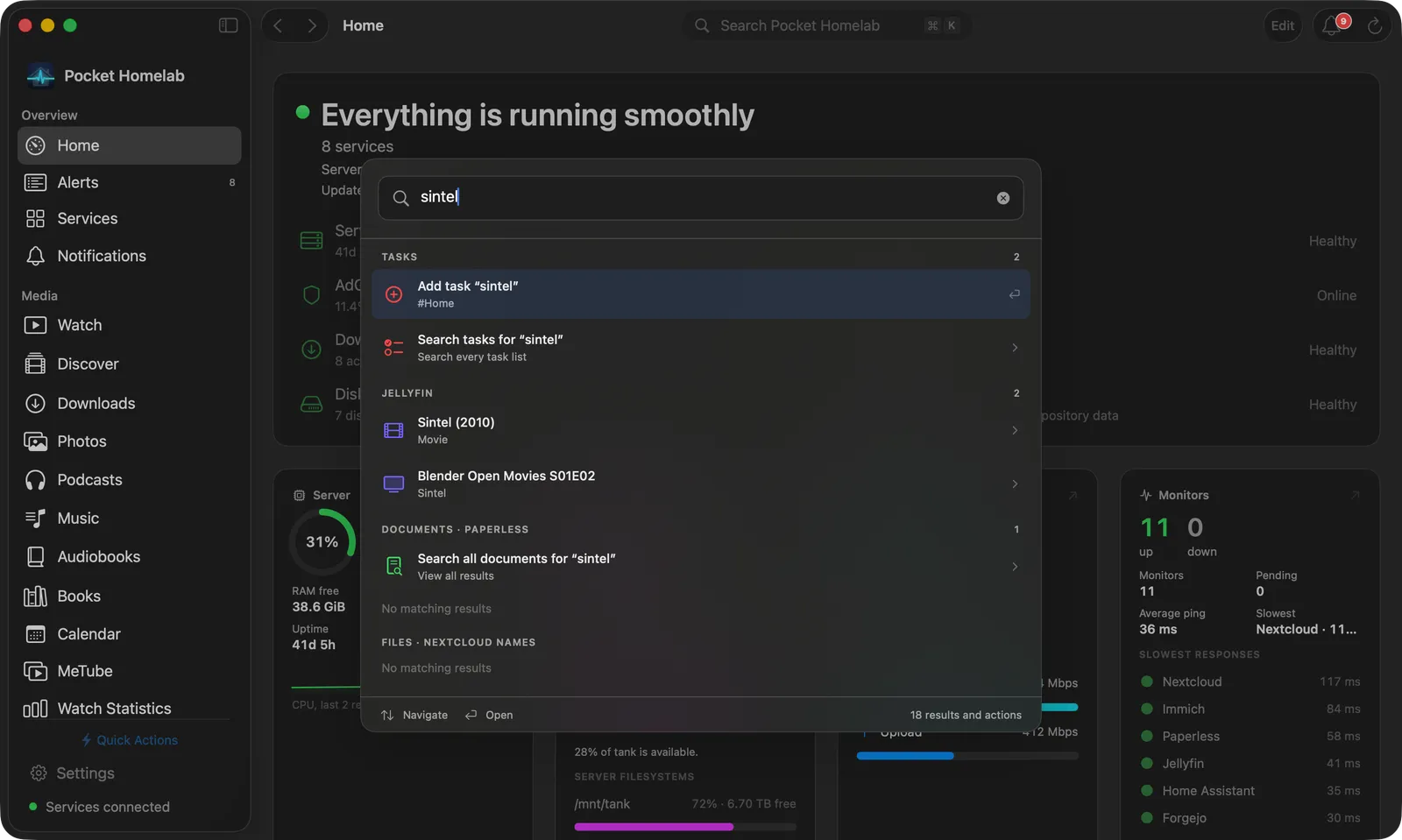
⌘K reaches every service at once.
An in-window overlay rather than a sheet, so the workspace stays visible behind it. Most groups end with a "View all results" row that hands the query to the full screen.
- Quick actions with their shortcut glyphs, screens, settings and every service website
- Live results from Jellyfin, Paperless, Nextcloud names and OCR, Calibre-Web, Navidrome, Audiobookshelf and SearXNG
- Your alerts, repositories and tasks, plus rows that request music, search Soulseek or search the indexers
- Arrow keys to move, Return to open, Escape to close
Menu bar
Status without opening the app.
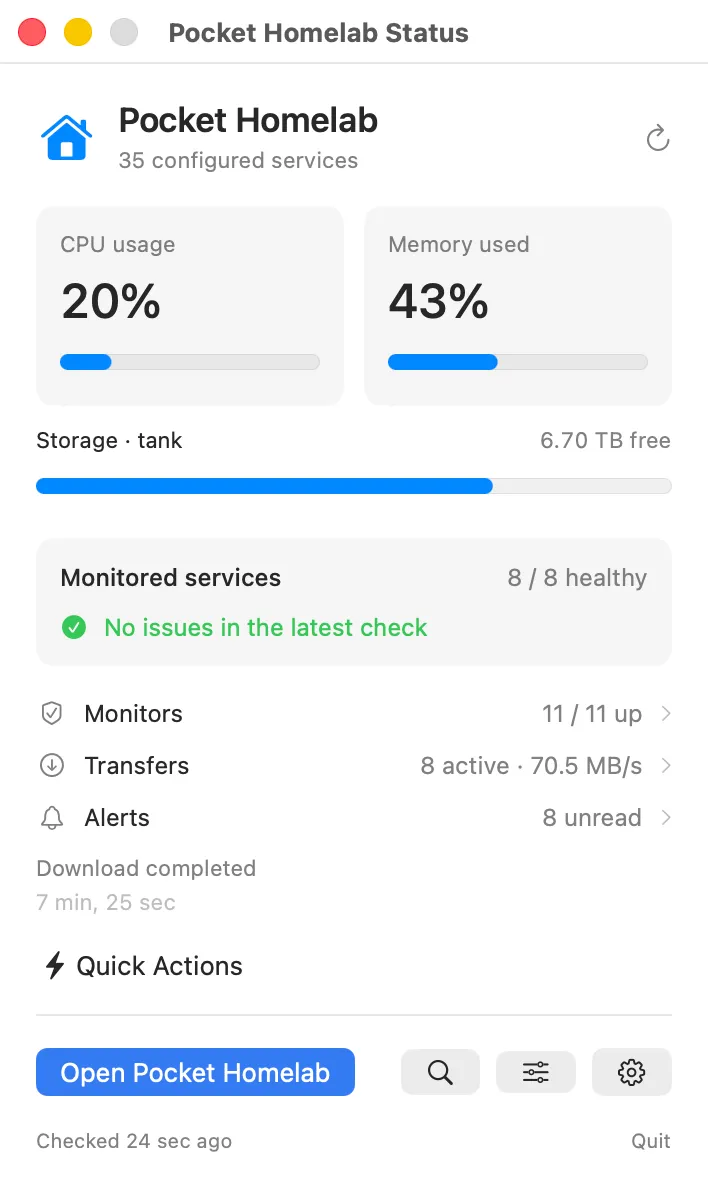
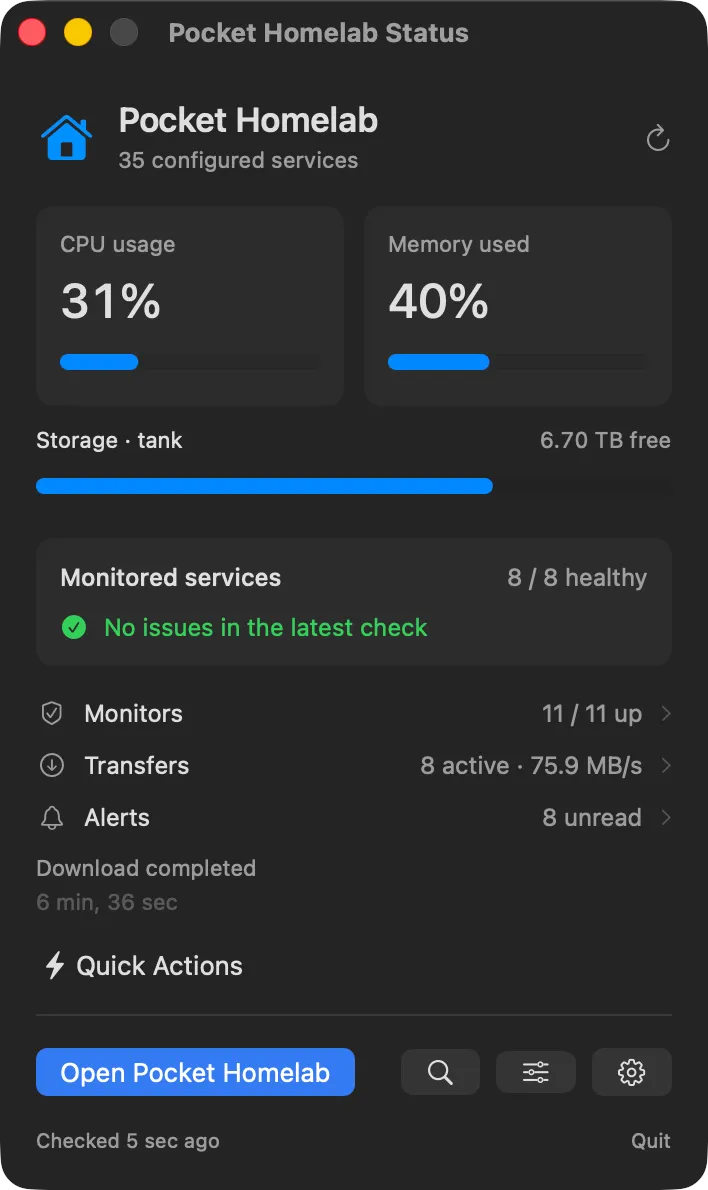
The polling loop lives at app level, not in the window, so the menu bar item stays accurate even after you close everything else.
- Reading cards, disk bars, a monitored-services card, and the sections you choose, in your order
- Rows for Monitors, Transfers and Alerts with the latest message
- Choose the icon and the readings beside it: CPU, memory, disks, temperatures, monitors, transfers, alerts
- Keeps polling with the main window closed or open the same view as a window with ⌃⌥⌘S
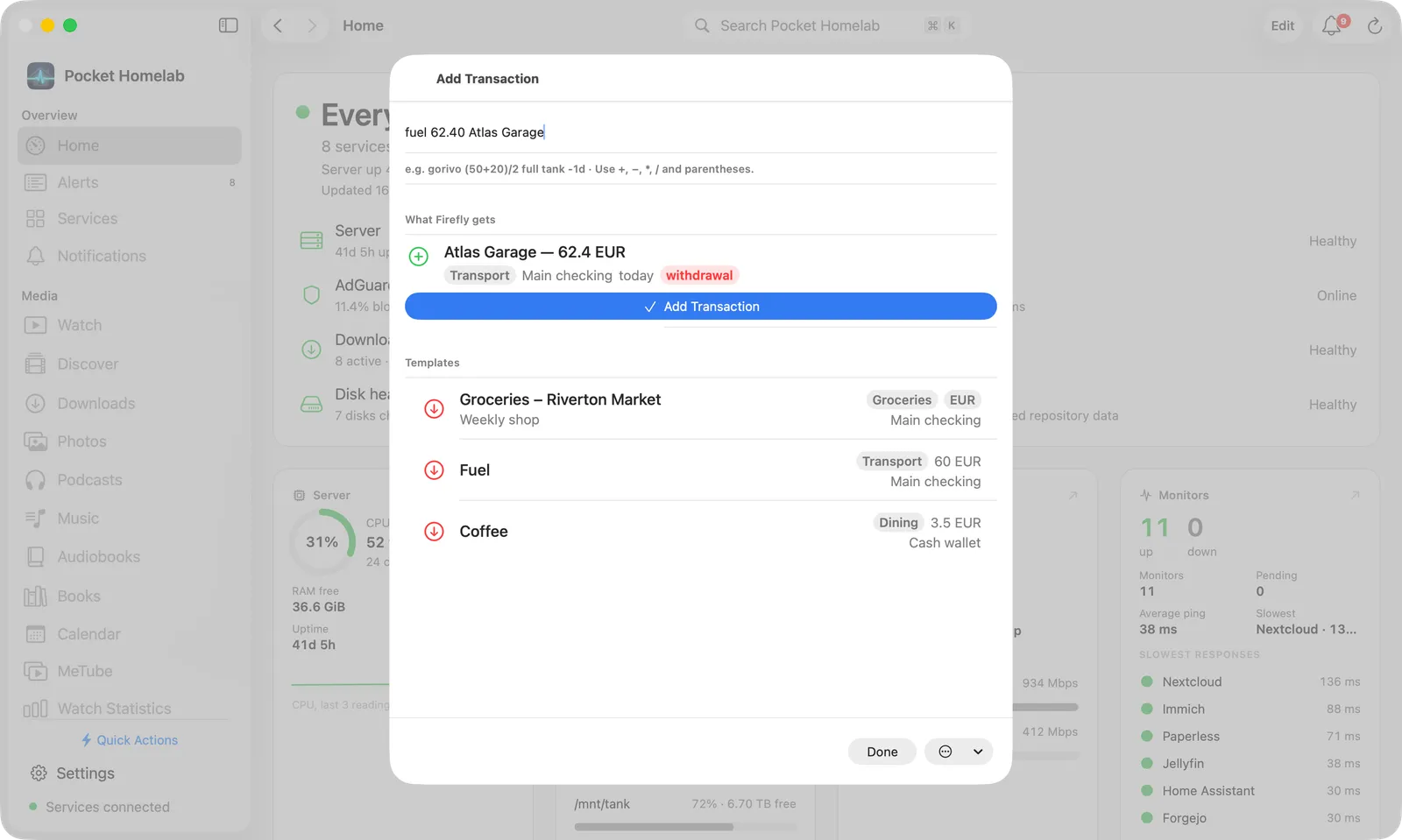
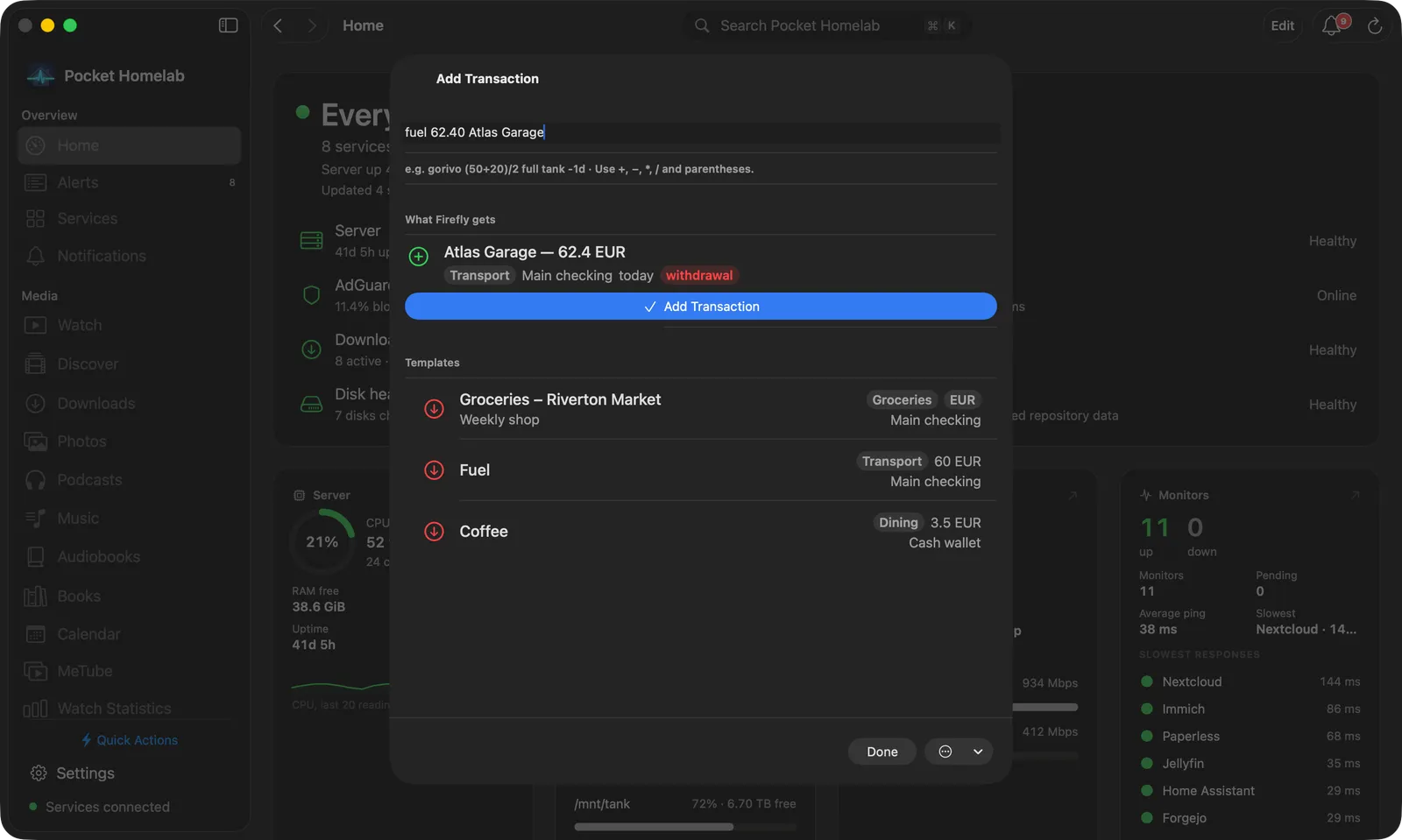
System-wide capture
Log it without leaving what you were doing.
Escape hides a panel and keeps your draft. Each key is yours to change in Settings → Quick Actions → From any application; if another app already owns a combination, pick another and press Retry shortcuts. The two note panels need the Notes app on your Nextcloud.
- ⌃⌥⌘N Add transaction, ⌃⌥⌘T Add task, ⌃⌥⌘M Quick Note and ⌃⌥⌘D Add to daily note, over any app
- Floating panels on every Space that open without raising the main window
- Drag a panel near the middle of the screen and it snaps to the centre guide
- Quick Note stays in front while you work elsewhere and reopens where you left it
- Registered as OS hotkeys: no keystroke monitoring, no Accessibility permission
Calendar & My Schedule
Your next meeting, a shortcut away.
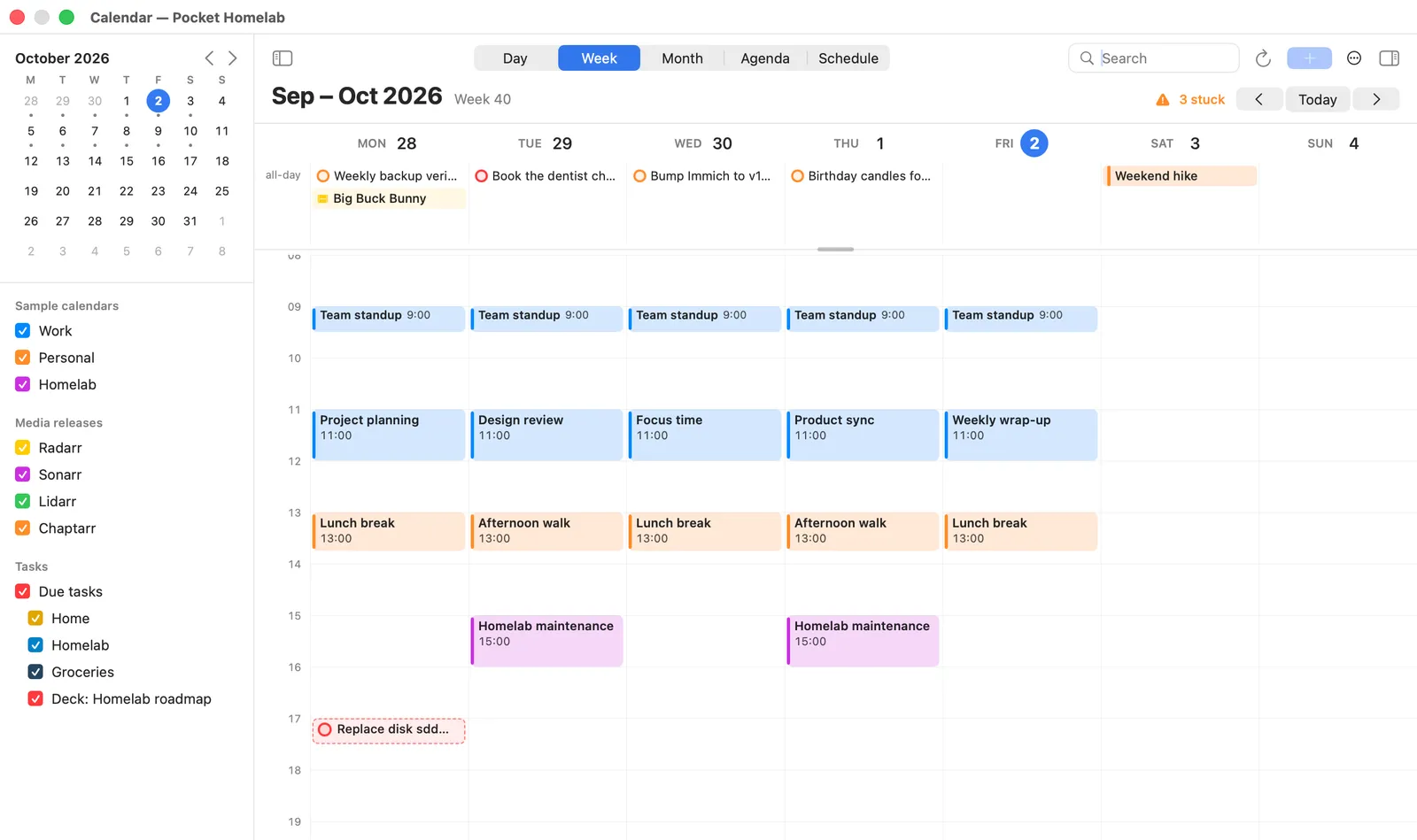
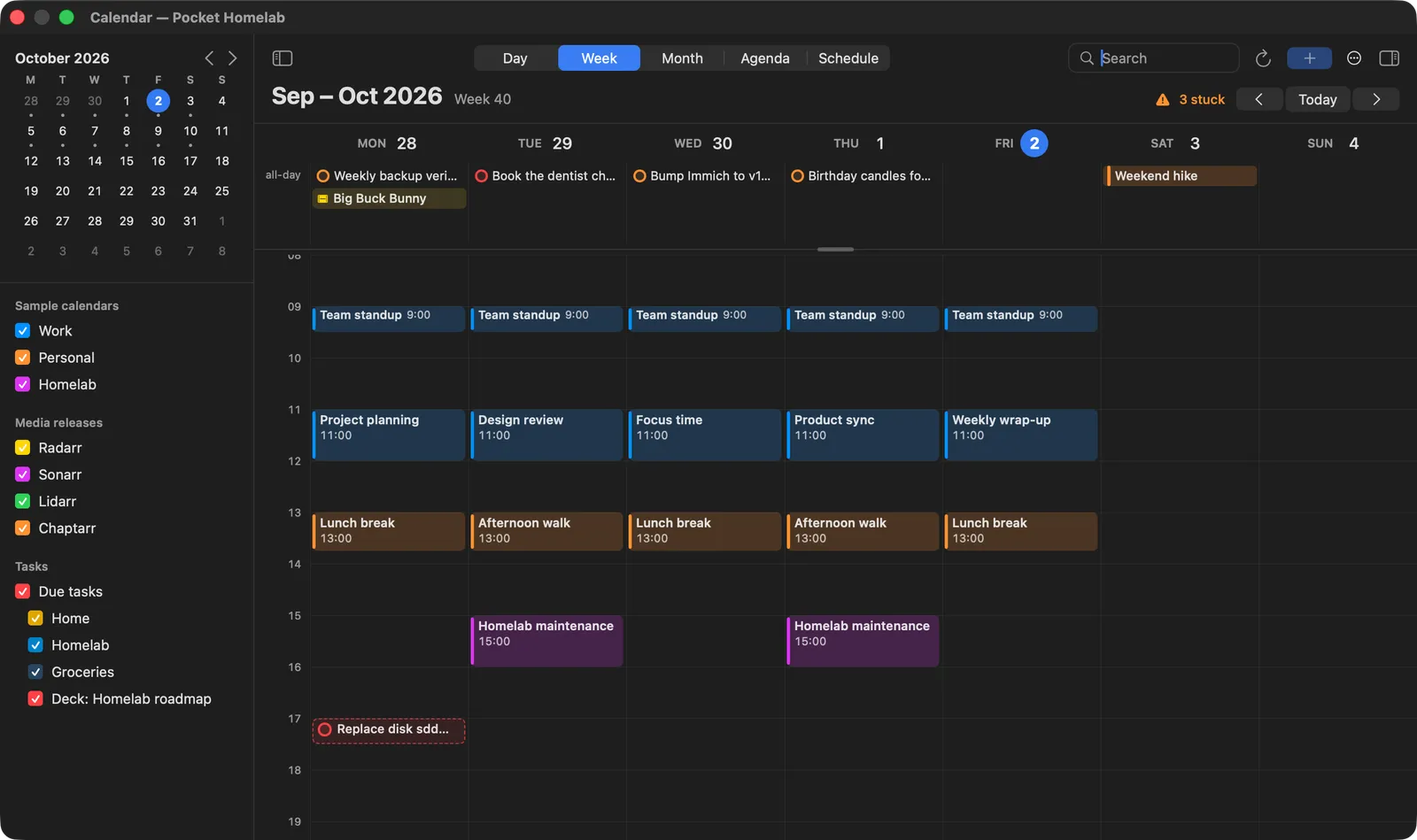
Bring up your calendar over any app, or open My Schedule for a compact list of what’s next. Both work while Pocket Homelab is running, even with its main window closed.
See events from your Mac’s calendar accounts alongside Nextcloud tasks and media releases. Plan in Day, Week, Month or Agenda, then switch to Schedule to search and join a meeting.
Calendar
The full calendar in its own floating window.
My Schedule
The next 30 days in a compact, searchable list.
Change either shortcut in Settings → Quick Actions → From any application.
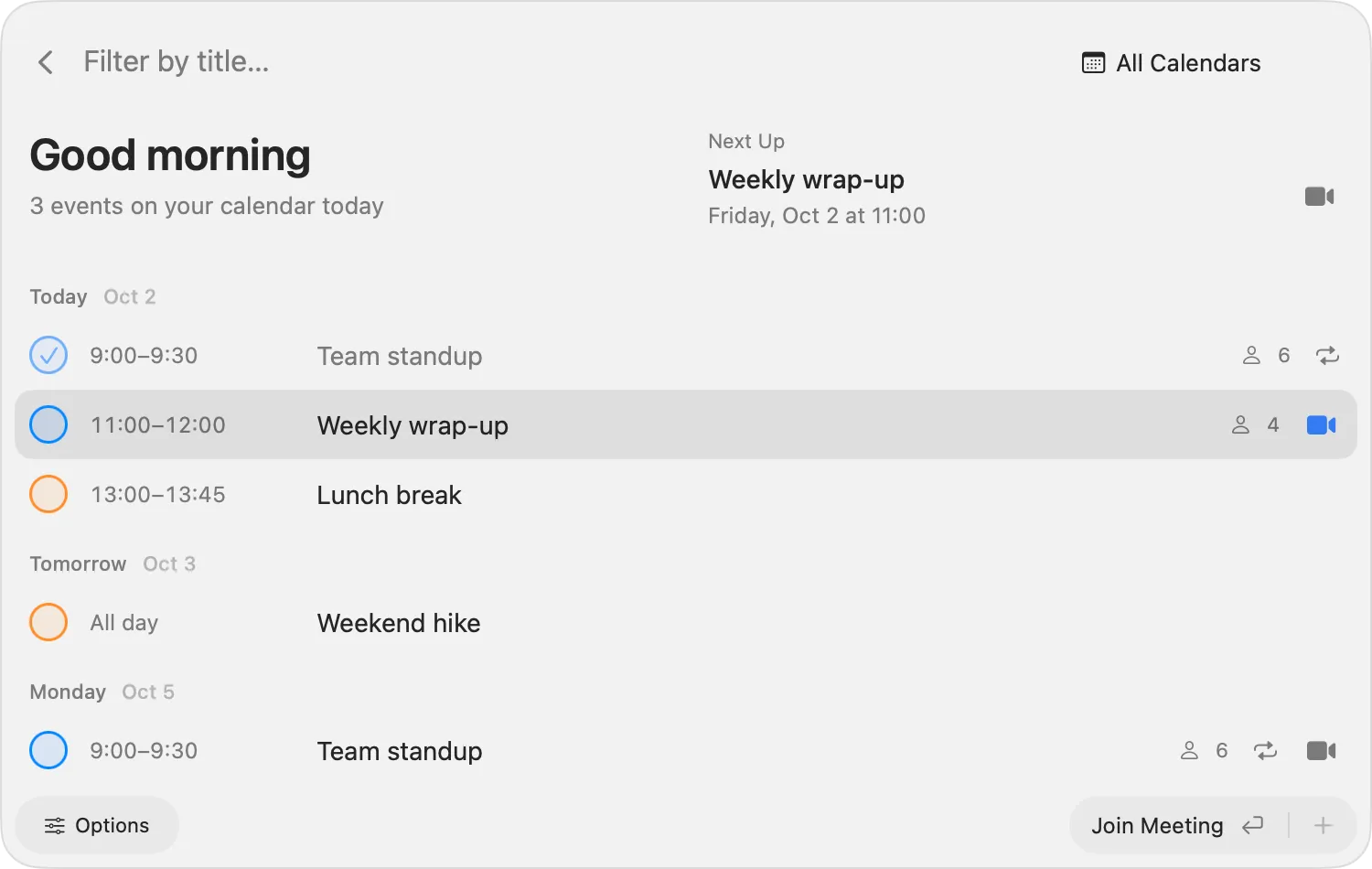
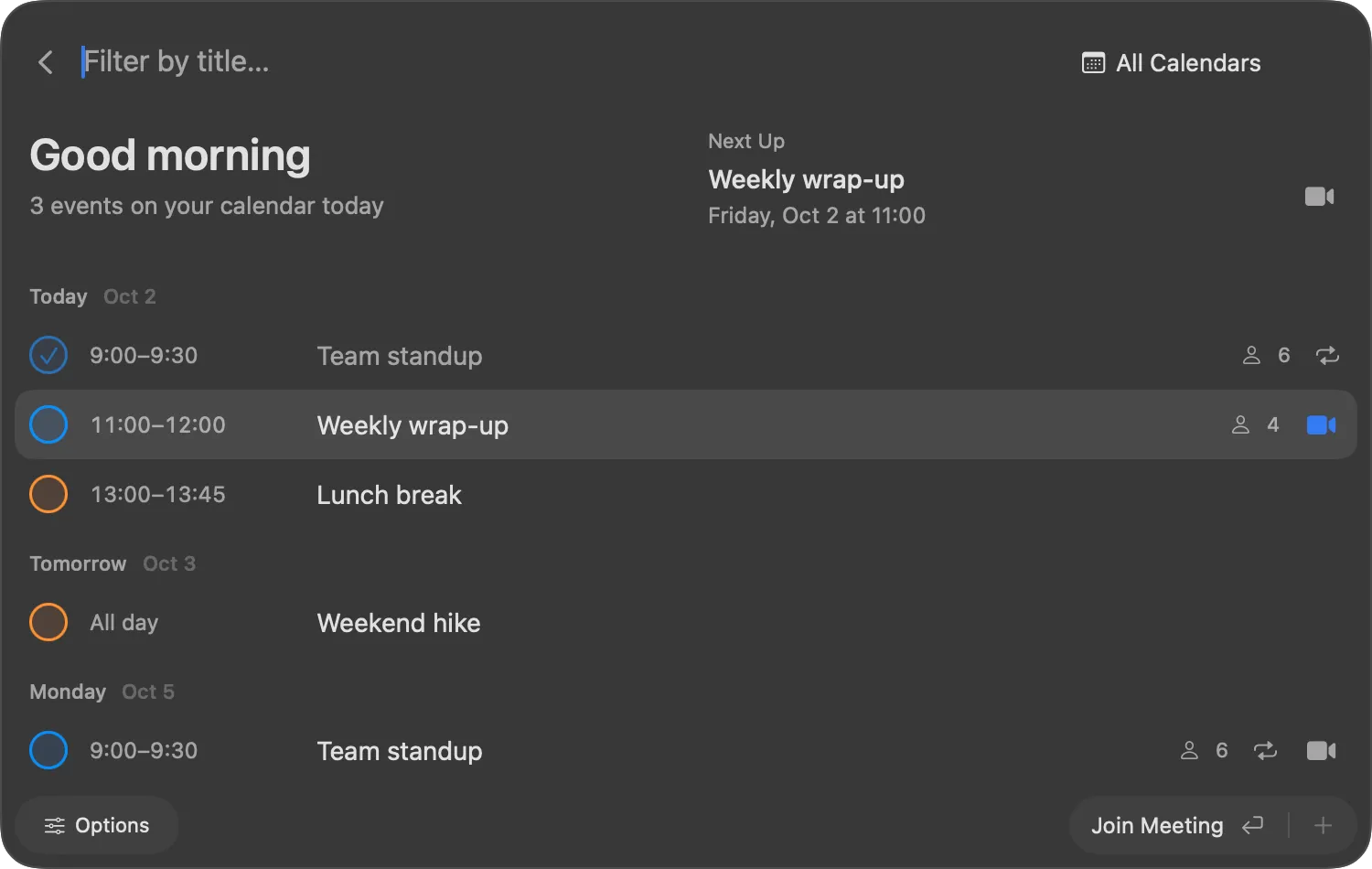
Join with a camera check first.
My Schedule puts your next event at the top, with title search and a calendar filter. Join opens a private camera check first: switch cameras, mirror the preview or copy a photo to the clipboard.
When you’re ready, Join opens the meeting and closes the floating panel, preferring an installed Teams or Zoom app for supported links.
↑ ↓ select · Return opens or previews a meeting.
Notes
Nextcloud Notes, with a real editor.
With the Notes app on your Nextcloud, a Notes workspace joins the sidebar: a resizable browser of folders and notes beside the note itself. Notes are edited as they read and save themselves as you type; with the server away, they wait on the Mac and go up when it answers.
- Read, Edit and Markdown in the toolbar, with attachments and homelab tools beside them
- A formatting bar and an insert menu: tables, task lists, callouts, Mermaid diagrams, KaTeX maths, templates, emoji and voice memos
- Type [[ to link another note
- Folders above the notes, or folders with their notes; drag a note onto a folder, right-click for New note, New folder…, Move to… and Delete
- A daily note with a calendar, and the Quick Note panel over any app
Player
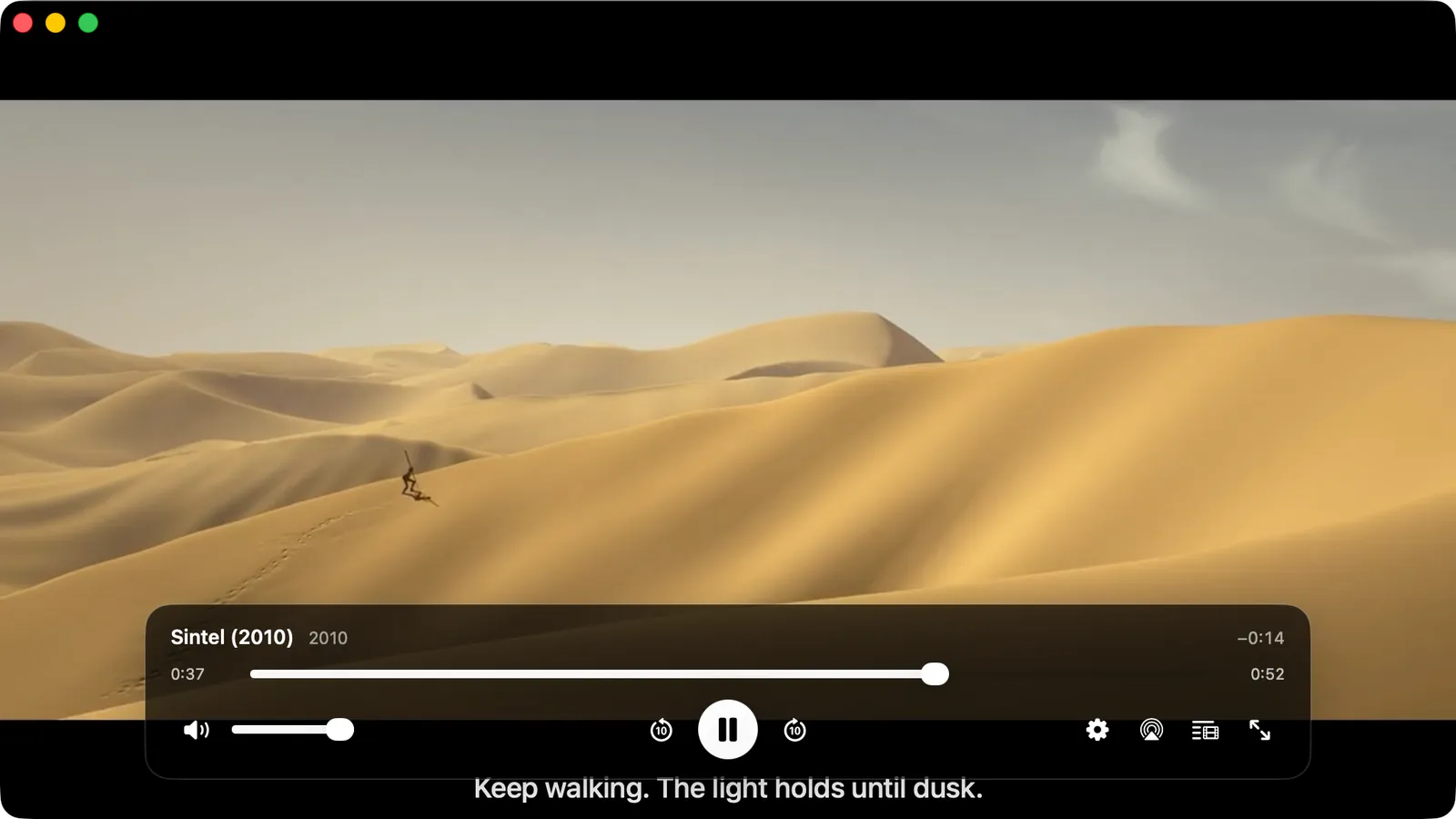
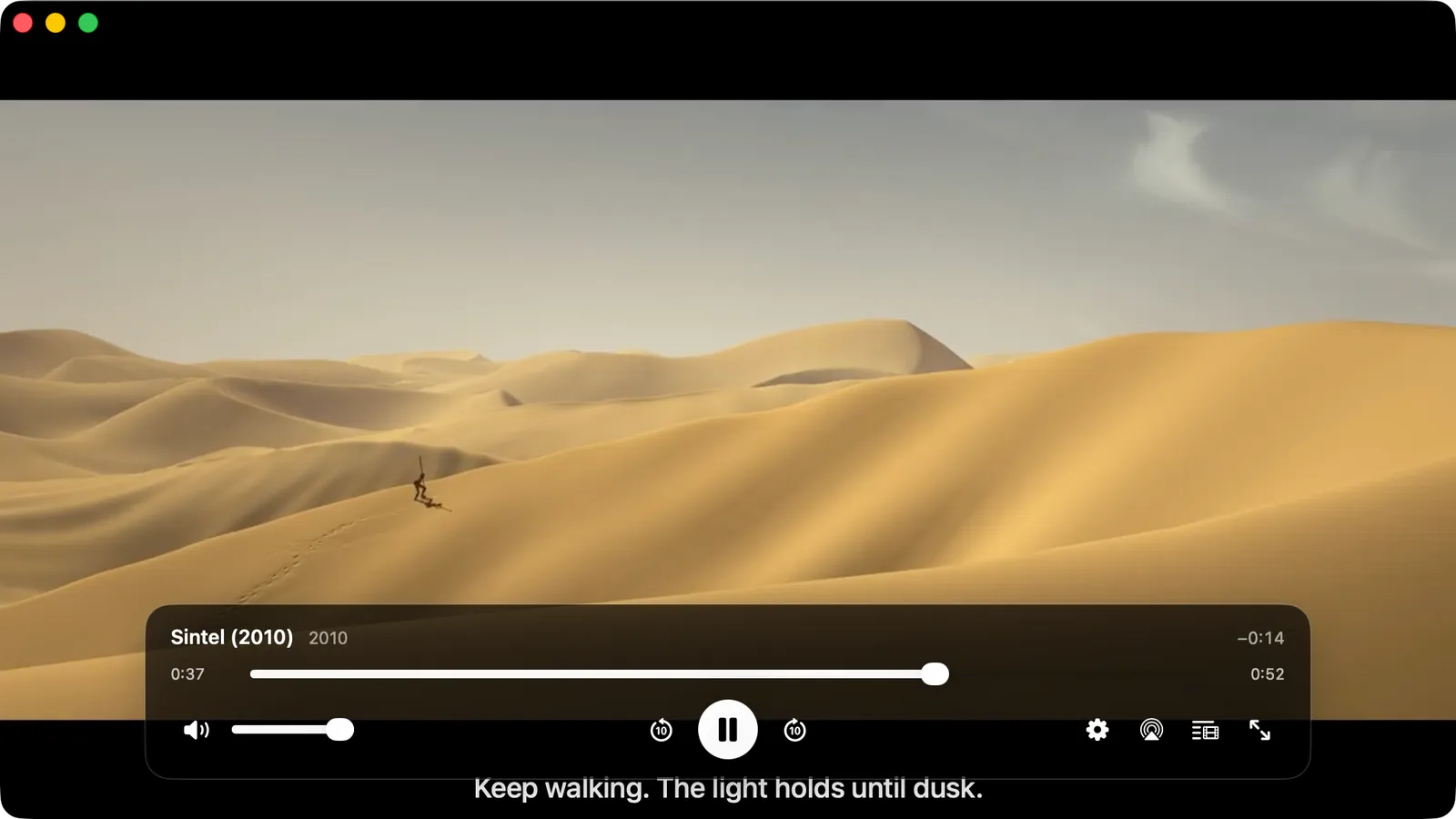
A dedicated player window.
Playback gets its own window, without a title bar, so you can keep working in the main one. Skip Intro, Skip Recap, Next Episode and a counting-down Up Next card behave the way they do on a TV app.
- One control deck: scrubber, volume, 10-second skips, AirPlay, episodes and chapters, full screen
- A settings menu for subtitles (timing and look), audio, speed and quality
- Controls and the pointer hide after 3 seconds while a video plays
- Space plays and pauses, arrows skip and change the volume, f for full screen, m mutes, Esc closes
- Media keys and Control Center through Now Playing
Files
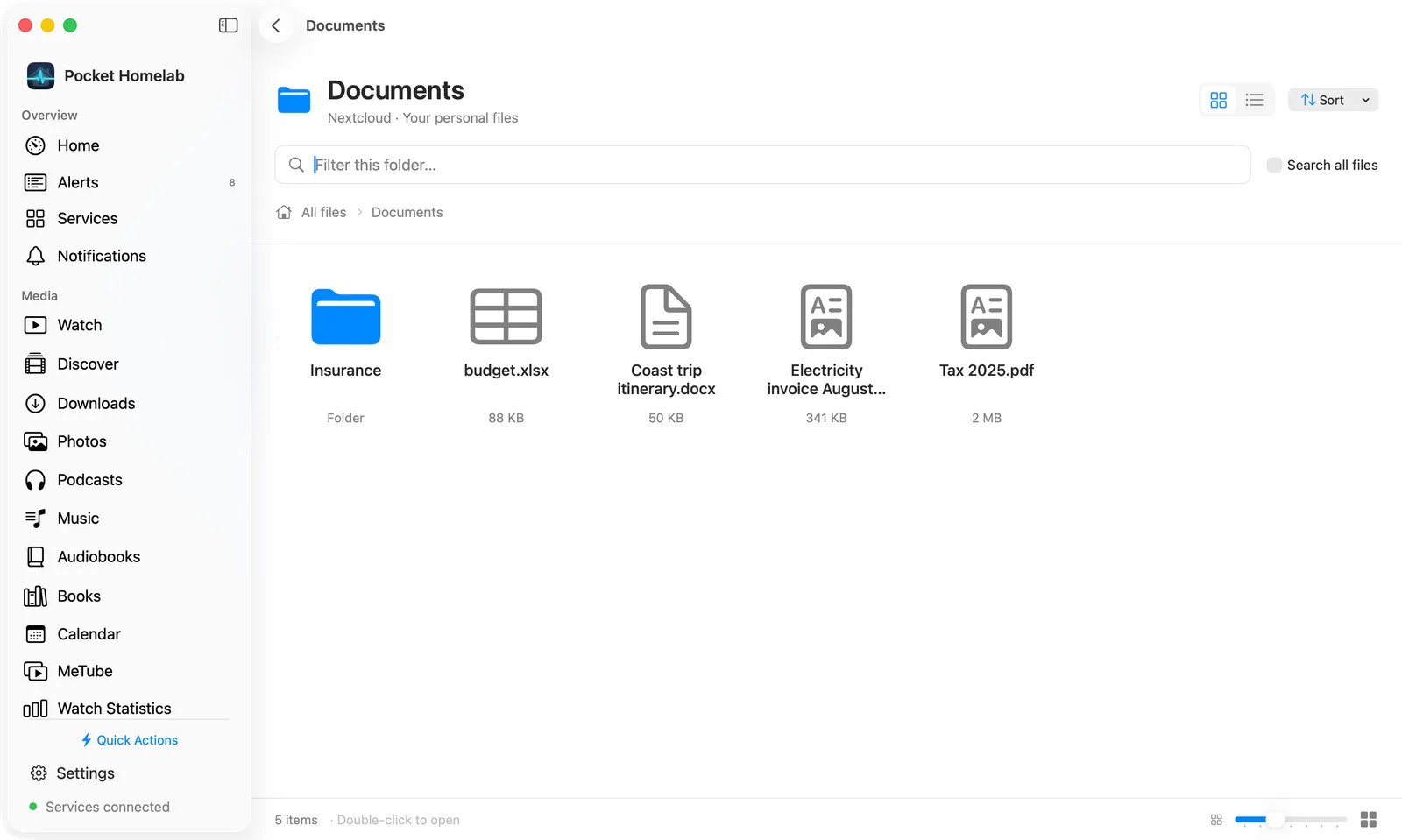
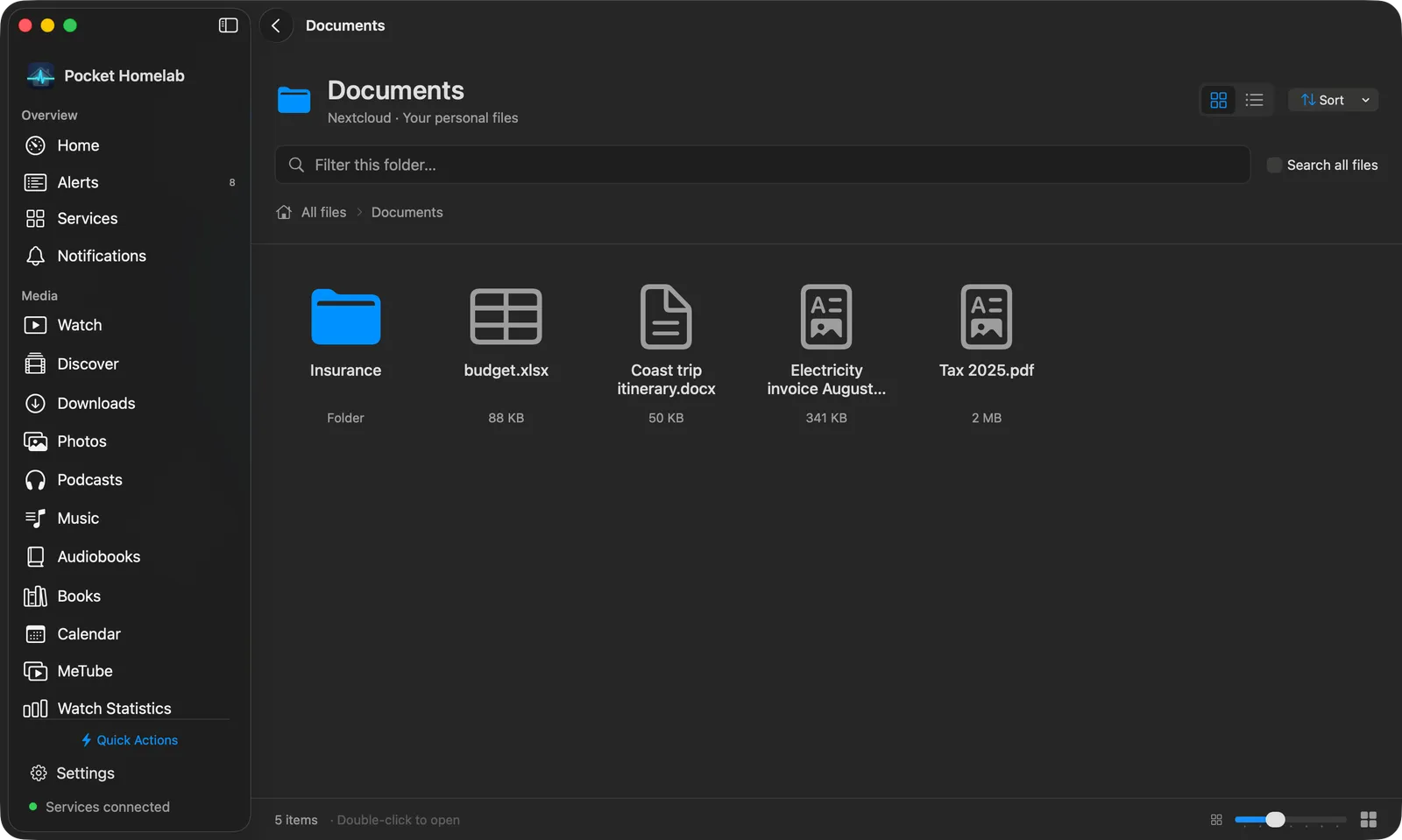
Nextcloud, browsed like Finder.
Searching all files adds a Search in menu, an extension filter and an OCR-highlights-only toggle, and shows the first 200 results.
- Icon view (⇧⌘1) and list view (⇧⌘2) with an icon-size slider
- Breadcrumbs, Recent files, and a Sort menu that keeps folders first
- Filter this folder, or search all files, document text and OCR
- A file opens as its page: preview in the default app, share links, copy the path
Tasks
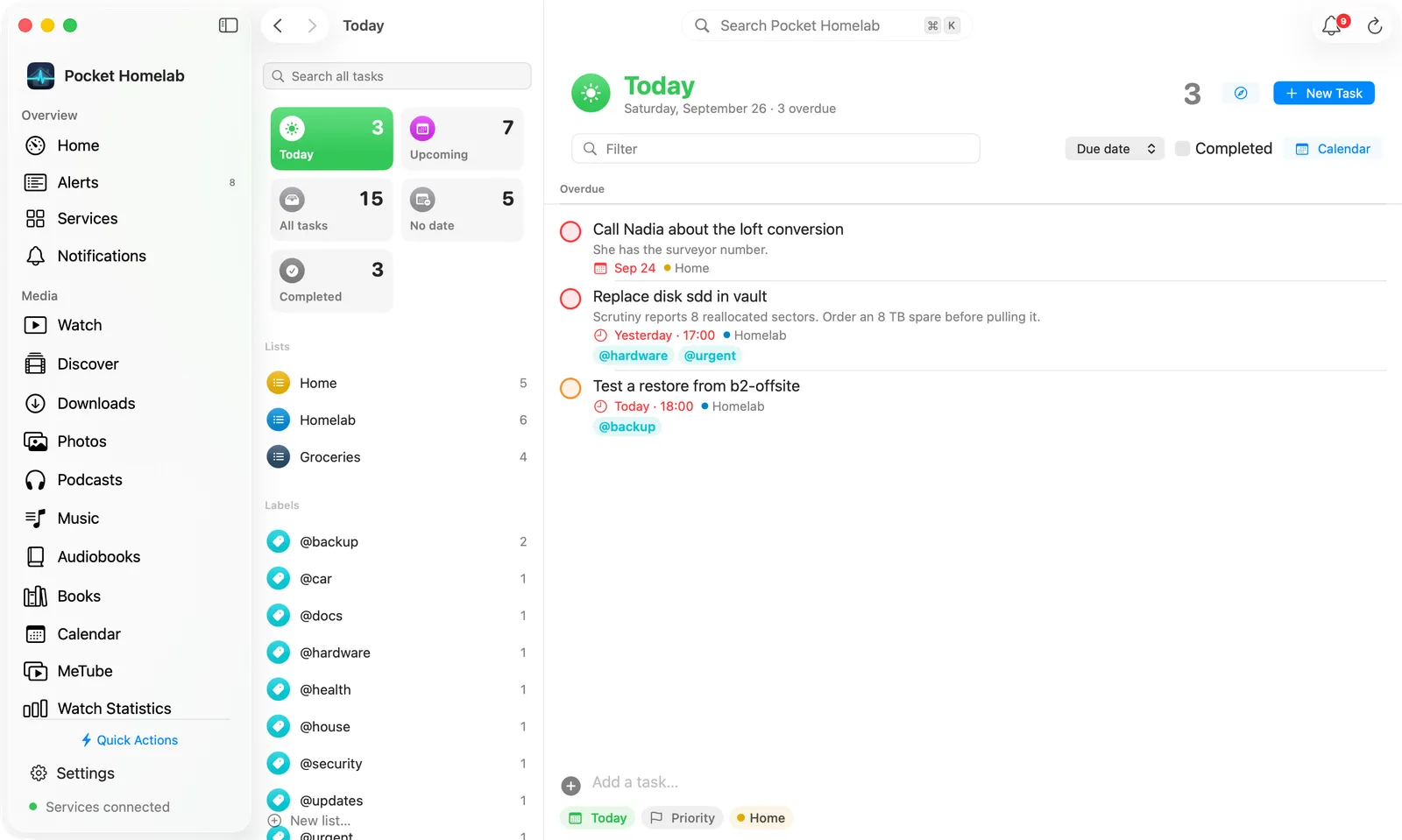
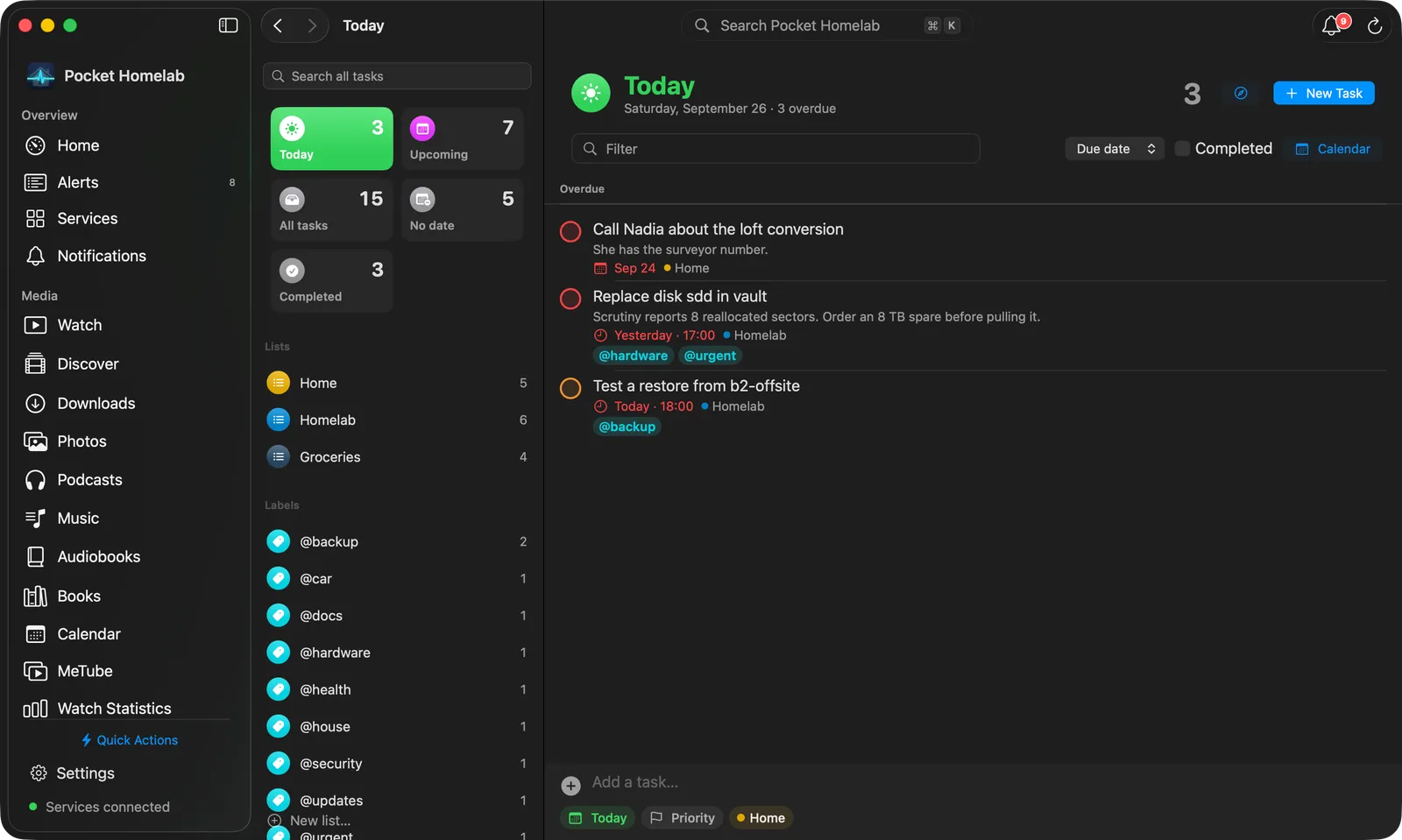
A two-pane task manager.
Lists stay visible beside the tasks instead of hiding behind a navigation push, as a desktop screen has room for both.
- Tiles for Today, Upcoming, All tasks, No date and Completed, each with a count
- Your lists, labels and read-only shared lists in the same column
- Search all tasks, New list…, and New Task (⇧⌘N) beside the view
- An empty Today shows what is coming up
Monitors
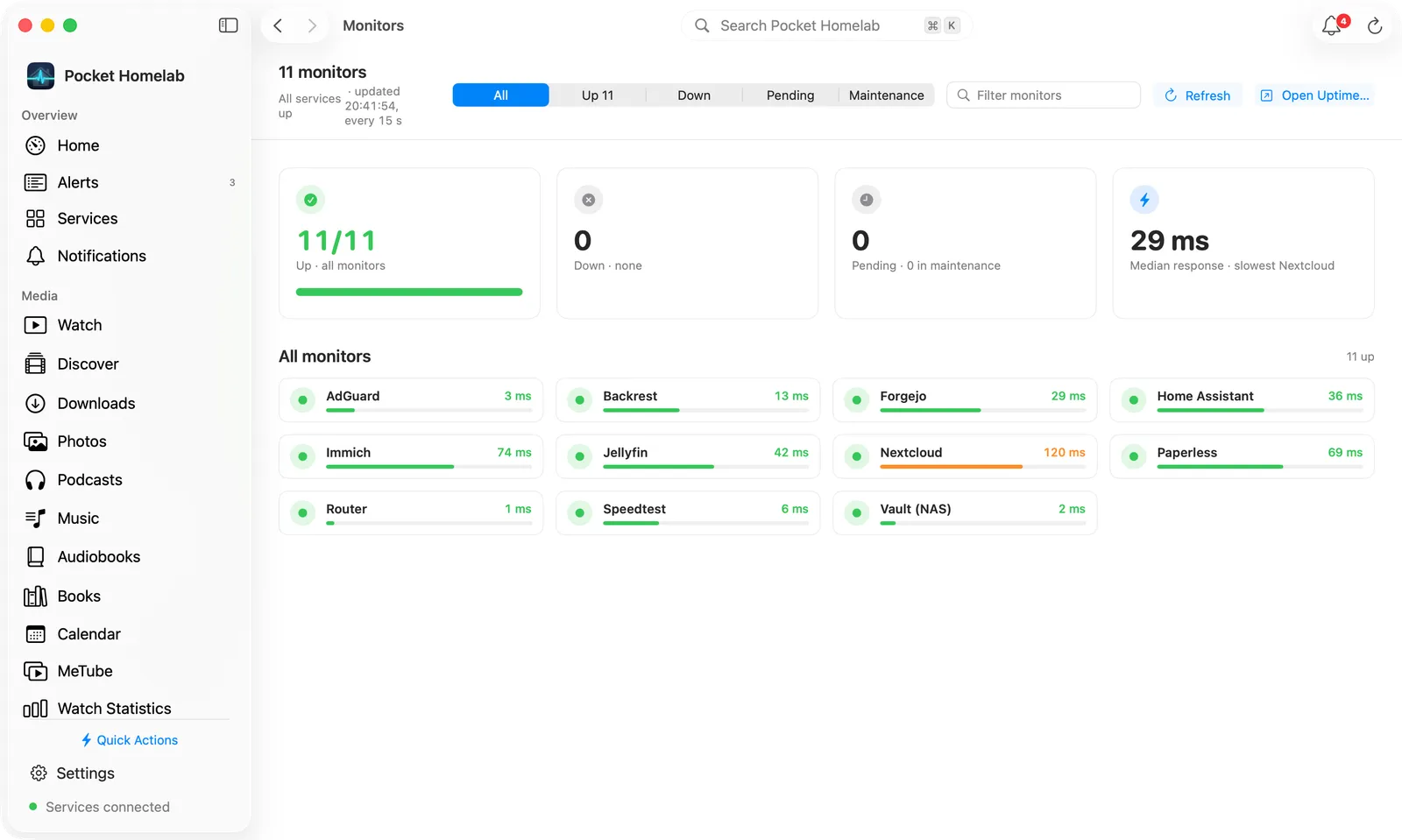
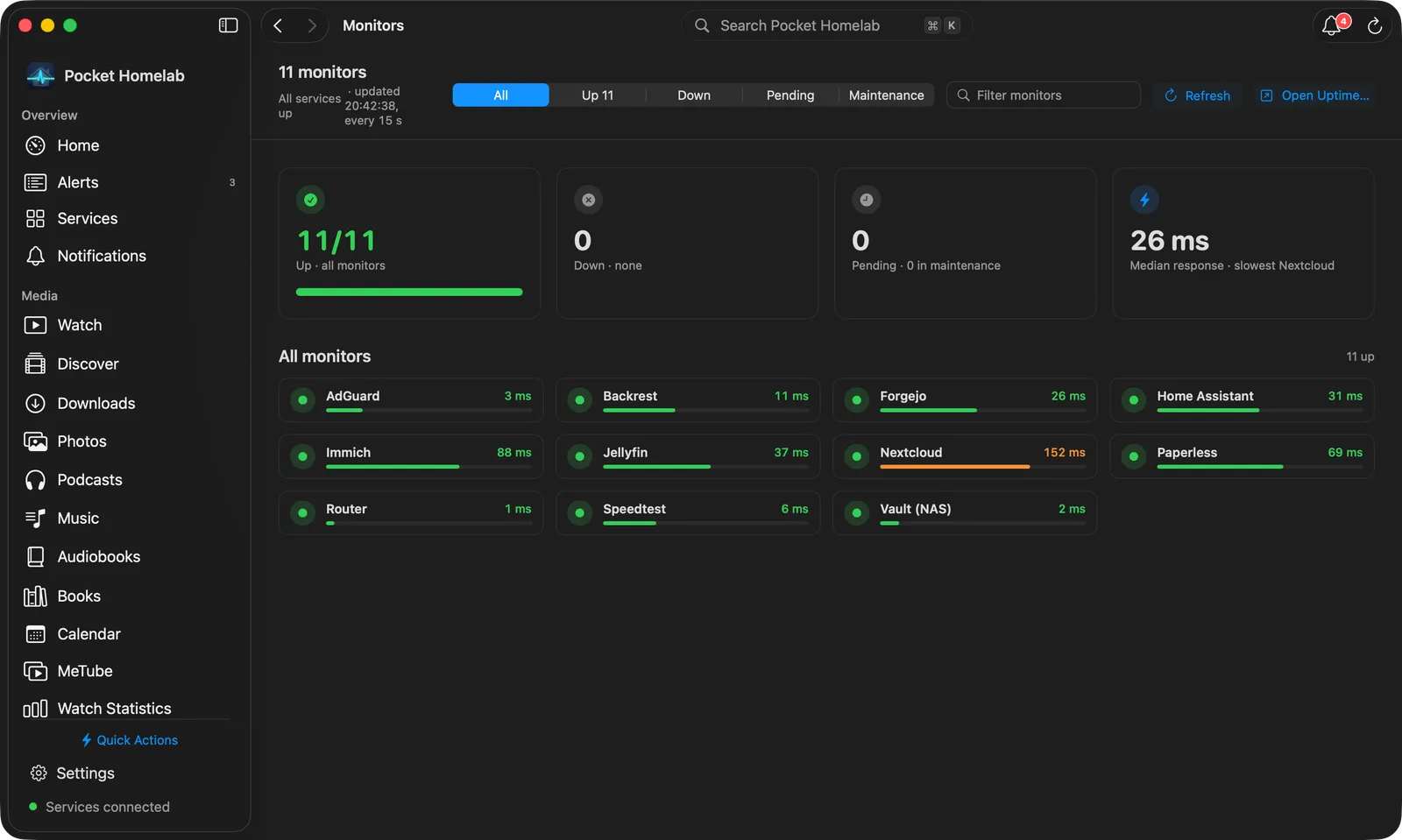
Availability at a glance.
Server and Storage follow the same pattern: tiles, then cards. Server shows storage and temperatures side by side and the top processes as rows; Storage shows each TrueNAS pool with its disks, the disks, the datasets and the alerts.
- All, Up, Down, Pending and Maintenance in the bar, with a filter
- Tiles for up, down, pending and the median response
- Needs attention first, then every monitor as a card under its group
- Response time and 24-hour uptime on each card, updated every 15 seconds
Downloads
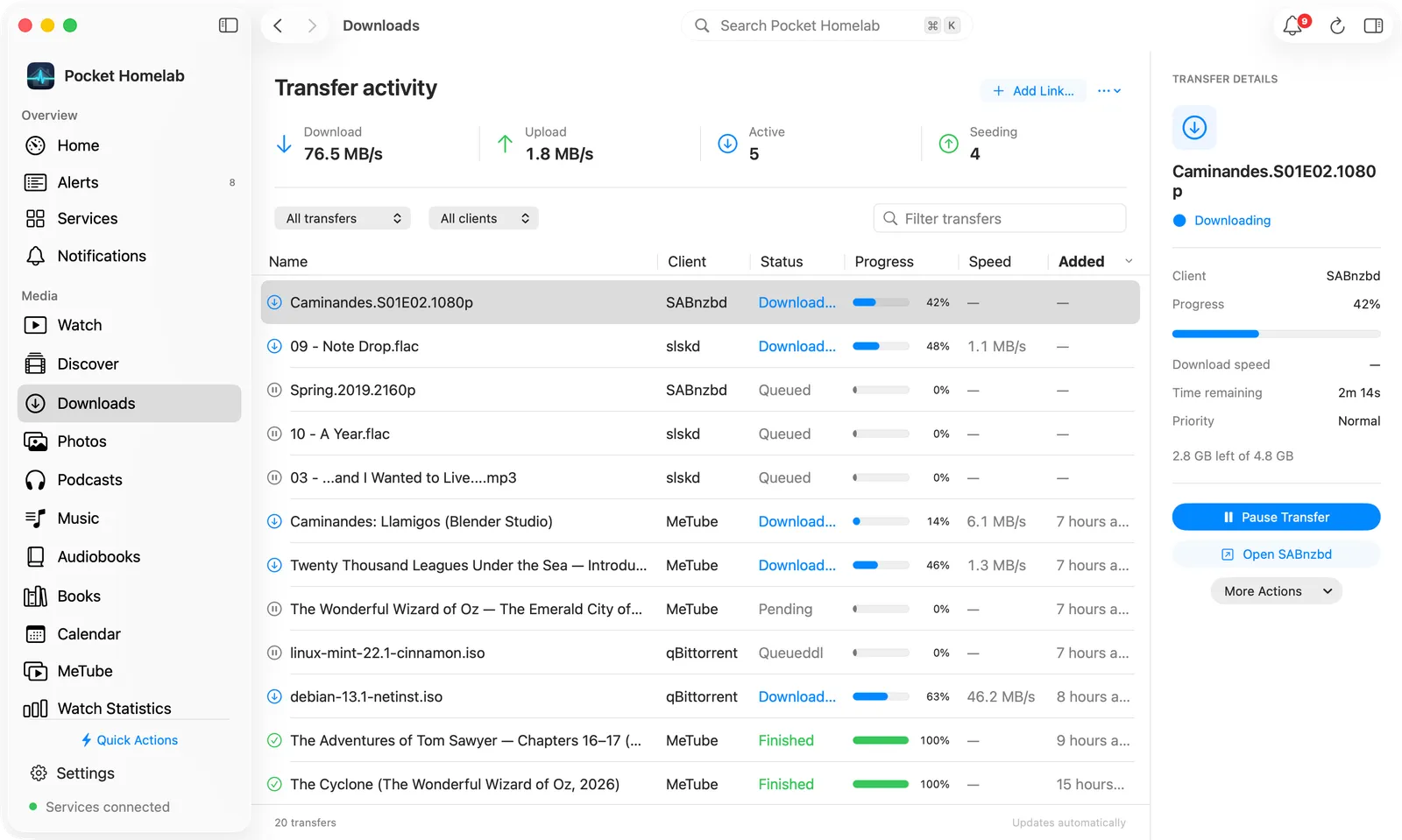
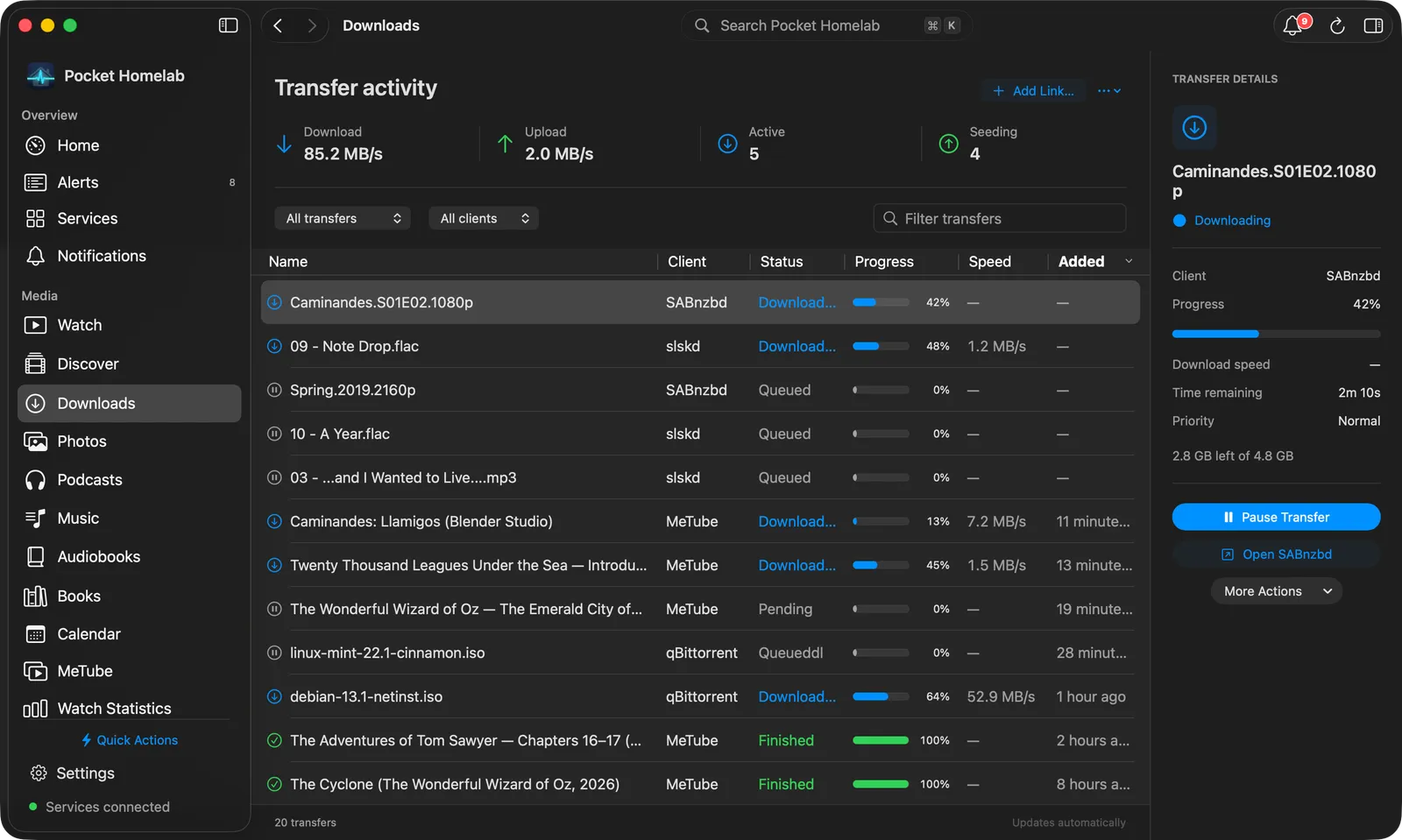
Every client in one table.
Context menus carry the same actions as the iPhone app, plus the MeTube extras: start, retry, copy or open the link, and clearing failed or downloaded entries. Add Link… sends a new link to MeTube.
- qBittorrent, SABnzbd, slskd and MeTube merged and sortable, newest first, with an Added column
- Status and client filters, plus a free-text transfer filter
- An inspector (⌥⌘I) with progress, speeds, time remaining, category and folder
- A line for each client that fails, with a link to its connection settings
Settings
A Settings window, and your own Keychain item.
On first launch the main window opens on a welcome screen with three ways in: look around a sample homelab with made-up data, connect a service, or bring your configuration from another device.
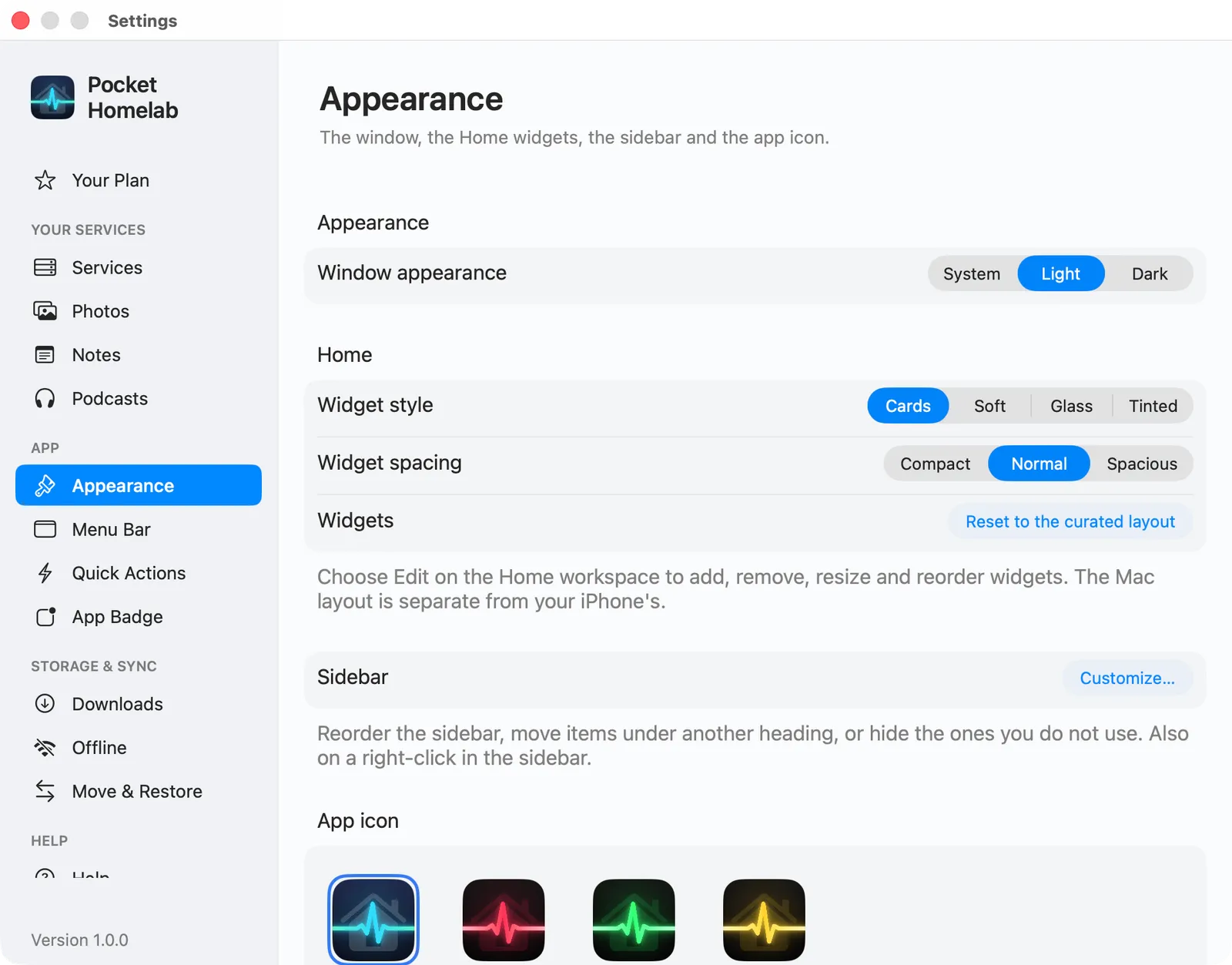
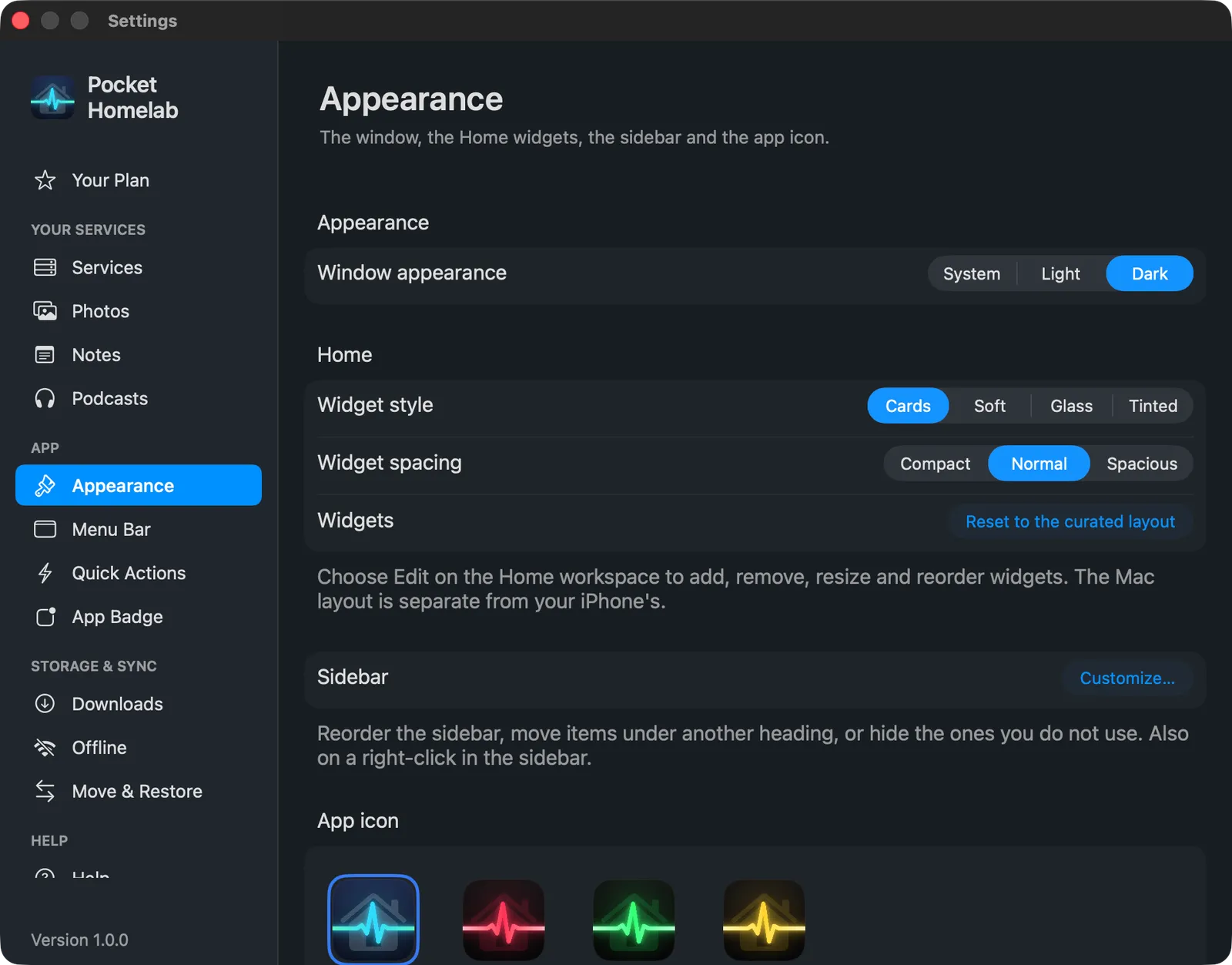
- Grouped like the iPhone: Your Plan; Services, Photos, Notes, Podcasts; Appearance, Menu Bar, Quick Actions, App Badge; Downloads, Offline, Move & Restore; Help, Support, Diagnostics
- Move & Restore imports an env file or a sealed export from your iPhone; the Mac keeps its own Keychain item
- Window appearance, Home widget style, the sidebar and the app icon under Appearance
- Pinned quick actions and every keyboard shortcut, independent of the phone
Keyboard first
Hands stay on the keys.
Workspaces are numbered. Actions have real bindings, and you can change every one of them. Nothing is buried in a hamburger.
One app, two shells
Same purchase as iPhone.
Pro is a universal purchase tied to your Apple Account. Buy it on either platform and useRestore Purchases on the other.
Shared service clients
Separate configuration
Independent navigation
Get it
Put the rack on your desktop.
Install, import your configuration once, and every workspace you have a service for shows up in the sidebar.
macOS 15+ · Same purchase as iPhone · Free for three integrations