
Forgejo
Review pull requests, merge, browse code and watch Actions runs from your Forgejo or Gitea server.
iPhoneMacOn this page
Forgejo (and Gitea) is a self-hosted Git forge. Pocket Homelab turns it into a Code screen: repositories, syntax-highlighted diffs, pull-request review with a merge-method picker, Actions runs and job logs, and a notifications inbox, everything you’d otherwise open a laptop for.
What you get
- Home row: value like “3 open PRs” or “12 repos”; red when a recent run failed, orange while one runs.
- Home header option: “Code activity”.
- “Code” tab (optional, off by default) with Inbox, Pull requests, the latest Actions runs and Repositories.
- Quick action: Code (⇧⌘R on Mac).
- Spotlight (iPhone): a Code entry, plus a live repository search once you type 2+ characters.
- Screen action button (iPhone): a round button beside the + on the Code hub, with its pages, the latest run and your repositories.
- Mac: sidebar Code (⌃⌘6); Spotlight (⌘K) searches repositories from the cached overview. The Mac Home has a Code widget showing an overview, your repositories, open pull requests or recent workflow runs.
- Unread notifications show as an orange badge on the Inbox row, this never reaches the system app badge or push.
Set up
- In Forgejo, open Settings → Applications → Generate token, and grant read/write on repository, issue and notification. That covers reading repos/commits/branches/releases, reviewing and merging pull requests, closing/reopening issues, controlling Actions runs and reading notifications.
- In Pocket Homelab, go to Settings → Services → Forgejo, paste the URL and token, then press Test connection. You should see “Signed in as <name> · N repositories”.
| Key | Field | Required | Secret | Where to get it |
|---|---|---|---|---|
FORGEJO_URL | Forgejo / Gitea URL | Required | — | Base URL of your Forgejo / Gitea instance. Leave empty to hide Forgejo / Gitea features. |
FORGEJO_TOKEN | Forgejo / Gitea Access Token | Required | Secret | Settings → Applications → Generate token, with read/write on repository, issue and notification. Unlocks the Code screen (repos, pull requests, reviews, Actions). |
On iPhone
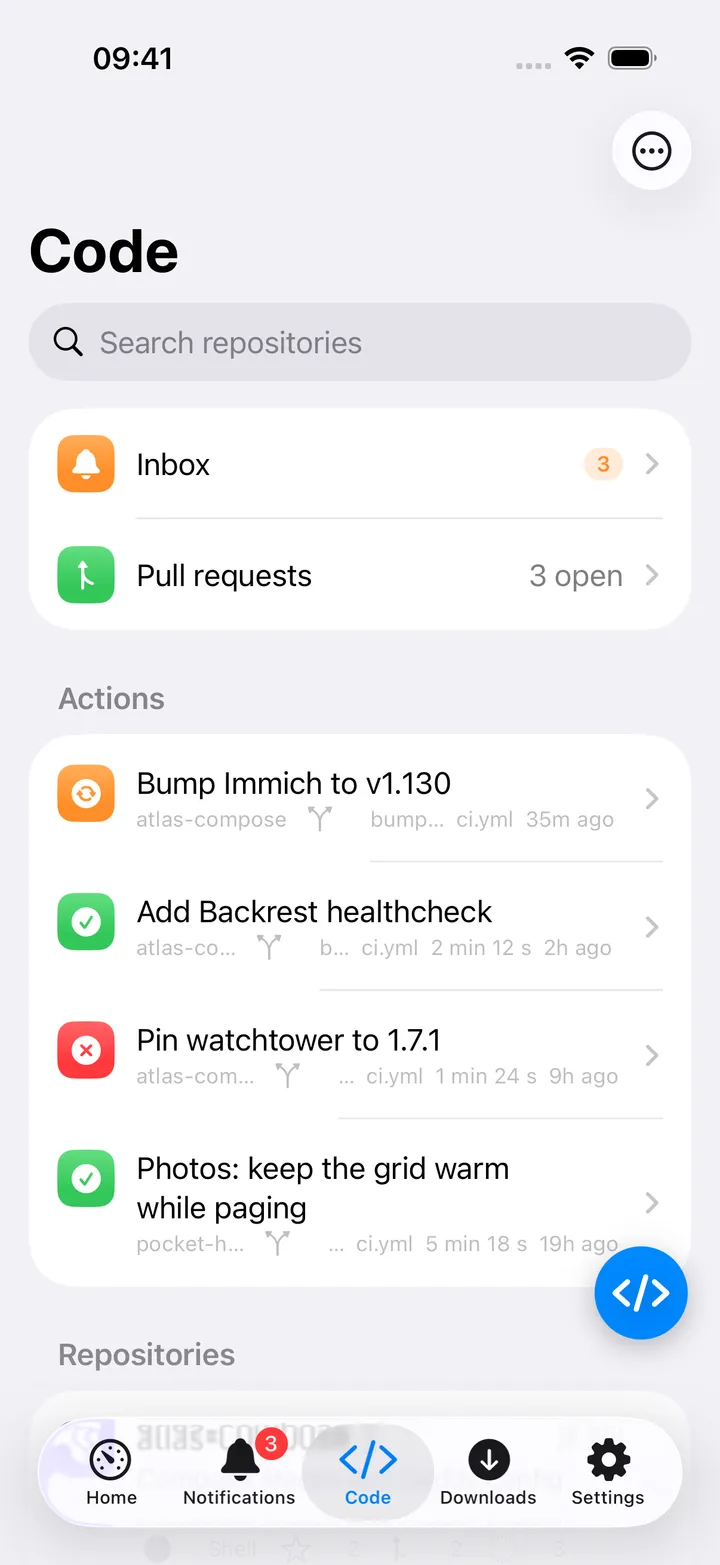
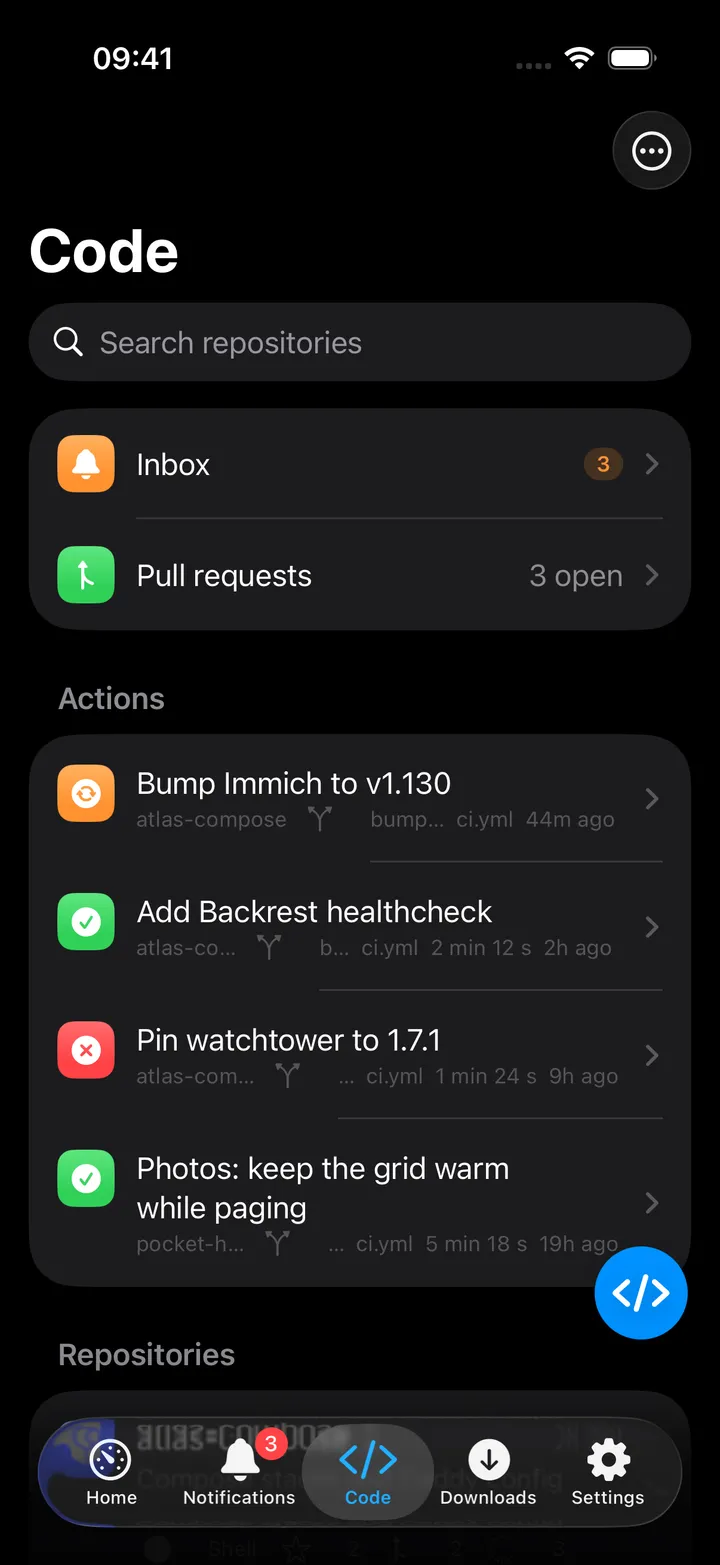
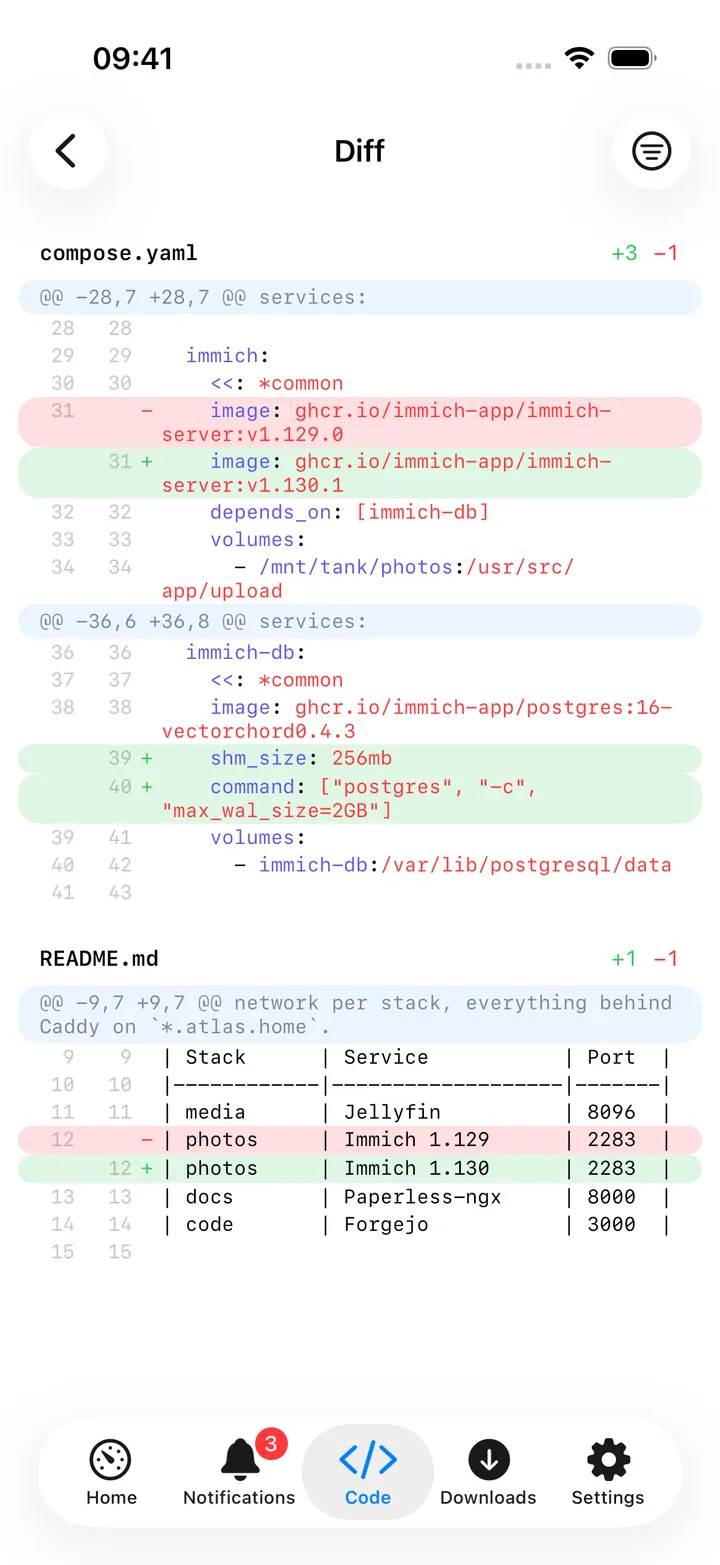
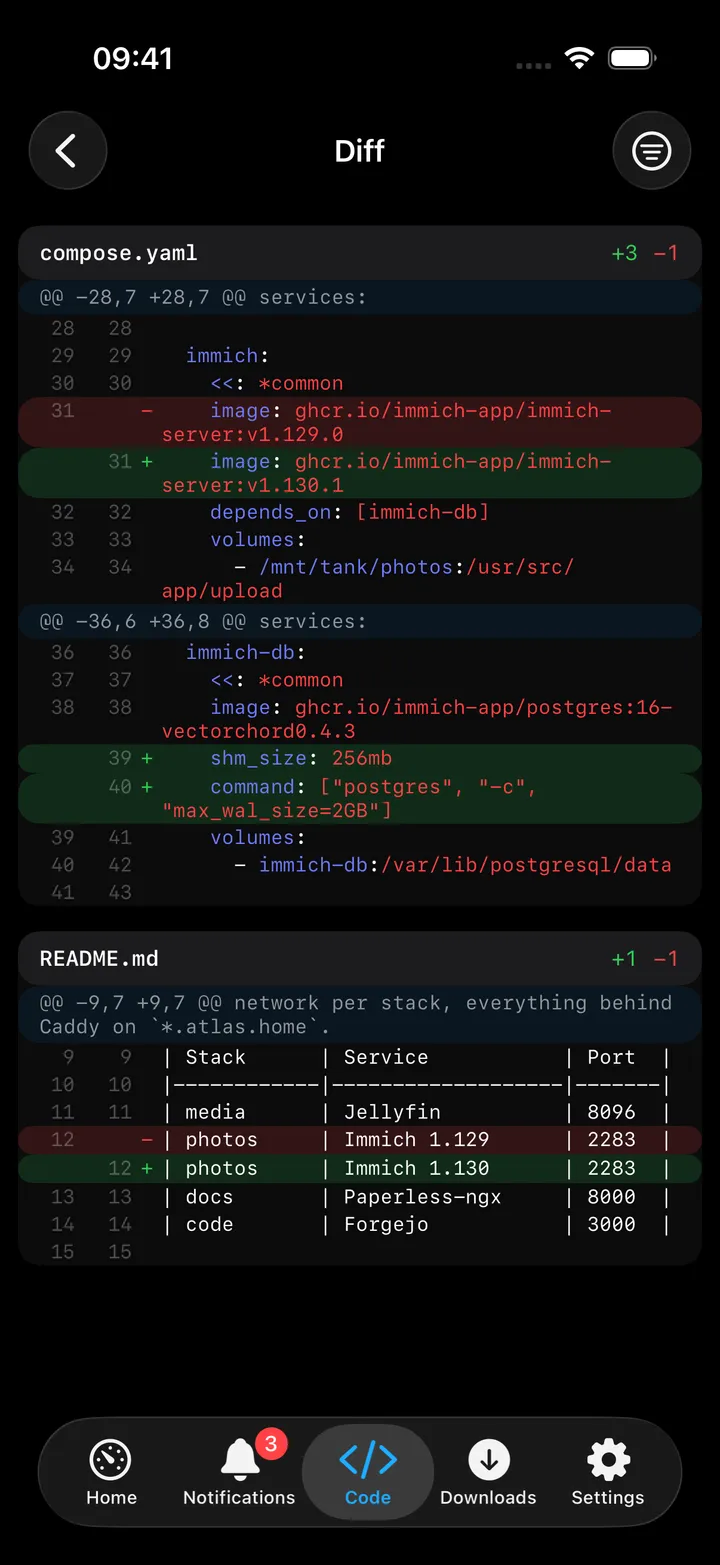
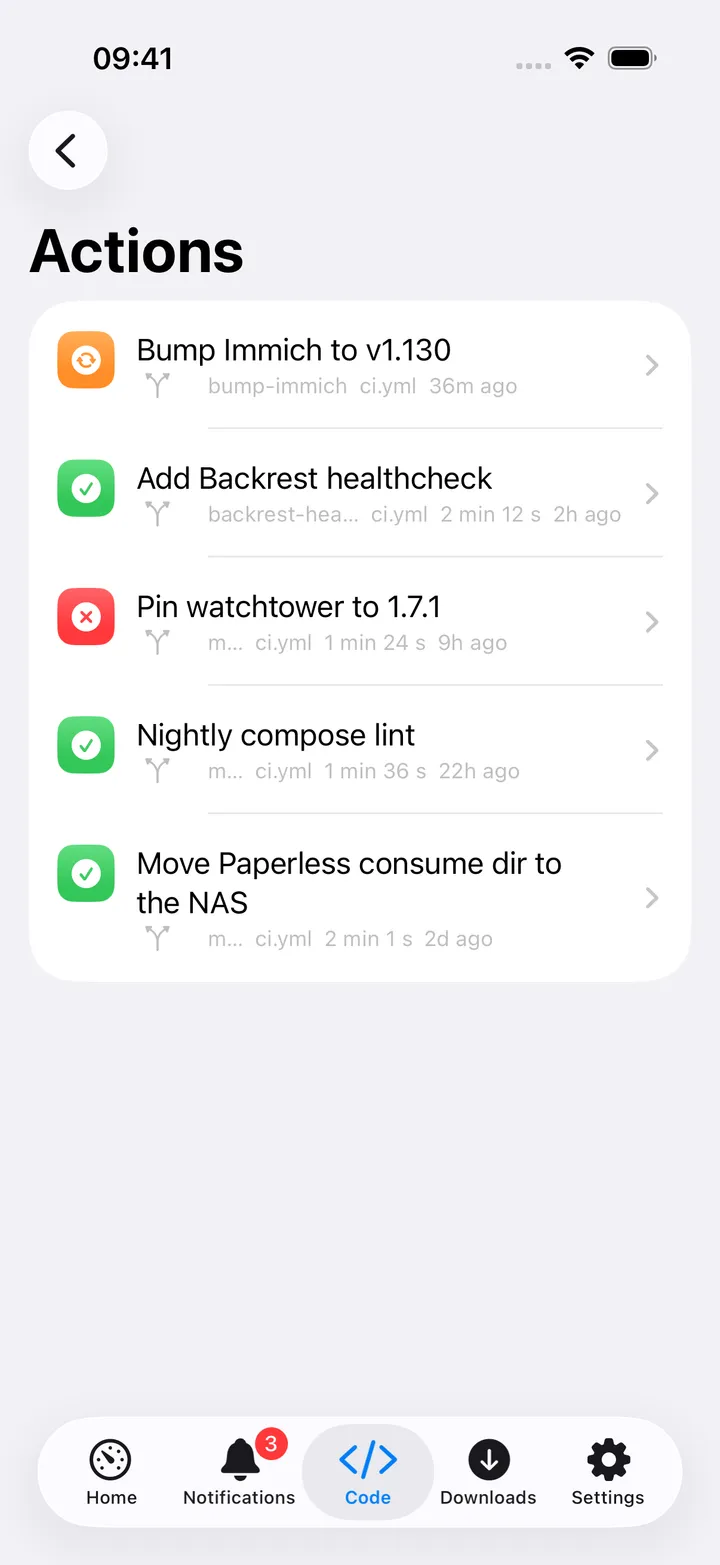
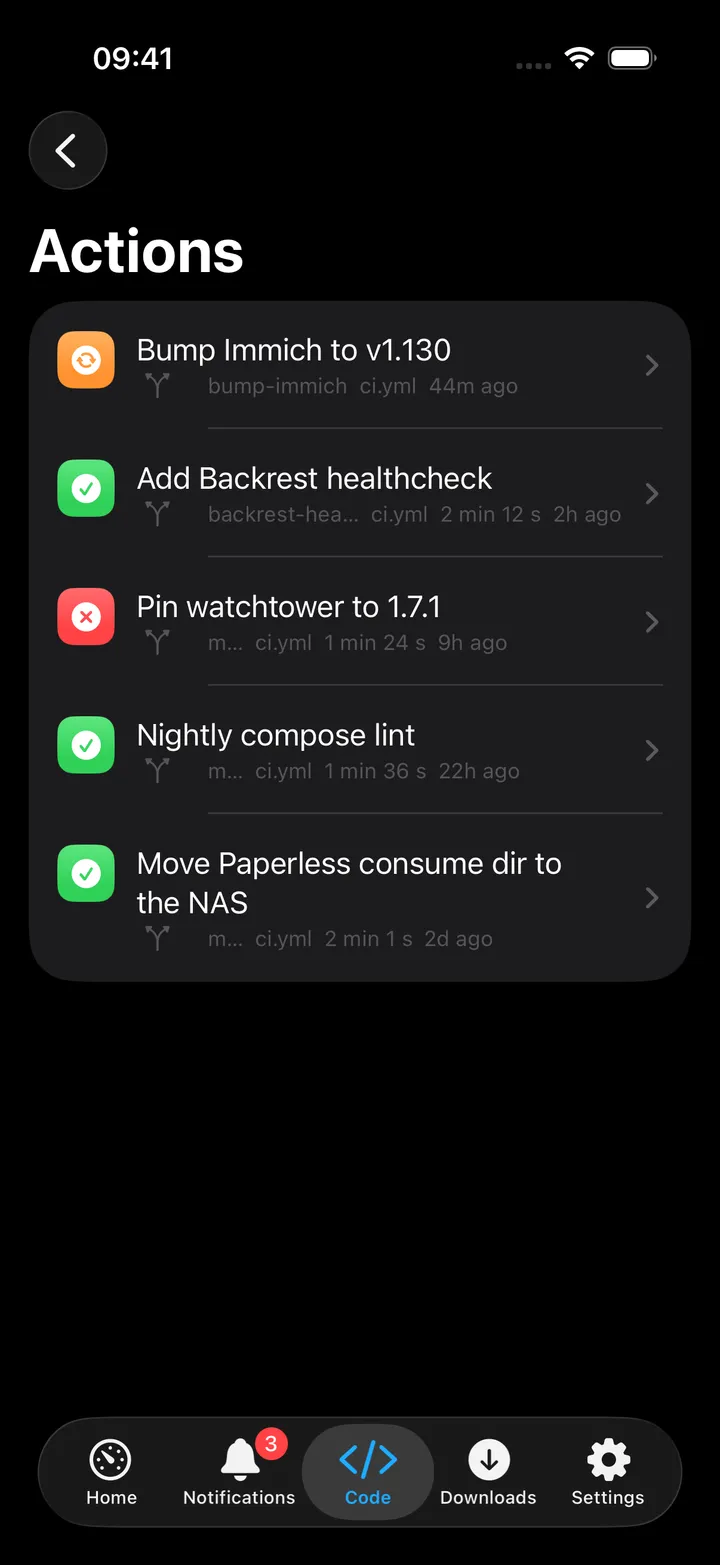
The Code hub starts with Inbox (an orange unread count) and Pull requests (N open or none open), then Actions with the latest four runs across your repositories, then every repository with its description, language, stars, open pull requests and issues. The search field filters the repositories by name, description or language; the footer shows the repository count and the account you are signed in as. The ⋯ menu has Refresh and Open Forgejo.
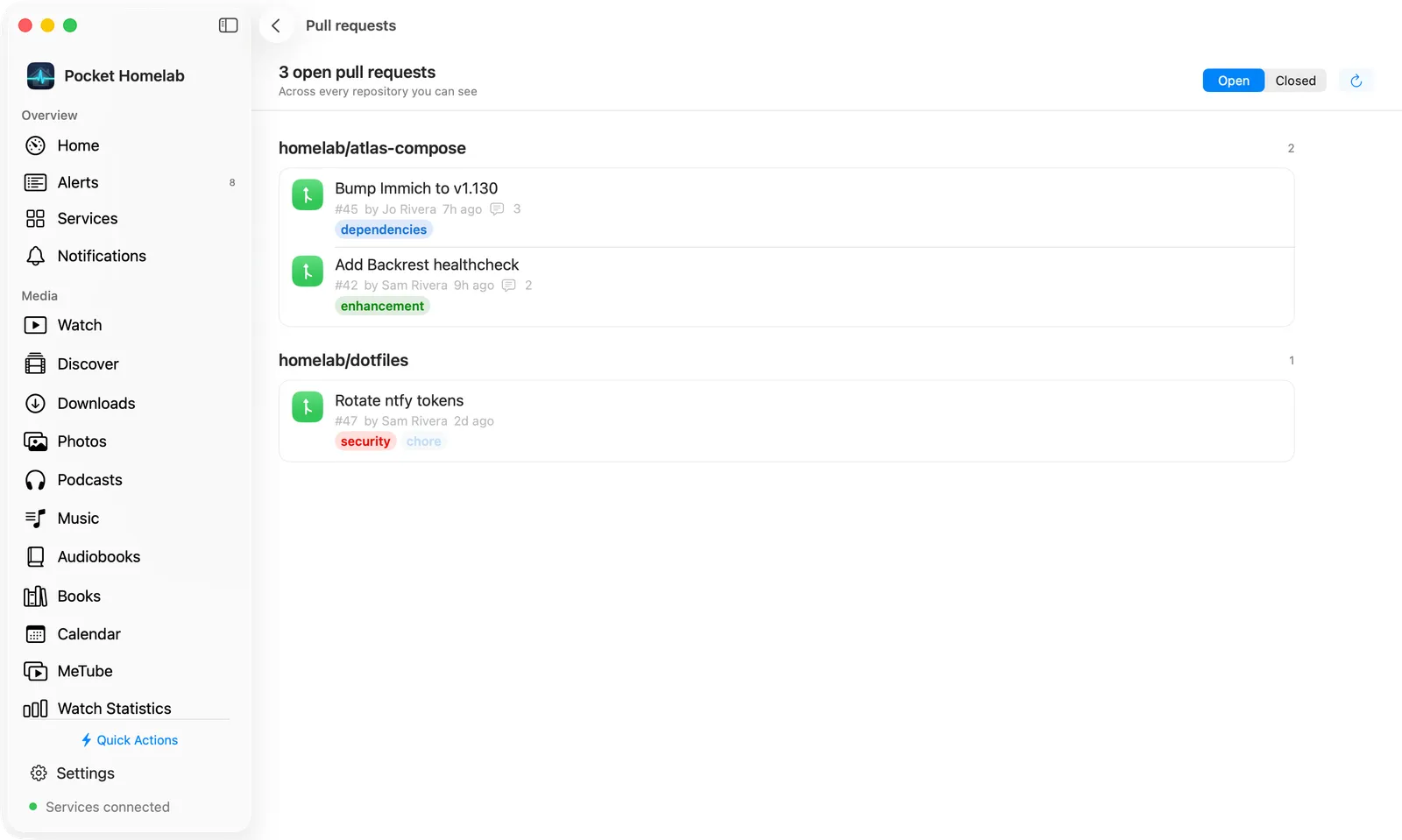
Inbox switches between Unread and All and has Mark all read. Opening a notification marks it read and opens the pull request or issue it is about. Pull requests lists every open (or closed) pull request you can see, grouped by repository.
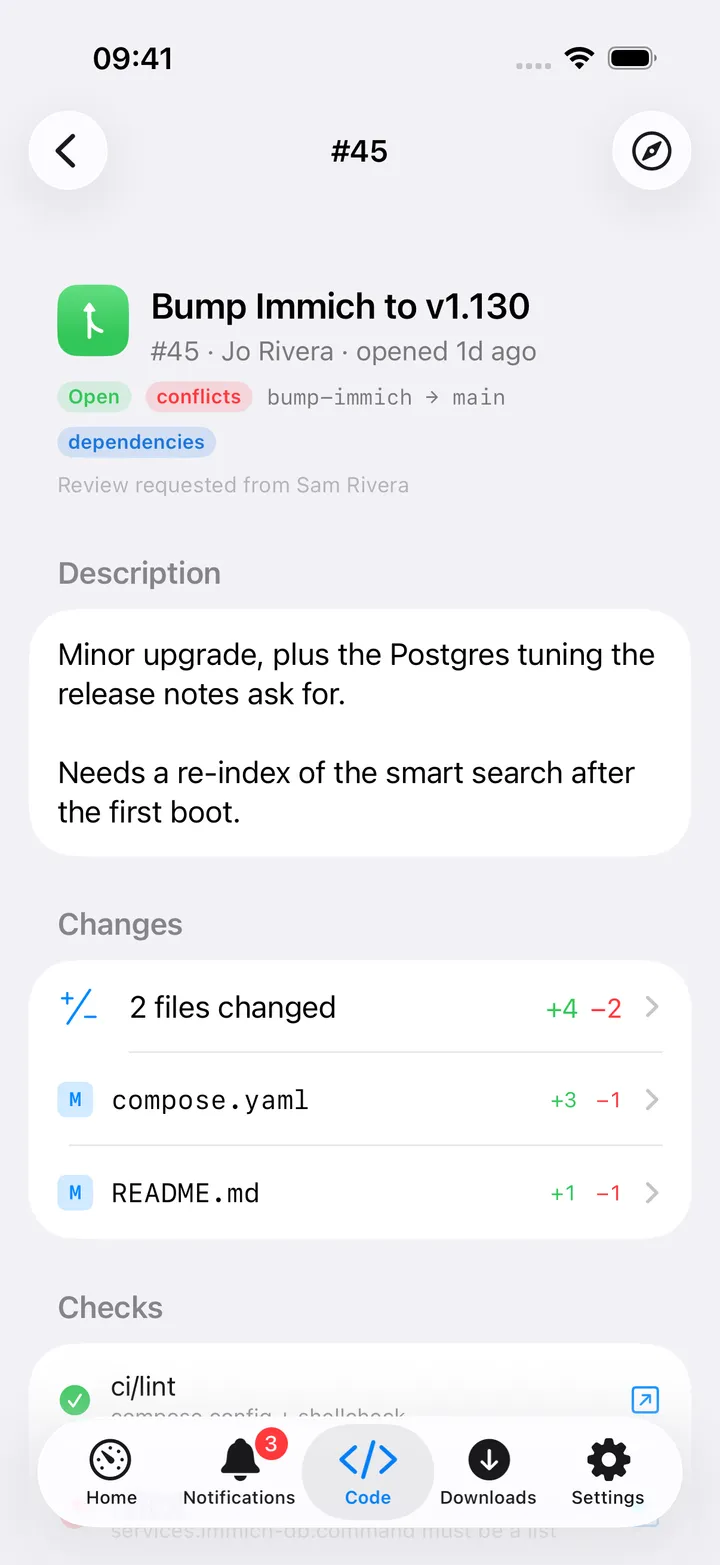
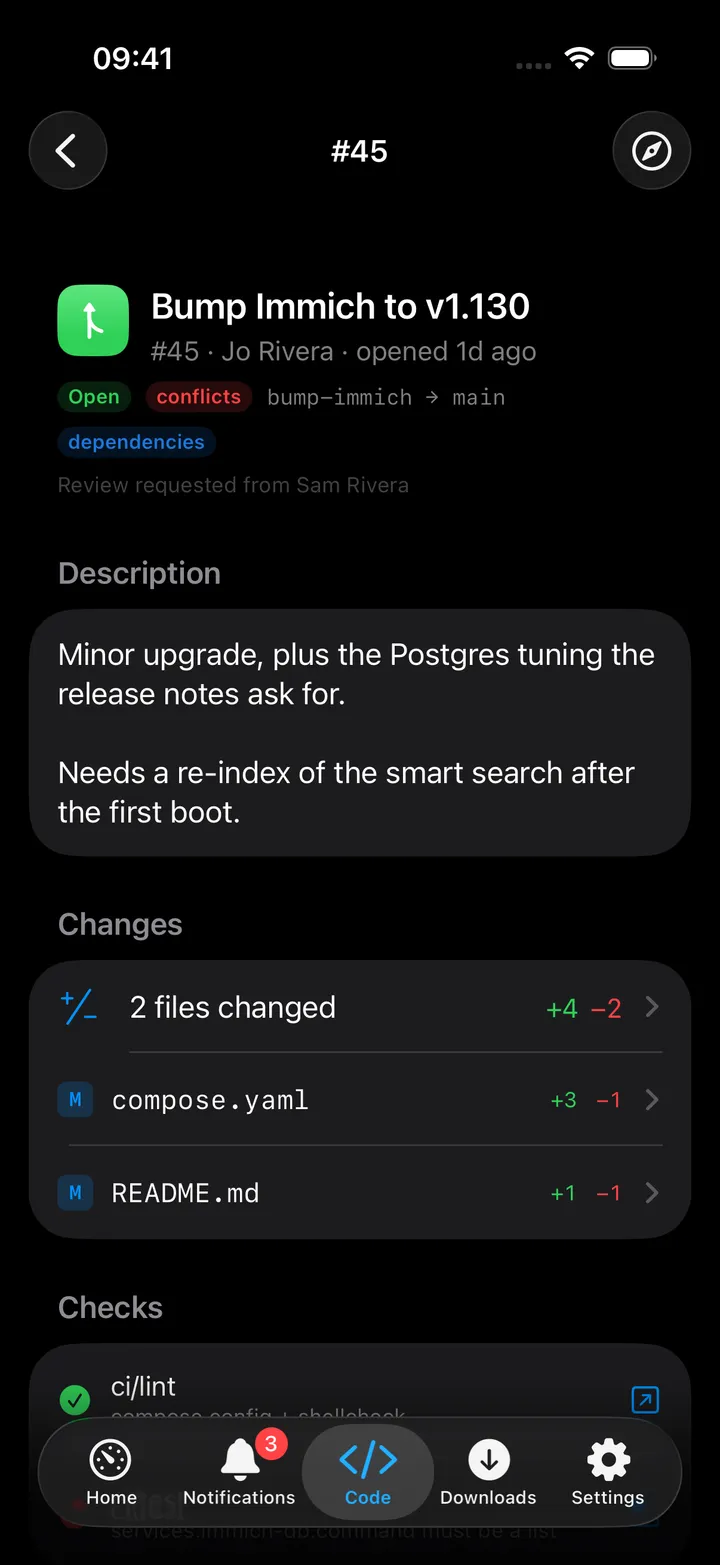
A pull request shows its reviews, changed files and comments, with Approve, Request changes, Review comment and Add comment. Merge offers five strategies (merge, squash, rebase, rebase-and-merge, fast-forward-only) with an optional “delete branch after merge” toggle. Diffs over 400 lines per file fold behind a Show all N lines button. Pull requests and issues also have a Notes about this section when your Nextcloud has the Notes app: the notes that link to them, and Write a note about this.
On the Code hub a round screen action button sits beside the +. Tap it for a menu, or hold, slide onto a row and release. It starts with five actions (Inbox with the unread count, Pull requests, Latest Actions run, Refresh, Open Forgejo); Customise adds any of your repositories to pin it there. Turn it off in Settings → Screen action buttons.
On Mac
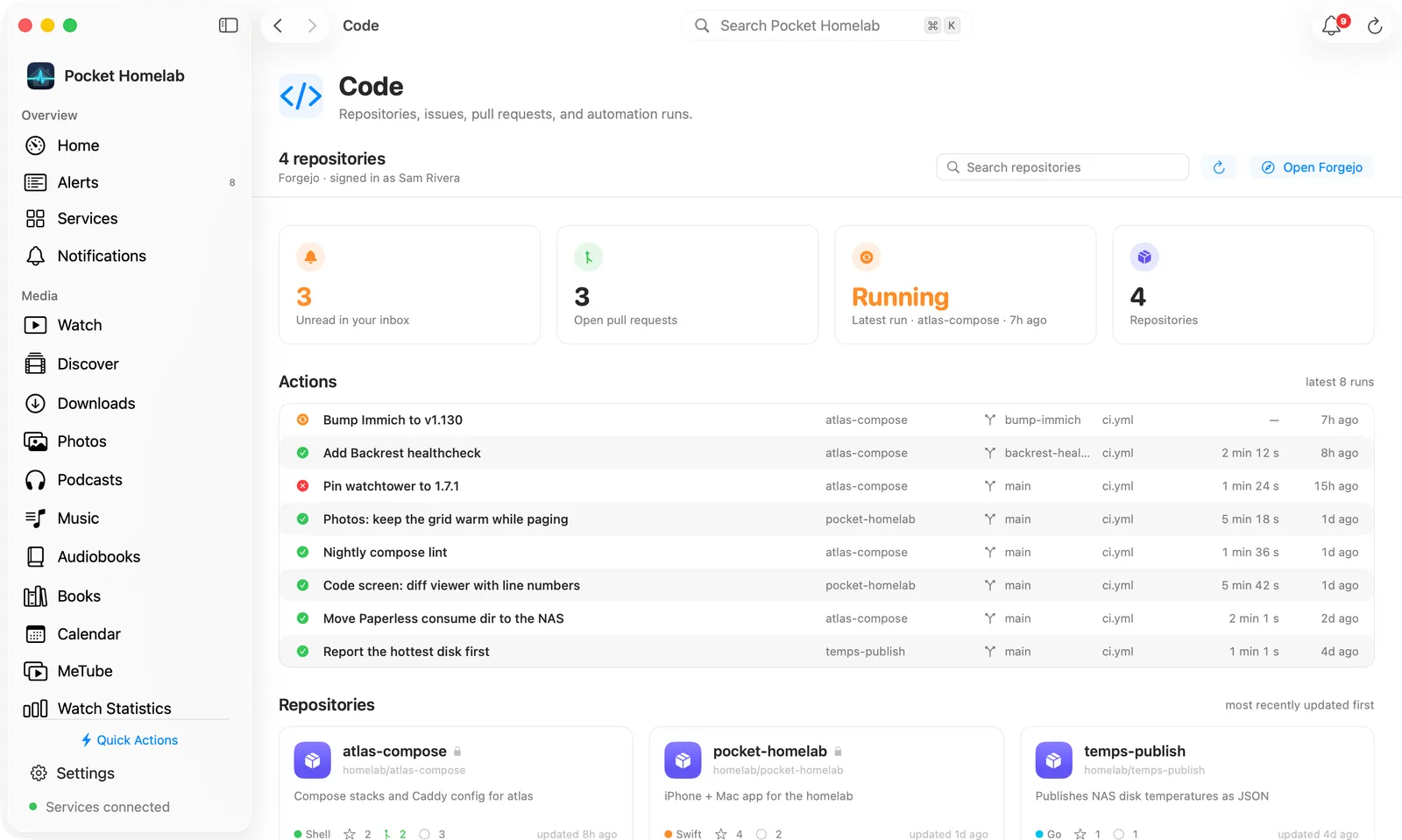
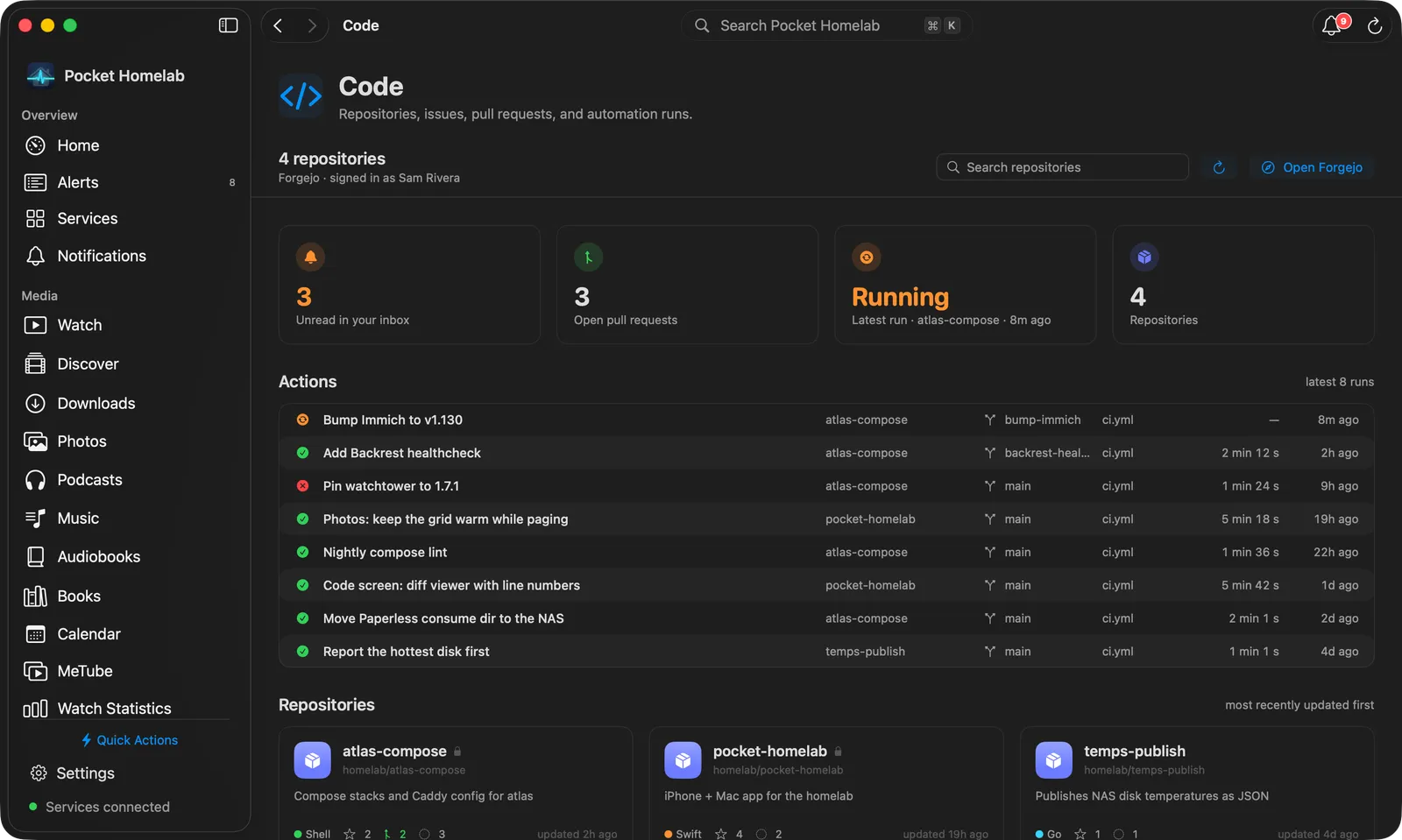
The Code page opens with a bar: the repository count and Forgejo · signed in as … on the left, then a Search repositories field, Refresh and Open Forgejo. Under it:
- Tiles: Inbox (the unread count, orange when there is something new), Open pull requests, Latest run (its state, with the repository and how long ago) and Repositories (the count). Click the Inbox, pull request or run tile to open that page.
- Actions: the latest eight runs as a table with state, title, repository, branch, workflow, duration and age. Click a row to open the run and its job logs.
- Repositories: a grid of cards, most recently updated first. Each card shows the name (with a lock when private), the full name, the description, the language with its colour, stars, open pull requests, open issues and when it was last updated. The search field filters the cards.
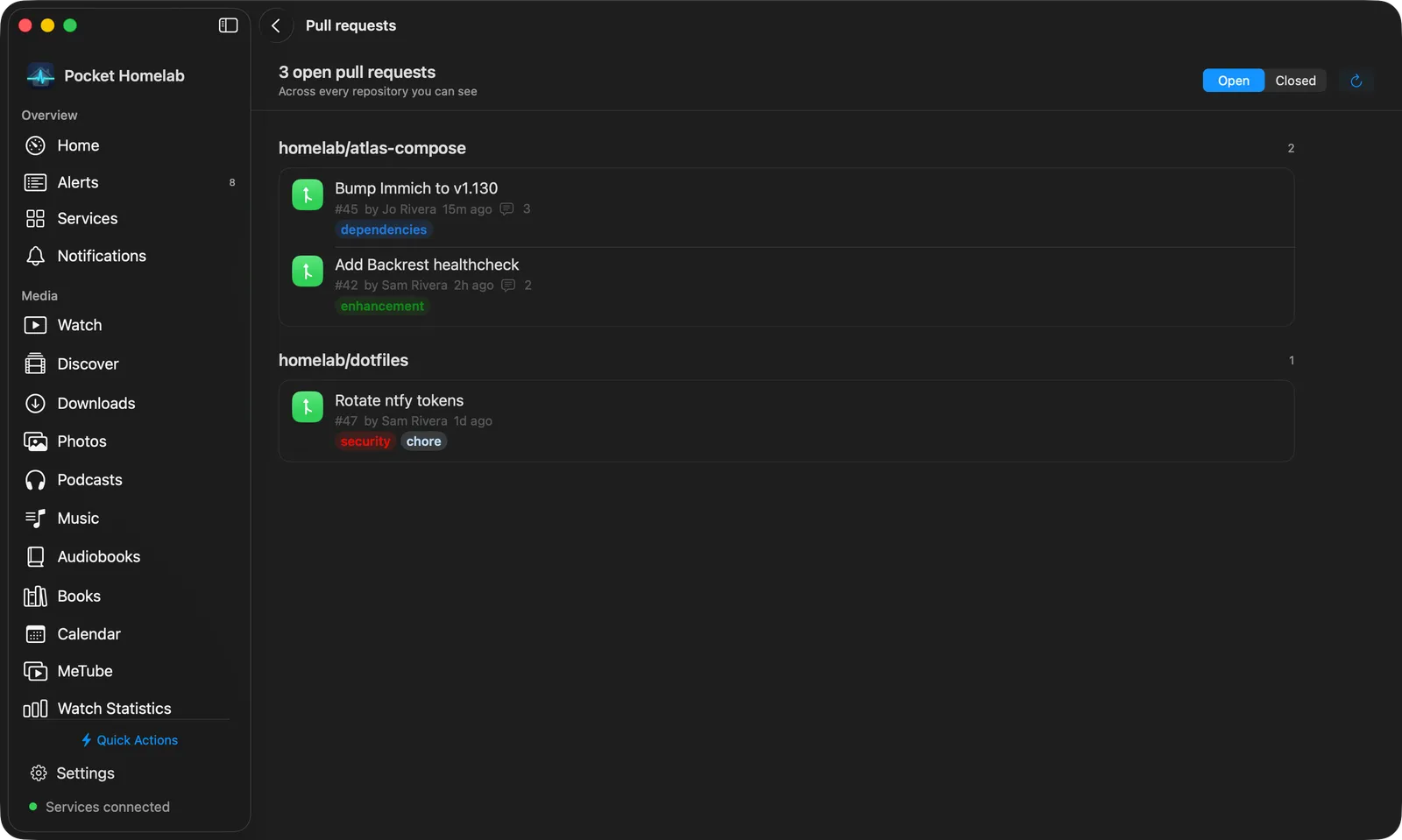
Inbox has a bar with Unread / All, Refresh and Mark All Read, and lists the notifications as one card, unread ones tinted; clicking one marks it read and opens it. Pull requests has Open / Closed and Refresh, with one card of pull requests per repository.
A repository opens as one page: a bar with its name, Private or Public, language, default branch, size and last update, then Clone (copy the HTTPS or SSH address), Refresh (⌘R) and Open in Forgejo. Under it a row of tabs: Overview, Files, Commits, Pull requests, Issues, Actions and, when there are any, Releases; the counts of open pull requests and issues sit in their tab.
- Overview: tiles for open pull requests, open issues, the latest run and releases (or stars), each opening its tab or the run; the latest commits; the README, rendered; and on the right About (description, topics, visibility, language, default branch, size, stars, forks), Clone with a copy button per address, the checks on the default branch and Notes about this.
- Files: the tree as a table (name, kind, size) under a path bar you can click back through. Double-click a folder to open it, a file to read it with syntax colours; Markdown files show Preview or Source.
- Commits: a table with message, author, short SHA, lines added and removed, and date; more load as you scroll. The branch menu on the right switches the branch for Files and Commits. Right-click a commit to copy its SHA or message, or browse the files at that commit.
- Pull requests and Issues: tables with state, title, labels, number, author, branches, comments and last update, with Open / Closed on the right.
- Actions: the runs as a table with state, workflow, branch, event, duration and start; it refreshes while a run is active.
- Releases: one card per release with its tag, date, author and notes.
Double-click a row (or press Return) to open it. A commit shows the author, message, parents and checks, then its changed files in a sidebar you can filter beside the diff; pick a file or All files. A pull request has Conversation and Files changed: the conversation is the description, reviews and comments in order with a comment box at the end (Comment, ⌘Return, plus Approve and Request changes); the inspector beside it shows the branches, reviewers and their verdicts, labels, checks, the change size and the merge box (method, Delete branch after merge, Merge, Close without merging). An issue is laid out the same way, with Close with comment next to Comment. A run lists its facts and jobs on the left and the chosen job’s log on the right, following the end while the job runs; Cancel run or Run again is in the bar.
Actions
-
Approve, request changes, or comment on a pull request.
-
Merge a pull request (five strategies), optionally deleting the head branch.
-
Close or reopen a pull request or issue.
-
Post a comment on a pull request or issue.
-
Cancel a running/queued Actions run, or re-run a finished workflow (only if it has a
workflow_dispatchtrigger). -
Mark one notification, or all notifications, as read.
-
Notes about this: a repository’s page, like its pull requests and issues, ends with the notes that link to it and Write a note about this, when your Nextcloud has Notes.
Works with
- The Home tile/header and the Code hub share one fetch, reloading the hub keeps the tile current without a second request.
- No interaction with push alerts or the app badge; Forgejo notifications stay inside the app.
Tips & troubleshooting
405on merge means it isn’t mergeable yet (checks pending, reviews missing, or it’s a draft);409means a merge conflict, resolve it in Forgejo first.- Re-running a finished workflow only works if it has a
workflow_dispatchtrigger; otherwise you’ll see “This workflow has no workflow_dispatch trigger, so it cannot be started by hand.” 401reads “Token rejected” and403names the missing scope, regenerate the token with the three permissions above rather than editing it in place.