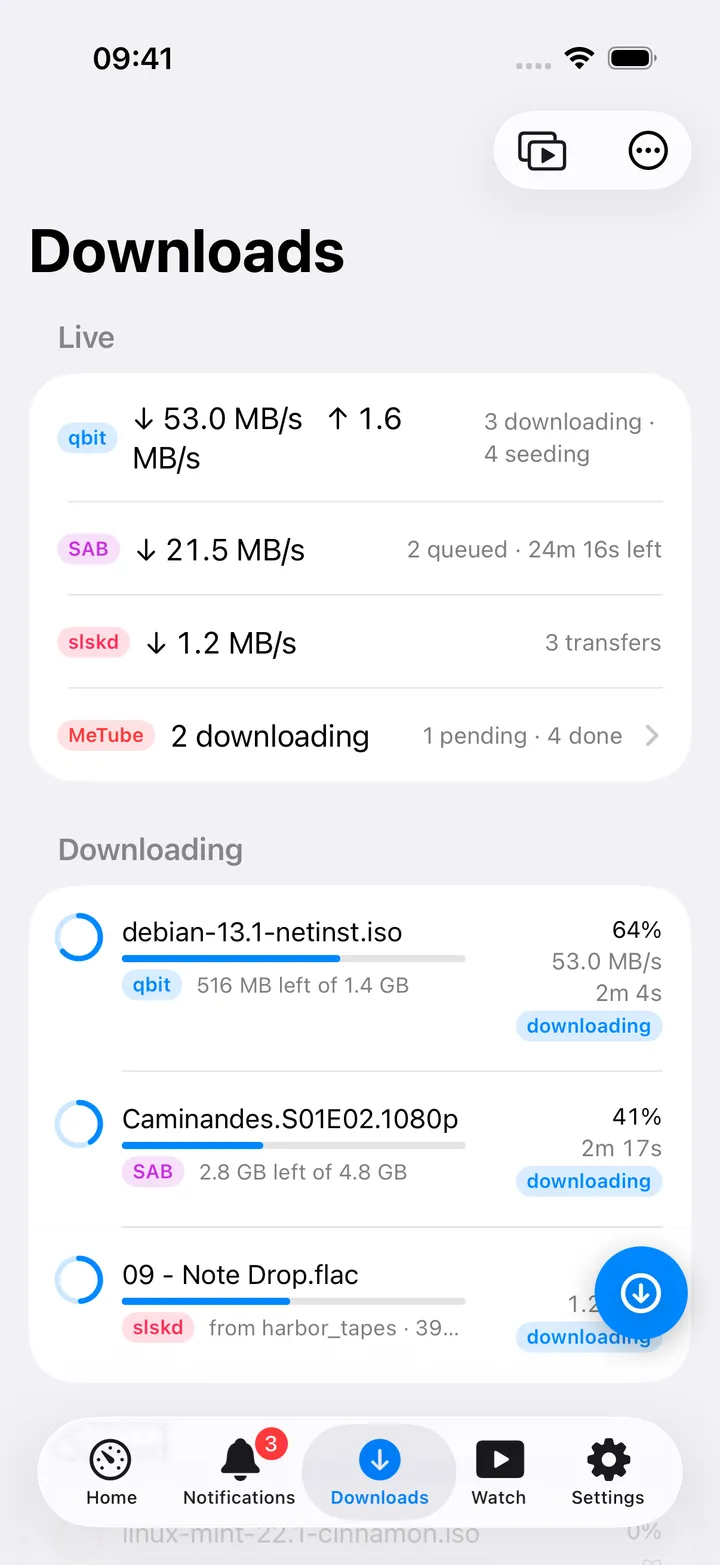
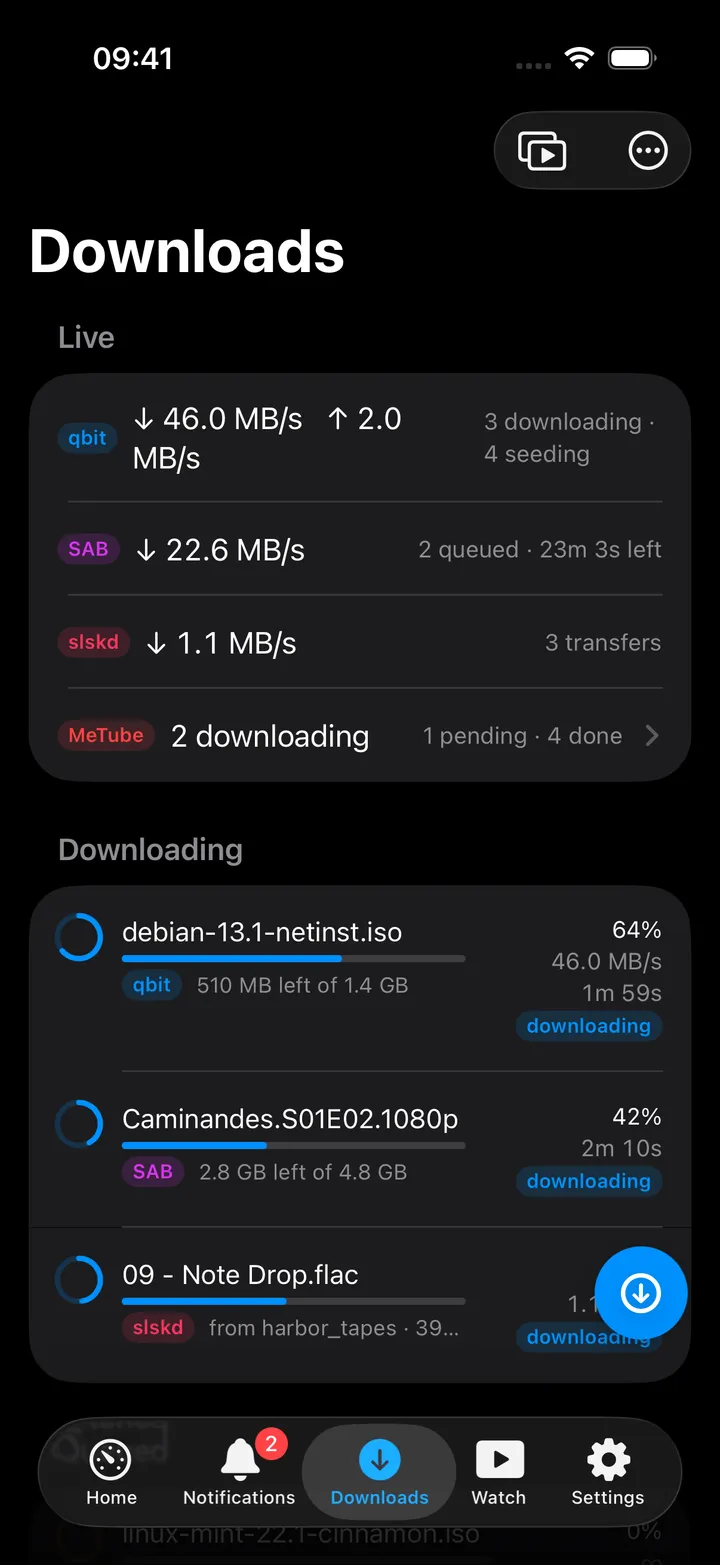
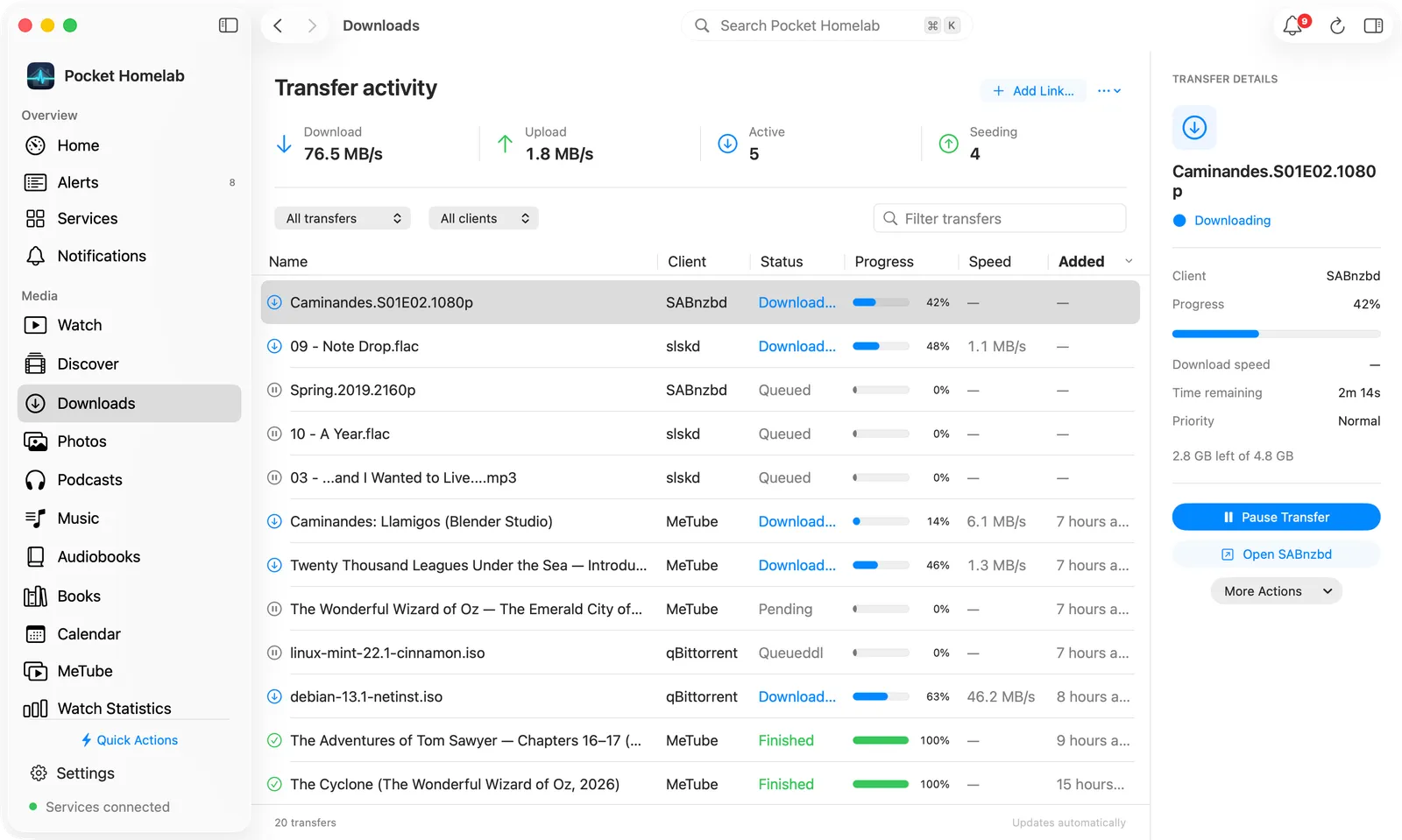
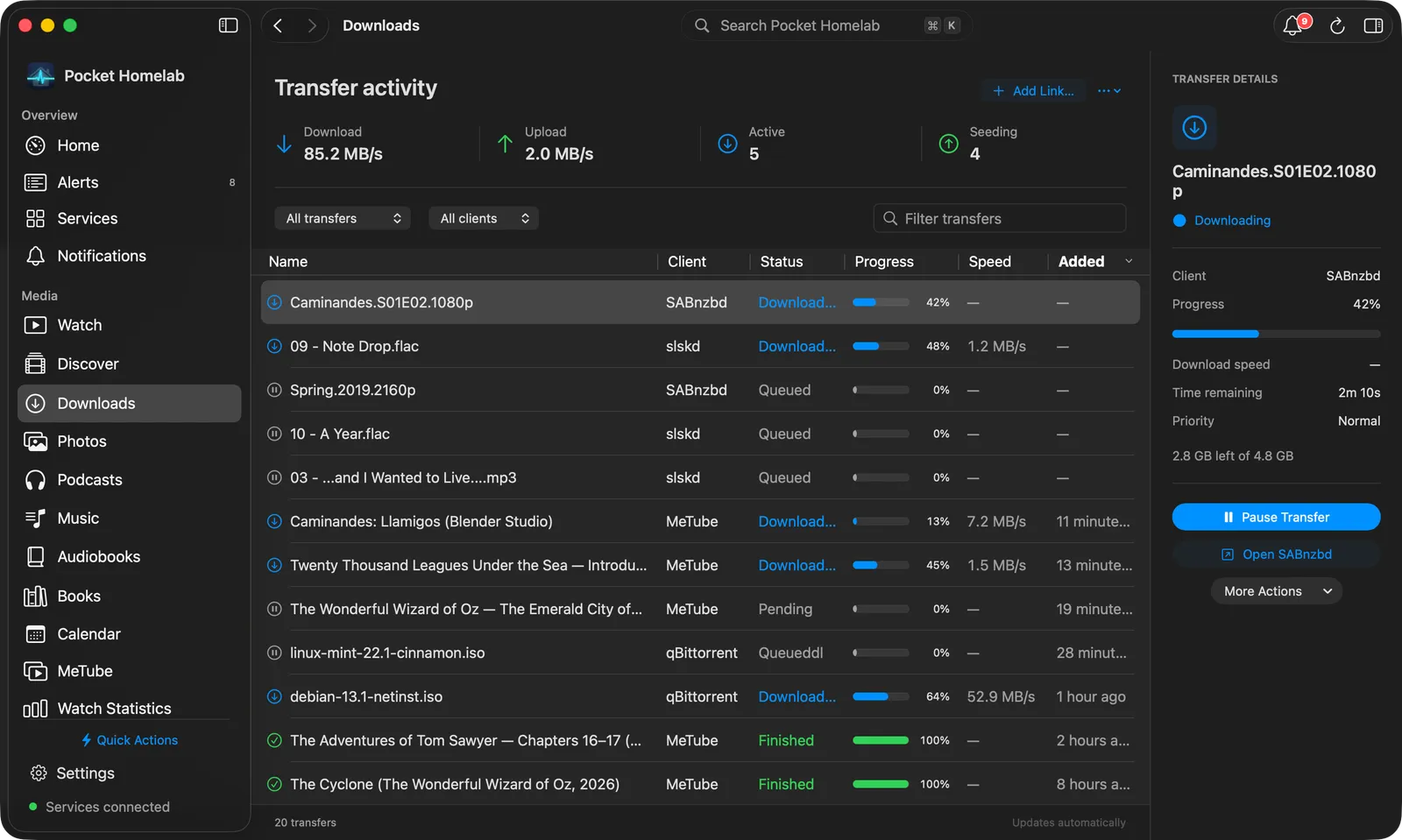
Watch and control your torrents from the shared Downloads screen, with pause, resume, category and priority actions.
iPhoneMacOn this page
qBittorrent is one of up to four clients on the shared Downloads screen, alongside SABnzbd, slskd and MeTube.
Pocket Homelab shows live transfers, lets you pause, resume, recheck, reannounce and reorder torrents, and manage
seeding, all without opening the web UI.
What you get
Live summary row: ↓ <speed> ↑ <speed> with <n> downloading · <m> seeding.
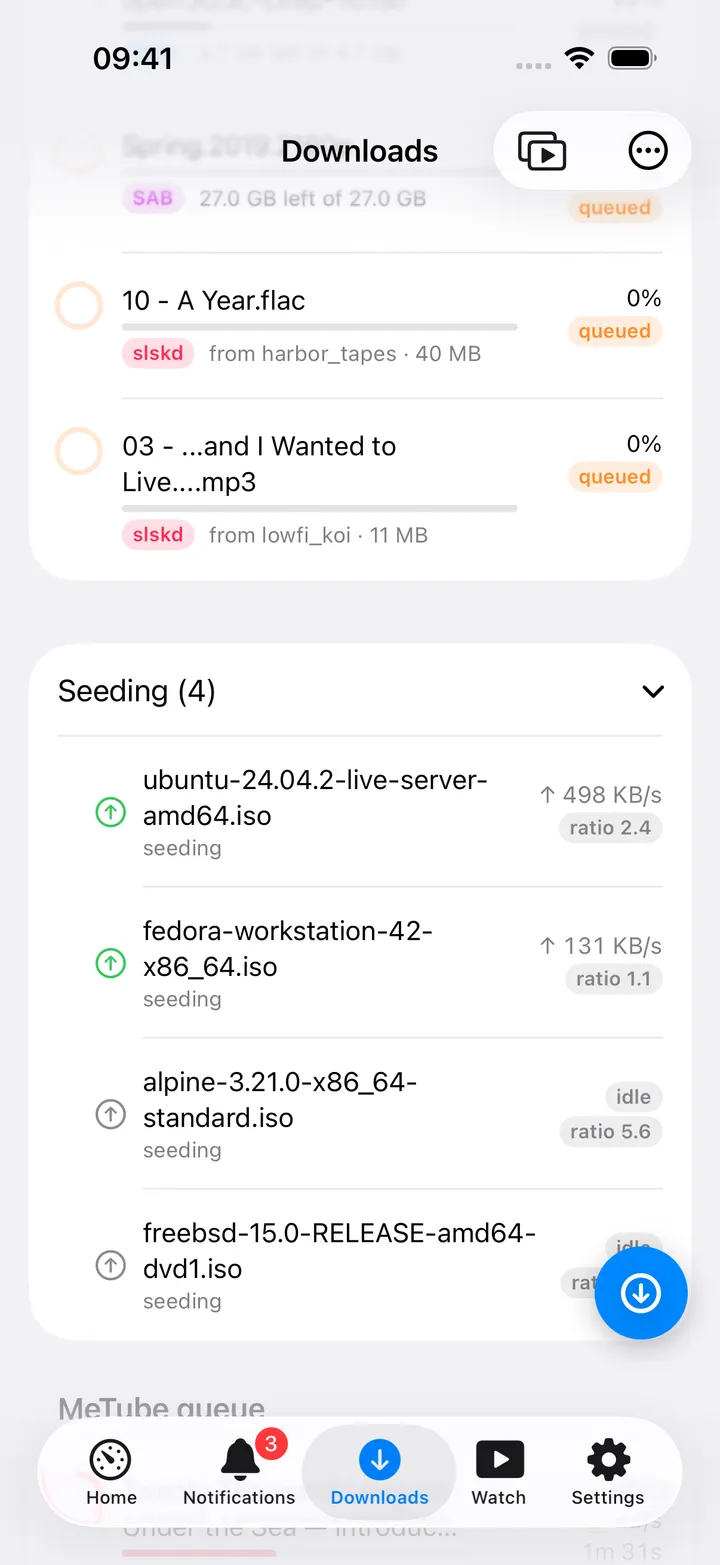
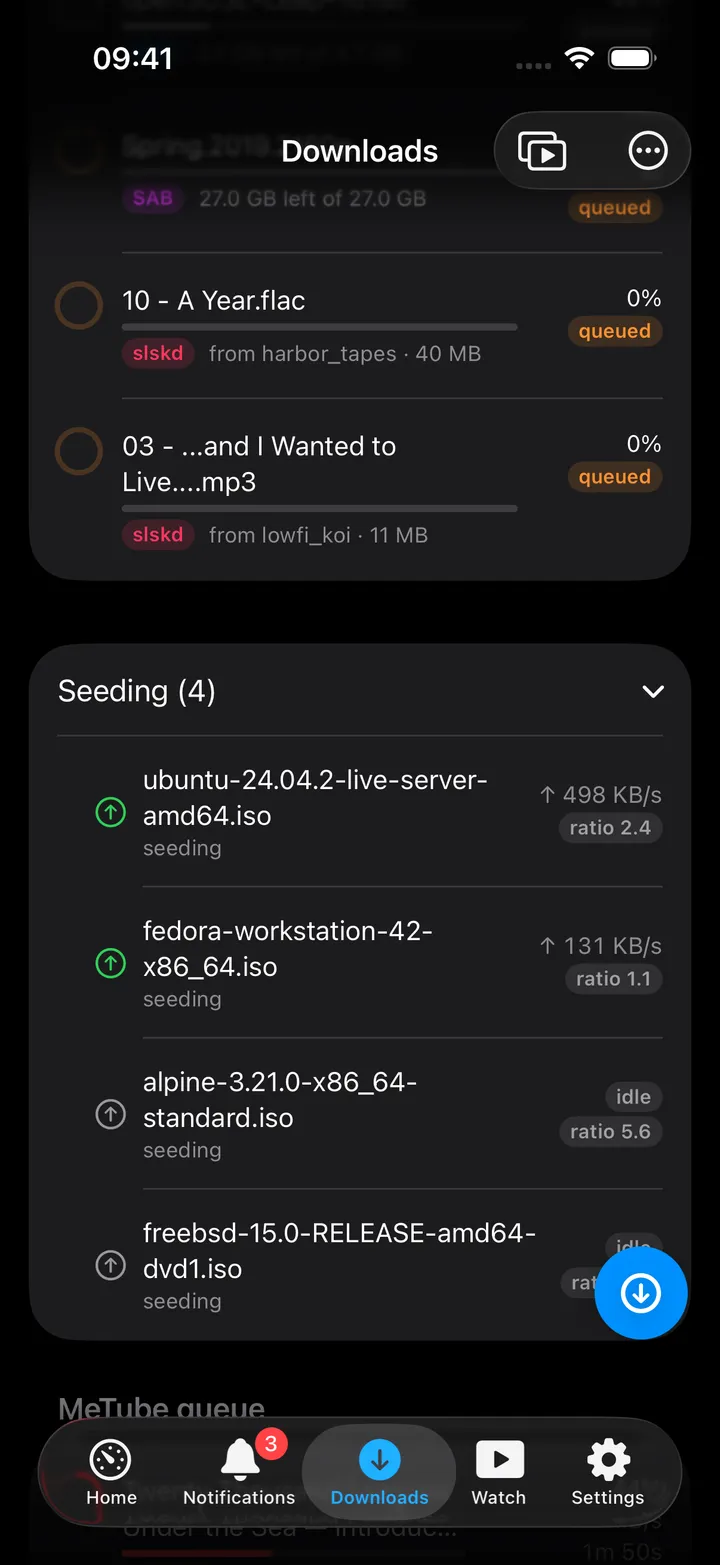
Downloading / Queued / Seeding (N) sections, the last collapsed by default; only the 15 fastest-uploading
seeds are listed even though the count includes every seed.
Home card on iPhone (“Downloads”): download speed, else upload speed, else <n> active or Idle, with the seed
count underneath. The numbers are shared with SABnzbd (slskd is left out of this card, see Tips). In
Settings → Home layout, the card’s Show on this card picks Overview, Active transfers, Download speed or
Upload speed.
Context menu per torrent: pause/resume, force start, recheck, reannounce, queue position, sequential download,
category, copy name, copy magnet link, open in web UI, delete.
Set up
In qBittorrent’s Web UI, note the login username and password you already use (no separate API key exists).
In the app, go to Settings → Services → qBittorrent, paste the URL, username and password, then press
Test connection. A working login answers “qBittorrent login OK”.
Leave the password empty rather than guessing at it, see the IP-ban warning below.
Key
Field
Required
Secret
Where to get it
QBIT_URL
qBittorrent URL
Required
—
Base URL of your instance. Leave empty to hide qBittorrent features.
QBIT_USERNAME
Username
Optional
—
Web UI username. Defaults to admin when left empty.
QBIT_PASSWORD
Password
Optional
Secret
Web UI password. Never attempted while empty (qBittorrent IP-bans after 5 failures).
Leave the password empty rather than guessing at it, see the IP-ban warning below.
On iPhone
Downloads: ring, progress bar, speed, ETA and state tag per torrent.
Open Downloads from its tab, or tap the Downloads card on Home, which opens the same page on Home’s own stack.
The list refreshes every 2 seconds while something is transferring and every 6 seconds when idle; a long pull down
refreshes at once (a short one opens search).
Leading swipe Pause/Resume; trailing swipe Delete → a confirmation asking Delete torrent, keep
files or Delete torrent and files.
Long-press menu adds Force start, Recheck, Reannounce, Queue position (Move to top,
Move up, Move down, Move to bottom), Sequential download, a Category picker, Copy name,
Copy magnet link and Open in web UI.
Seeding (N): upload speed or idle, and the share ratio. Seeding rows show ↑ <speed> or idle, and a
ratio <x.y> tag; a footer notes when more idle seeds exist beyond the 15 shown. Seeds can be deleted and
reordered from their menu, but not paused.
The round button beside the + holds the screen’s controls: Send to MeTube, MeTube downloads (both
only with MeTube set up), Show seeding, Refresh, and Open qBittorrent and the other clients’ web
apps. The first five show until you choose your own; turn the button off in Settings → Screen action
buttons.
The ⋯ menu in the top bar opens qBittorrent’s web UI inside the app (Open qBittorrent).
On Mac
Transfer activity: newest first, with an Added column, Status and Client filters, and the Transfer details inspector.
The Downloads workspace (⌘4 by default) opens on Transfer activity: Download, Upload,
Active and Seeding figures, then a table of every transfer from every client.
Columns: Name, Client, Status, Progress, Speed and Added. The table is sorted by
Added, newest first; click any header except Speed to sort by it instead. Torrents carry the date
qBittorrent added them; hover the relative date for the exact time.
Filters: a status picker (All transfers, Downloading, Queued / paused, Seeding,
Completed, Failed), a client picker (All clients or qBittorrent) and a Filter transfers
search field that also matches the category.
Transfer details (the inspector on the right, toggled from the toolbar or View → Show Inspector, hidden
when the window is narrow): client, progress, download or upload speed, time remaining, category and, for seeds,
the share ratio, with Pause Transfer / Resume Transfer, Open qBittorrent and More Actions.
Right-click a row for the same menu as on iPhone. The footer counts the transfers and any idle seeds beyond the
15 listed.
The ⋯ menu next to the title opens qBittorrent in your browser.
Actions
Pause / Resume: a single torrent at a time; there is no multi-select.
Delete: always asks whether to keep or remove the files on disk.
Recheck, Reannounce, Force start, Queue position, Sequential download, Category, each a
direct qBittorrent API call, confirmed by a toast on iPhone and a line in the footer on Mac.
There is no add-torrent or add-magnet flow anywhere in the app, torrents arrive here only via Prowlarr grabs or
qBittorrent’s own UI.
Works with
Prowlarr: a grabbed release lands here because Prowlarr sent it to qBittorrent, not because the app tracked
the grab itself.
MeTube / SABnzbd / slskd: share the same Downloads screen and Home card; MeTube alone can unlock the tab even
with no torrent client configured.
Tips & troubleshooting
qBittorrent 5.x renamed pause/resume to stop/start internally; the app always posts the 5.x verbs. On very old
4.x servers, pause/resume may not take effect.
The session cookie is cached for 30 minutes and shared between concurrent reads, so parallel polling never risks
extra failed-login attempts.
The iPhone Home card’s speed and active-count figures come from qBittorrent and SABnzbd only; slskd transfers do
not feed those numbers. The Mac menu bar, Overview and the Mac Home Downloads widget do include slskd, so the two
can disagree.
A blank password shows an orange “qBittorrent password not set” hint pointing at QBIT_PASSWORD instead of
attempting anything.