Continue listening across devices, browse your audiobooks and podcasts, and play with chapters, speed and a sleep timer.
iPhoneMacOn this page
Audiobookshelf is your audiobook and podcast server. Pocket Homelab gives it an Audiobooks tab with the full
library, a chapter-aware player with speed and sleep-timer controls, and progress that stays in sync with
Audiobookshelf itself.
What you get
Home tile (“Audiobooks”): value is the top in-progress item’s title, caption shows remaining time and
author/podcast, or “New: <title>” for the newest addition.
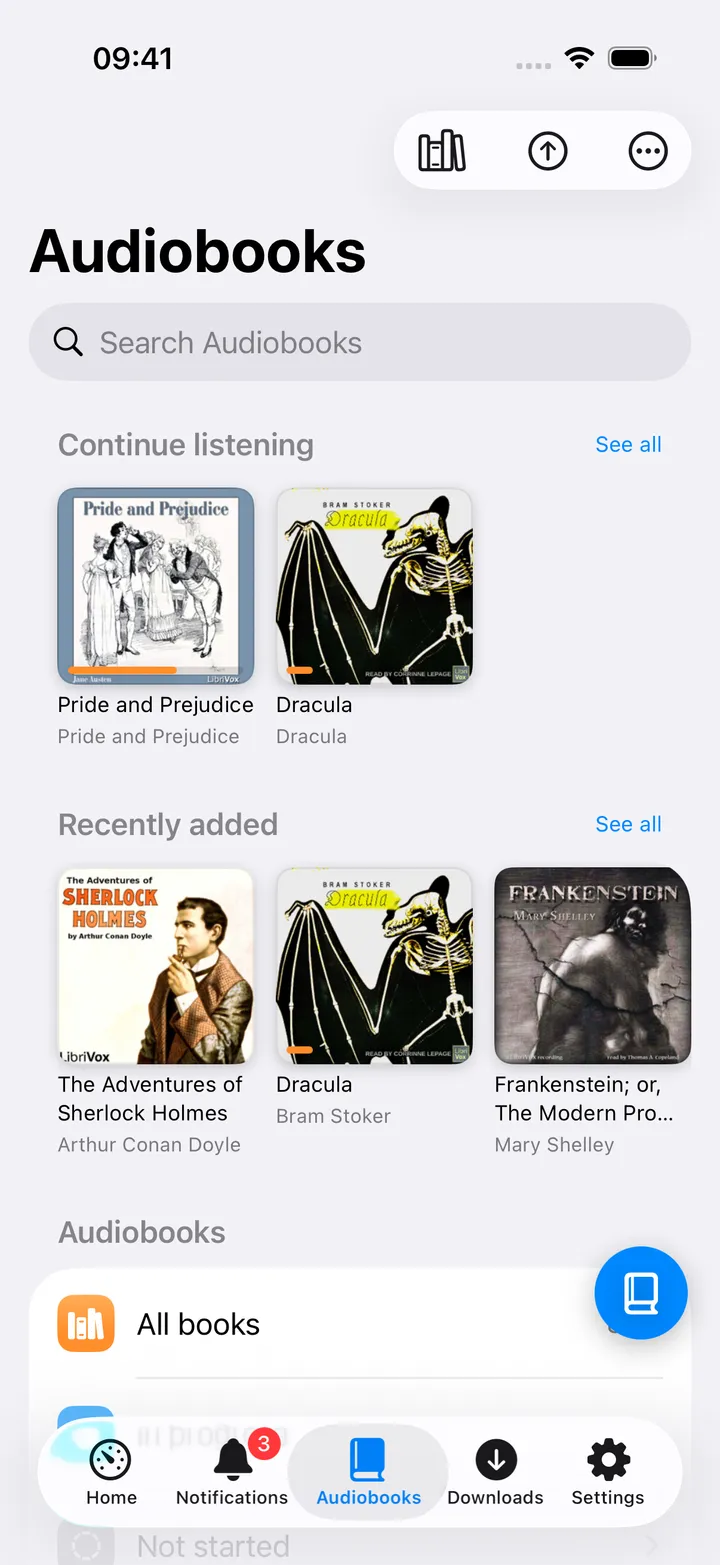
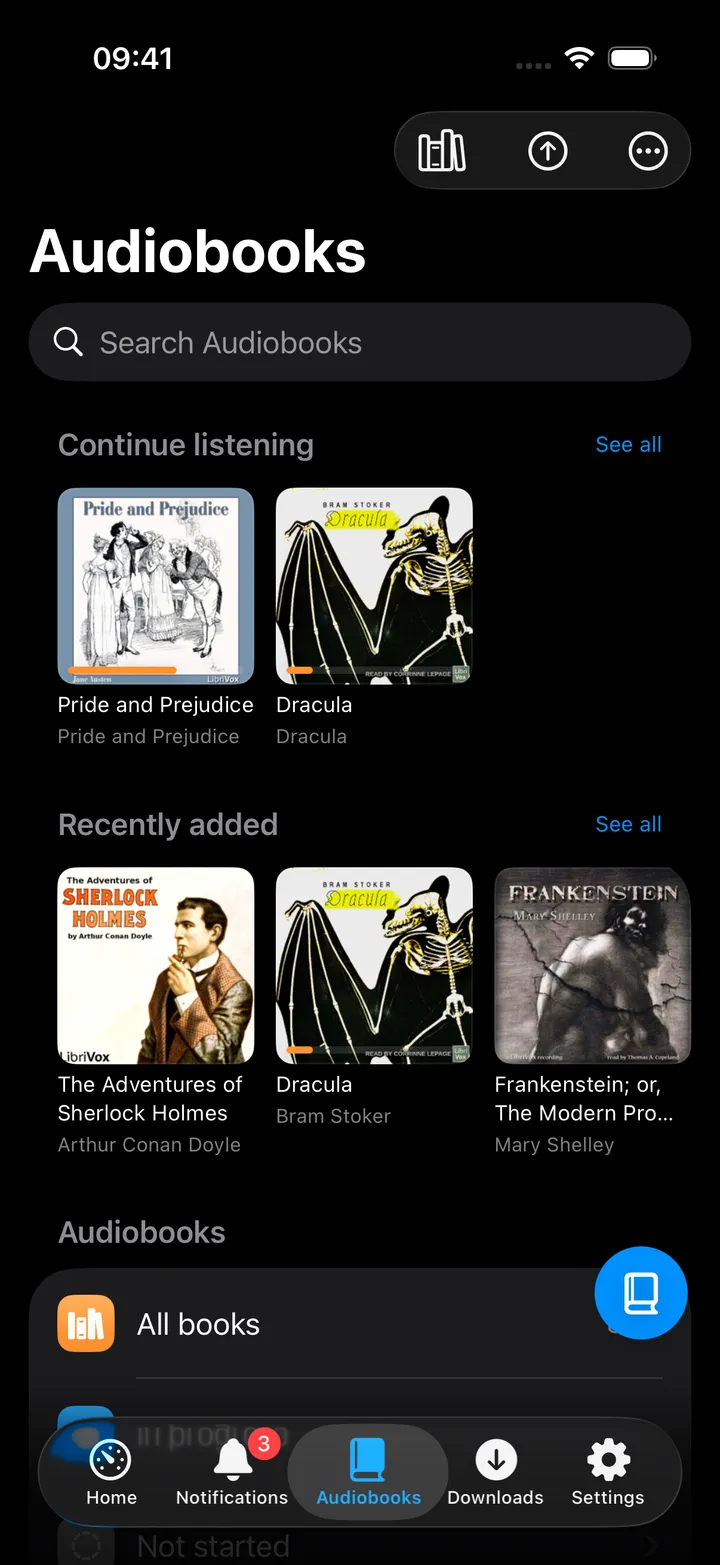
Audiobooks hub: a library picker (when you have more than one), Continue listening strip, Recently
added/Podcasts strip, Library rows (All books, In progress, Not started, Finished, Series, Authors, Genres,
Narrators) and Listening time.
Full player: chapter list, 0.5× to 3× speed, sleep timer (fixed countdown or “End of chapter”), bookmarks,
an AirPlay picker, and Note for timestamped notes (see Notes in the player).
Download to this device: on a book’s screen; downloaded books are listed under On this device in the
hub and play without the server.
Upload: pick audio files and upload a new book directly, when your token has upload permission.
Quick action: Audiobooks opens the hub (⇧⌘H on the Mac).
Set up
In Audiobookshelf, go to Settings → Users → your user → API token and copy it.
In the app, go to Settings → Services → Audiobookshelf, paste the URL and token, then press
Test connection.
Both fields are required, a URL alone gets you nothing here.
Key
Field
Required
Secret
Where to get it
ABS_URL
Audiobookshelf URL
Required
—
Base URL of your instance. Leave empty to hide Audiobookshelf features.
ABS_TOKEN
API token
Required
Secret
Settings → Users → your user → API token.
Both fields are required, a URL alone gets you nothing here.
On iPhone
Audiobooks hub: Continue listening, Recently added, and the Library section.
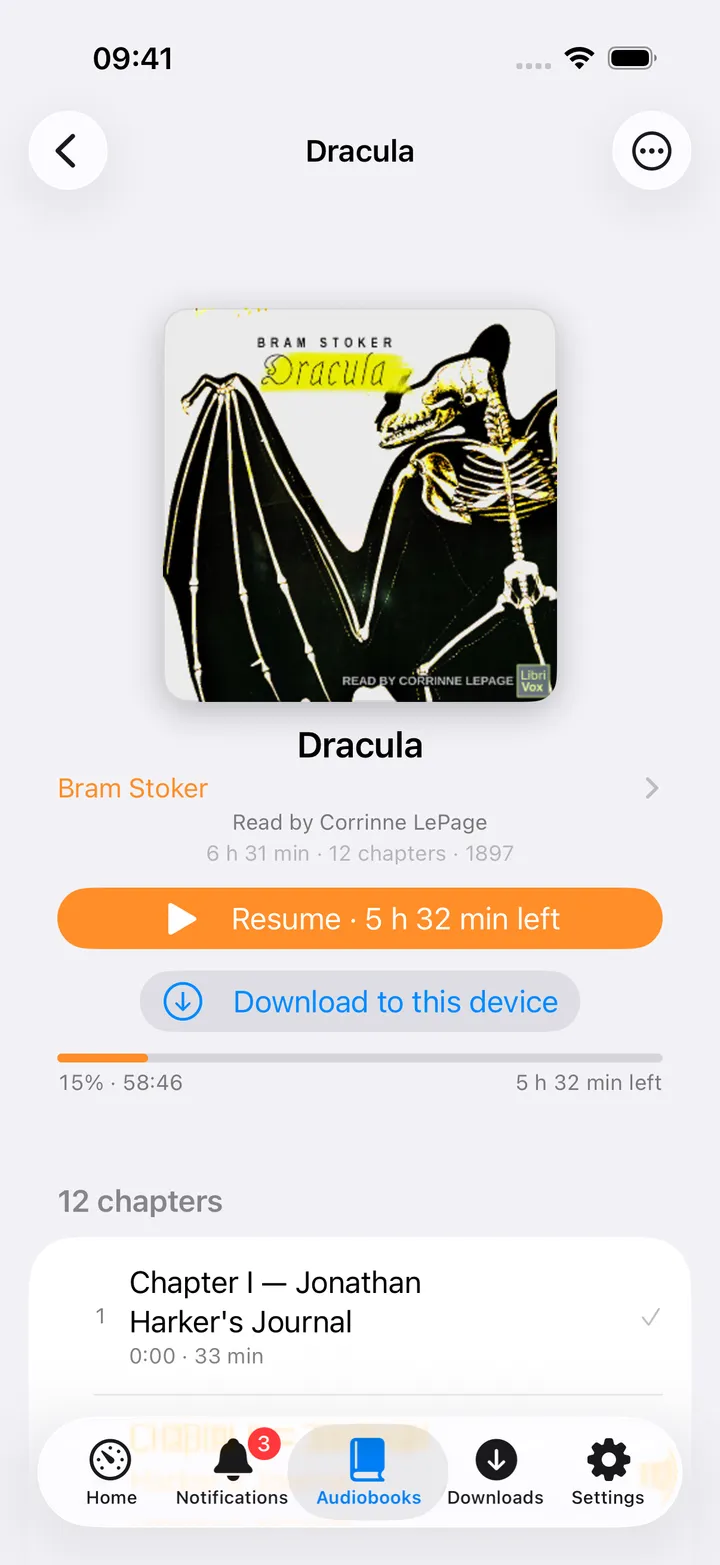
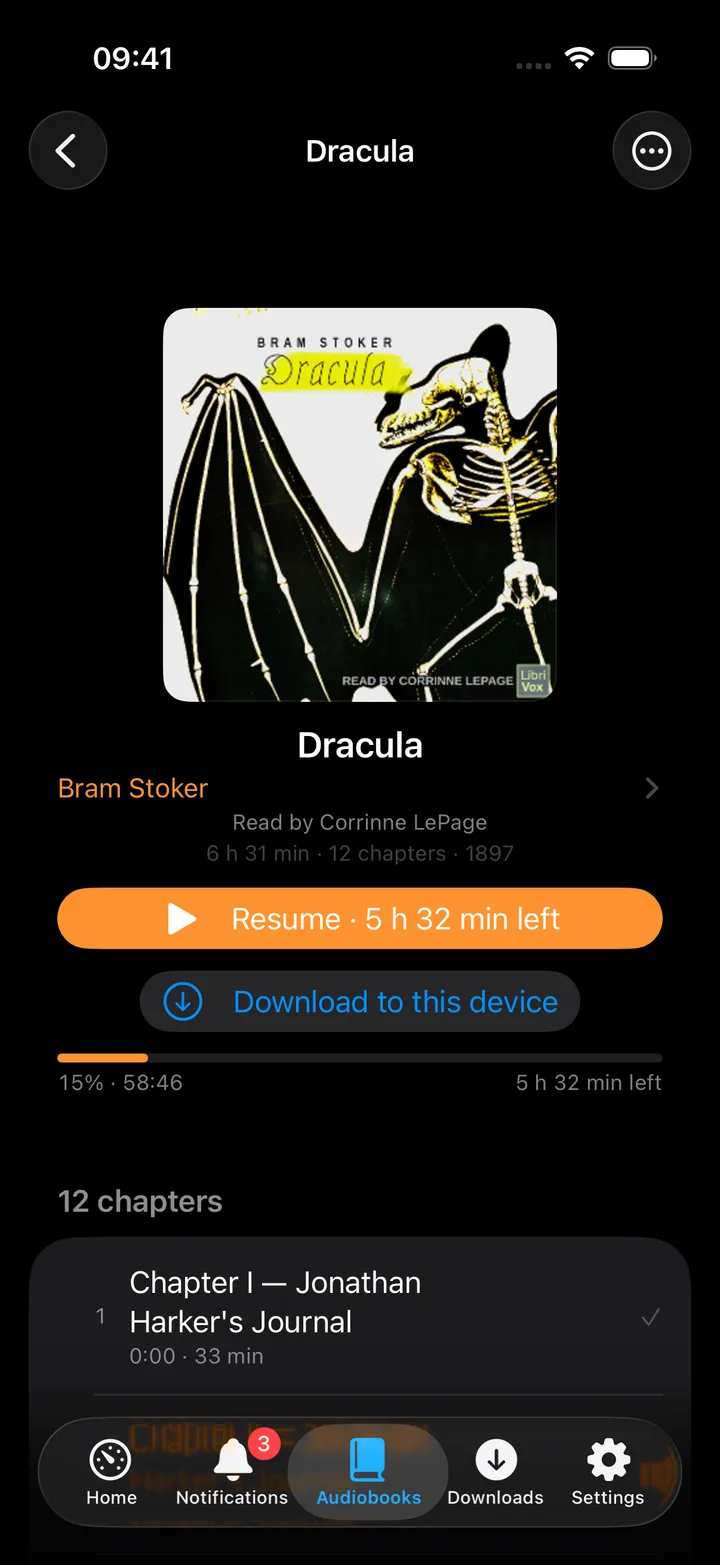
Item screen: Play/Resume button, chapter list, and book details. For a book, chapters list with the
current one highlighted; for a podcast, episodes show a progress bar and a swipe action to mark finished.
The toolbar holds the library picker, Upload and More (Refresh, Listening time, Upload a
book, Open Audiobookshelf).
The round button beside the app’s + holds the hub’s pages and actions: Continue listening, In
progress, All books (or All podcasts), Listening time, Refresh, Not started, Finished,
Series, Authors, Genres, Narrators, Upload a book, Open Audiobookshelf, and your libraries
to switch between. The first five show until you choose your own with Customise; turn the button off in
Settings → Screen action buttons.
An item’s More menu has Check for new episodes (podcasts), Mark as finished, Reset progress and
Delete…; resetting and deleting are confirmed before running.
The full player’s speed menu, sleep timer and bookmarks sheet are all reachable from its More menu.
On Mac
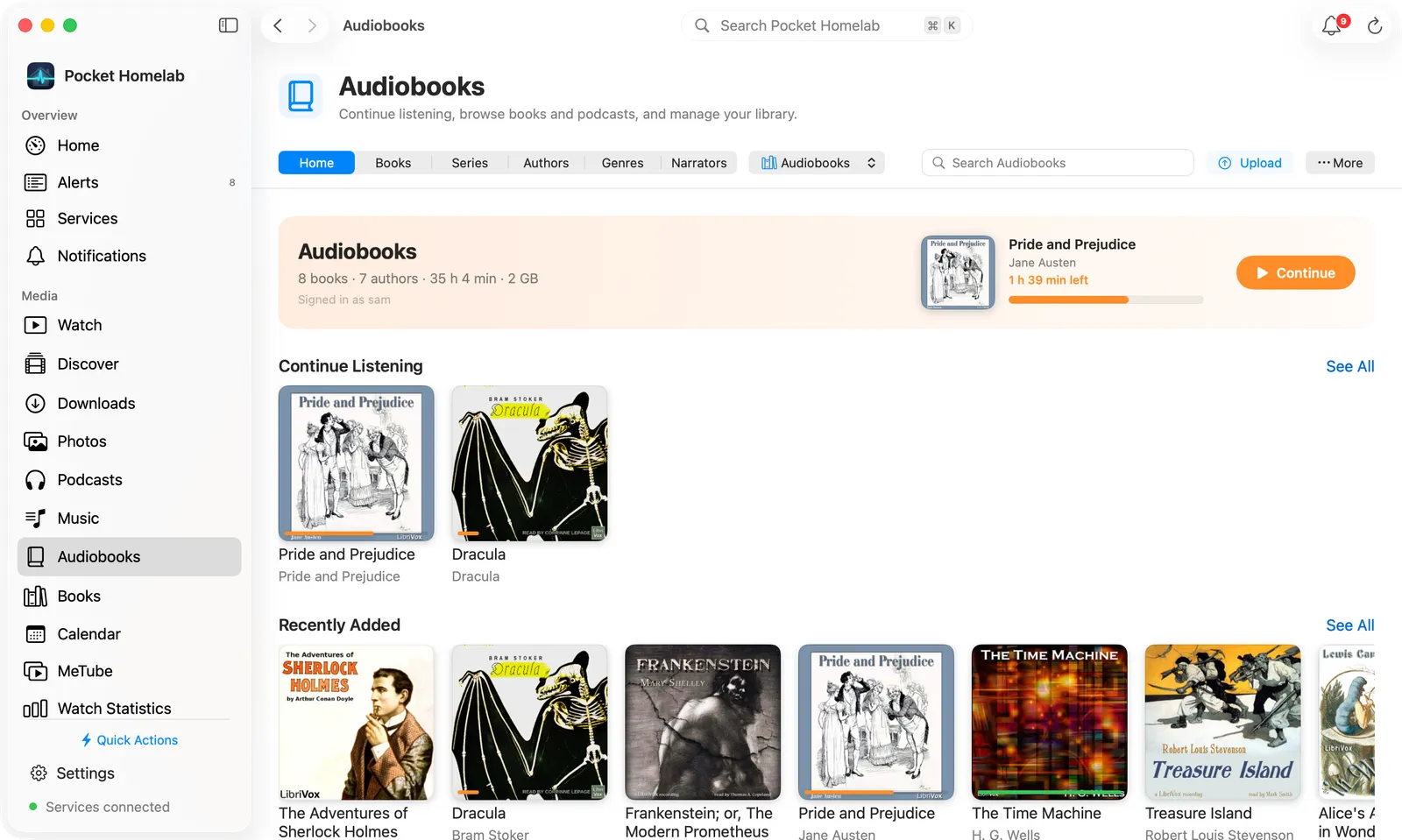
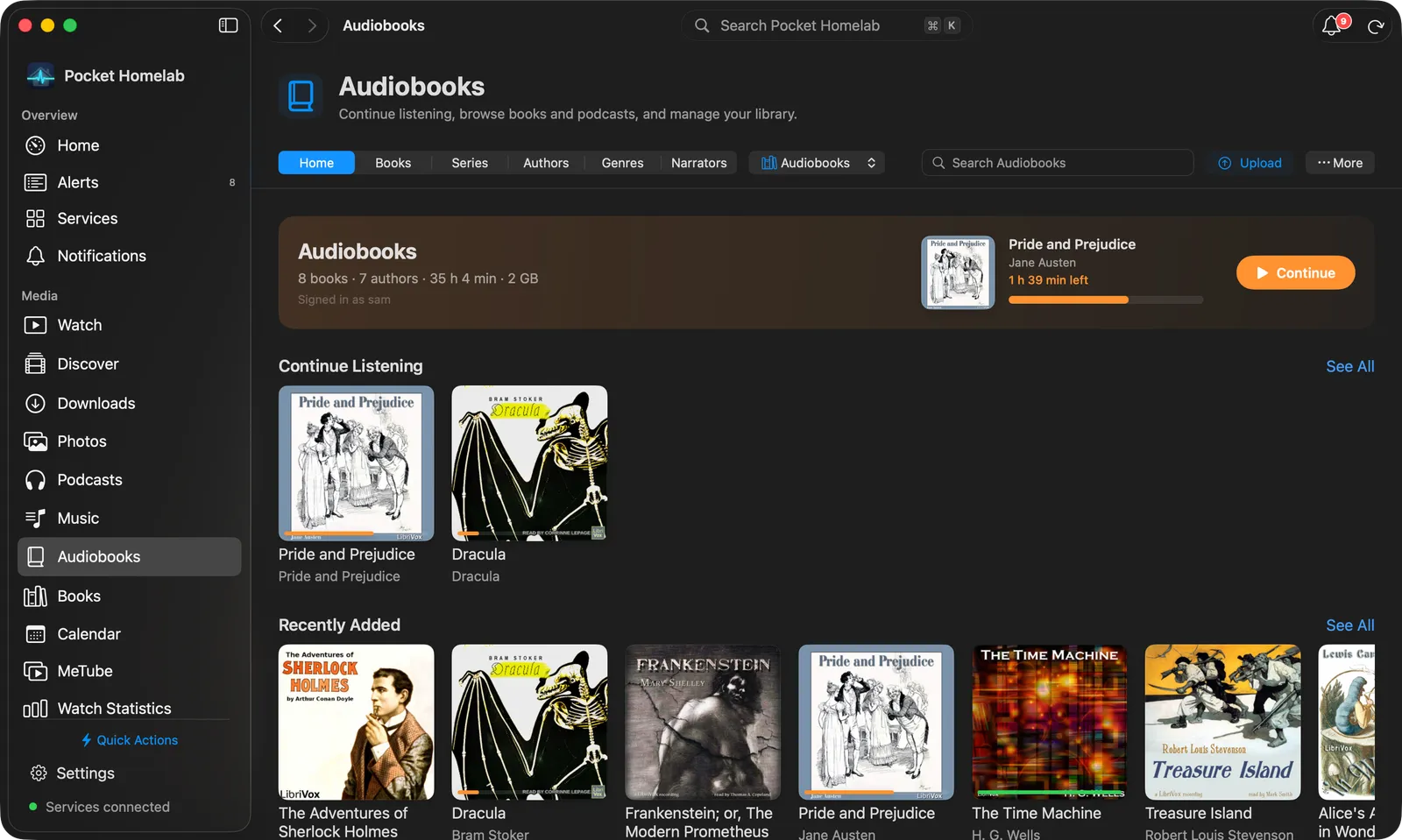
Audiobooks on the Mac: the book to resume, then Continue Listening and Recently Added shelves.
Audiobooks sits in the sidebar’s Media group (⌥⌘7) and has a desktop layout of its own:
The bar: Home, Books (Podcasts in a podcast library), Series, Authors, Genres and
Narrators (when the library has any), the library picker, a search field over the library, Upload and
More (Refresh, Continue listening, Listening time, Upload a book, Open Audiobookshelf).
Home opens with the library’s counts and the book to resume, with one Continue button (Pause or
Resume for the book loaded in the player). Below: Continue Listening and Recently Added shelves
with See All, Browse cards (In progress, Not started, Finished, All books, Series, Authors, Genres,
Narrators), On This Device, Listening Time (Today, This week, All time) and Other Libraries. A
podcast library shows Latest Episodes instead of Browse.
Books, Series, Authors, Genres and Narrators are cover grids. Books has a Show
filter (Everything, In progress, Not started, Finished) and a sort menu.
A book page has the cover beside the title, the series, “By” with each author and “Read by” with each
narrator (all clickable), the facts and your progress. Its buttons: Play or Resume, Start over,
Mark as finished, Download, and a ⋯ with Reset progress…, the author and series pages, Copy
title, Open in Audiobookshelf and Delete…. Below: About, the chapters (click one to play from
there), Bookmarks, and a Details card with duration, files, publisher, ISBN, genres and tags.
A podcast page has Play latest episode, Check for new episodes and the episode list.
Series and author pages show their books as covers.
The ⌘K palette has an “Audiobooks & podcasts” scope once configured, with live book, series and author search.
A playing book shows in the now-playing bar at the bottom of the window, which has its own Note button.
Notes in the player
The player’s Note button works for books and for podcast episodes played here, the same way as in
Podcasts: the moment is taken a few seconds before you press it (5 by
default), playback pauses while you write, and the notes appear under the controls, where a tap seeks.
With Nextcloud connected, notes go to Nextcloud Notes through the offline
queue, one note per book, in the same folder as podcast notes (Podcasts by default). A book is filed with the
author in place of {show} (else the series, else “Audiobooks”) and the title in place of {episode}.
Each line starts with the clock, which links back to that moment of the book on any device with Audiobookshelf
connected. In a book with chapters, the chapter name follows in italics, then a dash and your text.
All notes (in Podcasts, or Settings → Podcasts) lists book notes too; Play from here starts the book
at that moment, from the server or from a downloaded copy.
Audiobookshelf’s own bookmarks are separate and untouched.
Actions
Mark as finished / not finished, Start over, Reset progress (confirmed, this affects every device).
Add / delete a bookmark at the current playback position.
Download to this device: keeps every part of the book on this device, with progress shown as “N of M parts
downloaded”; cancel from the same button or from Settings → Downloads.
Check for new episodes on a podcast: asks the server to poll its feed immediately.
Upload a book (when your token has upload permission) or Delete… an item (when it has delete permission),
with a choice between Remove from the library and Delete files from disk too.
Notes about this: an author’s and a series’ page end with the notes that link to them and Write a note
about this, when your Nextcloud has Notes.
Works with
Music (Navidrome) and Podcasts players: all three pause each other, and a Jellyfin video pauses them too;
only one holds the lock-screen “Now Playing” card at a time.
Nextcloud Notes: notes taken in the player; see Nextcloud Notes.
Podcasts: the podcast feeds Audiobookshelf knows can be added to the Podcasts library; see
PinePods.
Downloaded books are listed in Settings → Downloads under “Music & media”, together with downloaded music.
Tips & troubleshooting
Downloads are explicit: nothing is saved just because you played it. Browsing the library still needs the server;
a downloaded book opens from On this device and plays from the local copy.
Progress syncs to the server every ~15 seconds while playing, and again on every pause and seek, so a listened
session is never lost if you switch devices mid-book. Positions from offline listening are kept on the device and
sent once Audiobookshelf can be reached again.
The Filter episodes field on a podcast only appears once it has more than 8 episodes.
Playback rate uses time-domain pitch correction, so sped-up narration does not sound chipmunked.