
The Mac app
A desktop shell over the same service clients: sidebar workspaces built from tiles, cards and tables, a widget Home, a Spotlight palette, a menu bar item you arrange yourself, Nextcloud Notes, system-wide capture and a player window.
MacOn this page
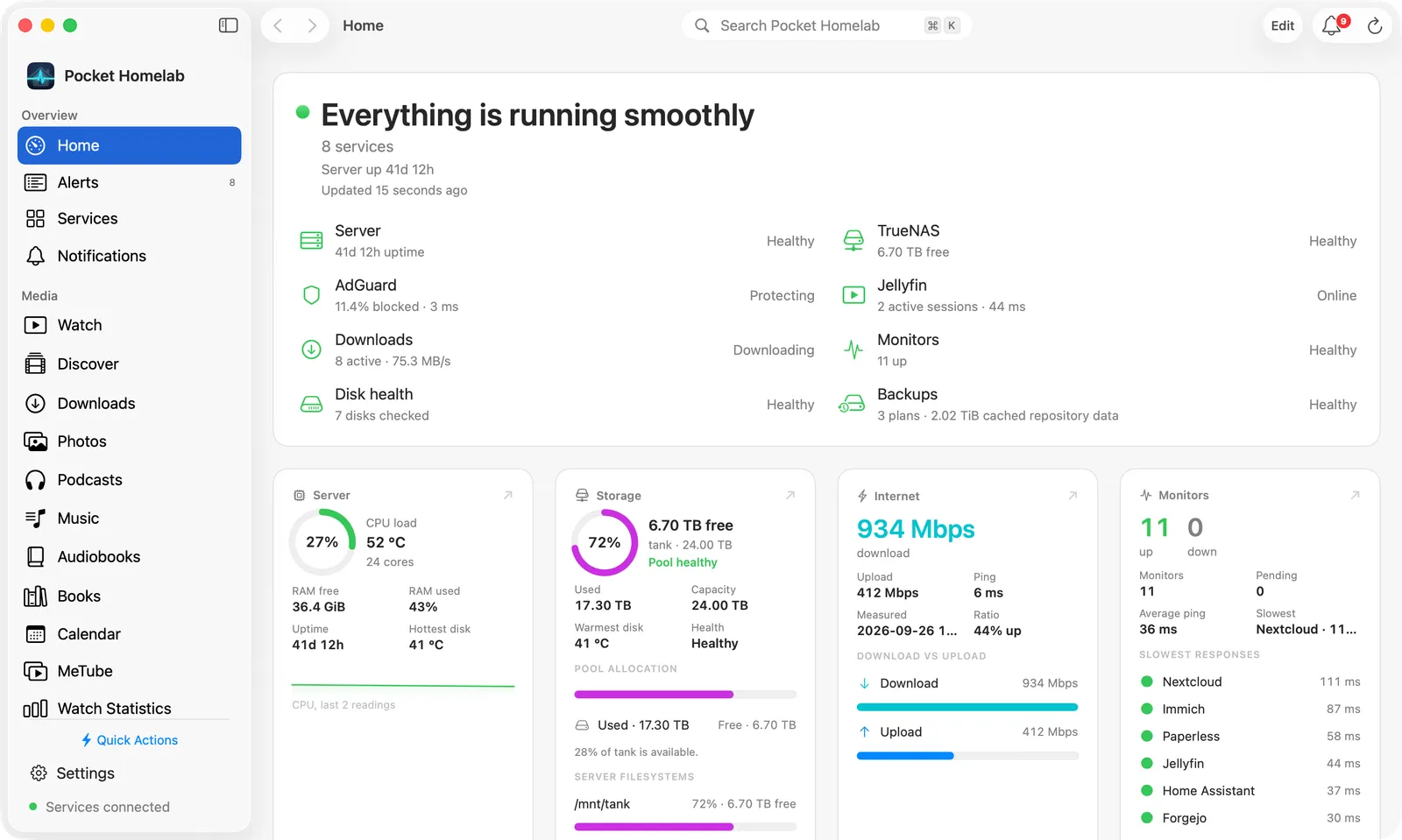
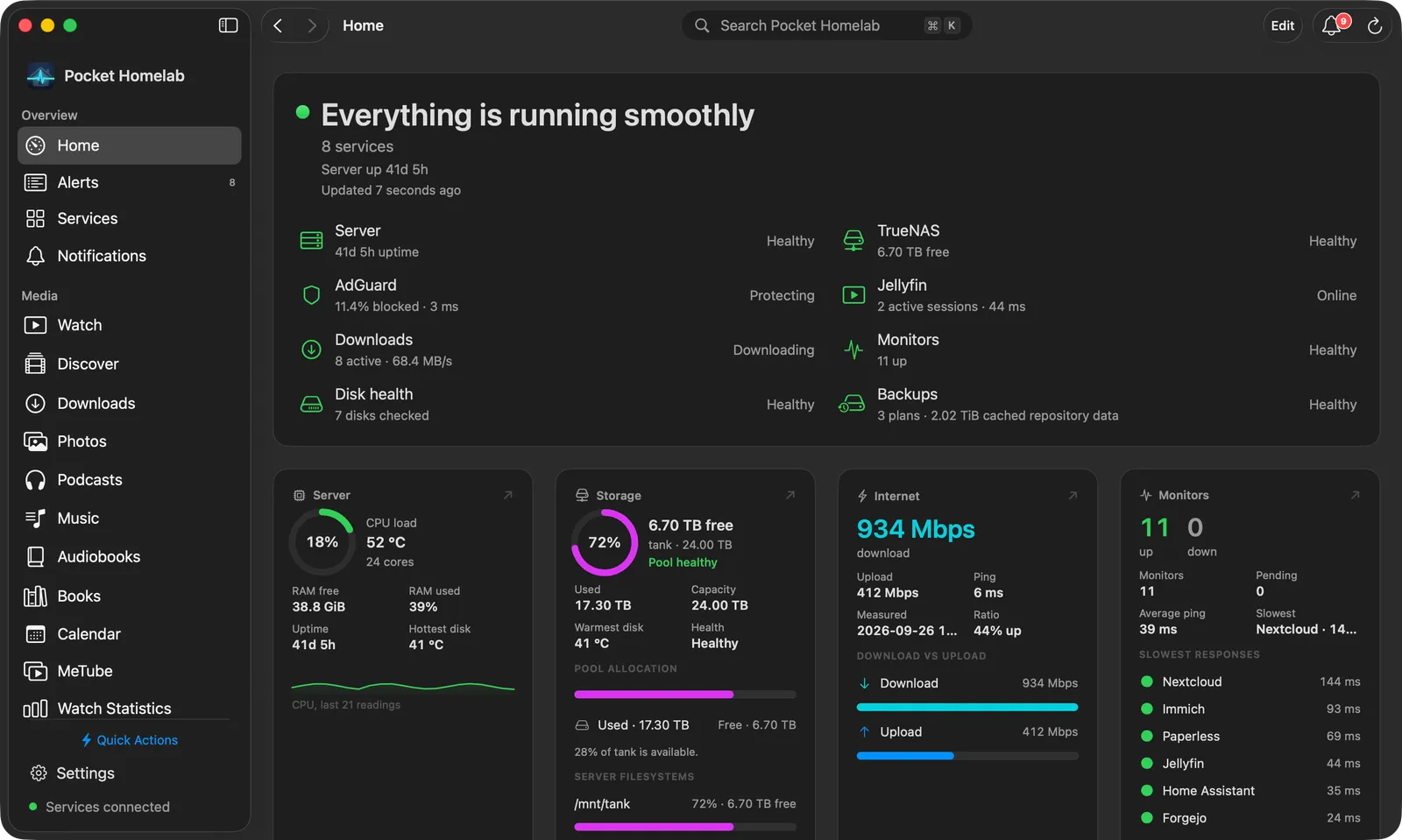
Pocket Homelab for Mac is not a stretched phone app. It shares every service client with the iPhone and puts a proper desktop shell on top: a grouped sidebar, a Home you arrange yourself, workspaces laid out for a wide window with tiles, cards and sortable tables, menus, and windows that keep working when the main one is closed.
The window
A NavigationSplitView at 1440 × 960 by default. The sidebar is grouped into Overview, Media,
Infrastructure and Workspace. A workspace only appears once its service is configured; Home,
Notifications, Podcasts and Services are always there. Offline, the sidebar keeps only Home and
Podcasts, under an Offline banner.
The toolbar carries back/forward workspace history, a Search Pocket Homelab capsule showing ⌘K, an Edit button on Home, the notifications bell with its count, a refresh button and, on Downloads, an inspector toggle (⌥⌘I) for the transfer details beside the table. The inspector needs a window at least 850 points wide.
The sidebar footer has the Quick Actions menu, a Settings button and a live connection line: Services connected, Some services unavailable, Checking services…, Connecting… or No services connected yet. On the free plan with more than three services it says Choose three services in Settings → Plan.
Arranging the sidebar
Open Settings → Appearance → Sidebar → Customize…, or right-click the sidebar and choose Customize Sidebar…. Drag items to reorder them, move one under another heading from its menu, or switch it off. Headings can be renamed, moved up and down, hidden together with everything under them, and added with Add heading; Reset to default puts everything back.
A right-click on an item also offers Hide “…” and Hide Everything Under “…”. Home cannot be hidden, and the heading that holds it always stays. Hidden workspaces are still found by ⌘K, and their navigation shortcuts keep working.
First run
With nothing connected, the main window opens on a welcome screen, “Your homelab in one window”, with three ways in:
- Look around first turns the whole window into a sample homelab with made-up data. A banner across the top says so and offers Leave the sample and Connect my own services; nothing you do in the sample is saved, and your own settings are not touched.
- Connect a service opens the service catalogue and leads to one service’s form.
- Bring your configuration takes an env file, or a sealed export from your iPhone or another Mac.
How it works explains where credentials are kept and what the free plan keeps active. Once something is connected, a Getting started card on Home lists the next steps; Hide puts it away.
Home
Home is a board of widgets on a four-column grid (three in a narrow window). Each widget comes in Small, Medium, Large, Wide or Wide & Tall. A new board starts from a curated layout: a status banner, the vital signs as small tiles, then what changes during the day. Widgets for services you have not connected are left out.
- Click a widget for its live details. Open in Window keeps them beside the dashboard; Open … jumps to the workspace.
- Right-click a widget for Show details, Open …, Edit Home…, its own options (what it lists, how it sorts, what it shows), Size and Remove widget.
- Edit in the toolbar shows the edit bar: Add Widget, the card style (Cards, Soft, Glass, Tinted), the spacing, Arrange (Manual, Curated, Attention First, By Workspace, By Size, Alphabetically, plus Fill Empty Spaces), Reset and Done. Drag a card to move it, drag its edges to resize.
- A board you have emptied offers Use the suggested board and Choose widgets….
Settings → Appearance → Home has the widget style, the spacing and Reset to the curated layout. The Mac board is separate from your iPhone’s Home.
Workspaces
Most workspaces are built the same way: a bar across the top with the page’s title, a search or filter field, Refresh and the main actions, then tiles for the headline figures, then cards and tables. A tile or card usually opens what it counts, and a right-click on a row or card has its actions. How to connect each service, and what it can do on both devices, is on its page under Services.
Overview
- Alerts (ntfy): search, a topic and a kind picker, and More with Mark all as read and Open ntfy. Tiles count today, the last 7 days and the problems (click that one to show only them); each day is a card of messages. Click a message for its details; right-click for Open, Copy message and Write it up in Notes.
- Services: Your services, every integration under All, Media, Downloads, Infrastructure, Productivity, Favorites and Setup, as Cards or a List, with a Configured only switch and a filter. Star a service to pin it first, use the sliders button to configure it and the arrow to open its website; Setup lists what still needs configuring or attention.
- Notifications: what the app badge counts right now, Unread alerts, Today’s to-dos and Overdue to-dos. The bell in the toolbar opens the same list.
Media
- Watch (Jellyfin): Home and one tab per library, search, and a button for the media calendar. Home leads with what you were watching (Resume or Details), then Continue watching, Up next and what is Playing on your server; a library tab is a sortable poster grid. More has playback quality, subtitle style, Watch statistics and Open Jellyfin. Playing opens the player.
- Discover (Jellyseerr, Sonarr, Radarr): Discover searches and browses Trending, Popular and Upcoming movies and series; the bar also opens Requests. A title opens in a wide sheet with TMDB, IMDb and Rotten Tomatoes ratings, cast and crew, and season cards that list their episodes.
- Calendar and My Schedule: personal events from your Mac’s calendar accounts, Nextcloud tasks and media releases in Day, Week, Month, Agenda or Schedule. Manage personal events, filter calendars and refresh from the toolbar. My Schedule is a compact floating list with keyboard selection and a camera check before joining meetings. A media release opens its title details.
- Requests (from Discover’s bar): the status tiles (All, Pending, Approved, Processing, Available, Failed) are the filter, and the requests sit below as a card of rows with Approve, Decline or Retry and a ⋯ menu.
- Downloads (qBittorrent, SABnzbd, slskd, MeTube): Transfer activity with the speeds and counts, a status and a client picker, a filter, and every client in one sortable table (Name, Client, Status, Progress, Speed, Added), newest first. Select a transfer for its details in the inspector; right-click for its client’s actions. Add Link… sends a link to MeTube. A client that fails gets its own line above the table.
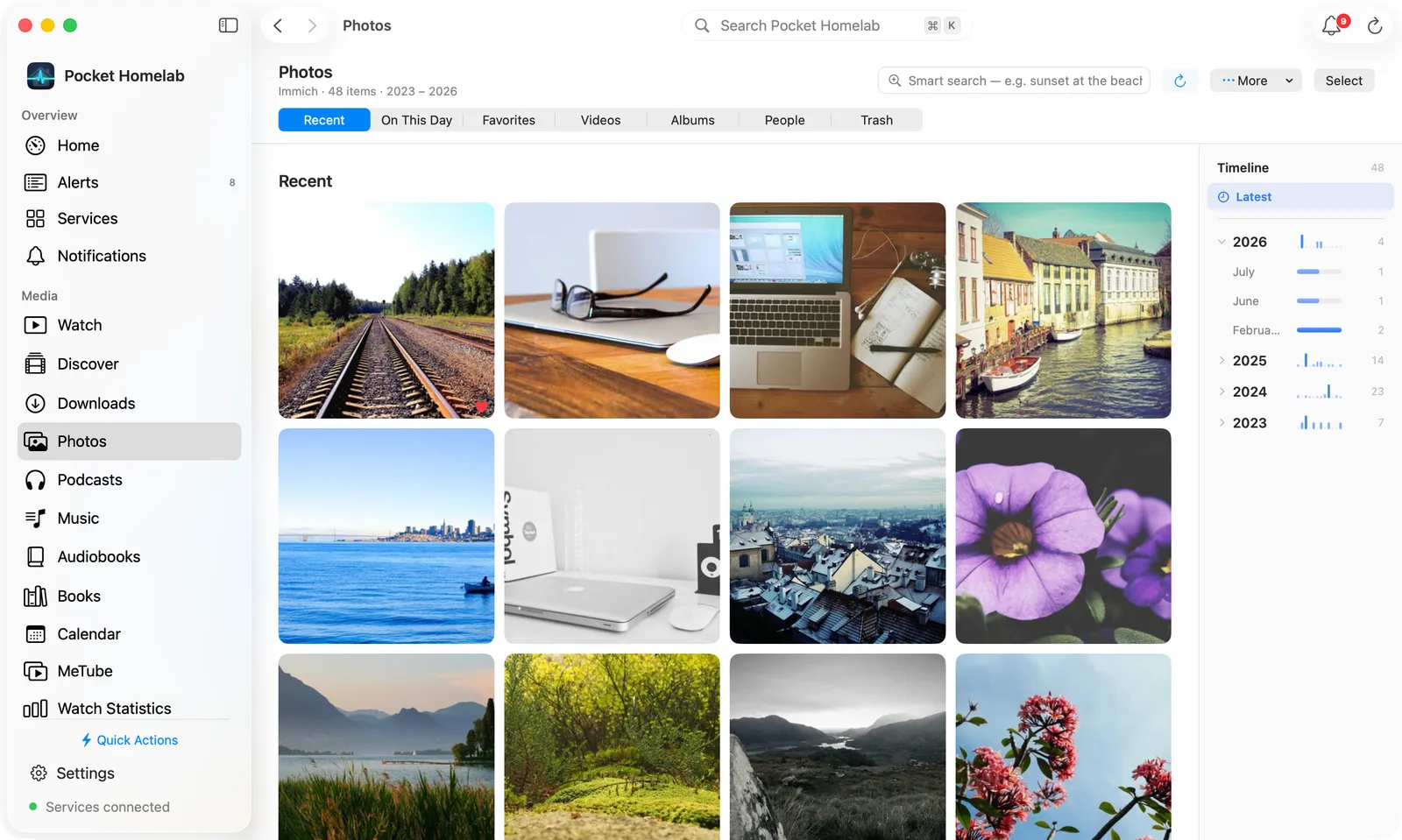
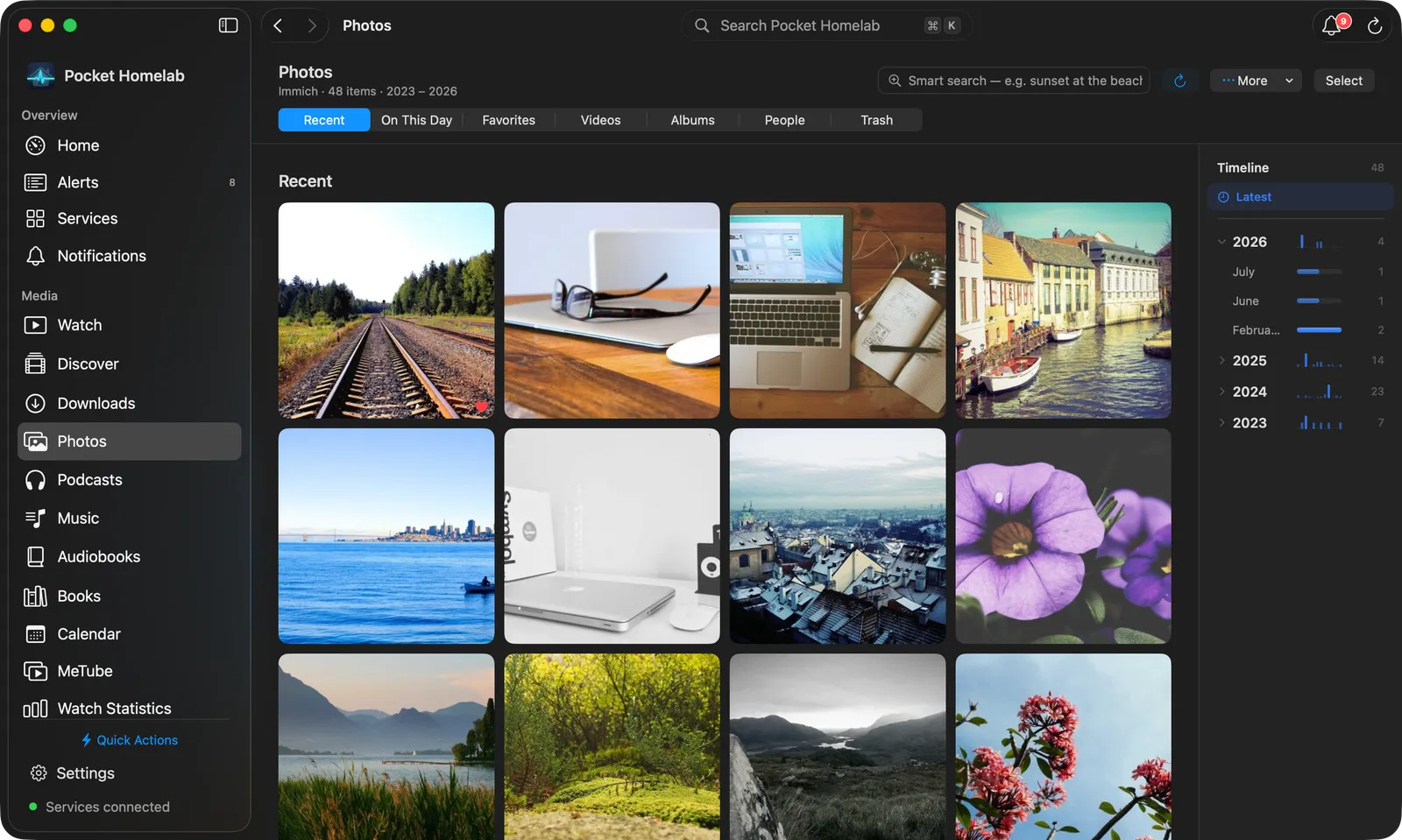
- Photos (Immich): a bar in two rows, the library’s size and years with the smart search, Refresh, More, Select and, on Albums, New Album, then the views (On This Day, Recent, Favorites, Videos, Albums, People, Trash). Recent has a Timeline beside the grid: years with a small chart of their months, months with a bar for how busy they were. See Photos below.
- Music (Navidrome, Lidarr, slskd): Home, Albums, Artists, Playlists, Genres and Requests in the bar, with search and a Request menu (Request music…, Search Soulseek…, Activity, Wanted). Home has Shuffle Library and full-width album shelves; albums, artists and playlists open as pages with sortable track tables, where a double-click plays.
- Podcasts (PinePods): without PinePods, the library kept on this Mac, with Episodes, Unplayed, Downloaded, Shows and Up Next, Continue listening cards and an Add menu (search the podcast directory, an RSS or Pinchflat feed, MeTube downloads, a YouTube link). With PinePods: Latest, Library, Downloads and Played, statistics and automatic downloads.
- Audiobooks (Audiobookshelf): Home, Books, Series, Authors, Genres and Narrators, the library picker, search and Upload. Home has the book to resume, shelves (Continue listening, Recently added, On this device) and your listening time.
- Books (Calibre-Web): Home, Books, Series, Authors, Categories, Publishers and Shelves, search and Upload. Home has cover shelves (Recently added, Hot, Top rated, Random, Unread, Read); a book opens as one page with Read, Download and Send to Kindle.
- MeTube (MeTube): Download a link, All, Audio or Video, search, and In progress, Failed and Downloaded as thumbnail cards. Right-click a download to listen to it in Podcasts or download it again.
- Watch Statistics (Jellystat): 7 days, 30 days, 90 days or a year. Tiles for plays, time watched, viewers and plays a day, a plays-per-day chart, libraries and clients, the most watched shows, movies and music, the most active viewers and recent activity.
While music, a podcast or an audiobook plays, a bar across the bottom of the window shows it in every workspace: artwork and title (click them for the full player), the transport with a scrubber, the speed and a close button. Podcasts and audiobooks add a Note button. Space plays and pauses.
Infrastructure
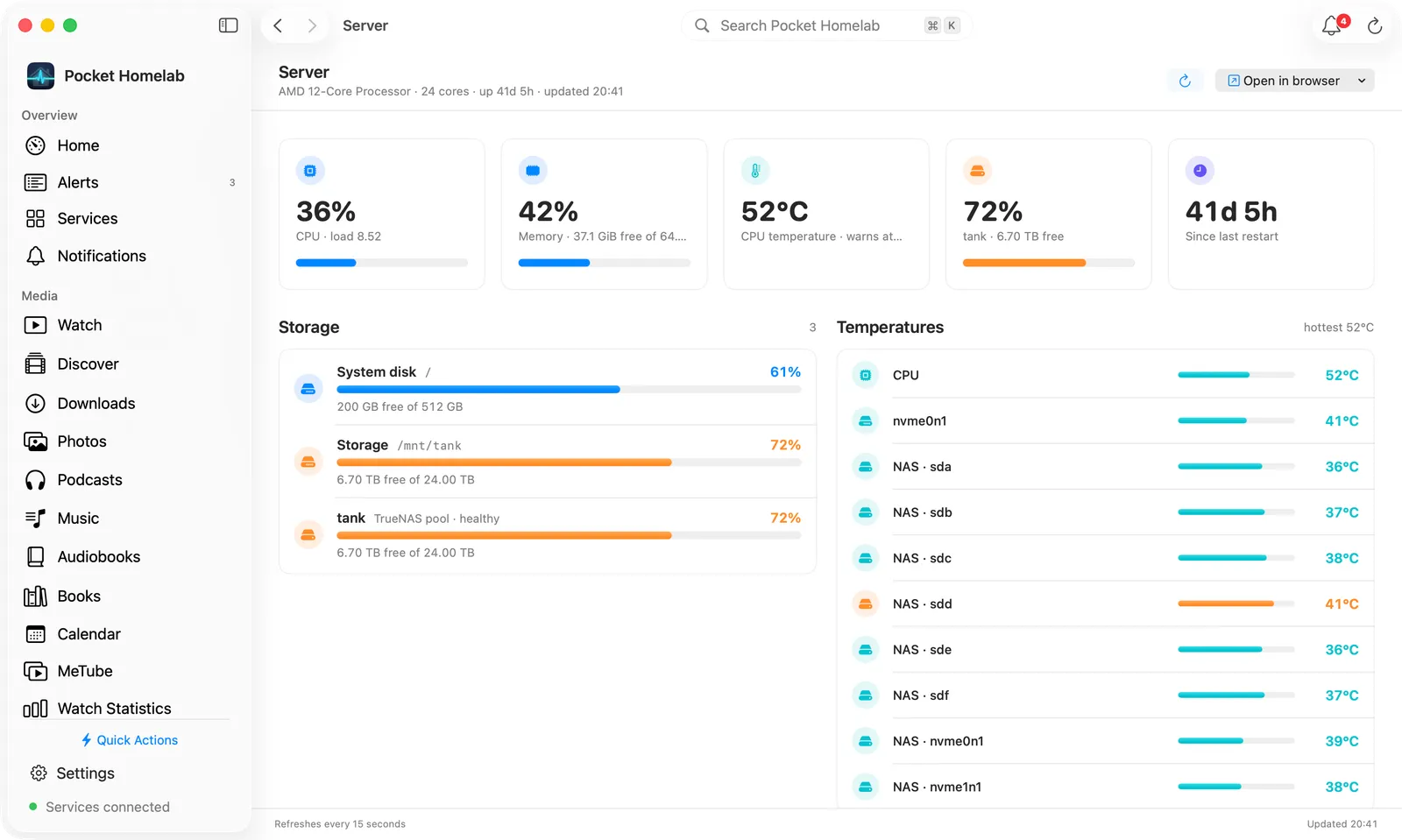
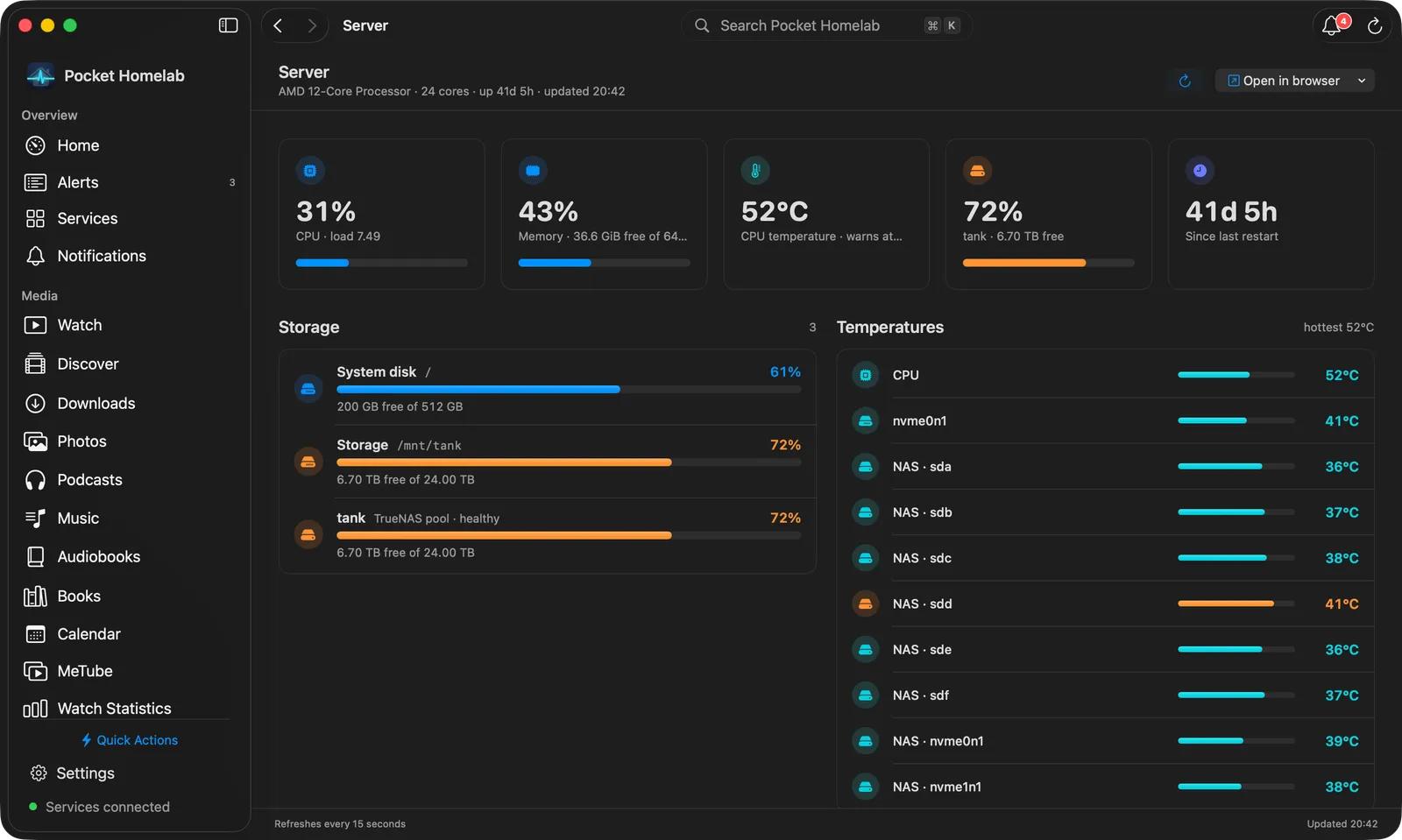
- Server (Glances): the processor, cores and uptime in the bar, with Open in browser. Tiles for CPU, memory, CPU temperature, the TrueNAS pool and uptime; a Storage card with each file system beside a Temperatures card; then Top processes by CPU or Memory as rows. Click a process for its full command with Copy; right-click for Copy command and Copy PID. It refreshes every 15 seconds.
- Storage (TrueNAS): Pools, Disks, Datasets and Alerts in the bar. Tiles for used space, what is available, the pools and the active alerts; each pool is a card with its usage, scrub and its vdevs’ disks with temperatures and errors, beside a System card; disks are cards; datasets are a table, each indented under its parent, with a filter.
- Disks (Scrutiny): tiles, then each drive as a card, grouped by host. Click one for its page: the facts, any warnings and a table of SMART attributes.
- Backups (Backrest): tiles, then plans and repositories as cards; each opens its own page.
- Monitors (Uptime Kuma): a status picker (All, Up, Down, Pending, Maintenance) and a filter, tiles for up, down, pending and the median response, then Needs attention first and every monitor as a card under its group, with its response time and 24-hour uptime. It updates every 15 seconds.
- Speedtest (Speedtest Tracker): download and upload as gauges, the ping with a rating, and What this connection handles: 4K streams, HD calls and how long a big download or upload takes.
- AdGuard (AdGuard Home): Pause 10 min (its menu has other lengths), Resume Protection and the query log in the bar; tiles, a Queries per hour chart, the top blocked domains, clients and queried domains, what was recently blocked and your blocklists.
- Indexers (Prowlarr): search every indexer from the bar, with a category and a sort. Results come as a table; click one to grab it. Without a search: tiles, indexer cards and Recent grabs; an indexer opens as its own page.
- Subtitles (Bazarr, subsync): Episodes or Movies, a filter and Nudge a Subtitle…; tiles, the Sync queue and Wanted episodes grouped by show, with a pill per missing language.
Workspace
- Money (Firefly III, Pico): the month in the bar with Accounts, Transactions, Bills, More and Add Transaction. Tiles for net worth, what you spent, what is due in 30 days and this month’s income each open their page. Where it went lists the categories (click one for its transactions) beside Coming up and Balances, then This month’s transactions as a table.
- Files (Nextcloud): a Finder-like browser in icon or list view, breadcrumbs, Recent files, a Sort menu that keeps folders first and an icon-size slider. The field filters the folder, or with Search all files searches names, document text and OCR. A file opens as its page, where Preview / download opens it in its default app.
- Documents (Paperless-ngx): search the text of every document and Upload. Tiles for the inbox, all documents, untagged and uploads; Recently added as a shelf, your tags, and correspondents, document types and storage paths as cards. A document shows the PDF itself inside the page, with its details, notes and text in a column beside it.
- Tasks (Nextcloud Tasks): a column with Search all tasks, tiles for Today, Upcoming, All tasks, No date and Completed, your lists, labels and read-only shared lists, and New list…. Beside it the chosen view with its count and New Task. An empty Today shows what is coming up.
- Code (Forgejo): tiles for your inbox, open pull requests, the latest run and the repositories, the Actions runs as a table, and every repository as a card. The inbox and pull requests open as pages.
- Web (SearXNG): a start page with one large field; results read like a search engine’s page, with an answer card and related searches beside them.
- Vehicles (LubeLogger): each vehicle as a card, with Add Fuel and Add Expense in the bar. A vehicle opens with tiles for cost, odometer and records, Cost by kind (click one to filter), reminders and a table of records; a record opens as a page with Edit and Delete.
- Deck (Nextcloud Deck): each board as a card in its colour, with Active or Archived, Add Card and New Board.
- Contacts (Nextcloud Contacts): the contacts grouped by letter on the left, the chosen one as a card on the right, with the address book and group pickers and Add Contact.
- Notes: see Notes below.
Photos
Photos opens pictures the way you choose in Settings → Photos: Open photos in Modal, Full app window or Full screen, and Opens on Recent or On This Day. More in the bar changes the same two settings.
- Click a photo to open it. In the viewer, ← and → step through the photos.
- Hold a photo for a moment to start selecting with it, and keep the button down to drag across more. Select in the bar starts selecting too; while selecting, a click adds or removes one photo and a drag selects a range.
- The selection bar has Add to Album, Favorite, Download, Move to Trash and Share; in Trash it has Restore. Photo Info has Download Original….
Notes
With the Notes app on your Nextcloud, Notes appears under Workspace (⌃⌥⌘7), together with a Notes page in Settings, a Notes widget for Home and two capture panels. Setup and the editor in detail are in Nextcloud Notes.
- The browser is a resizable column beside the note; ⌃⌘S hides and shows it. It has a search field, Today’s note with a calendar of daily notes, and two layouts: folders above the notes, or folders with their notes as one outline. Drag a note onto a folder to move it. Right-click for New note, New folder…, Move to… and Delete.
- The toolbar switches between Read, Edit and Markdown, and holds attachments, homelab tools and delete. ⌘N starts a new note.
- The editor has a formatting bar above the note and an insert menu (⇧⌘P, or type
/) with tables, task lists, callouts, Mermaid diagrams, KaTeX maths, templates, dates, emoji and voice memos.[[links another note, ⌘E switches to plain Markdown. Notes save themselves as you type; with the server away, a change waits on the Mac and goes up when it answers. - Daily notes: ⌥⌘Y opens today’s note, ⌥⇧⌘Y adds a line to it without opening it.
- Quick Note (⌃⌥⌘M, from any app) is one note in a small floating panel that stays in front while you work in other apps. The folder chip at the top shows where the note lives and moves it; new ones go to the folder set in Settings → Notes → Quick Notes. Everything the panel does is in Quick Note on the Mac.
Spotlight
⌘K opens an in-window overlay over the workspace. With an empty query it offers quick actions with their shortcuts, screens and settings, and an Open … row for every configured service website. Start typing and it searches the alerts and repositories already loaded, your tasks, and live Jellyfin, Paperless, Nextcloud names and OCR text, Calibre-Web, Navidrome, Audiobookshelf and SearXNG. Most groups end with a View all results row; Music also offers to request the term in Lidarr or search Soulseek, and Prowlarr to search the indexers.
Menu bar
As it first comes, the menu bar item is a house with the current CPU usage beside it. The house turns into a warning sign while a service needs attention. Click it for the menu:
- The title with the number of configured services, and a refresh button.
- Readings: cards two by two (CPU and memory to start with), and a bar across the menu for each disk (the TrueNAS pool’s free space to start with).
- Service health: Monitored services with how many are healthy, and up to three that need a look.
- Monitors, Transfers and Alerts as rows, then the Latest alert.
- The Quick Actions menu.
- Open Pocket Homelab, search, a button that opens Settings → Menu Bar, Settings, the time of the last check and Quit.
Click a card or a row to open its workspace. The item keeps polling with the main window closed, because the polling loop lives at app level. ⌃⌥⌘S opens the same menu as a regular window, Pocket Homelab Status.
Choosing what it shows
Settings → Menu Bar changes the item and its menu, with a live preview on a light and a dark menu bar at the top:
- Show Pocket Homelab in the menu bar takes the item away altogether.
- Icon: Show an icon, a grid of symbols to pick from or the name of any SF Symbol typed in, and Warn when a service needs attention. Without an icon, the warning sign appears in front of the readings instead.
- Readings in the menu bar: Add a reading from Server (CPU usage, load average, memory used or available, server uptime), Storage (free space, used space, disk size, or free of total, for each disk Glances reports and for the TrueNAS pool), Temperatures (CPU, the warmest server disk, the warmest NAS disk) and Services (monitors up or down, services needing attention, download speed, active transfers, unread alerts). Each reading is drawn as Symbol and value, Name and value, Name above value, Value only or Level bar and value; its ⋯ button gives it your own name and symbol.
- How readings look: a Space, Dot or Line between readings, and Short numbers (6.0T instead of 6.01 TB).
- In the menu: switch the sections above on or off, and drag them into another order.
- Readings at the top of the menu: the cards, chosen the same way.
- Standard menu bar → Restore… puts back the house, the CPU usage and the menu as it first came.
Drag a row to change the order; a right-click has Move up and Move down. A reading whose service is not connected stays in the list with what it needs, but is not drawn. On a Mac with a notch, macOS hides menu bar items that do not fit.
System-wide capture
Floating panels open over whatever app you are in, while Pocket Homelab is running:
| Shortcut | Panel | Uses |
|---|---|---|
| ⌃⌥⌘N | Add transaction | Firefly III |
| ⌃⌥⌘T | Add task | Nextcloud Tasks |
| ⌃⌥⌘M | Quick Note | Nextcloud Notes |
| ⌃⌥⌘D | Add to daily note | Nextcloud Notes |
| ⌃⌥⌘C | Calendar | Calendar events, Nextcloud tasks and media releases |
| ⌃⌥⌘J | My Schedule | Upcoming calendar events and meetings |
They are registered as OS-owned hotkeys, with no keystroke monitoring and no Accessibility permission, and open without raising the main window or switching Spaces. Esc hides a panel and keeps your draft. Add transaction, Add task and Add to daily note also hide when you click into another app; Quick Note stays in front until you close it, and reopens where you left it, at the size you gave it. The two note panels are registered only when your Nextcloud has the Notes app.
Drag a panel near the middle of the screen and an accent guide appears; let go and it snaps to the centre, horizontally, vertically or both. Each key can be changed in Settings → Quick Actions → From any application.
The two calendar shortcuts work with the main window closed. Calendar opens the full view; My Schedule opens the next 30 days without changing the main workspace’s selected mode. Choose Join for a private camera check, then Join Meeting to open the meeting app or browser and close the floating panel. See the Calendar guide for setup, navigation and camera actions.
The player
Playing a Jellyfin item opens its own black window without a title bar; drag it by the picture, and it comes back at the size you left it. One control deck along the bottom holds the title and the time left, the scrubber, mute and volume, back 10 s, play and pause, forward 10 s, and on the right:
- Playback settings (the gear): subtitles with their timing and appearance, the audio track, speed from 0.5× to 2×, quality (Auto or a fixed bit rate), and the stream details.
- AirPlay, Episodes and chapters when the item has either, and Enter full screen.
Skip Intro or Skip Recap appears during a segment the server has marked, and Next Episode near the end. When an episode ends, an Up next card counts down 10 seconds to the next one, with Play now and Close. While a video plays, the controls fade after 3 seconds without movement and the pointer hides with them; move the mouse to bring both back. Media keys and Control Center work through Now Playing.
Space plays and pauses, ← and → skip 10 seconds, ↑ and ↓ change the volume, f toggles full screen, m mutes, and Esc leaves full screen or closes the window.
Settings
⌘, opens Settings, grouped the way the iPhone’s are:
| Group | Panes |
|---|---|
| (top) | Your Plan |
| Your Services | Services, Photos, Notes, Podcasts |
| App | Appearance, Menu Bar, Quick Actions, App Badge |
| Storage & Sync | Downloads, Offline, Move & Restore |
| Help | Help, Support, Diagnostics |
Photos is there once Immich is connected, Notes only when your Nextcloud has the Notes app.
- Your Plan: free or Pro, how many services are active, Choose free services… on the free plan, the Pro Annual and Pro Lifetime offers, Restore Purchases and Manage Subscriptions….
- Services: every integration in a searchable list with a green dot for the active ones; select one to edit its connection and test it.
- Photos: Open photos in Modal, Full app window or Full screen, and Opens on Recent or On This Day.
- Notes: the root and attachments folders, where Quick Notes go, the daily note, the editor and offline copies.
- Podcasts: podcast notes and, with PinePods, Automatic downloads.
- Appearance: Window appearance (System, Light or Dark), the Home widget style, spacing and Reset to the curated layout, Sidebar → Customize…, and the App icon (Line, Ember, Terminal and Amber, each also light), which changes the Dock icon while the app runs.
- Menu Bar: see Choosing what it shows.
- Quick Actions: Favorites (the actions pinned to the Quick Actions menu), Shortcuts (every in-app binding, each one editable) and From any application (the capture keys). See Keyboard shortcuts for the complete list and how to change a binding.
- App Badge: the number on the Dock icon, and what it counts.
- Downloads: downloaded files and the space they use on this Mac.
- Offline: Test offline mode shows only what is saved on this Mac. Downloads, saved books and the podcast library stay available, and changes made offline are sent once you are back online.
- Move & Restore: the Mac keeps its own Keychain item, so bring your configuration here. Import env file… takes an env file or a sealed export from another device, Export… under Move to another device seals every saved service with a passphrase for your iPhone, and Erase all settings… removes the saved services and credentials from this Mac (nothing on your servers changes).
- Help: getting started, Free and Pro, configuration files, troubleshooting, Clear local data… and Sample workspace, which opens the sample homelab in the main window.
- Diagnostics: recent requests and what the app has logged, for troubleshooting.