
Nextcloud Deck
Kanban boards, cards, labels, comments and attachments from Nextcloud Deck, with drag-and-drop and quick add.
iPhoneMacOn this page
Deck is Nextcloud’s kanban board app. Pocket Homelab gives you full boards, lists, cards, labels, comments, attachments and drag-and-drop, plus a natural-language quick-add sheet for capturing a card in one line. It uses the same Nextcloud connection as Files, Contacts and Tasks.
What you get
- Home row: a static card titled Deck (“Boards & cards” / “Nextcloud projects”).
- “Deck” tab (optional, off by default), also reachable as Deck boards from the Nextcloud Files screen’s options menu and round button.
- Quick actions: Deck boards (⌥⌘K on Mac) and Add Deck card (⌥⇧⌘N on Mac).
- Spotlight/palette: a Deck boards entry plus the “Add Deck card” quick action; on iPhone, the search sheet also finds cards (across up to eight boards) from 2 characters.
- Shortcuts (iPhone): New Deck Card opens quick add, from Shortcuts, Siri or the Action Button; see Widgets and Shortcuts.
- From a note: in the Nextcloud Notes editor, Make this line a task… can send the line to a Deck board and list, leaving a link to the card behind in the note.
- Mac: a Deck page (⌃⌥⌘4) in the sidebar’s Workspace section, with every board as a card.
- Deck cards also surface as read-only to-dos in the Tasks tab, under a “Read-only” section.
Set up
Deck shares its credentials with Nextcloud Files. If you have not already, follow Nextcloud → Set up to create an app password.
| Key | Field | Required | Secret | Where to get it |
|---|---|---|---|---|
NEXTCLOUD_URL | Nextcloud URL | Required | — | Base URL of Nextcloud, including its subpath if any. |
NEXTCLOUD_USERNAME | Nextcloud Username | Required | — | Your Nextcloud user ID (not display name). |
NEXTCLOUD_APP_PASSWORD | Nextcloud App Password | Required | Secret | Create an app password in Nextcloud → Personal settings → Security. |
On iPhone
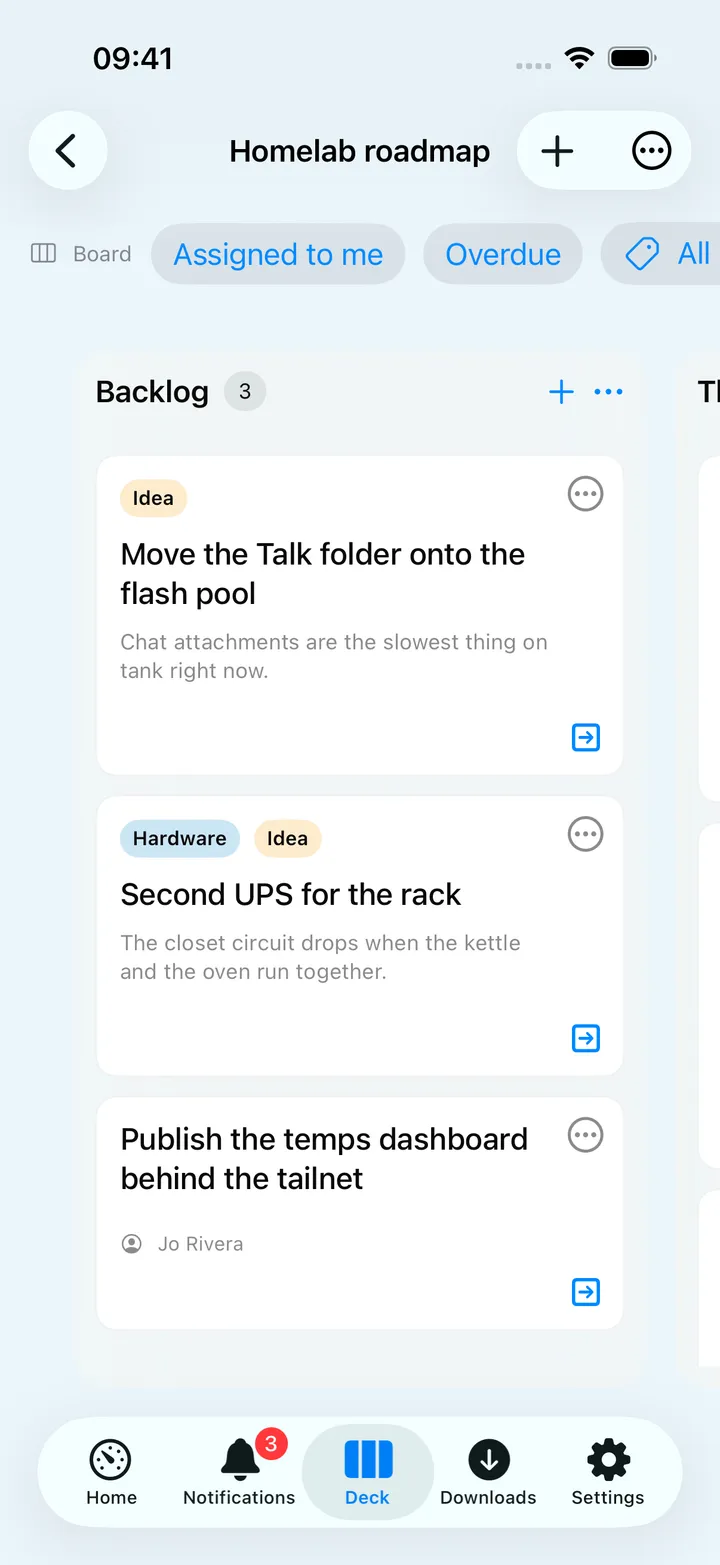
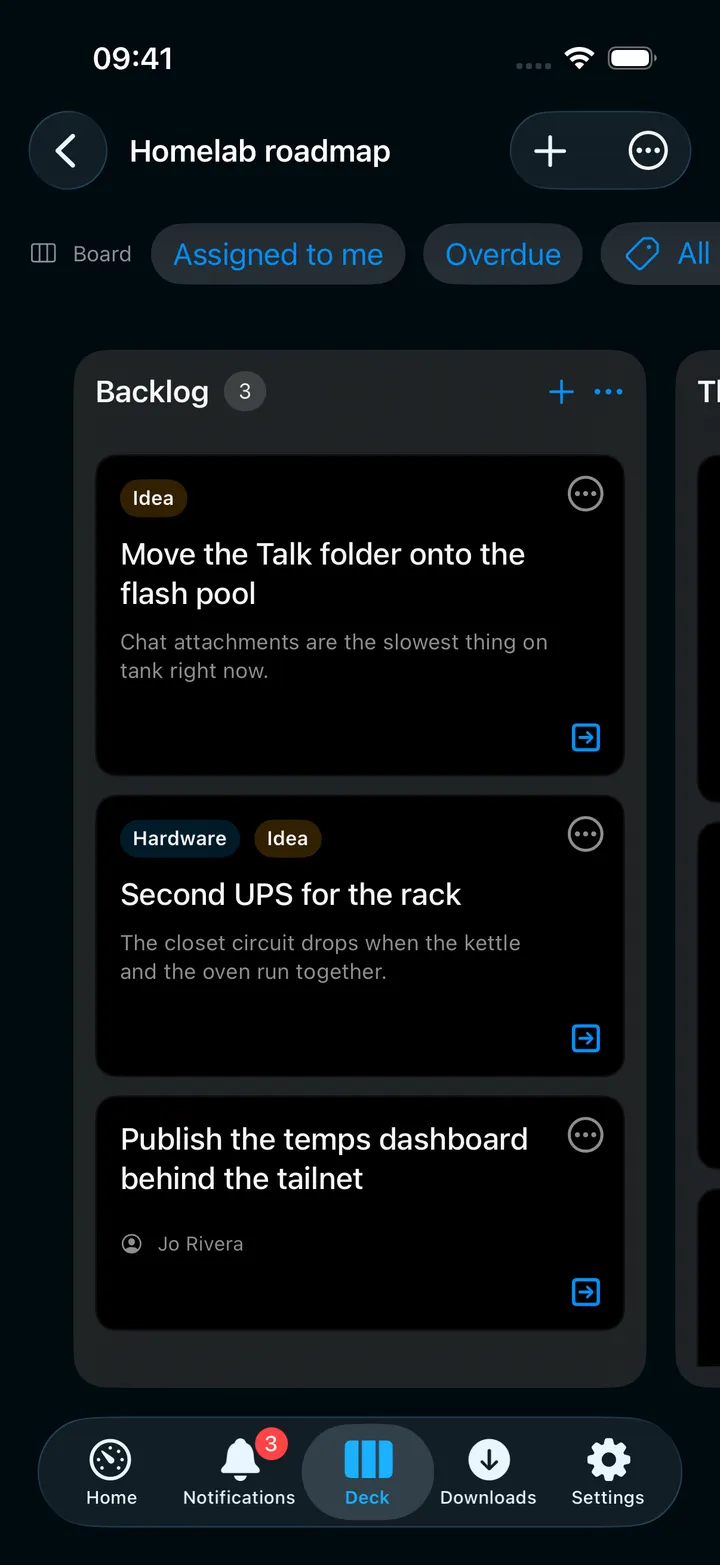
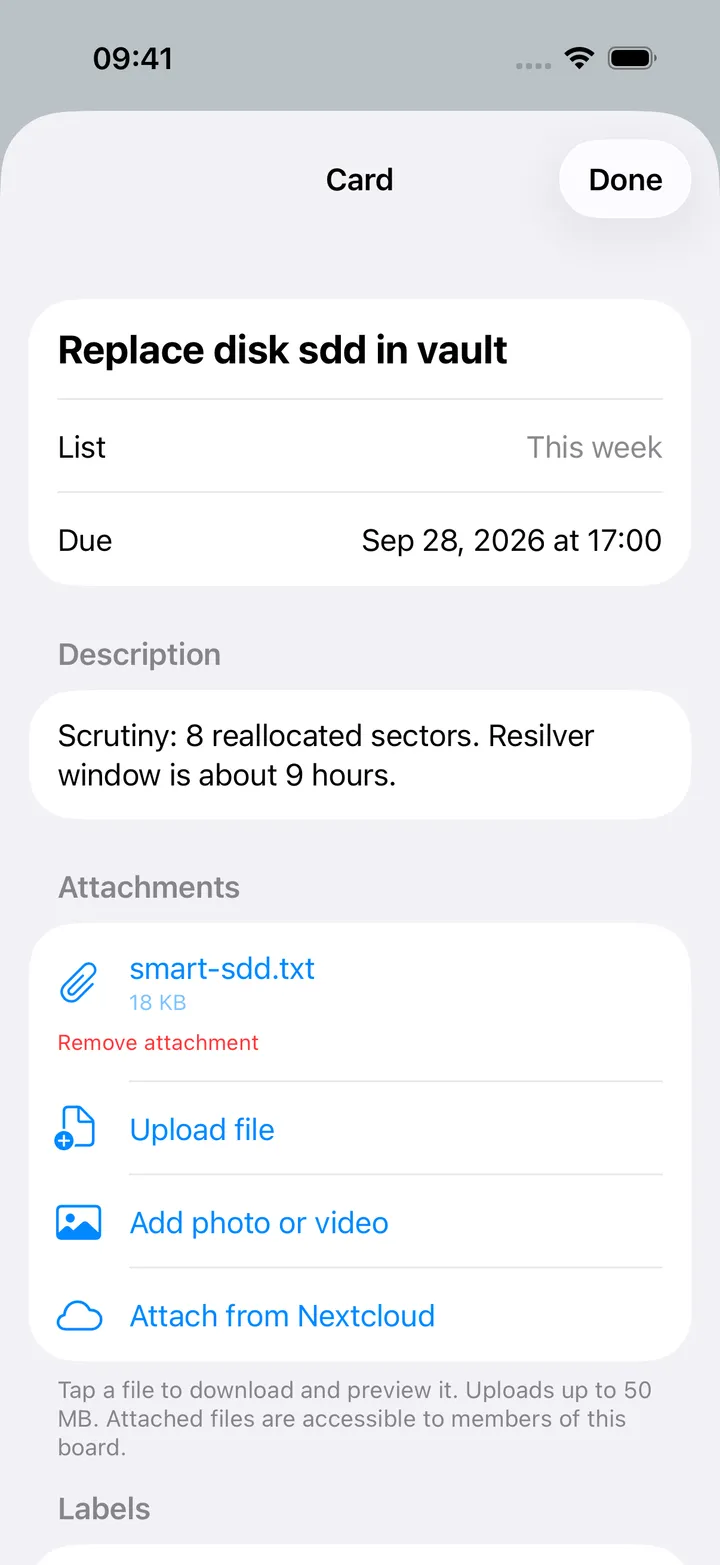
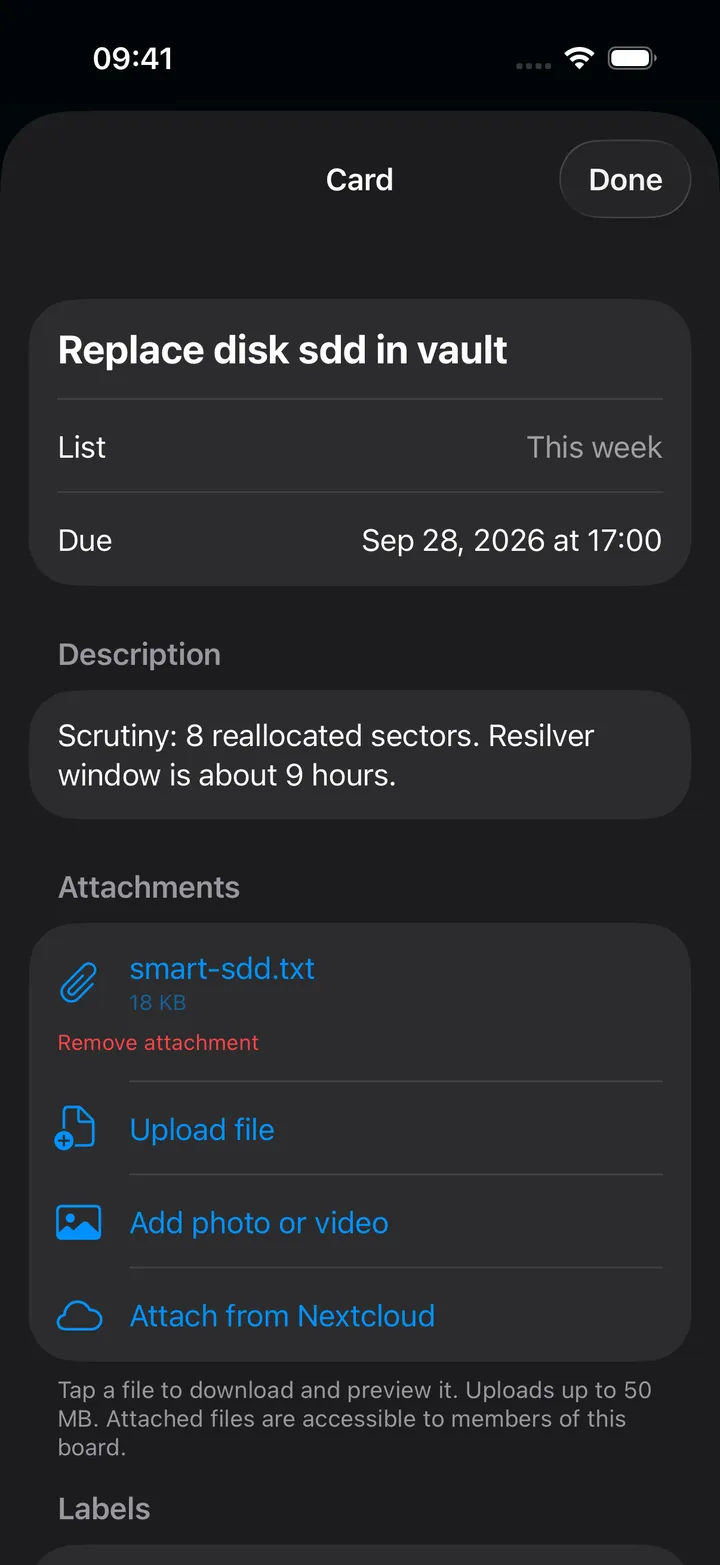
The Deck screen lists your boards, each with a tile in its colour and whether it is open, read-only or archived. Switch between Active and Archived boards, search with Find a board, and use Add card and New board at the top. The board you opened last opens again the next time you come to Deck.
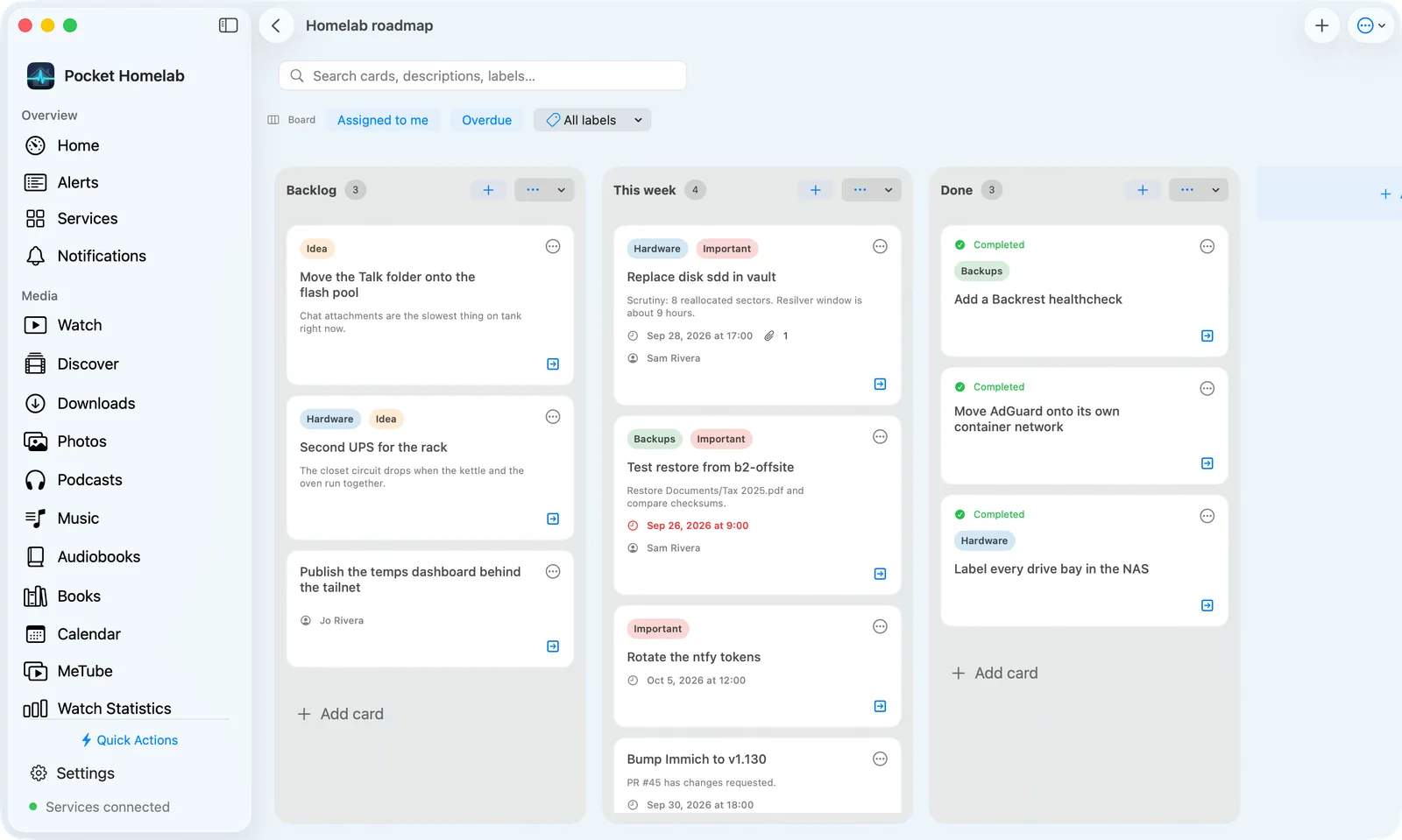
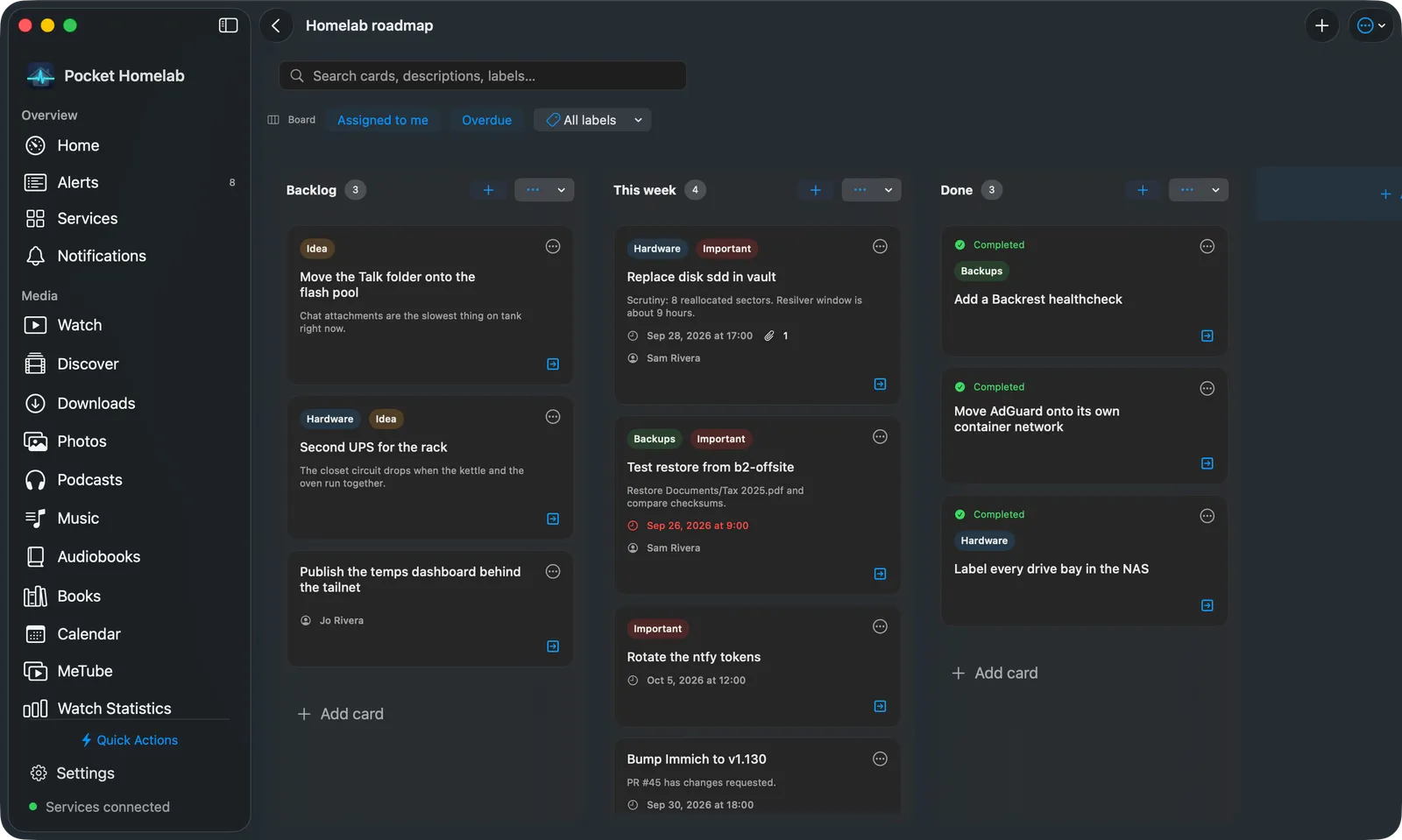
A board shows one list at a time; swipe sideways for the next. Each list has its card count, a + for a new card and a menu with Edit list and Add card, and Add list follows the last one. Above the lists, Assigned to me, Overdue and a label menu filter the cards, and the search field looks through titles, descriptions and labels. The board’s ⋯ menu has Refresh, Archived cards, Board settings, Create label and Open in Nextcloud.
Quick add understands tomorrow 5pm, #List name, @label and // notes in one line; see the Add Deck card
sheet’s own cheat sheet. Cards support Markdown descriptions with tappable checklist items, file attachments (upload,
photo, or pick an existing Nextcloud file), and threaded comments.
On Mac
The Deck page opens with a bar: the number of active boards, a search field (Find a board), Active and Archived, Refresh (⌘R), Add Card and New Board. Below it, every board is a card: the board’s colour as a band across the top (faded, with an Archived badge, for archived boards), the title, a line with read-only, the number of members and labels and the owner, and the labels as coloured dots. The border takes the board’s colour when you point at it. With no boards yet, a New Board button invites you to create one.
Click a board card to open the board. On the Mac its lists sit side by side and scroll sideways, with the same filters, card editor and quick add as iPhone; drag-and-drop between lists works with the mouse the same way it does with touch. The board you opened last opens again the next time you come to Deck.
Actions
- Create, rename, recolour, archive/restore and delete a board.
- Create, rename and delete a list.
- Create a card, edit its title/description/dates/color, mark it complete, and toggle Markdown checklist items.
- Move a card between lists or reorder it (drag-and-drop, or the move menu).
- Create a label, assign/remove labels and board members.
- Post, edit or delete your own comments.
- Upload a file/photo, attach an existing Nextcloud file, or remove an attachment.
Every write re-checks board permissions first, and none of it is queued offline.
- Notes about this: a card has the notes that link to it and Write a note about this, when your Nextcloud has Notes.
Works with
- Shares credentials and the free-tier slot with Files, Contacts and Tasks.
- Deck boards appear as read-only to-do lists in Tasks; opening one of those to-dos lands on the real Deck card, not a task editor. Deck’s own due dates are not Tasks reminders.
- Attachment downloads use the same background-download path as Files, Paperless and Immich exports, and show up in Settings → Downloads under “Deck”.
Tips & troubleshooting
403on a write means the board is archived or you lack edit permission; Deck re-checks this before every mutation and will say so explicitly.409/412means the card changed on the server since you opened it; close the editor and refresh before trying again.- No demo data exists for Deck: you need a real (or mocked) Nextcloud server to see it populated.