Subscribe, search and listen to podcasts with PinePods, or add plain RSS and MeTube-downloaded episodes to the same library.
iPhoneMacOn this page
PinePods is a self-hosted podcast server. Pocket Homelab’s Podcasts tab (called Listen in earlier versions)
works with or without it: plain RSS feeds and MeTube downloads always work, and connecting PinePods adds
subscriptions, play position across devices, server-side downloads and listening statistics.
What you get
Podcasts tab: always available, even fully offline or with nothing configured; it shows your local library
until PinePods is connected.
With PinePods connected: a Latest feed that merges PinePods subscriptions with any local-only (RSS,
Pinchflat or MeTube) episode, a Library of your subscriptions, Downloads (server and device), Played,
and a Statistics page (time listened, streak, top podcasts).
MeTube-based listening: switch on Add to Podcasts when ready when sending a link to MeTube, or import a
finished MeTube download directly. Either way it lands in the same library, with no separate copy where possible.
Podcast notes: Note in the player saves what you just heard at that moment, and syncs it to Nextcloud
Notes when Nextcloud is connected. See Podcast notes.
In PinePods, open your user settings and copy your API key.
In the app, go to Settings → Services → PinePods, paste the URL and key, then press Test connection.
Optional: connect MeTube too (METUBE_URL) so Get audio copy with MeTube and direct MeTube imports
work from inside Podcasts.
Neither key is required for Podcasts to work at all; plain RSS and Pinchflat feeds need no env keys.
Key
Field
Required
Secret
Where to get it
PINEPODS_URL
PinePods URL
Optional
—
Base address of your PinePods server.
PINEPODS_API_KEY
API key
Optional
Secret
Your user API key from PinePods settings. Stored in the Keychain.
METUBE_URL
MeTube URL
Optional
—
Base URL of your MeTube instance. Leave empty to hide MeTube features.
Neither key is required for Podcasts to work at all; plain RSS and Pinchflat feeds need no env keys.
On iPhone
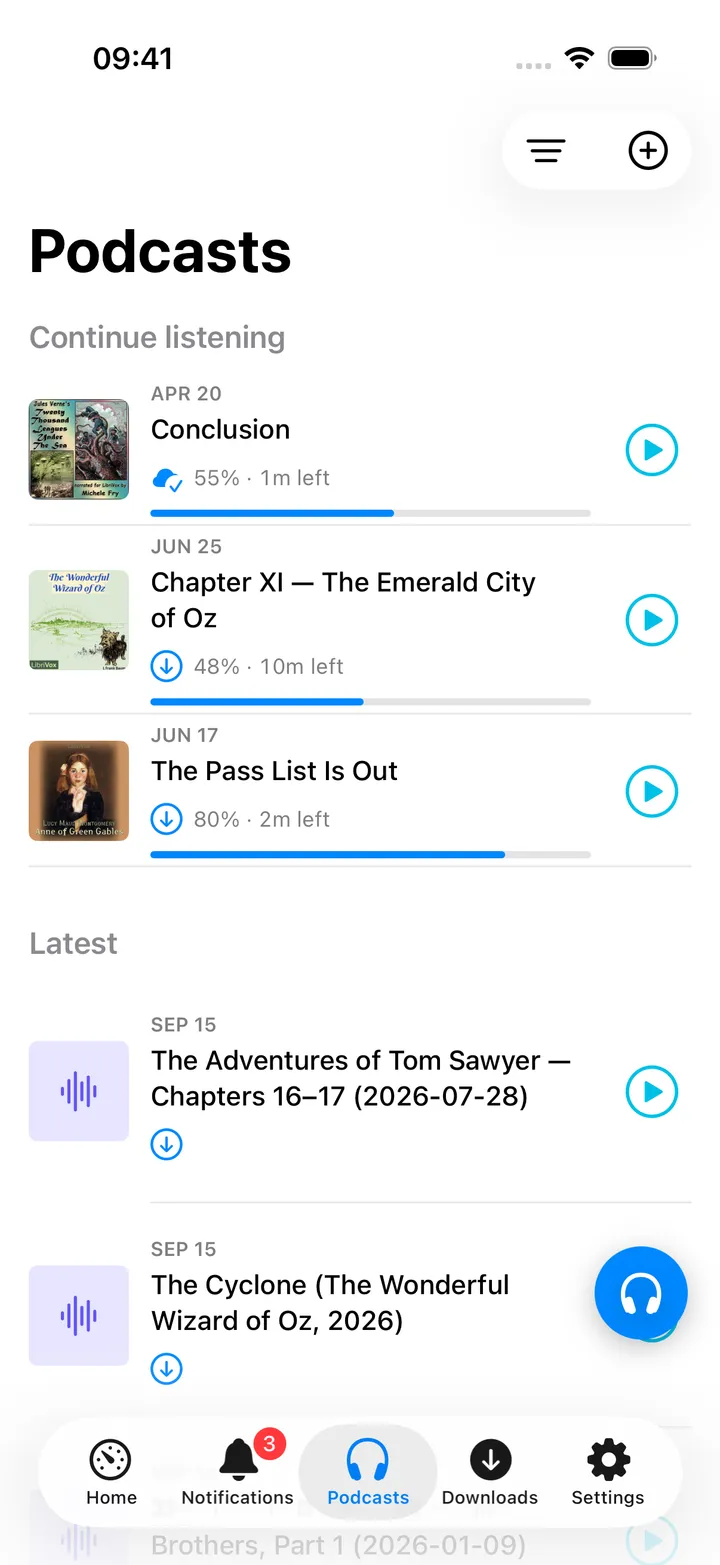
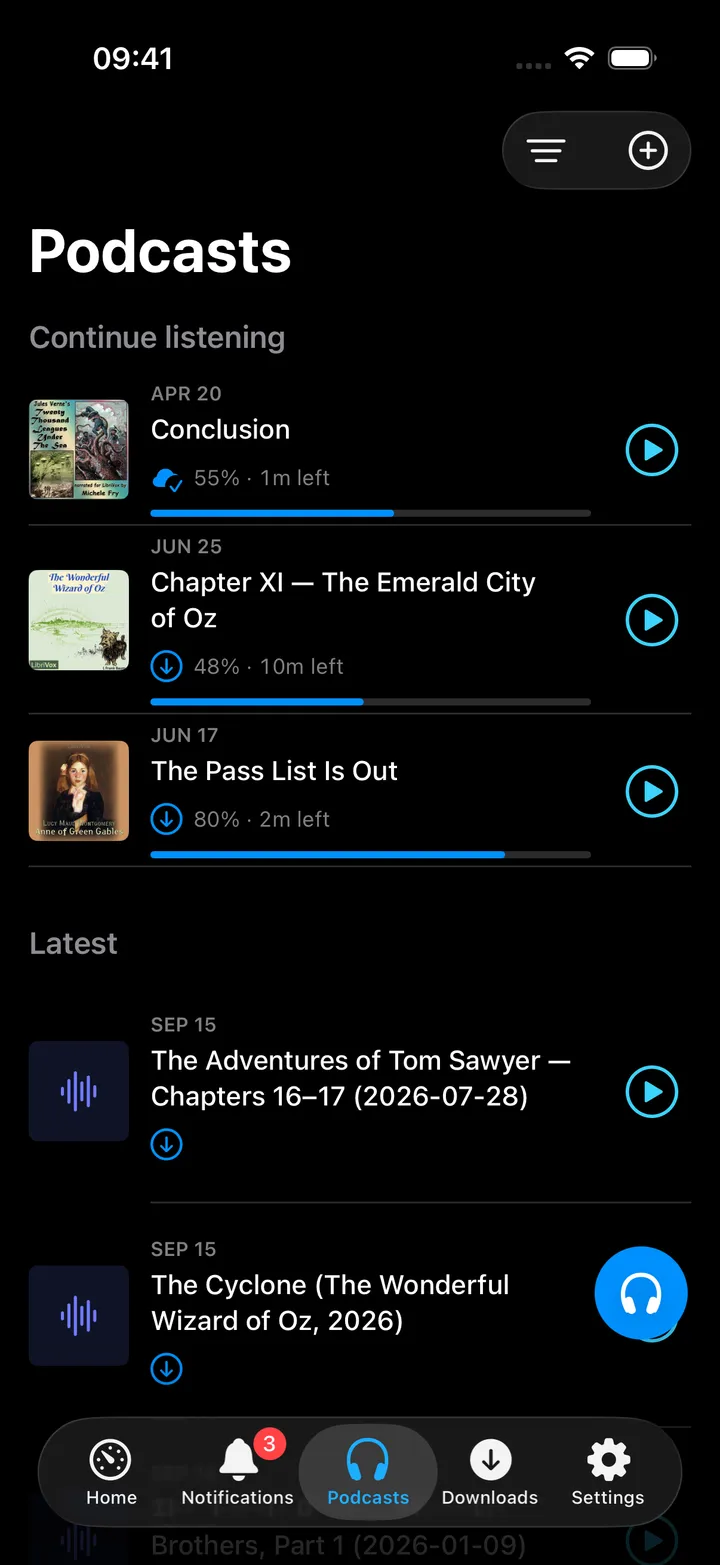
Podcasts with PinePods: Continue listening, then the Latest episodes.
Without PinePods: a local library with All episodes, Unplayed, Downloaded, Shows and Up next,
and a search over episodes and shows. The + menu adds a podcast or Pinchflat feed, opens MeTube downloads
and exports OPML.
With PinePods: Latest, Library, Downloads and Played; a Continue listening section precedes
the list whenever something is in progress. Library also holds the MeTube collection, Bring existing feeds
into your library for feeds added before PinePods, and Local files and previous feeds.
The round button (headphones) beside the app’s + holds every option of the screen: the four views (the
one shown is marked), Search podcasts, Add RSS or Pinchflat feed, MeTube downloads and Download a
YouTube link (with MeTube), Statistics, All notes, Podcast notes settings and Export
subscriptions (OPML). Tap it and pick, or hold, slide to an action and release. The first five show until you
choose your own with Customise; turn the button off in Settings → Screen action buttons. The toolbar’s
filter and + menus keep the same actions.
Search podcasts opens its own sheet with the field ready to type. Pick Apple Podcasts or Podcast
Index; results appear as you type, each with its own subscribe button. A result opens a preview of the feed’s
episodes: tick some and Download selected keeps them on this device without subscribing, while Subscribe
to podcast follows the show in PinePods. Add RSS feed takes a feed address or a Pinchflat link. With
nothing found, one tap searches the other directory.
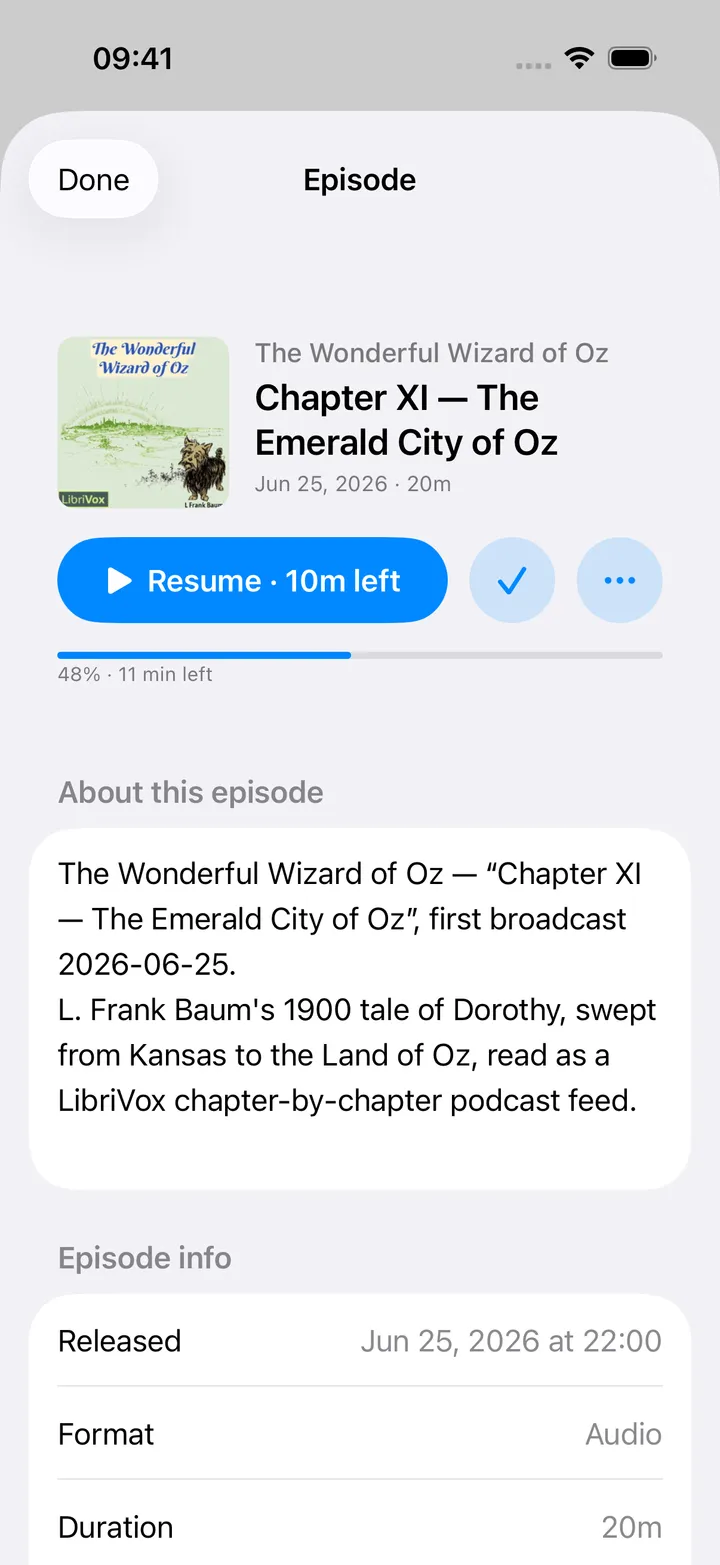
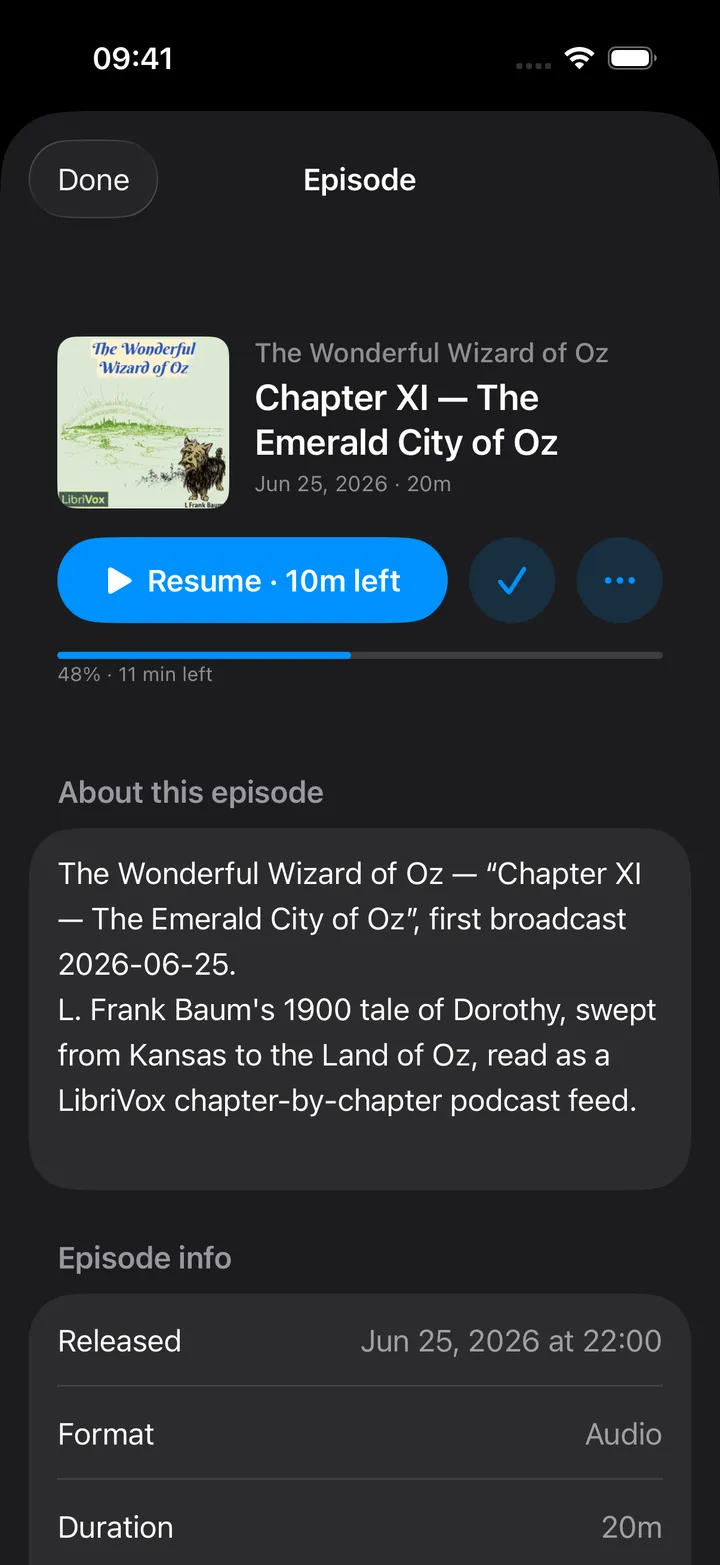
Tapping an episode opens its page. Tapping
an episode opens its page: artwork beside the show, the title, date and length, then one Play or
Resume button (with the time left), a round Mark played button and Options (⋯). Below come the
progress, Now playing: open the player while it plays, About this episode, the chapters, your notes and
Episode info with separate On this device and On server rows (PinePods episodes), each with its own
Download, Refresh or Clear action. The page does not repeat the player; the scrubber, skips, speed and sleep
timer live in the player.
Options holds Open the player, Play next, Play later, Reset progress, Download to device,
Share episode link, Share at 12:34, Open original episode, Get audio copy with MeTube (video
episodes) and Remove offline copy.
A show’s page has Automatic downloads, Show settings, Downloads and its unplayed episodes;
Unsubscribe is in its ⋯ menu.
A persistent mini bar sits at the bottom of every Podcasts screen; on iOS 26 it also renders as the system tab-bar
accessory.
The full player has the speed and sleep-timer menus, an AirPlay picker, Note, and an Options menu with
Show settings, the chapter controls and Share at ….
On Mac
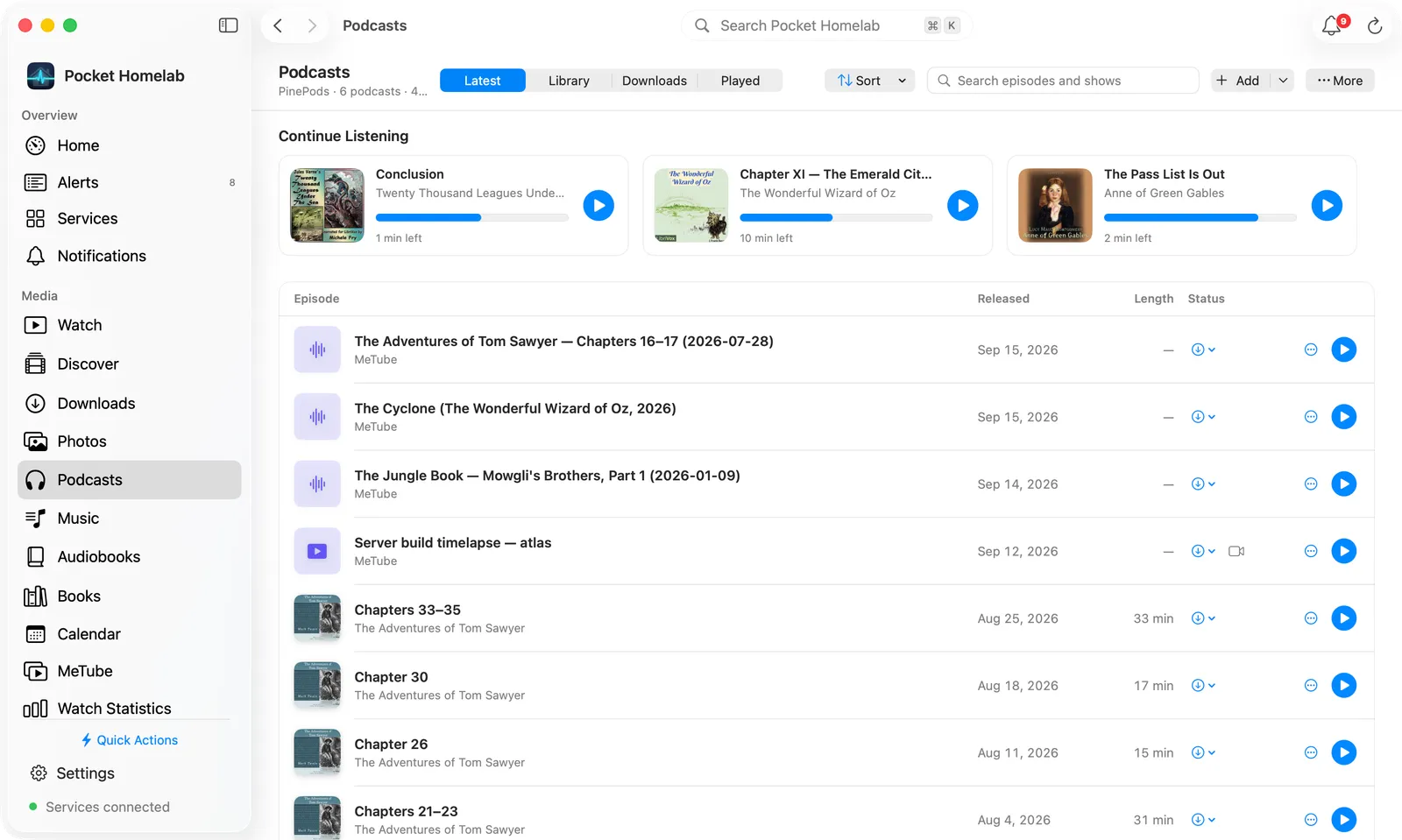
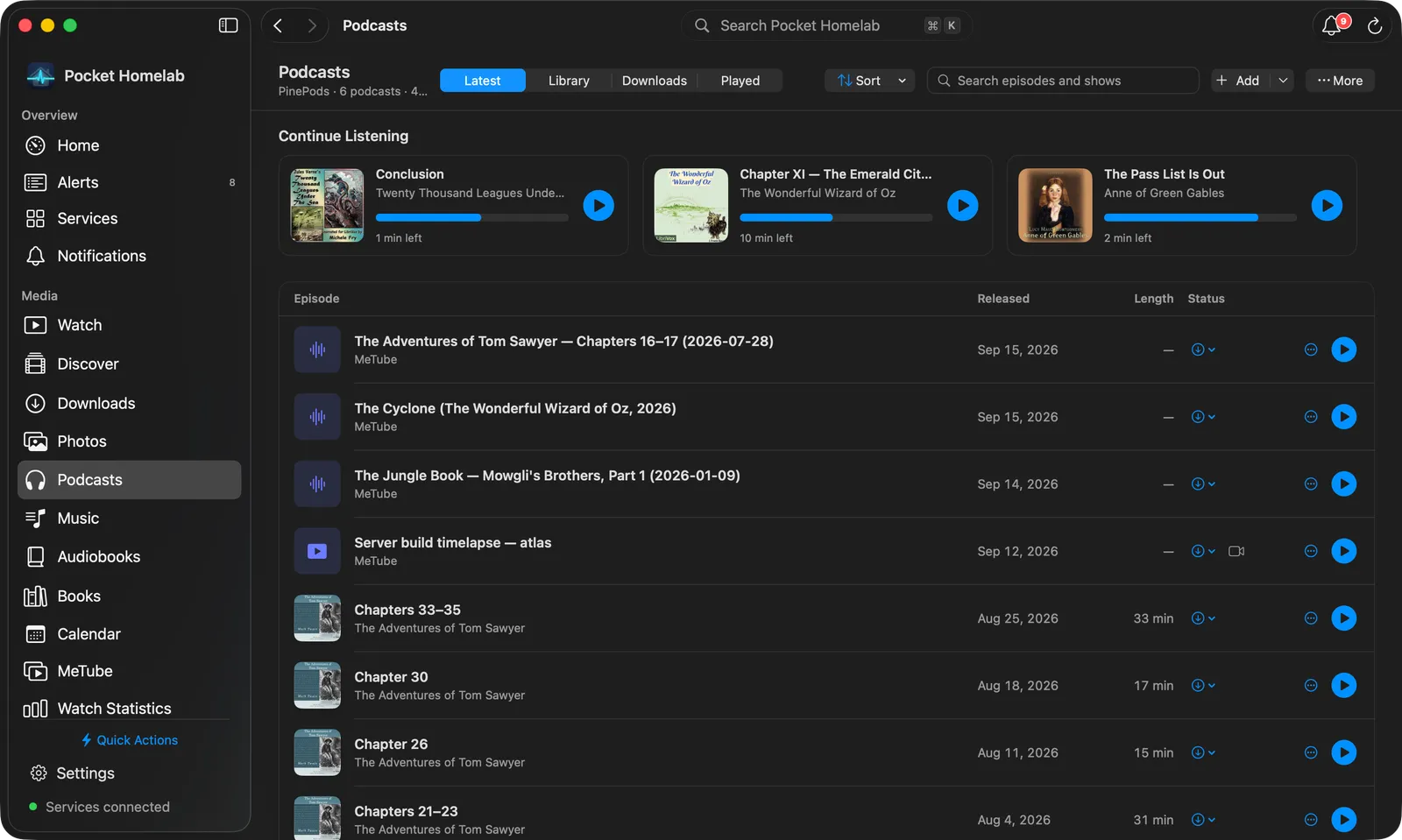
Podcasts on the Mac with PinePods: the views, Sort, search, Add and More in one bar.
Podcasts is one of the few sections kept in the sidebar even when the app is offline.
⌥⇧⌘L opens it as a quick action from anywhere.
The bar: Latest, Library, Downloads and Played, a Sort menu (Newest first, Oldest
first, Title, Show, Longest first), a search field, Add and More (Refresh,
Statistics, All notes, Podcast notes settings, Automatic downloads, Export subscriptions
(OPML)…, Local files and previous feeds).
Latest starts with Continue Listening cards, then the episodes as rows with artwork, released date,
length, status, a ⋯ menu and Play. Click an episode to open it, double-click to play, right-click for
every action (Mark played, Play next, Download to server, and so on). Load older episodes sits at
the bottom.
Library shows your subscriptions as a cover grid. Click a show to open its page: artwork and title,
Automatic downloads and Show settings buttons with their current value, a ⋯ with Downloads,
Refresh and Unsubscribe…, and its unplayed episodes with Filter episodes.
Downloads lists PinePods downloads with an All, Server or This Mac filter, then other episodes
downloaded to this Mac.
Add opens the Add a Podcast window: type a name or topic, pick Apple Podcasts or Podcast Index,
and press Add on a result to subscribe in PinePods. Click a result to see the show’s episodes in the same
window, where each one plays or downloads on its own without subscribing, and Subscribe adds the whole show.
Add RSS or Pinchflat feed… opens the same window as Add by Feed, with only the feed field and Search the
podcast directory instead.
Statistics is a page with Refresh, four tiles (Time listened, Plays, Podcasts, Day
streak), the weekday chart beside the completion ring, and a ranked Top podcasts list across the page.
All notes is a page with the counts, a search field and Export, and each show’s episodes as cards with
their notes inside.
Small settings open as sheets with Done instead of full pages: Podcast notes settings, Automatic
downloads and a show’s Show settings.
An episode opens as a sheet with a bar (artwork, title, show and facts, Mark Played, ⋯ and Play or
Resume), then About this episode, Chapters and Notes as cards beside Playback, Episode info
and Downloads. Click a chapter while the episode plays to jump to it.
Without PinePods the layout is the same with Episodes, Unplayed, Downloaded, Shows and Up
Next; the Add a Podcast window searches Apple Podcasts and adds feeds kept on this Mac, with RSS feed,
Pinchflat and Audiobookshelf cards under Other ways to add.
The now-playing bar at the bottom of the window carries Note as well, and the full player’s footer holds
Done, AirPlay and a More menu.
Podcast notes
Press Note in the player, or in the Mac now-playing bar, to write down something you just heard.
The moment is taken a little before you pressed the button, because what you want to note was said before
you reached it: 5 seconds by default. Note timestamp offers When pressed or 3, 5, 10, 15 or 30 seconds
earlier.
Playback pauses while you write and continues from the same place when you save or cancel. Turn off Pause
playback while writing a note to keep the episode playing.
Notes are saved on this device first and listed in the player and on the episode page; a tap jumps to that
moment while the episode is playing. Each note’s ••• menu edits or deletes it; the moment stays as taken.
With Nextcloud connected, every note is also added to Nextcloud Notes through
the offline queue: one note per episode, one line per moment, in time order. The file name defaults to
{show} – {episode} (a {date} placeholder is available too) and the folder to Podcasts; change either, or
switch off Sync podcast notes to Nextcloud Notes. Notes taken offline wait under Settings → Offline &
sync.
These settings live in Settings → Podcasts (under Your services), beside Automatic downloads; the
Podcasts round button and menus open them as Podcast notes settings.
Each line starts with the clock as a link, - **[12:34](pockethomelab://listen/moment/…)**, then your text.
Clicking the clock (in the app’s Notes editor, on the Nextcloud web page or from Shortcuts) plays the episode
from that moment. For a PinePods episode the link names the episode on your server, so it opens on any device
with Pocket Homelab and PinePods connected, even one that never showed the episode; older links are matched in
your PinePods listening history. An episode from a feed kept only on one device opens where that episode is.
In the Notes tab, a podcast note shows a microphone, and its editor offers Play the episode from the start.
All notes (round button, the Podcasts menus, and Settings → Podcasts) lists every note by show and
episode, newest first, with a search over note text, episode titles and show names. Each episode, each show, or
everything at once exports as Markdown through Share as Markdown or Copy as Markdown.
A long press on Note (right-click on the Mac) opens the same settings.
Show settings, chapters and sharing
Show settings: on a show’s page, or from the player’s Options menu for the show that is playing. A show can
have a speed of its own (Remember for this show in the speed menu is the same switch); without one it
follows the global speed, which is remembered between launches. Skip intro applies when an episode starts
from the beginning, not when it resumes; Skip outro ends the episode that many seconds early and marks it
played. Continue with the next episode starts the next newer unplayed episode of the same show when Up next
is empty. These settings live on this device.
Chapters: read from the feed (Podlove Simple Chapters, or a Podcasting 2.0 chapters file) and kept with the
episode, so they work offline. The player shows the running chapter, a Chapters list, and Previous / Next chapter
in Options; a podcast note records its chapter. Episodes that come from PinePods have none, because its API does
not carry them.
Share at 12:34 (player and episode Options) shares “Title · Show at 12:34” with the episode’s page link. A
link that carries a login or a key is never shared; the words go alone instead.
Export subscriptions (OPML) writes Podcasts.opml with your feeds and PinePods subscriptions. Feeds whose
address contains a key or a login are left out and listed by name.
Actions
Subscribe / Unsubscribe to a podcast. Unsubscribing removes its episodes, listening history, queue entries
and server download records from PinePods, and deletes this app’s own device copies too. This cannot be undone.
Mark played / unplayed, Reset progress, Play next, Play later.
Download to device or Download to server (PinePods only), independent of each other; either, both or
neither can exist for one episode.
Automatic downloads (Settings → Podcasts, or a show’s page for its own override) keeps the newest chosen
number of unplayed episodes on this device, over Wi-Fi only. Keep on device in an episode’s download menu
keeps an automatic copy for good.
Playback position is checkpointed to the server roughly every 5 seconds while playing, and again on pause and
seek. This is position sync, not live multi-device arbitration: pause one device before opening the same episode
on another.
Works with
MeTube: Add to Podcasts when ready on a MeTube send, or importing a finished MeTube history entry
directly, both land in the same library; a video episode’s Get audio copy with MeTube pre-fills an M4A
download.
Audiobookshelf: for the library kept on the device, Find podcast feeds in Audiobookshelf (on the Mac, the
Audiobookshelf card under Other ways to add) imports the original RSS feeds, with artwork, without touching
your Audiobookshelf library or its own progress.
Music (Navidrome) and Audiobooks players: all three pause each other, and starting a Jellyfin video pauses
them too; only one holds the lock-screen “Now Playing” card.
Nextcloud Notes: podcast notes land there, one note per episode; see
Nextcloud Notes for the editor side.
Tips & troubleshooting
Offline, Podcasts swaps to a device-only view built strictly from files already downloaded, never from server
download flags, so it stays accurate even if the server record is stale.
An episode whose media URL now answers 404/410 is hidden from lists (not deleted) unless a device or server copy
still exists; the check is cached for 60 seconds and a timeout never falsely hides an episode.
A PinePods position-sync failure is retried on reconnect and periodically; listened time is never silently
dropped, just delayed.
Unsubscribing is destructive and explicit about it: episodes, history, queue entries, server download records and
device copies for that show are all removed together.
A podcast note’s line that you reword by hand in Nextcloud is no longer recognised: editing that note in the app
then adds a line of its own beside it, and deleting it leaves the hand-edited line alone. A replay never adds the
same line twice.