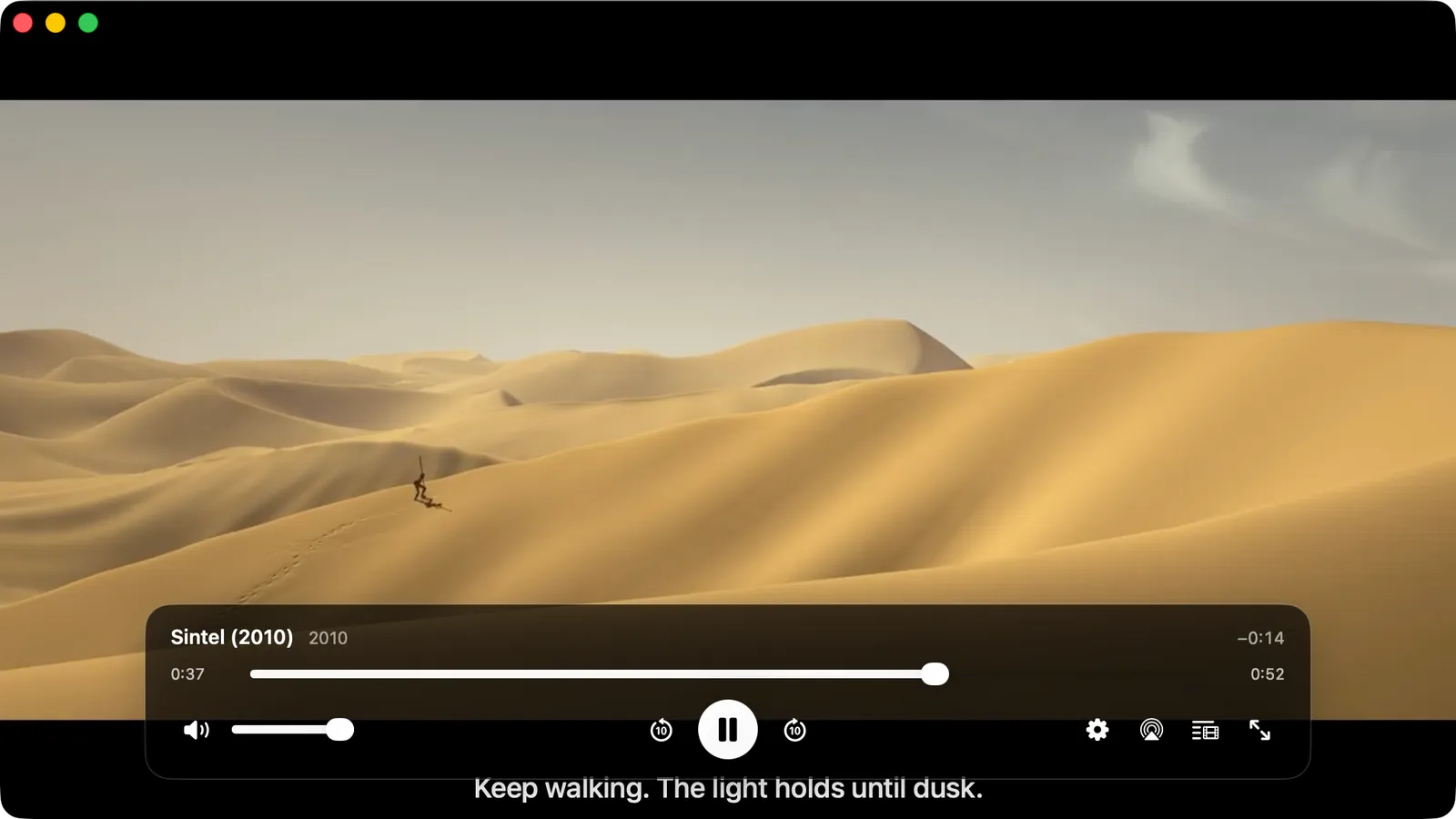
Browse your Jellyfin libraries, resume where you left off, and watch with a real player built for direct play and transcodes.
iPhoneMacOn this page
Jellyfin is your media server. Pocket Homelab gives it a Watch tab with libraries, Continue Watching and Next
Up shelves, and a full in-app video player with subtitle timing, audio and quality control.
What you get
Home row (“Jellyfin”): with an active session, a full-width card shows the poster, Now Playing or
Paused, the title and <user> on <device> · <n> min in; with no sessions the tile reads Idle /
“nothing playing”. Tapping either opens the Watch page on Home, with its own screen action button, even when
Watch is not in your tab bar.
Header widget (“Now playing”): a pinned capsule reading <user> watching <title> or “Nothing playing”.
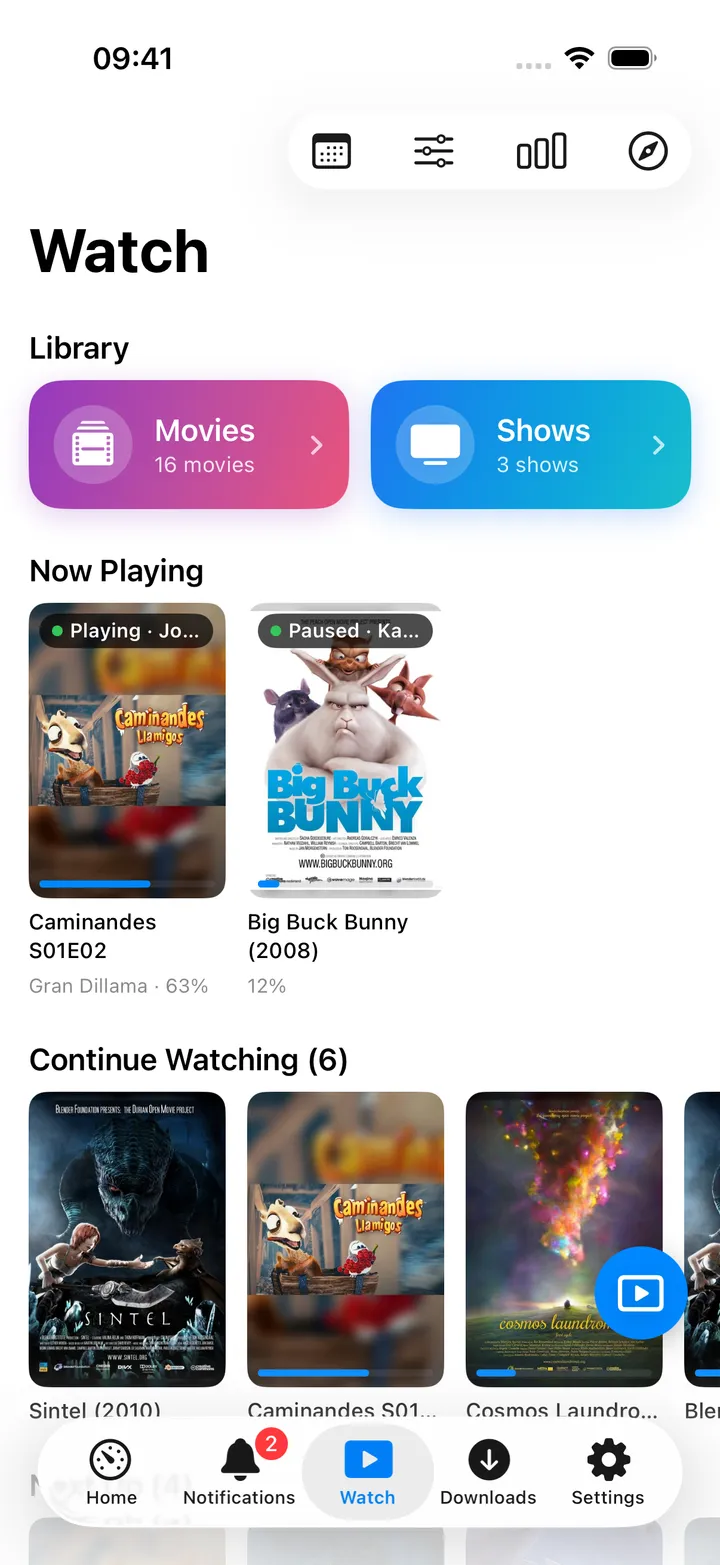
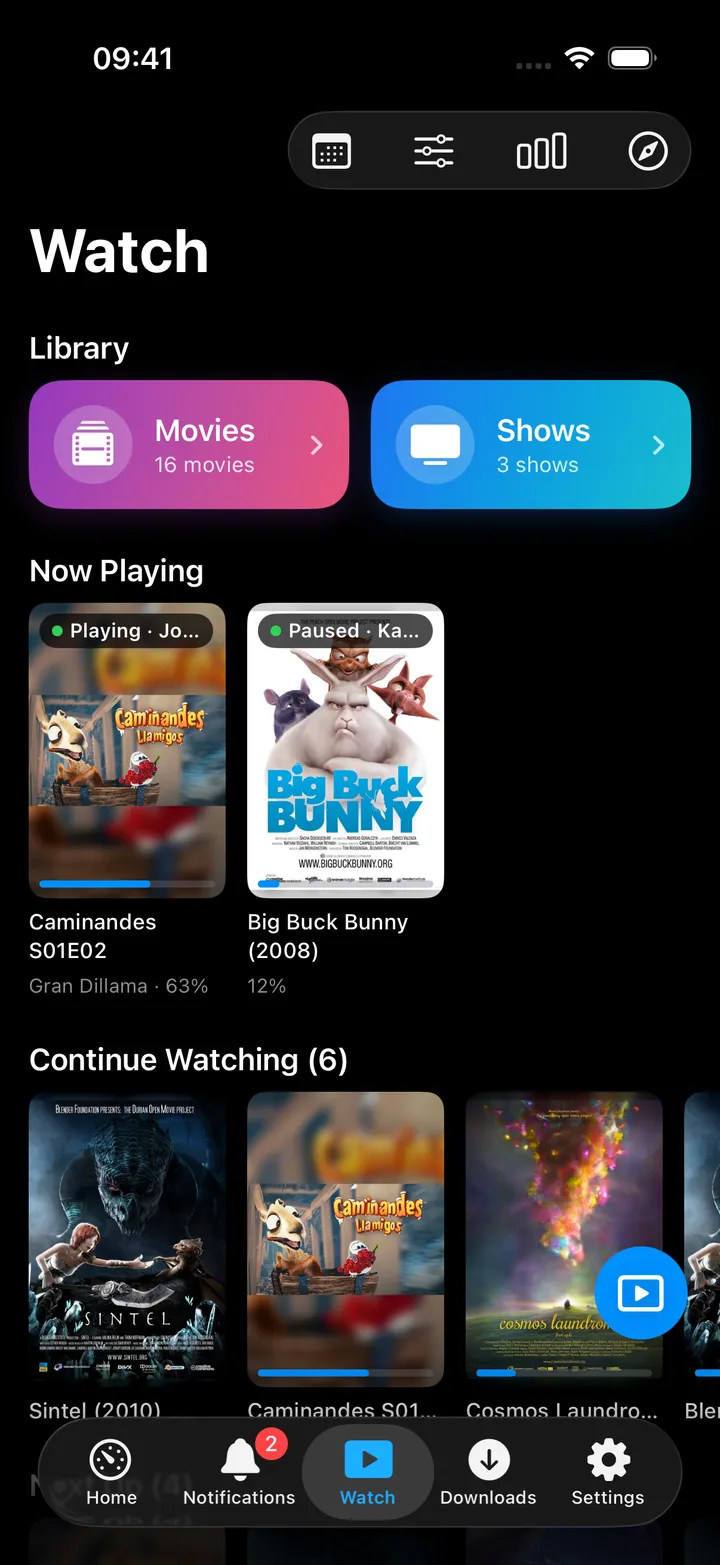
Watch tab: Library cards, a Now Playing shelf, Continue Watching and Next Up.
Quick action: Resume watching plays the first Continue Watching item directly.
Spotlight: typing 2+ characters searches your Jellyfin library live and plays or opens results.
Home links row: a browser link to Jellyfin appears as soon as the URL is set, even without an API key.
Set up
In Jellyfin, open Dashboard → API Keys and create a key for Pocket Homelab.
Optional: find the user whose Continue Watching/Next Up you want under Dashboard → Users and copy their id
from the URL, otherwise the app uses the first administrator account.
In the app, go to Settings → Services → Jellyfin, paste the URL and key, then press Test connection.
A URL without a key still shows a browser link on Home, but hides the Watch tab, tile and search.
Key
Field
Required
Secret
Where to get it
JELLYFIN_URL
Jellyfin URL
Required
—
Base URL of your server. Leave empty to hide Jellyfin features.
JELLYFIN_API_KEY
API key
Required
Secret
Dashboard → API Keys.
JELLYFIN_USER_ID
Jellyfin User ID
Optional
—
Optional. Whose Continue Watching / Next Up to show; defaults to the first administrator.
A URL without a key still shows a browser link on Home, but hides the Watch tab, tile and search.
On iPhone
Watch tab: libraries, Now Playing, Continue Watching and Next Up.
Tap a shelf card to play it. Anything with a saved position asks first: Resume from <time> or Start
over. Long-press a card for Resume/Play, Details and Mark as Played.
Screen action button: the round button beside the + holds the Watch controls: Resume <title>,
Next up: <title>, Media calendar, Watch stats, Refresh, Open Jellyfin, one entry per
library, the Quality options and Precise seeking. The first five show until you pick your own with
Choose actions…; turn the button off in Settings → App → Screen action buttons.
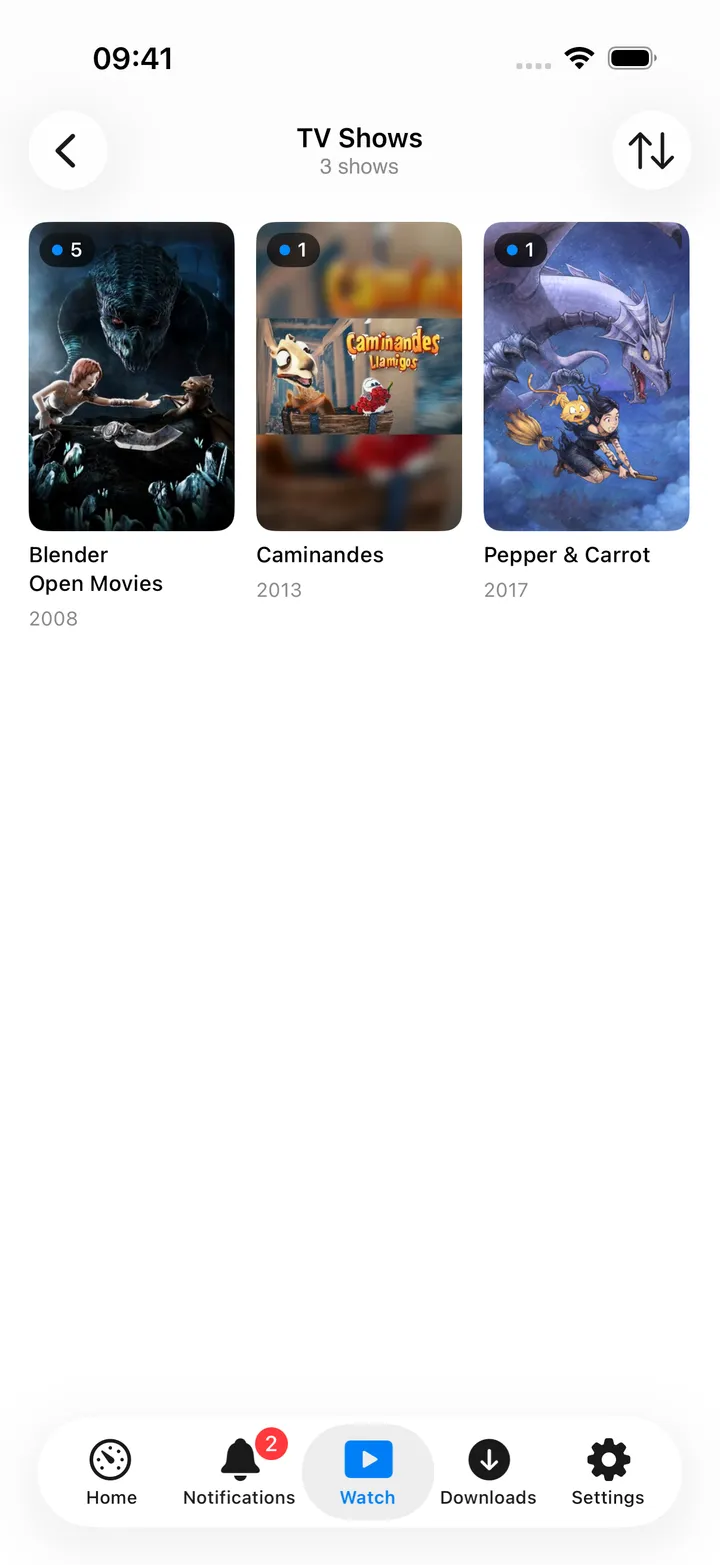
Library (Library grid, sortable by name, year, rating or recently added.): a poster grid, searchable, sorted by
Name, Recently added, Year, Rating or Recently played.
Item detail (Item detail: cast, ratings, genres and a Resume button.) shows cast, ratings, genres, IMDb/TMDB links and a
prominent Resume from <time> or Play button, then Download to this iPhone with its progress block
while it fetches (see Downloads & offline). Posters in a
library grid and on the Watch shelves carry the same ring while a copy is on its way, and the top of Watch lists
every fetch under way.
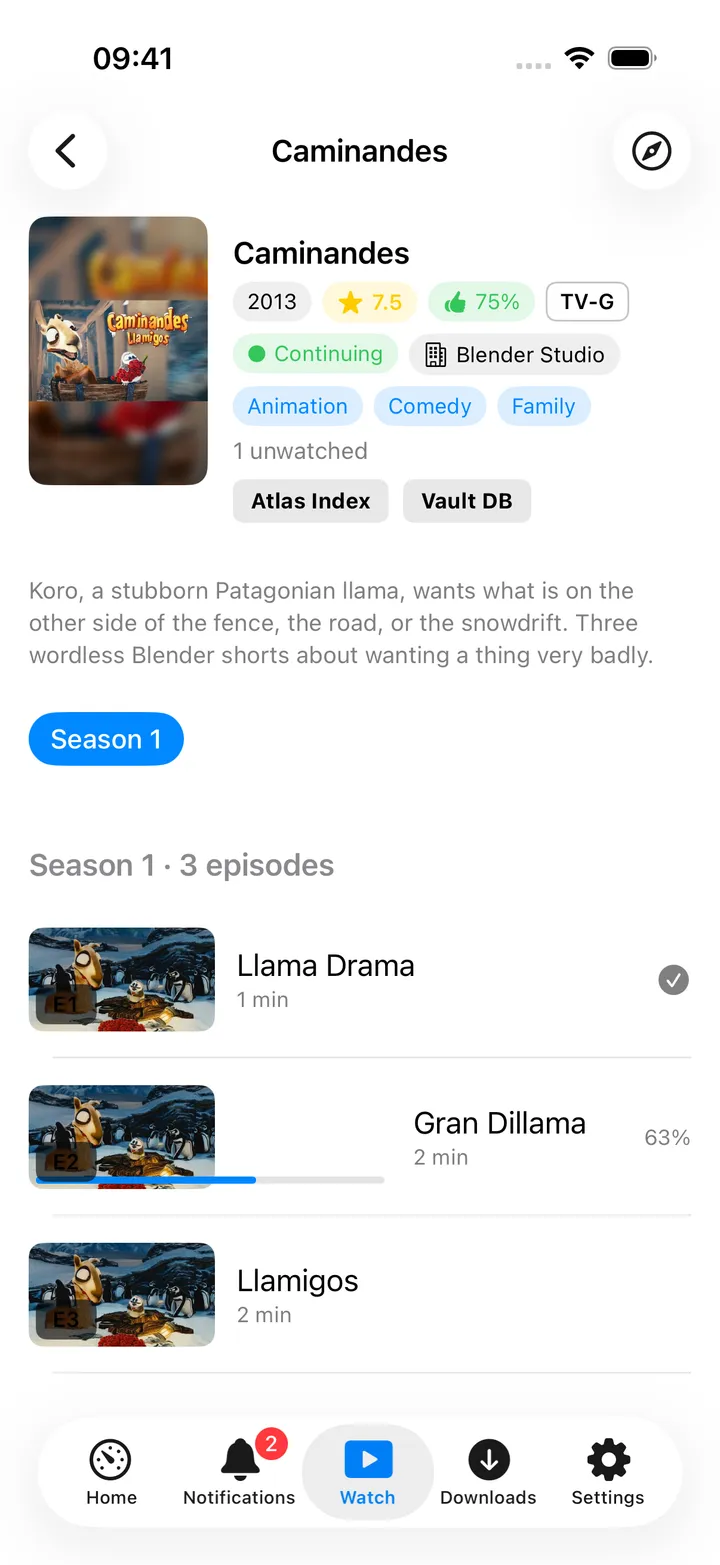
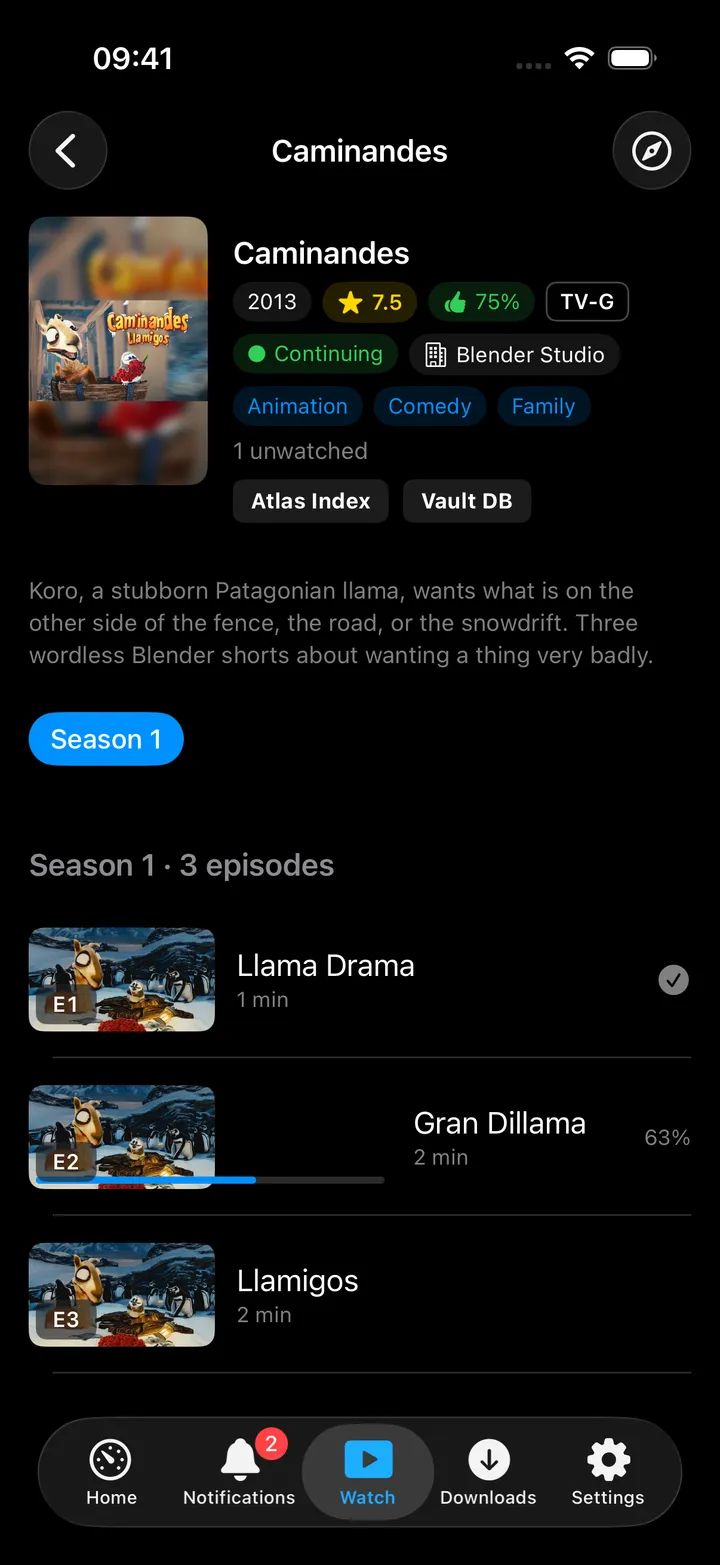
Episodes (Season episode rows with watched state and progress.): season chips and episode rows with watched
checkmarks, “12% · 19 min left” with a bar for one you started, and the podcast-style download button at the end
of every row (arrow to fetch, ring with the percentage while it fetches, green check once it is there); long-press
a row for Play, Download,
Start over and Mark as Played. The toolbar’s season downloads button offers Download season, Cancel
and Remove for the whole season, and the season header says how many are on the phone.
Details sheet: play, Mark as Played, Open in Jellyfin, Download to this iPhone (or “On this iPhone”
with Remove download once it is there; Play then uses the copy), the rest of the season for an episode, and,
when your Nextcloud has the Notes app, Notes about this: every note that links to the title, plus Write a
note about this, which starts a note headed with a link back to the title (see
Nextcloud Notes).
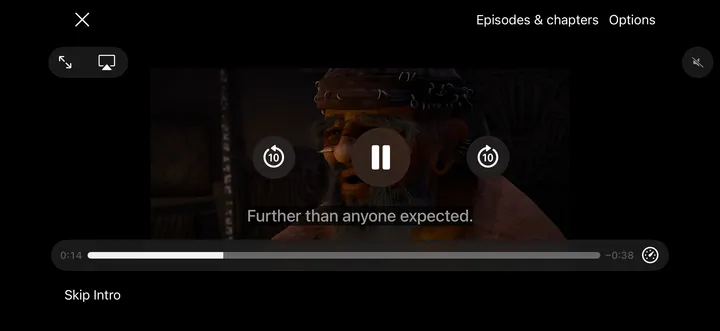
The player (Player: Options, Episodes & chapters and the skip button.): the system video
controls (scrubbing, AirPlay, Picture in Picture) plus a row with Close, Episodes & chapters and
Options. Options holds Subtitles (with Timing for this playback only and Appearance),
Audio, Speed, Quality and Stream details with Precise seeking. A Skip Intro or Skip
Recap button appears over those parts, and near the end of an episode Next Episode with Cancel.
Toolbar Playback settings menu on Watch mirrors the player’s Quality, Precise seeking and Subtitle style
controls so they can be set before you start playing.
On Mac
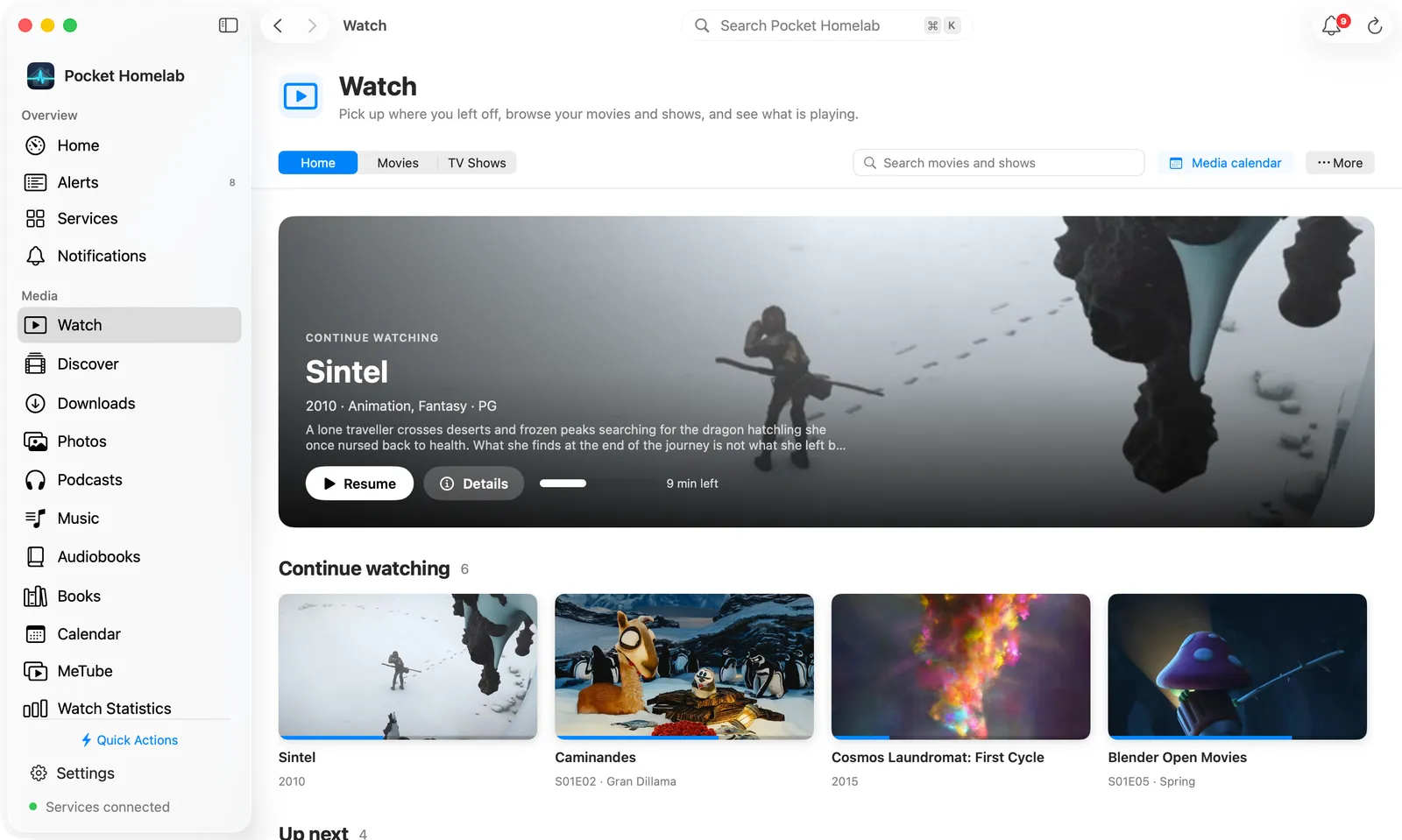
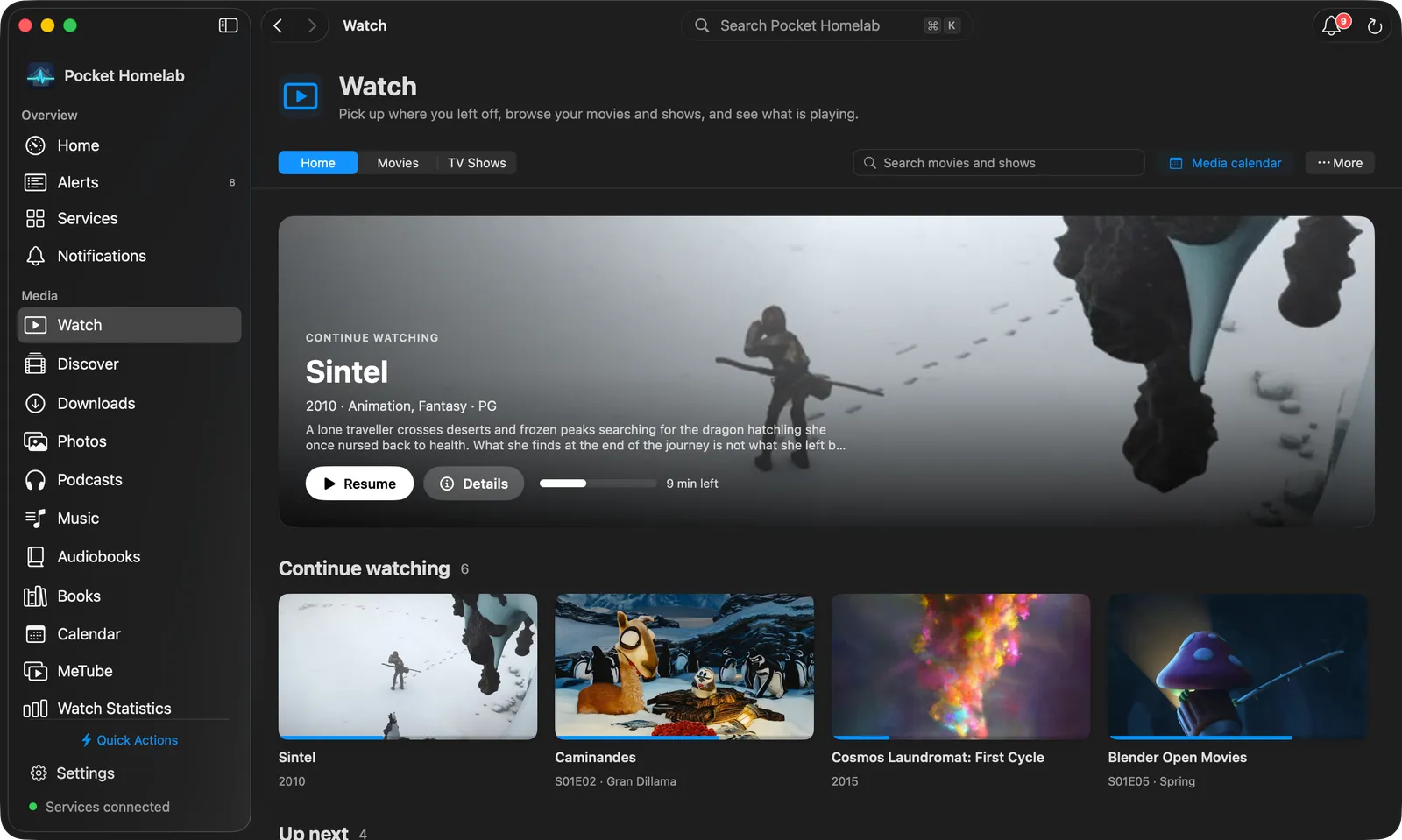
Mac Watch: Home and library tabs, search, and the Continue watching banner. Watch is laid out like
the Music workspace: a header, then a bar with Home and one tab per library, a Search movies and shows
field, the Media calendar button and a More (⋯) menu. Home opens on a large Continue watching
banner for the last thing you watched (Resume/Play, Details, time left), then the Continue
watching and Up next shelves and Playing on your server, one card per active session. With nothing in
progress, the banner is replaced by your library counts with a button per library.
A library tab is a poster grid with Search this library, a Sort picker and Load more.
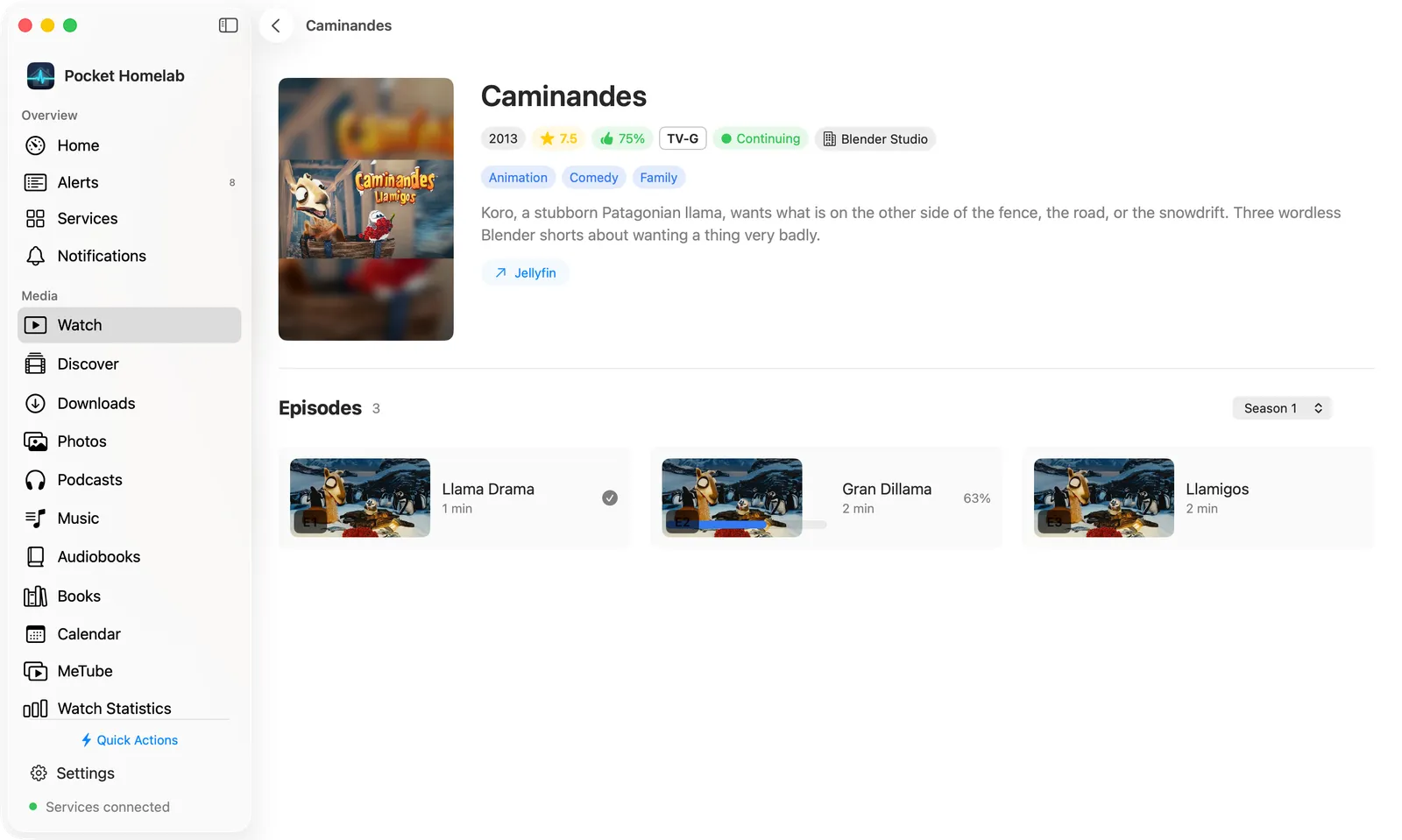
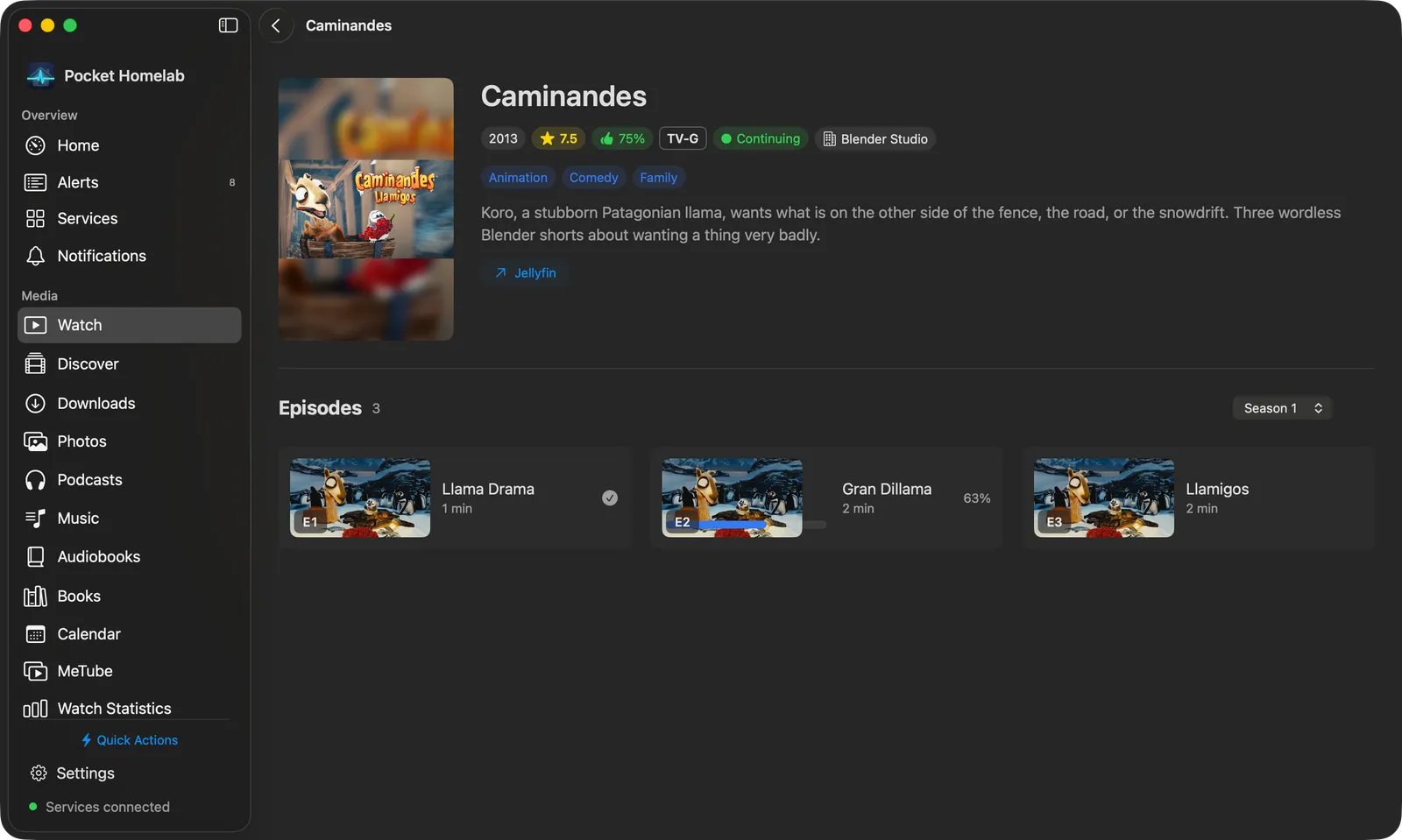
Series/movie detail with Play/Resume, cast and season picker. A title’s page has
Play/Resume, Details, Download (a movie or an episode) and a Jellyfin link; a series lists its
episodes with a season picker. Each episode card ends with the same download icon as on iPhone: an arrow to
download it to this Mac, a ring with the percentage while it fetches (click to cancel), a green check once it is
here (click to play the copy or remove it). Beside the season picker, Downloads offers Download Season
(or the ones still missing), Cancel and Remove, with N of M downloaded.
Right-click any card for Play, Details, Download (or Cancel Download, Play Downloaded Copy and
Remove Download), Mark as Played, Refresh Images and Open in Jellyfin. Details opens the same
sheet as on iPhone, Notes about this included.
The More menu holds Playback quality, Precise seeking, Subtitle style, Refresh, Watch
statistics (with Jellystat) and Open Jellyfin.
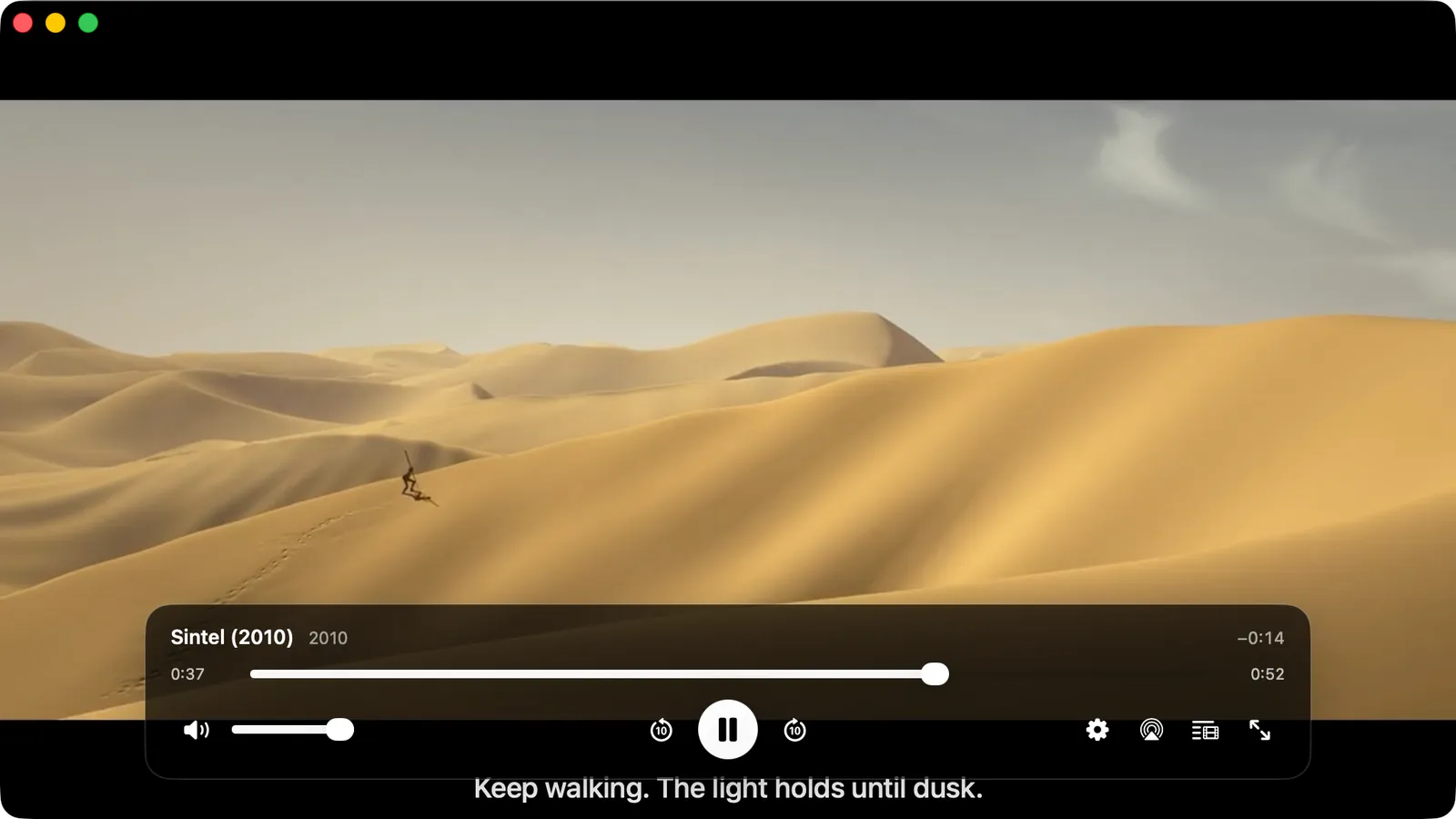
Separate player window with one floating control deck. The player opens in its own window (not
full-screen by default), with one control deck: back and forward 10 seconds, Playback settings (the same
menu as Options on iPhone), AirPlay, Episodes and chapters and full screen, plus the same skip button and
next-episode card as iPhone. After three idle seconds of playback the controls fade and the pointer hides with
them; move the mouse to bring both back.
Keys in the player: Space plays and pauses, ←/→ jump 10 seconds, ↑/↓ change the volume, f toggles
full screen, m mutes, Esc leaves full screen or closes the window.
On Home, a Continue watching card (right-click it for Watching options: what it shows, the order,
artwork, progress) and a Jellyfin status row with the active sessions.
Actions
Mark as Played: from any shelf, item detail or context menu. There is no “mark unplayed” anywhere in the app.
Download to this iPhone / Mac: keeps a copy of a movie or an episode on the device, the file itself when the
device plays its container as it is, else one MP4 the server writes while it is fetched. The copy plays in the
system player (on the Mac, in the default app for the file) and takes up where you stopped on that device;
nothing about a copy is reported to Jellyfin.
Play / Resume: starts a Jellyfin play session and reports progress back every 10 seconds and on every
pause/resume, so Continue Watching updates correctly on other Jellyfin clients too.
Stopping, seeking, switching audio/quality, and reaching the end of an item all send a stop/progress report to
Jellyfin. Your position is also kept on the device until Jellyfin confirms it: if the save fails, the app sends
it again when the app comes back to the foreground or the network returns, and the Resume prompt offers the
newer of the two positions. Starting playback and Mark as Played still need a live connection.
Works with
Jellystat: a Watch stats button appears on the Watch toolbar and in the screen action button (on Mac,
Watch statistics in the More menu) once Jellystat is configured. See Jellystat.
Radarr / Sonarr / Lidarr / Chaptarr: a Media calendar button appears on the Watch toolbar (Mac: in the
bar) once any of them is set up.
Nextcloud Notes: notes about a movie, show or episode, from its Details sheet.
Bazarr / Subtitle Sync Server: nudging a subtitle’s timing tells you to “restart playback in Jellyfin to pick
it up”.
Starting a video pauses any playing podcast, music or audiobook first.
Tips & troubleshooting
Precise seeking re-encodes video on the server so seeks land exactly, at the cost of server CPU; leave it off
for casual seeking accuracy, turn it on if seeks visibly drift after a jump.
Copied (direct-stream) video can drift up to a minute after a seek because Jellyfin restarts its encoder on a grid
the player does not share. That is what Precise seeking fixes.
With a URL but no API key, Jellyfin only shows up as a Home browser link. The Watch tab, tile and search stay
hidden until a key is added.
API-key sessions have no Jellyfin user attached, so the app writes your resume position and played state directly
to your user’s data on every progress report. This is what actually moves Continue Watching elsewhere.