
AdGuard Home
DNS protection status, blocked query stats, query log and pause/resume controls on the Home dashboard and the AdGuard screen.
iPhoneMacOn this page
AdGuard Home is a network-wide DNS filter. Pocket Homelab shows whether protection is on, how much it has blocked, the query log, and lets you pause or resume filtering directly from the app.
What you get
- Home row “AdGuard”: “10.0%” blocked, with “blocked 1,240 of 12,400 · 15 ms”, or, paused, “PAUSED · 1,240 of 12,400 · 15 ms” and “resumes 14:30” once a timed pause is running. Green shield when protecting, orange when paused. In Settings → Home layout, the card’s Show on this card picks Blocked percentage (the default), Blocked requests or Total requests.
- Card context menu adds “Pause protection 10 min”, “Pause protection 1 h” or “Resume protection” directly on the Home card, no confirmation.
- Home header option “AdGuard”: “Protecting · 1,240 blocked (10.0%)” or “AdGuard paused.”
- Issue chip “AdGuard paused” (orange).
- Quick action “Pause / resume AdGuard”, pauses for 30 minutes, or resumes if already paused; the button face reflects live state (green shield, or orange with a countdown badge).
- Spotlight entry “AdGuard” (dns, blocking, ads).
- iPhone: a round AdGuard controls button on the AdGuard screen (see On iPhone), an AdGuard Protection control for Control Center, the Lock Screen or the Action Button, and the Shortcuts actions Toggle AdGuard Protection and Set AdGuard Protection. The control and both actions pause for 30 minutes or turn protection back on, and run without opening the app (see Widgets and Shortcuts).
- Mac: sidebar AdGuard under Infrastructure (⌥⌘3 by default), an AdGuard widget for Home, an AdGuard row in the Home Status widget (Protecting or Paused, with the blocked percentage), and the same quick action (⇧⌘A by default).
- ntfy category
networkincludes the keyword “adguard” but deep-links to Open Monitors, not AdGuard.
Set up
- In AdGuard Home, use your existing Web UI login, there is no separate API key to create.
- In Pocket Homelab: Settings → Services → AdGuard Home, paste the URL, username and password, then Test connection.
| Key | Field | Required | Secret | Where to get it |
|---|---|---|---|---|
ADGUARD_URL | AdGuard Home URL | Required | — | Base URL of your AdGuard Home instance. Leave empty to hide AdGuard Home features. |
ADGUARD_USERNAME | Username | Required | — | Web UI username. |
ADGUARD_PASSWORD | Password | Required | Secret | Web UI password. |
On iPhone
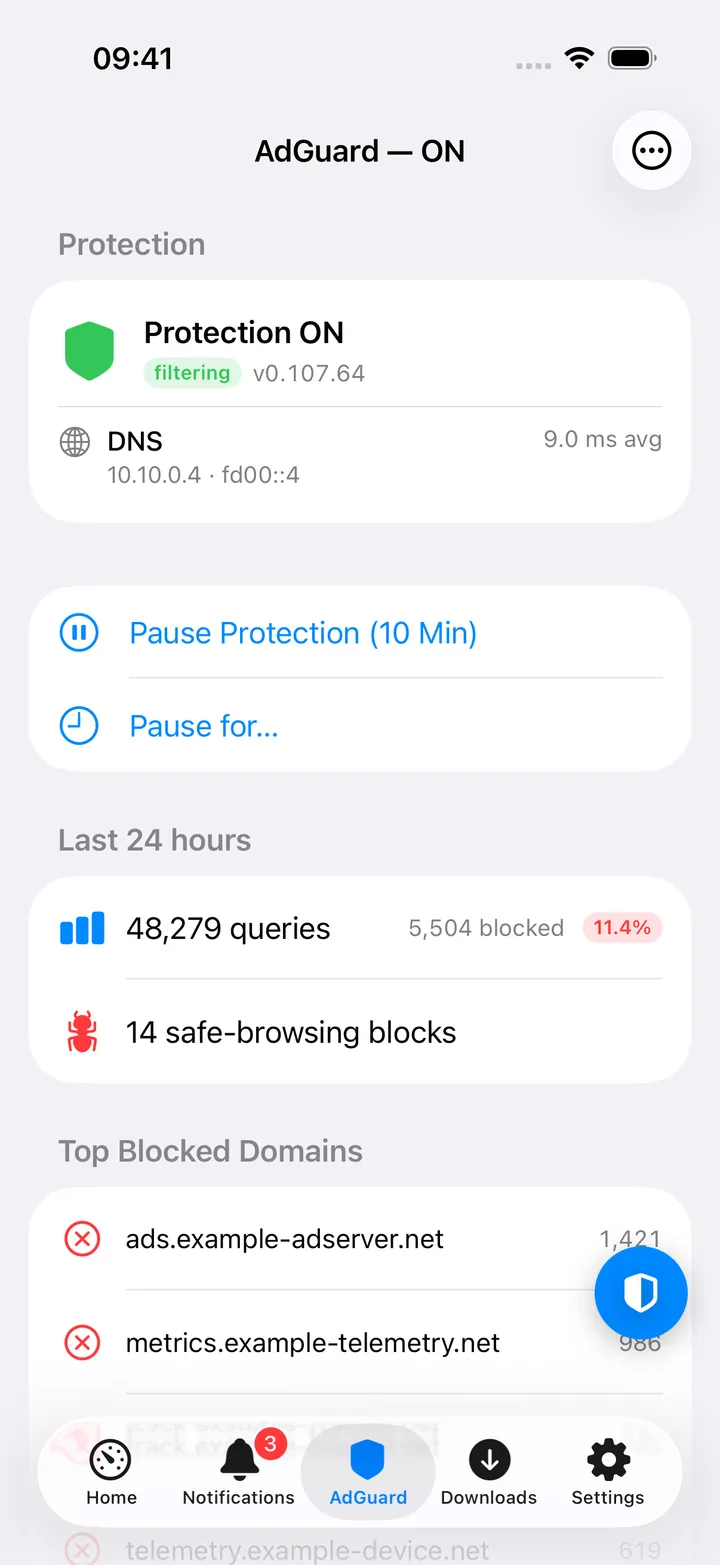
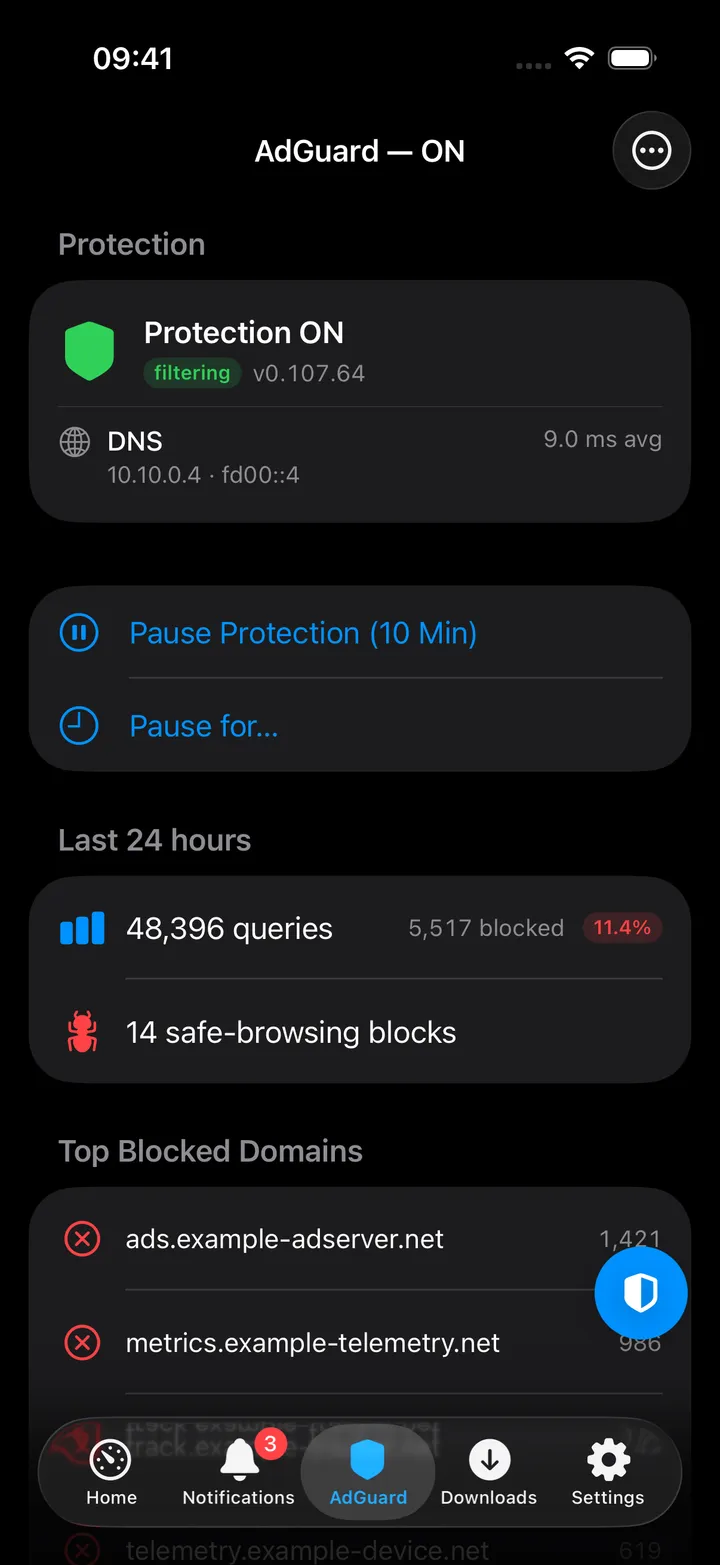
The AdGuard screen polls stats and the recently-blocked log every 15 seconds, with blocklists loading once and on pull to refresh. Its title says whether protection is ON or PAUSED. From the top:
- Protection: a shield card with Protection ON or Protection PAUSED (with “until 14:30” while a timed pause runs), a filtering or bypassed tag, the AdGuard version, the DNS addresses and the average response time. Below it, Pause Protection (10 Min) and Pause for…, or Resume Protection while paused.
- Last 24 hours: queries, blocked queries and the blocked percentage, plus safe-browsing blocks when there are any.
- Top Blocked Domains (8), Top Clients (6, with AdGuard’s name for the device and its address) and Top Queried Domains (6). Long-press a row to copy the domain or the IP address; blocked domains and clients also offer the pause controls, and clients Open AdGuard Clients.
- Recently Blocked: a link to the Query Log and the last 10 blocked queries, each with the domain, the client, the time and the rule that matched.
- Blocklists: every list with its rule count and when it was last updated, and a footer with the enabled rules and your custom rules.
The ⋯ menu at the top has the pause and resume controls, Open AdGuard Home and Refresh.
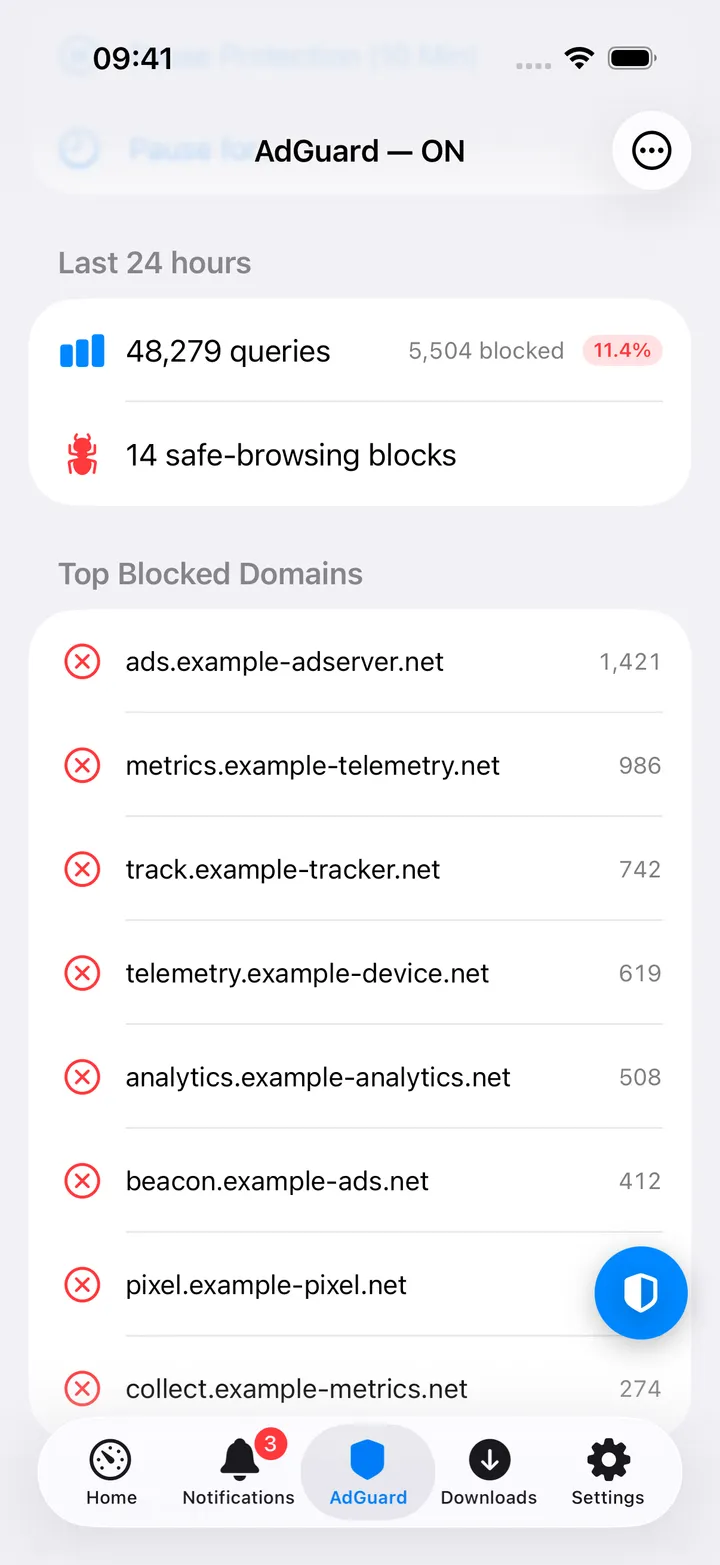
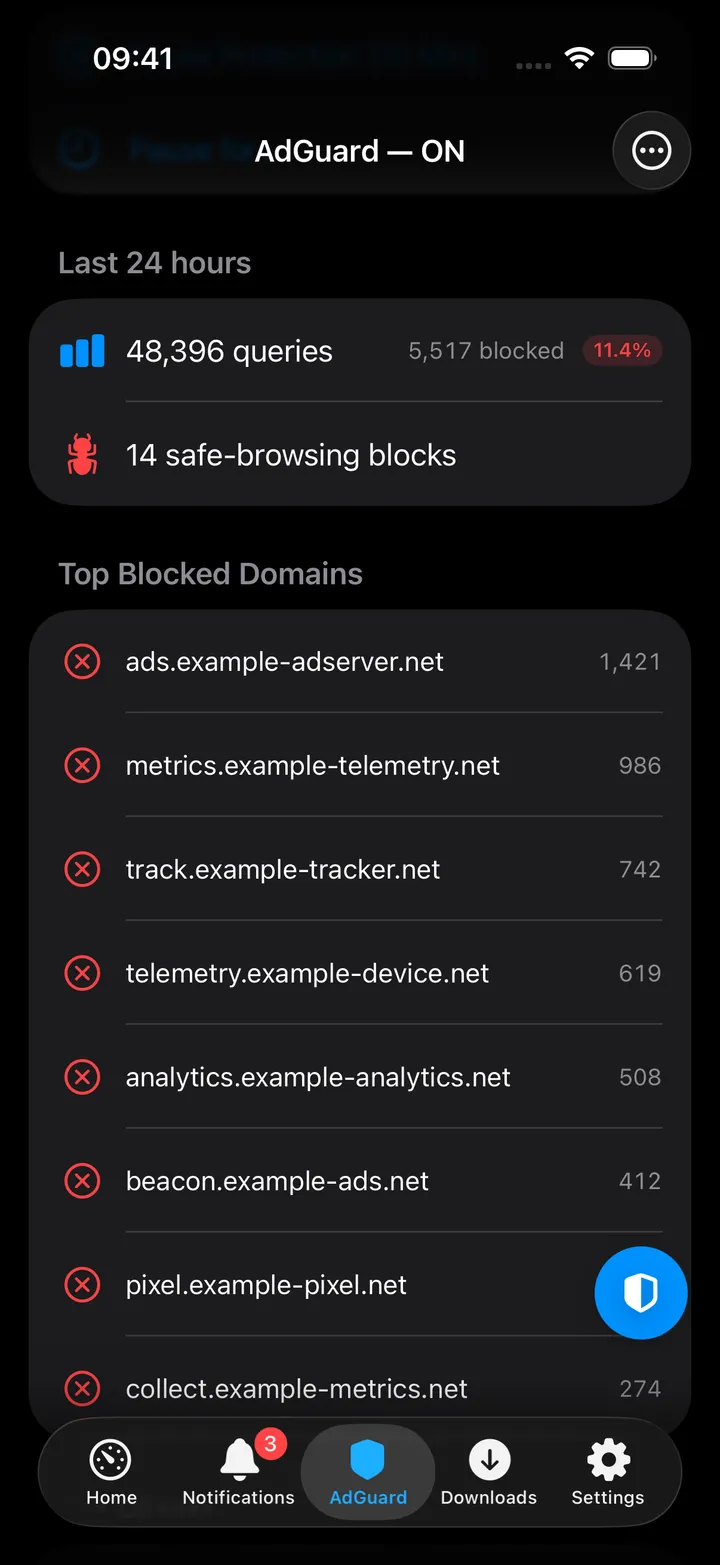
A round shield button, AdGuard controls, sits beside the + while the AdGuard screen is showing. Tap it for its actions, or hold, slide to one and let go. It starts with five: Pause Protection (10 Min) (which becomes Resume Protection while paused), Query Log, Pause for 1 Hour, Open AdGuard Home and Refresh. Customise swaps, adds and reorders them from the rest: Pause for 1 Minute, Pause for 30 Minutes, Pause for 8 Hours, Pause Until Resumed and Open AdGuard Clients. The pause lengths are greyed out while protection is paused. Settings → App → Screen action buttons turns the button off.
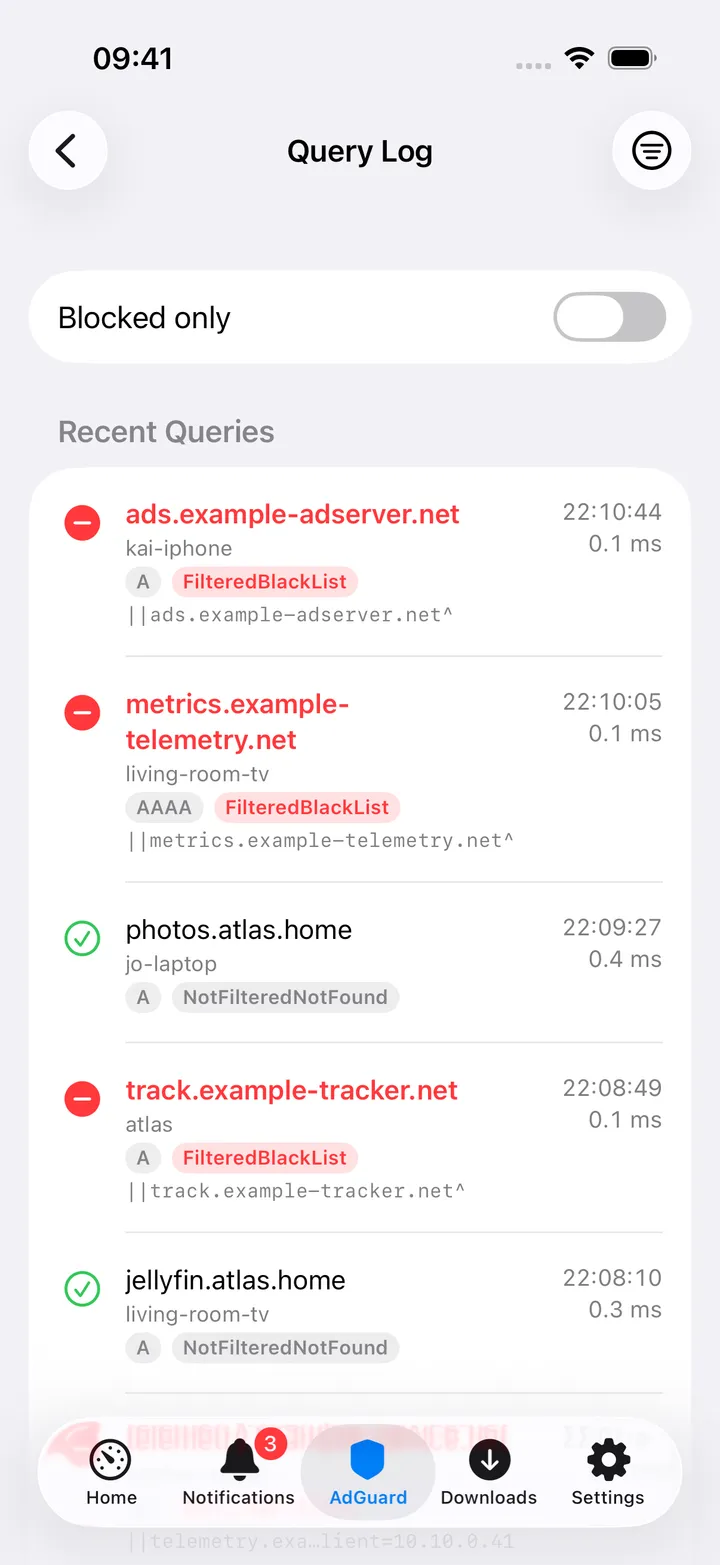
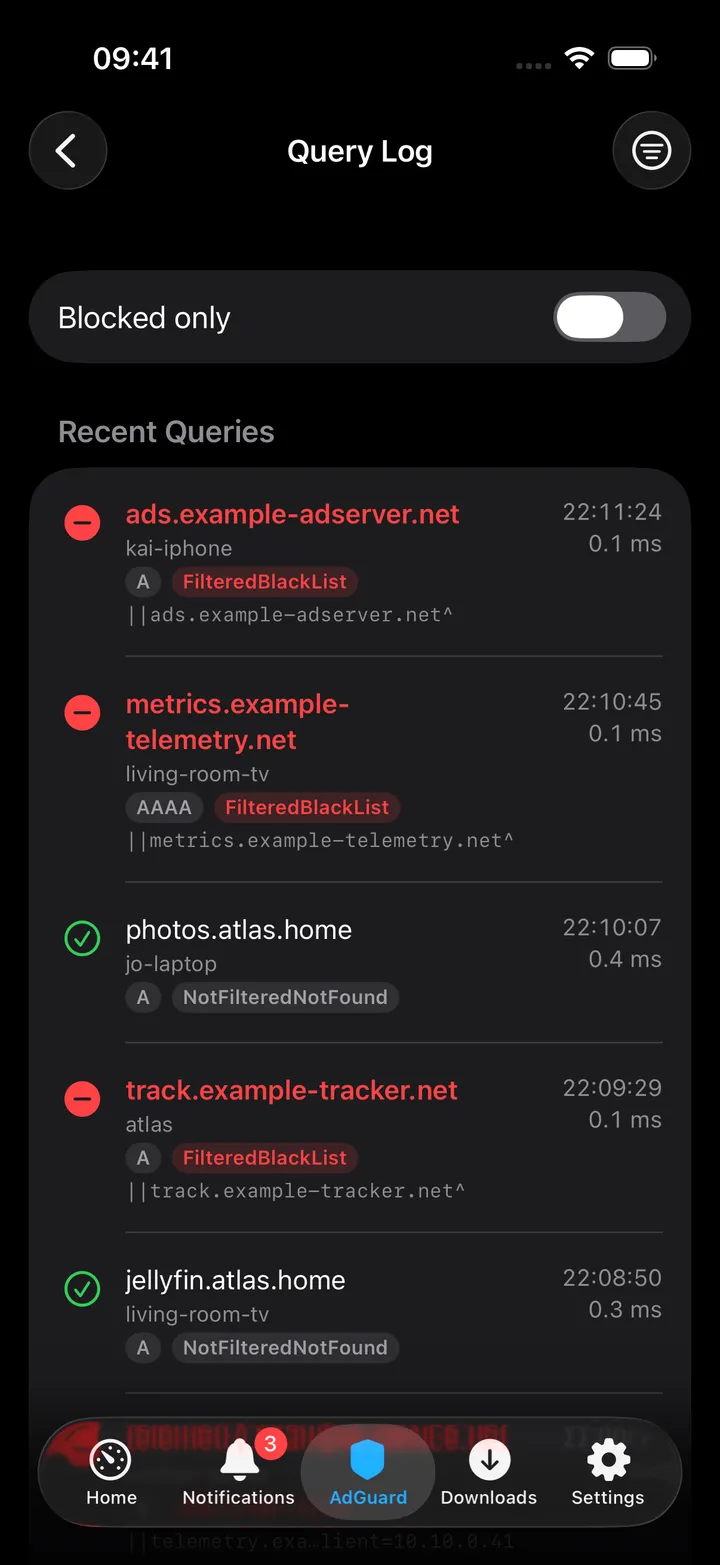
Query Log shows the last 100 entries with a Blocked only toggle, each row carrying the query type, block reason, matched rule and response time. Long-press a row to copy the domain, the client or the rule.
On Mac
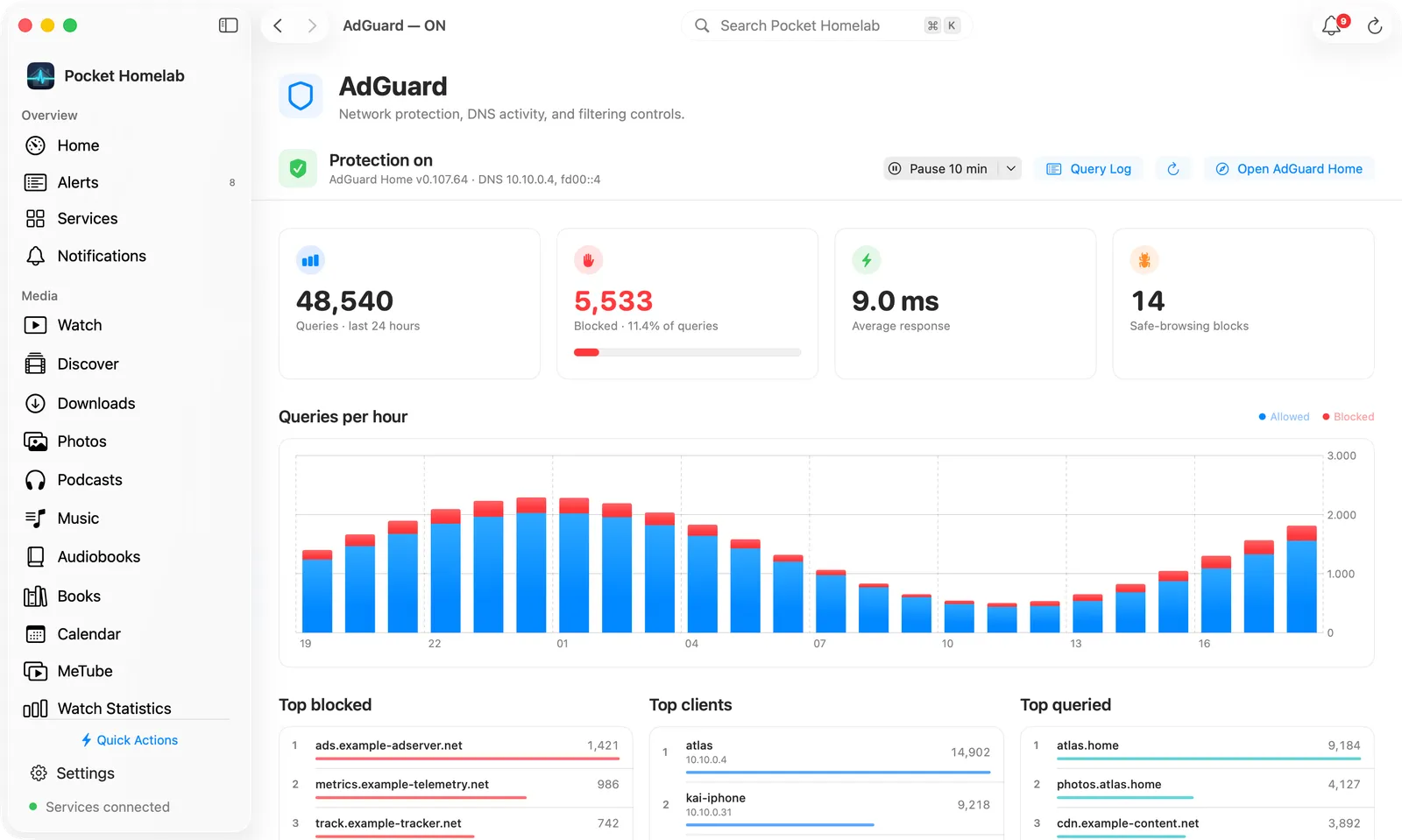
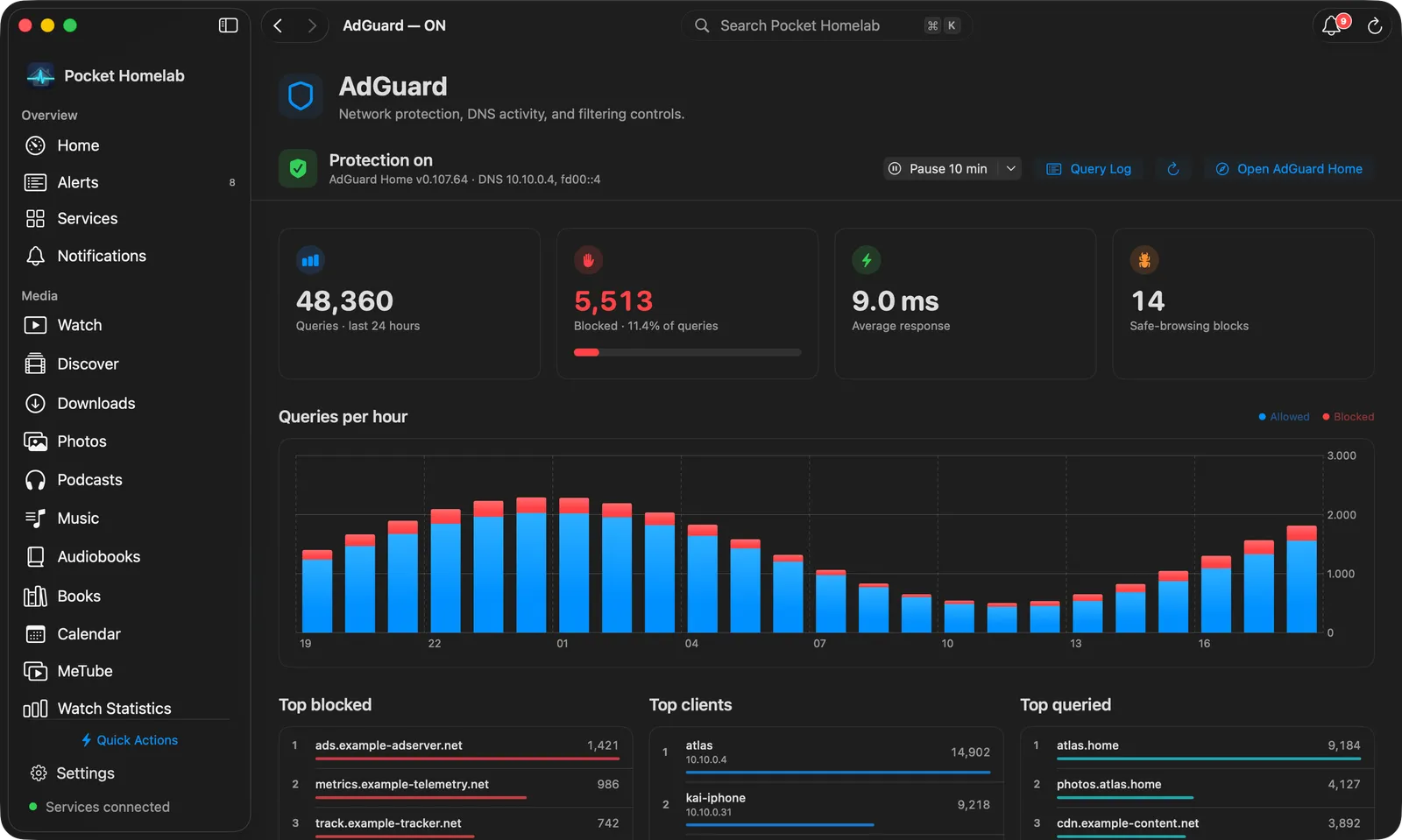
The AdGuard workspace starts with a bar: a shield, Protection on or Protection paused (with “until 14:30” during a timed pause), and the AdGuard version and DNS addresses underneath. On the right:
- Pause 10 min while protection is on. Click it to pause for 10 minutes; its arrow lists 1, 10 and 30 minutes, 1 and 8 hours, and Pause Until Resumed. While paused, a green Resume Protection takes its place.
- Query Log, Refresh and Open AdGuard Home.
Below the bar:
- Four tiles: queries in the last 24 hours, blocked queries with the blocked share as a bar, the average response time, and safe-browsing blocks (or, when there are none, the number of rules with how many lists and custom rules).
- Queries per hour: a bar chart of the last 24 hours, allowed queries in blue with the blocked part stacked in red. The last bar is the current hour. When AdGuard keeps its statistics per day, the chart shows days instead.
- Top blocked, Top clients and Top queried side by side, eight each, ranked with a bar for each count. Right-click to copy a domain or client; a client also offers Open AdGuard Clients.
- Recently blocked: the last 12 blocked queries with time, domain, client and rule, and a Query Log link.
- Blocklists as cards, with each list’s rule count and last update.
The Home AdGuard widget shows the blocked percentage as a ring beside Protecting or Paused and “1,240 of 12,400 blocked”, then queries, blocked queries, the average response time, safe-browsing blocks and (except at Wide) the top client and the AdGuard version. Sizes with room for a list add the top blocked domains; Wide & Tall shows top blocked and top clients side by side.
Actions
Pausing or resuming protection is the one thing this integration writes back to your server:
- Pause for… offers 1, 10 or 30 minutes, 1 or 8 hours, or until resumed manually. On the AdGuard screen every pause, including those from the round button and the Mac bar, asks first with “Pause AdGuard protection?”.
- The Home card context menu (10 min / 1 h), the quick action (30 min) and the Control Center toggle and Shortcuts actions (30 min) skip the confirmation and apply immediately.
- Resume is always immediate, no confirmation.
- After any change, the status is re-read right away so the card and any open screen reflect it instantly.
Works with
- Home issue chip and header option; the floating quick-action button’s live state; the Mac Home Status widget, whose AdGuard row takes its response time from an Uptime Kuma monitor named “AdGuard” or “AdGuard Home”.
- The Control Center toggle shows the state from the last Home refresh; switching it asks AdGuard for the current state first, so an old reading never flips protection the wrong way.
- Nextcloud Notes: the Hosts on the network homelab tool writes AdGuard’s busiest clients into a note as a table of name, address and queries.
- AdGuard Home is one of the services in the built-in sample homelab, query log and filters included.
Tips & troubleshooting
- AdGuard answers mutation requests with a bare
OK, not JSON. If you’re scripting around this yourself, that’s expected and not an error. - Client names come from AdGuard’s own
/control/clients/findlookup; if that lookup fails, clients simply show as IP addresses instead of an error. - The pause durations offered (1, 10, 30, 60, 480 minutes) match AdGuard Home’s own snooze presets.
- The hourly chart on the Mac needs AdGuard’s per-hour statistics; if the chart is missing, the workspace simply starts with the tiles and the top lists.