
Jellystat
See who is watching what, most-watched shows and movies, and recent playback activity from your Jellyfin server.
iPhoneMacOn this page
Jellystat records Jellyfin’s watch history. Pocket Homelab turns it into a Watch stats screen: plays and hours over a chosen window, a daily chart, most-watched titles, and the latest playback activity.
What you get
- Home tile (“Watch stats”): value
<n> plays, captionthis week · <hours> · top: <title>. - Header widget option (“Watch stats this week”):
<n> plays · <hours> this week · <top title>. - Watch tab: a Watch stats toolbar button, also offered in Watch’s screen action button beside the +, pushes the screen directly from Jellyfin’s Watch tab.
- Quick action: Watch stats opens the screen from anywhere.
- Spotlight: an entry titled “Watch stats” under “Jellystat”.
- Off by default as a tab: enable Stats in Settings → Tabs to pin it to the tab bar.
Set up
- In Jellystat, go to Settings → API Keys and create a key.
- In the app, go to Settings → Services → Jellystat, paste the URL and key, then press Test connection.
- Also connect Jellyfin (
JELLYFIN_URL/ API key) if you want posters in the “Most watched” strips: Jellystat supplies the numbers, Jellyfin supplies the artwork.
| Key | Field | Required | Secret | Where to get it |
|---|---|---|---|---|
JELLYSTAT_URL | Jellystat URL | Required | — | Base URL of your instance. Leave empty to hide watch statistics. |
JELLYSTAT_API_KEY | API key | Required | Secret | Jellystat → Settings → API Keys. |
On iPhone
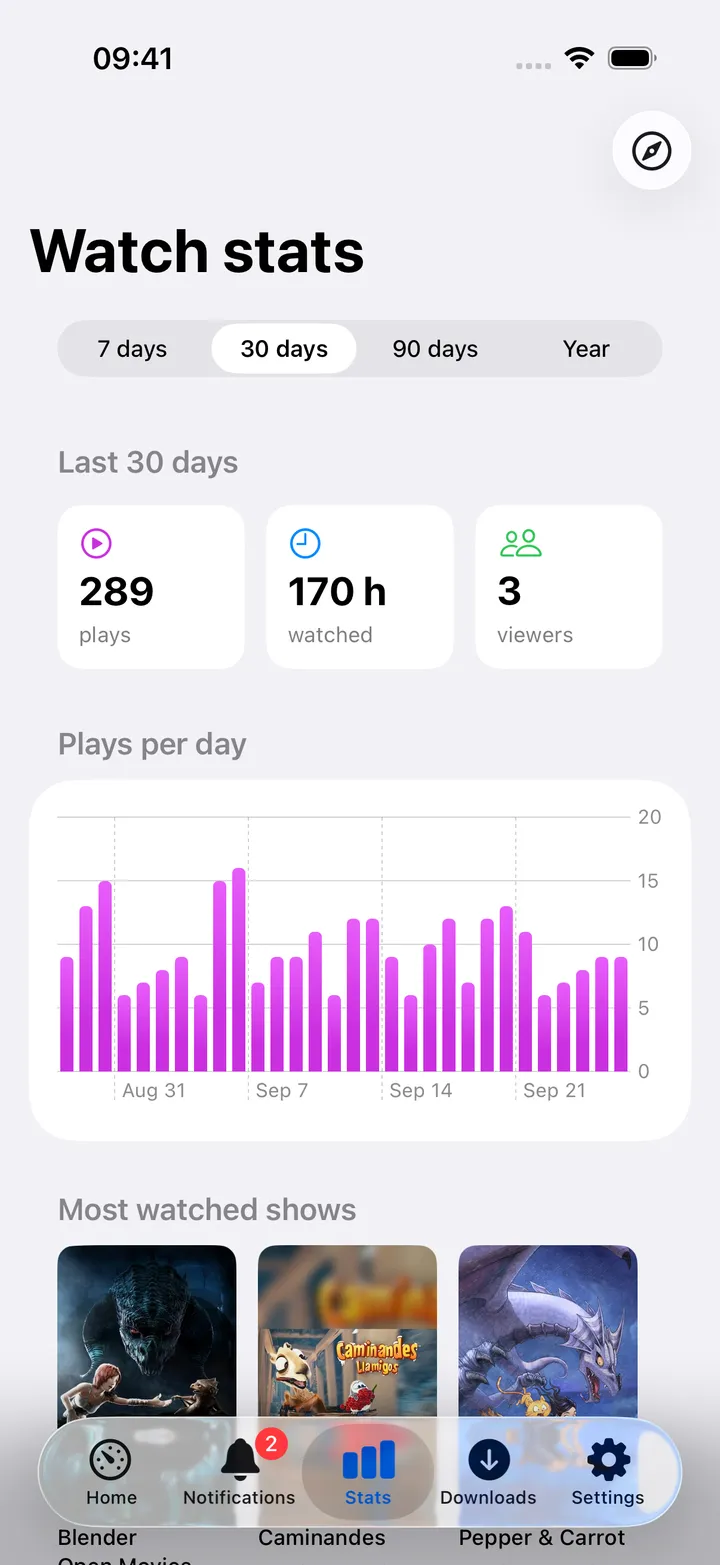
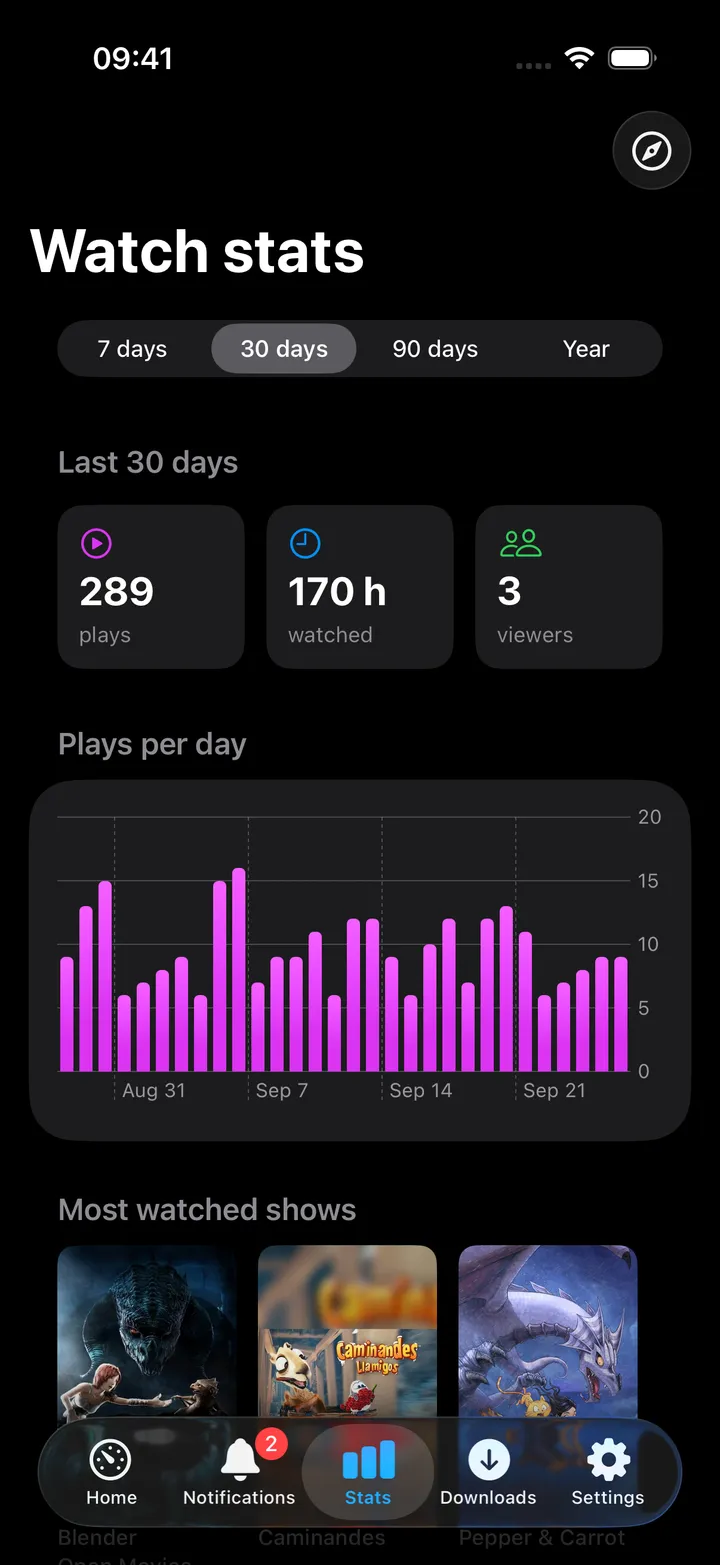
- A window picker (7 days / 30 days / 90 days / Year, default 30) drives the whole screen. It is not remembered between visits.
- Summary cards: total plays, hours watched, viewer count for the window.
- A “Plays per day” bar chart, then horizontal poster strips for Most watched shows, Most watched movies and Most played music (posters need Jellyfin configured, otherwise placeholder icons).
- Most active users, Clients, Libraries and Recent activity (always the latest 25 plays, independent of the window) round out the list.
- Open Jellystat in the toolbar opens the web app; pull down to refresh.
On Mac
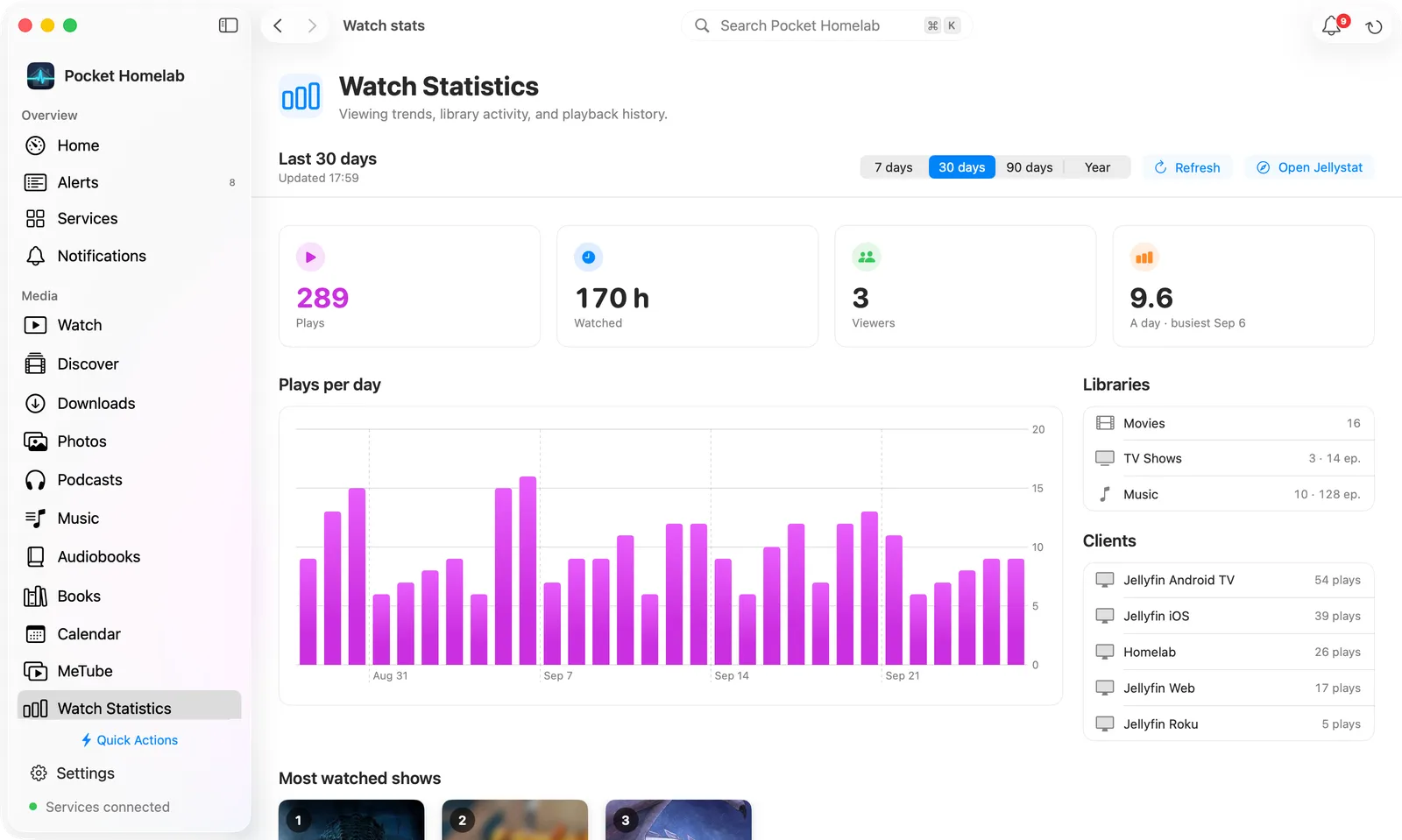
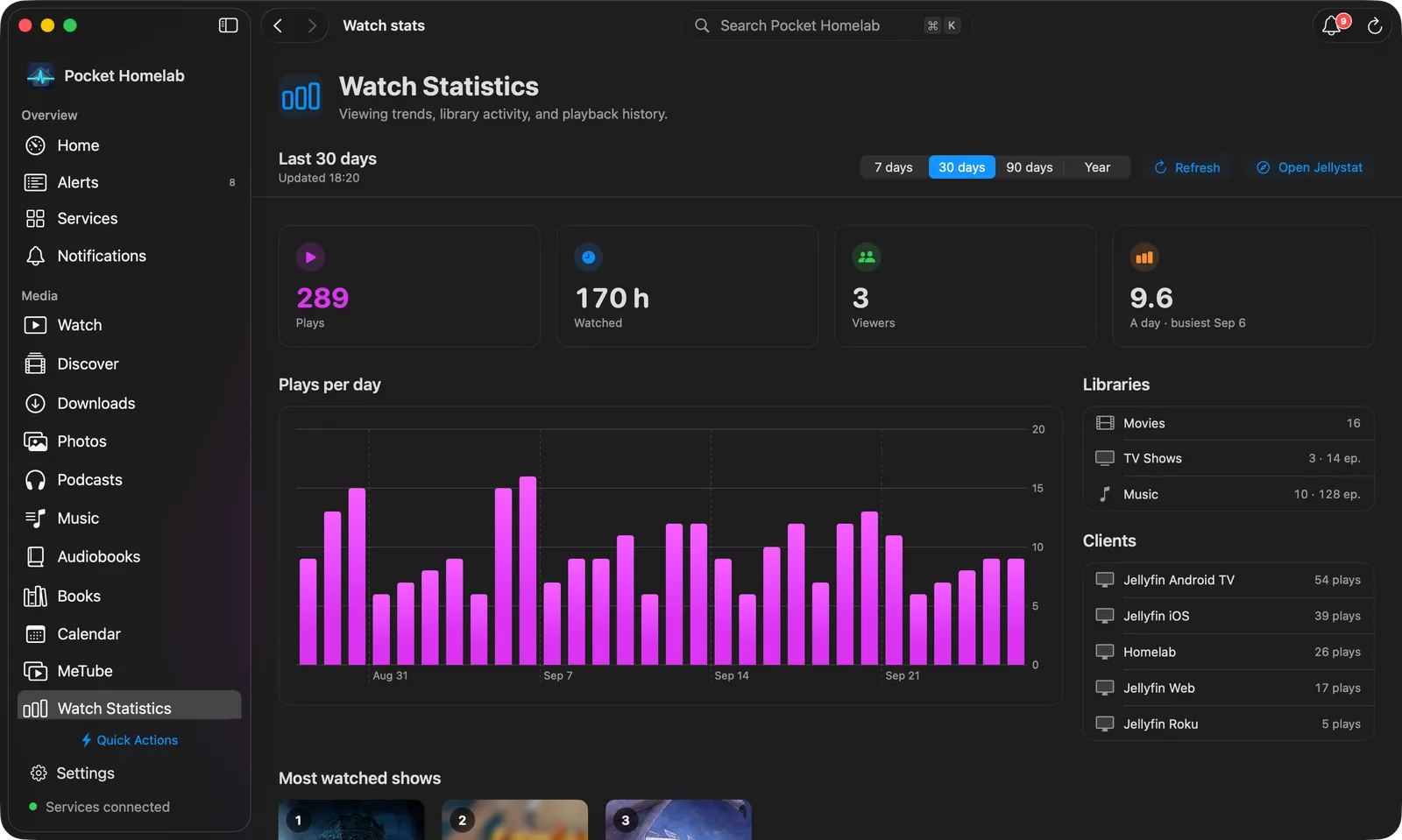
Watch Statistics is its own section in the sidebar, under Media, and uses the workspace’s full width:
- A bar with the window (Last 30 days, and when it was updated), the 7 days / 30 days / 90 days / Year picker, Refresh and Open Jellystat.
- Four tiles: Plays, Watched, Viewers and plays A day, with the busiest day named.
- The Plays per day chart beside Libraries and Clients.
- Most watched shows, Most watched movies and Most played music as ranked poster shelves, with plays and time under each poster.
- Most active viewers beside Recent activity.
The Mac Watch workspace’s More (⋯) menu has a Watch statistics entry that opens the same page.
Actions
None. Every Jellystat request is a read. Nothing here writes back to Jellyfin or Jellystat.
Works with
- Jellyfin: poster artwork in every “Most watched” strip is fetched from Jellyfin using the item ids Jellystat returns; without Jellyfin configured you only see placeholder icons.
- The Watch tab (toolbar and screen action button) and the Mac Watch workspace’s More menu both carry a shortcut straight into this screen.
Tips & troubleshooting
- The Home tile and header always show the 7-day window regardless of what you last picked on the full screen.
- “Recent activity” always shows the latest 25 plays, no matter which window is selected.
- All eight requests behind this screen run concurrently. If one route is broken, the whole tile/screen shows an error rather than partial data (stale numbers stay on screen until a request succeeds).
- A wrong or missing key surfaces as “API key rejected. Create one in Jellystat → Settings → API Keys.”