
Downloads & offline
What Pocket Homelab keeps on your iPhone, what still works with no connection, and what gets queued to sync later.
iPhoneOn this page
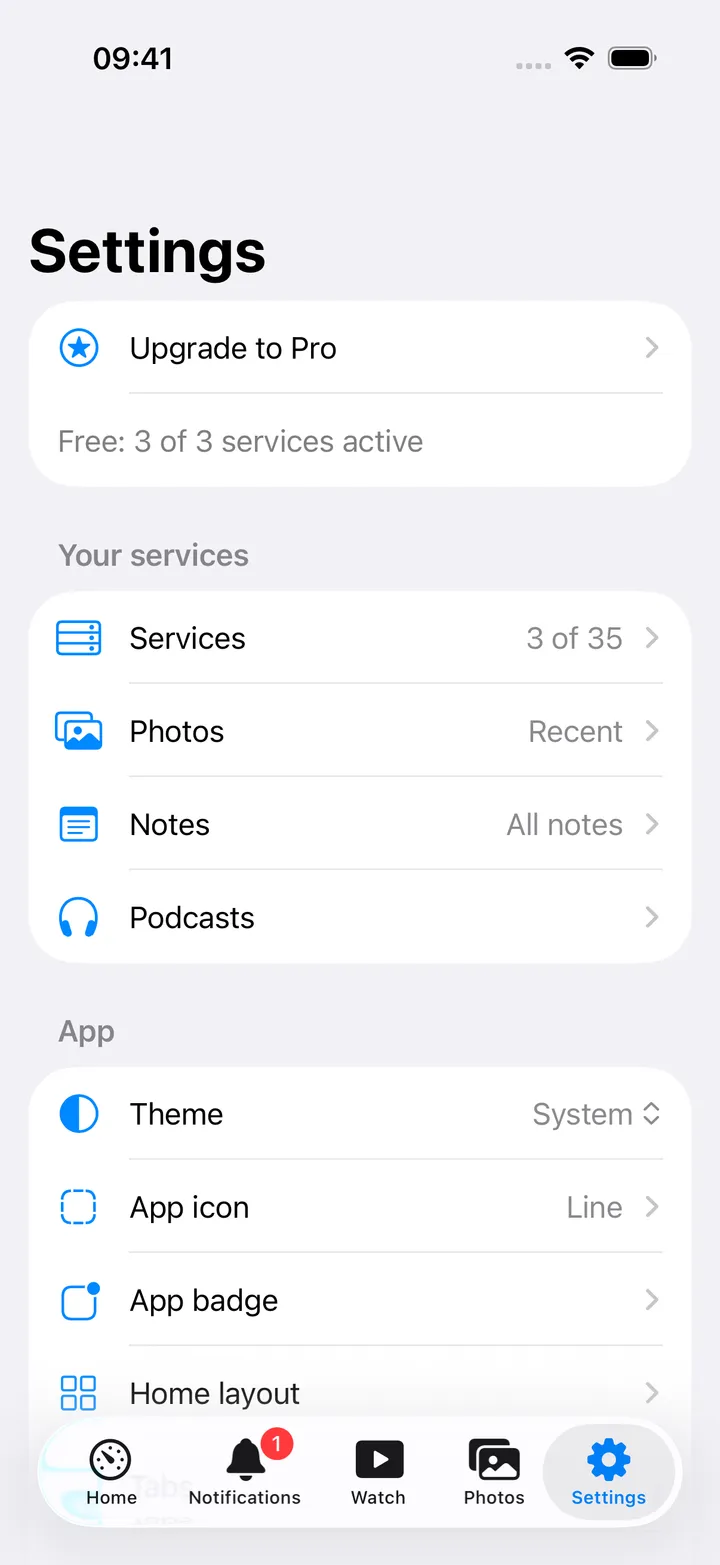
Settings → Storage & sync is where the separate pieces live: Downloads, the files actually saved to your device, and Offline & sync, a queue for changes you made while a server could not be reached. Episode auto-downloads and podcast notes have their own page under Settings → Podcasts. They behave differently, and it’s worth knowing which is which before you rely on any of them mid-flight.
With no connection
When the phone has no network, or Test offline mode is on, the app switches to what it has on the device:
- A banner reads “Offline · Showing content saved on this device” (“Offline test · Downloaded content only” while testing).
- The tab bar shrinks to Home, Podcasts and Settings, and anything you had pushed on Home is closed.
- Home becomes Available offline: one row per service with downloaded content (Podcasts, Video, Documents, Ebooks, Photos, Files, Deck attachments, Music & media), each with how many files and how much space.
- The floating + is hidden.
When the connection comes back, the full tab bar returns and queued changes start to send.
Downloads
Settings → Storage & sync → Downloads lists everything Pocket Homelab has saved to this device, grouped by service: Immich originals, Nextcloud, Paperless and Calibre files, Deck attachments, podcast episodes, movies and episodes from Jellyfin, and music and other media, with a running total size and file count. Downloads still in progress are listed first with a Cancel button. Each entry has a Quick Look preview and a delete button (with a brief Undo after removing one); downloaded music is grouped by album, with Remove downloaded album.
Podcast episode downloads
Podcast and YouTube episodes in Podcasts download to the device over a background session, so a download survives switching apps or backgrounding Pocket Homelab. With PinePods connected, Settings → Podcasts → Automatic downloads sets a default for all podcasts: Off, Latest episode, Latest 5 episodes, Latest 10 episodes, or a Custom number. It keeps the newest unplayed episodes of every podcast and removes older automatic copies as new ones arrive; a manual download is never swept up in that cleanup. Each podcast can override the default from its own screen.
Automatic downloads only ever use Wi-Fi, and look for new episodes while the app is open. A manual download (tapping the download button on an episode) uses whatever connection you have.
With no network at all, Podcasts swaps to an offline library built only from files already on the device, never from a server’s download record, so you always know an episode will actually play before you tap it. A video saved both from a Pinchflat feed and from MeTube is one row, not two: the app recognises the same recording by its YouTube link, one file serves both copies, and removing the download removes both.
Movies and episodes
A movie’s page, an item’s sheet from Continue Watching, a poster’s long-press menu and an episode’s long-press menu in a series offer Download to this iPhone, and every episode row carries the same download button a podcast row has: an arrow to fetch, a ring with the percentage beside it while it fetches (tap to cancel), a green check once the copy is there (tap for Play the copy and Remove download). The copy fetches over the same background session as podcasts and keeps going when the app is closed; the poster shows the ring and percentage in its corner wherever that title appears. The page itself shows a block with the bar, the percentage, “312 MB of 1.2 GB” and a Cancel download row. When the file is MP4, M4V or MOV the phone gets the file itself; anything else comes as one MP4 that Jellyfin writes while it is fetched, at the speed the server transcodes. The percentage for that one is measured against the file’s size on the server, so it stops at 99% until the last byte is there.
The top of Watch carries a Downloads strip whenever something is on its way or already kept: one card per fetch (title, bar, size, cancel) and a line “3 on this iPhone · 4.1 GB” that opens the videos in Downloads. A series page has a season downloads button in its toolbar: Download season (or Download the other N), Cancel N downloading and Remove N downloaded; the season header counts what is there.
Play uses the copy whenever one is there, with or without the server, in the app’s own player with its Options menu, subtitles (fetched from the server when it is reachable) and speeds. Where you stop is reported to Jellyfin as for a stream, so Continue Watching moves on every device; when the server cannot be reached the position waits on the phone and goes out when it is back. A tap on the row in Downloads, or on the offline Home, plays the copy the same way. Remove download deletes it.
Offline queues
Some writes are queued instead of failing outright when a server can’t be reached. Settings → Storage & sync → Offline & sync shows what’s waiting and lets you retry or discard it. One unreachable server holds back only its own entries.
- Vehicles (LubeLogger): creating a fuel-up, service, repair, upgrade or expense record always goes through this queue first, even with a connection, so a spotty signal at the pump never loses the entry. You’ll see “Saved on this device” with a note that it sends once LubeLogger can be reached. Editing or deleting an existing record is not queued, those fail immediately if the server is unreachable.
- Tasks (Nextcloud): only creating a task is queued offline. Editing, completing, moving or deleting a task fails immediately with an error if there’s no connection; it is not retried automatically.
- Firefly III transactions: the Add Transaction assistant queues a transaction the same way when it can’t reach Firefly immediately.
- Podcast notes: notes taken while listening are saved on the device first and, with Sync podcast notes to Nextcloud Notes on in Settings → Podcasts, wait here until Nextcloud Notes can be reached.
Notes you write in the Notes screen, and lines sent with the Append to Today’s Note shortcut, keep their own unsent edits on the device and retry by themselves; see Nextcloud Notes.
Each queued entry shows what it is, when it was added, and how many attempts have been made. Swipe an entry to Discard it (this stops future sync attempts, it does not undo anything a server already accepted) or Retry it directly.
- Open Settings → Storage & sync → Offline & sync.
- Review anything under “Waiting to sync”, grouped by service.
- Swipe an entry for Retry or Discard, or press Sync now to attempt everything at once.
Queued entries sync automatically once you’re back online: on reconnect, when the app comes to the foreground, and periodically while anything is still pending. The Sync Pending Changes shortcut does the same from Siri or the Shortcuts app; see Widgets and Shortcuts.
Background sync
With Background App Refresh on for Pocket Homelab, queued changes and playback positions (PinePods and Audiobookshelf progress, and Jellyfin positions that could not be saved) are also sent in the background from time to time, and once more as the app leaves the screen. iOS decides when a background refresh runs. The top of Offline & sync says when the last one happened, or that Background App Refresh is off, in which case queued changes are sent only while the app is open.
What else Offline & sync shows
- Connected or No network, with “Everything is up to date”, how many entries wait, or the last sync.
- Saved on this device: payment templates, LubeLogger vehicles and task lists, with their age. They refresh about every 15 minutes while the app is open, so transactions, tasks and vehicle entries can be prepared offline.
- Audiobook playback and Podcast playback · PinePods: positions saved while offline, each with its own Sync now. The most recent listening update wins.
- Saved changes this version of the app cannot read, for example ones written by a newer version. They are kept, never sent, and picked up again by a version that can read them; Discard unreadable changes removes them for good.
- Test offline mode at the bottom: “Behaves as if there were no connection: only downloaded content is shown and changes wait in the queue. Turn it off to reconnect.”
Tips & troubleshooting
- A stuck entry usually means the original request is still uncertain, check the target service directly before discarding, since discarding never undoes a write the server already accepted.
- If nothing refreshes and the offline banner shows while you have a connection, check that Test offline mode is off.
- If credentials change after something was queued, that entry is flagged: restore the original settings to sync it, or discard and redo it under the new credentials.