Every episode's state show by show, missing and failed episodes across your library, upcoming air dates and the download queue, in the shared media calendar.
iPhoneMacOn this page
Sonarr manages your TV library. Pocket Homelab folds its upcoming episodes and download queue into the shared
Calendar alongside Radarr, Lidarr and Chaptarr, and adds pages of its own: every show episode by episode, and
one list of what is missing or failed across all of them.
What you get
Calendar entries: one per episode, titled with the series name and subtitle S02E03 · Episode name
(just S02E04 when the episode has no name). Sonarr’s colour is purple, symbol tv.fill, kind tag “Episode”.
Air times are shown converted to your local day, so an episode airing just after midnight UTC can land on the
previous local day.
A show’s episodes: every season and episode with its state: Downloaded (with the quality),
Downloading with a percentage (or Queued), Failed with Sonarr’s reason, Searching…, Missing,
Not aired or Not monitored. Episodes still to air say Airs today, Airs tomorrow or
Airs in N days with the air time, and the show’s header names the next one.
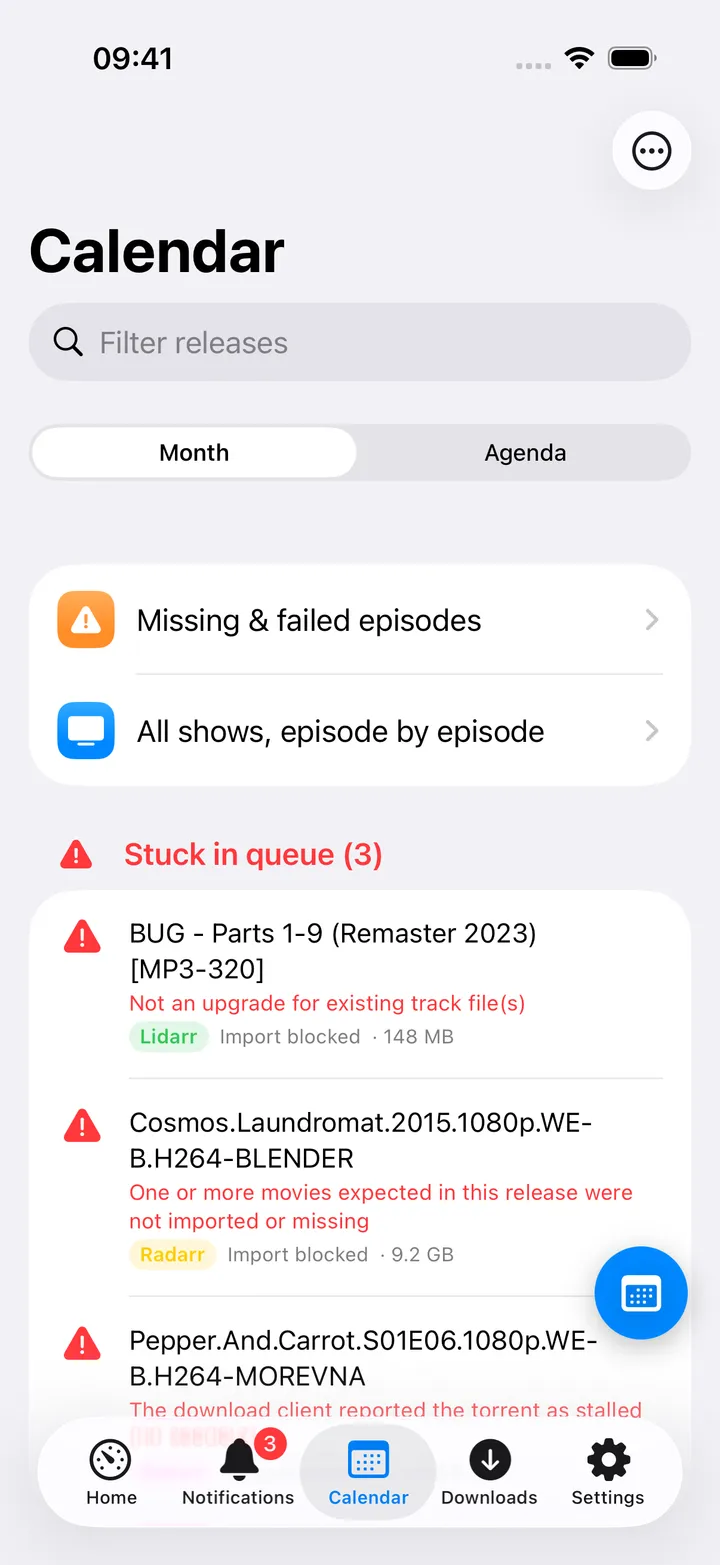
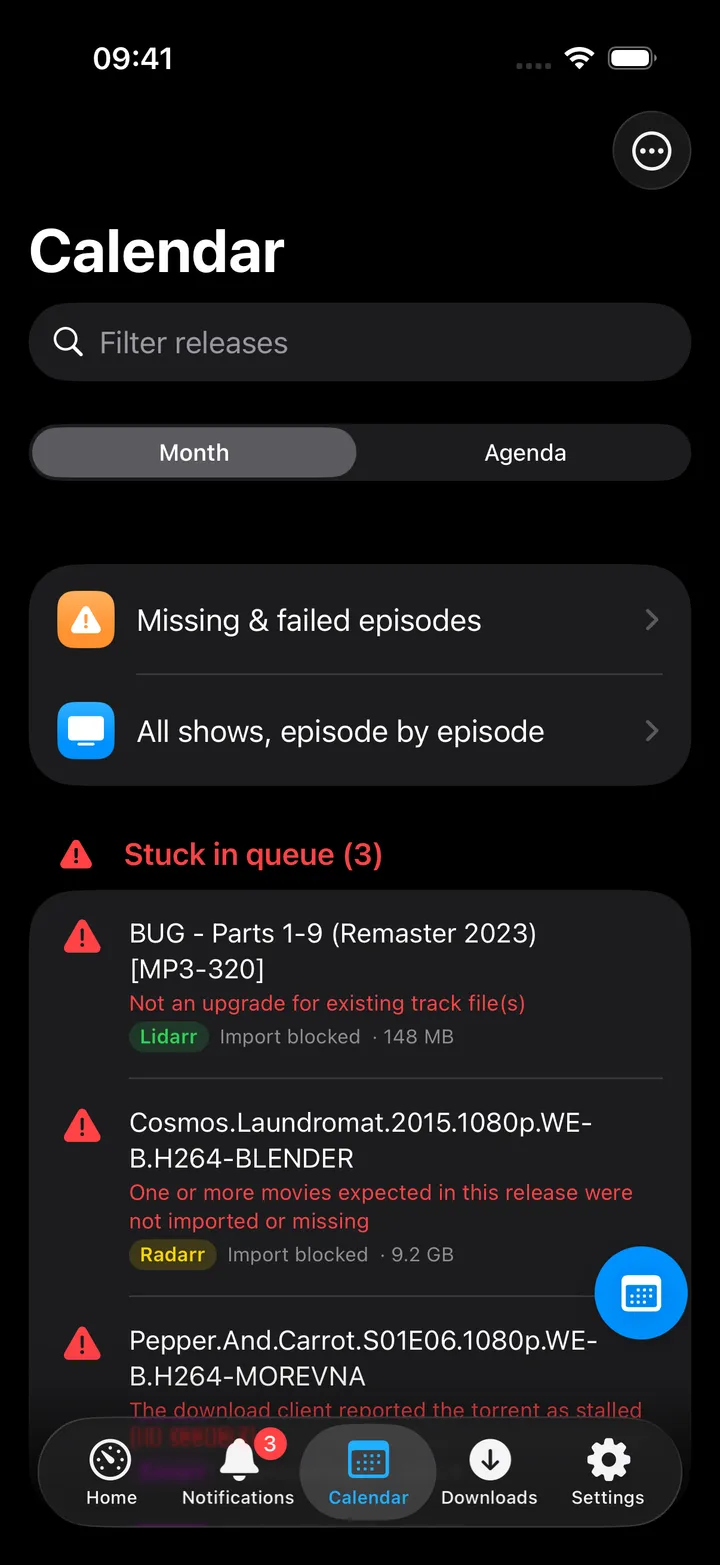
Missing & failed: one page across every show, with the downloads that failed or are stuck in the queue and
have not been replaced since, then the monitored episodes that are missing, newest first.
Home tile (“Calendar”): value N stuck, N today or the next release’s day, red when something is stuck,
orange when something lands today, indigo otherwise.
Download queue: Sonarr’s queue rows appear in the shared Queue screen, including unknown-series stuck items.
Any one of Radarr, Sonarr, Lidarr or Chaptarr being configured is enough to show the Calendar tab, Home row,
quick action and Spotlight entry.
Set up
In Sonarr, open Settings → General and copy the API Key.
In the app, go to Settings → Services → Sonarr, paste the URL and key, then press Test connection.
Both the URL and key are required, a URL alone does not count as configured for Sonarr.
Key
Field
Required
Secret
Where to get it
SONARR_URL
Sonarr URL
Required
—
Base URL of your instance. Leave empty to hide Sonarr features.
SONARR_API_KEY
API key
Required
Secret
Settings → General.
Both the URL and key are required, a URL alone does not count as configured for Sonarr.
On iPhone
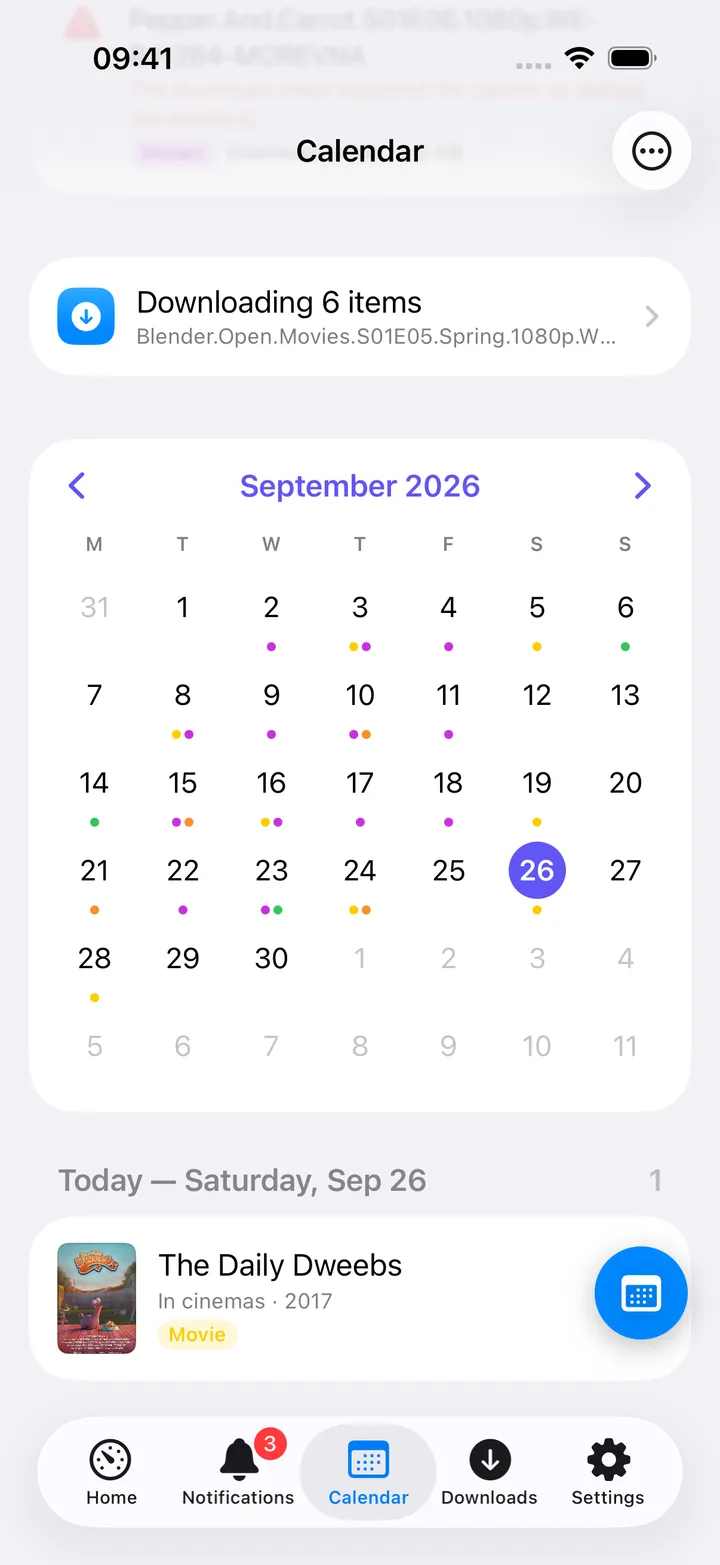
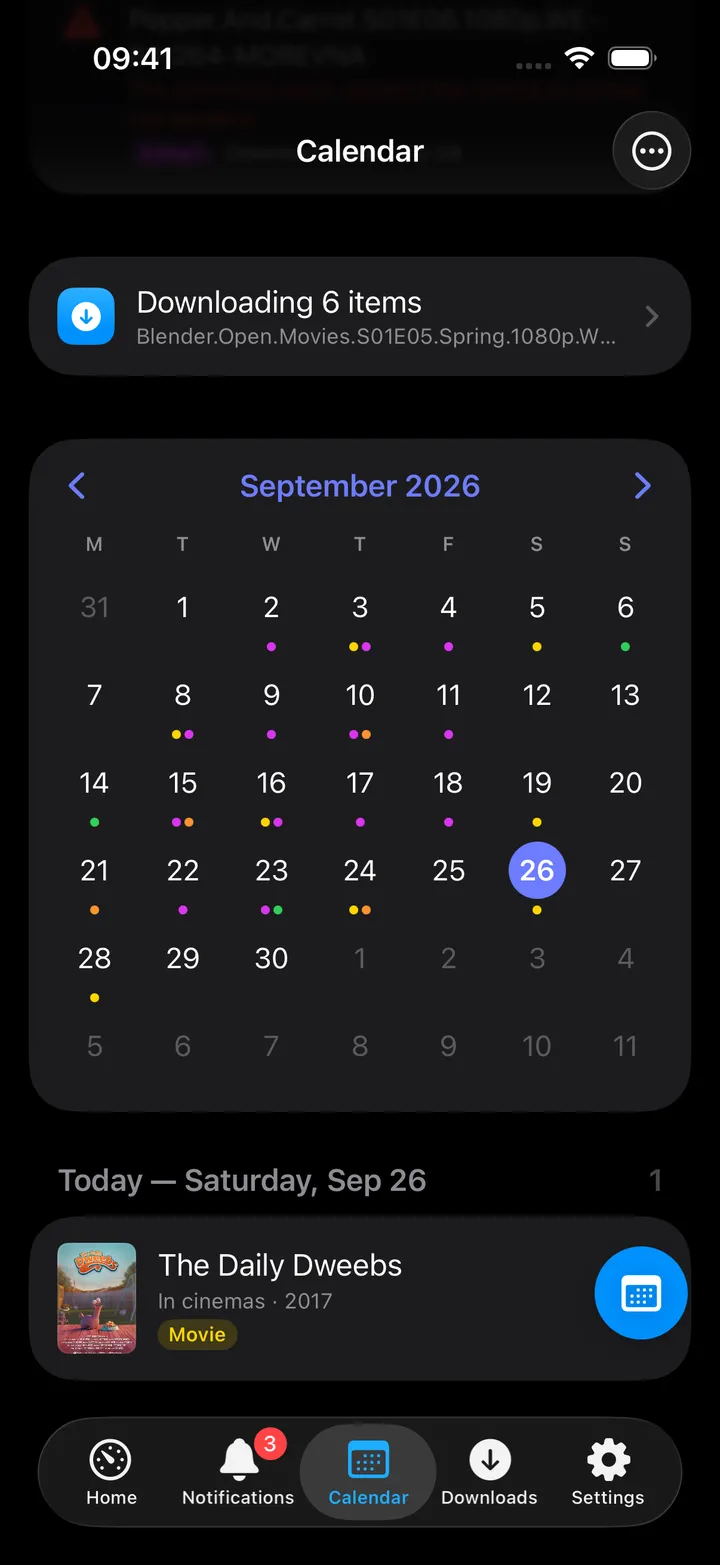
Month view: purple dots for Sonarr episodes, ringed today. Switch Month / Agenda with the
control at the top of the Calendar; the toolbar’s More menu has a Show section to hide Sonarr’s dots when
several apps are configured.
Agenda: day sections with episode subtitle and exact air time when known.
With Sonarr set up, the Calendar has two rows, Missing & failed episodes and All shows, episode by
episode: under the day’s list in Month, at the top in Agenda. The Calendar’s screen action button (the round button beside the +) offers the same pages as
Missing & failed and Shows, next to Today, Month, Agenda, the download queue and the other Calendar
controls. The first five show until you choose your own; turn the button off in Settings → Screen action
buttons.
Shows lists every series with its poster and downloaded/expected episodes, tagged N missing or
complete. Search it, or switch on Only shows with missing episodes.
A show’s page opens with a summary (X of Y episodes downloaded, counts of failed, downloading, searching and
missing episodes, status and network, and the next episode to air), a filter for All, Missing & failed
and Downloaded, then one section per season with have/total and its failed and missing counts. Seasons with
nothing to fix start folded; tap a season’s header to fold or unfold it.
Tap an episode for Search now (Search for a better release once it is downloaded), Remove and search
again for a failed download still in the queue, and Add to Calendar for one that has not aired yet. Swipe
an episode to Search; a season’s ⋯ button has Search season N. The show’s More menu has Search all
missing, Add upcoming episodes to Calendar, Refresh and Open in Sonarr. The page refreshes every
10 seconds while something downloads or is being searched for, otherwise every minute.
Missing & failed has a Failed section and a Missing section (the newest 200, with the total in the
header). Tap a row to open its show, swipe it to Search, or use More → Search all of these.
A show’s page is also one tap from elsewhere: the Episodes button on a TV request in
Requests, and Episodes in Sonarr on a show’s details in Discover.
A calendar episode’s detail screen is titled Episode; it shows both a “This episode” summary and a “Series”
section for the show’s own overview; the Airs row shows the abbreviated date plus short time. Search now in
Sonarr and, with Prowlarr configured, Search indexers pre-filled with <series title> S02E03 in the TV
category.
Your own events in the same Calendar: Month, Day and Agenda keep the same top, with one search
field and the mode picker in place as you switch. In Day, hold on an empty stretch of the grid, feel the tap,
then move your finger to draw a new event; letting go opens the system editor with that start and end
(double-tap still makes an hour). Long-press an event for Open, Edit, Add a Note (with the Notes
app), Copy and Delete, which asks first and, for a repeating event, offers This Event Only or
All Future Events.
On Mac
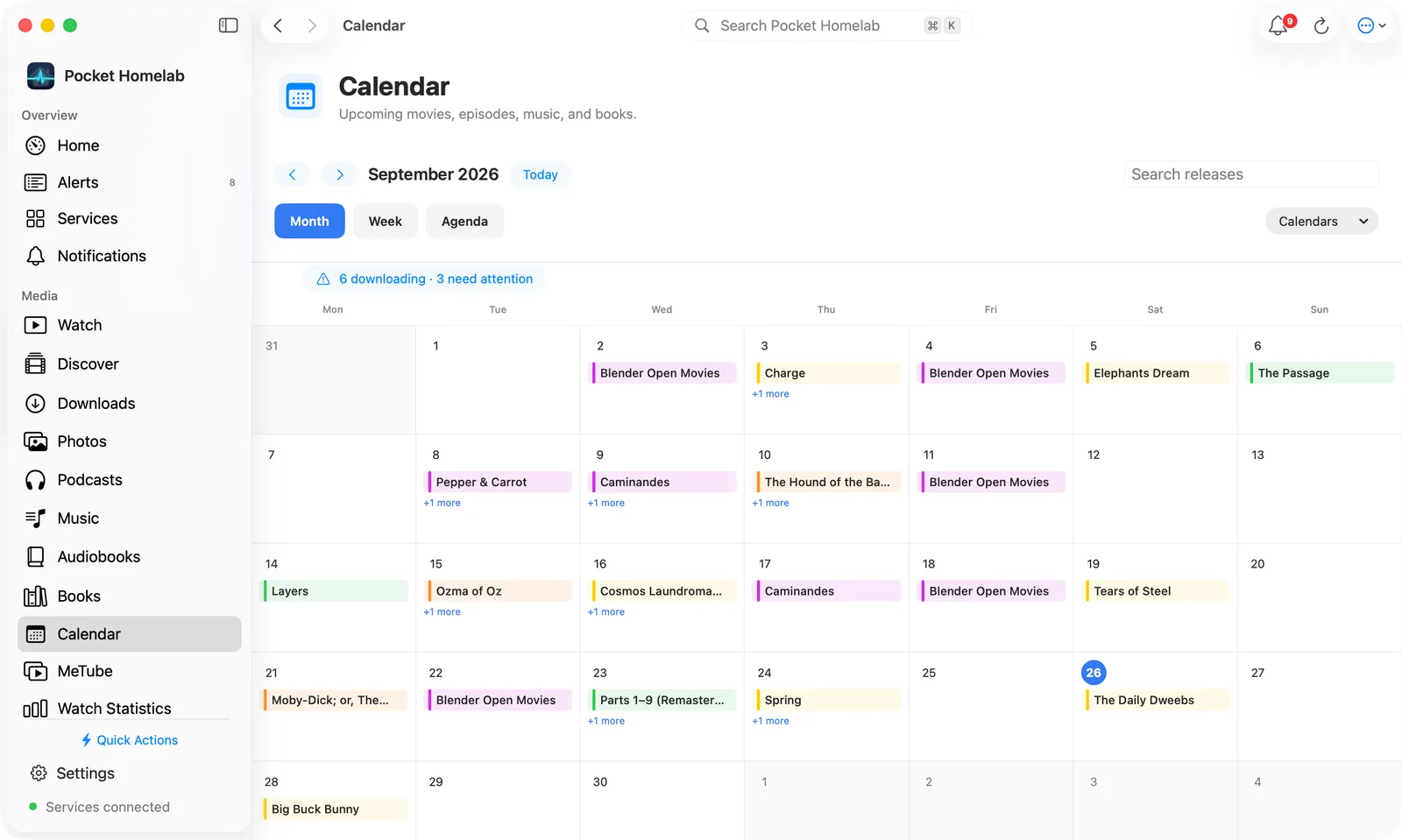
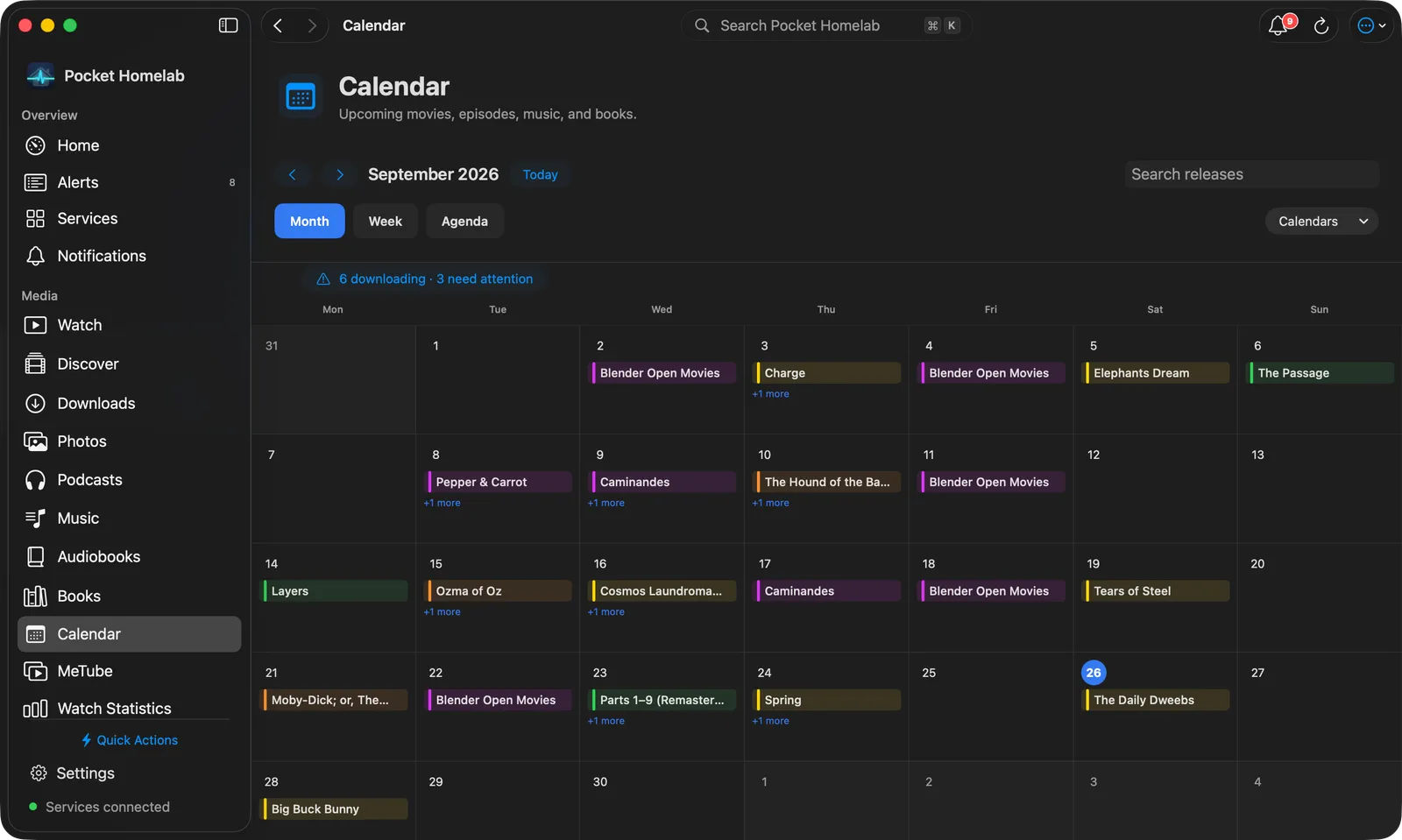
Calendar workspace: the Month view with each release in its day, and the queue status above the grid.
The Calendar workspace has Month, Week and Agenda views, as rounded tabs: a full-width month grid with
release titles, a seven-day week planner with artwork, and a date-grouped agenda for the next 7, 14, 30 or 90 days
with a small month navigator and a checkbox per calendar. The toolbar has search, previous / next, Today and a
Calendars menu to hide an app.
Clicking an episode opens the same detail sheet as Discover, about that episode: its
title and series, synopsis, season and episode numbers, air date and time, runtime, monitoring and whether the
episode is downloaded. Series-wide ratings, the season browser and request actions are left out there. Its
buttons include Open in Sonarr and Episodes in Sonarr, which opens the show’s page.
A show’s episodes also open from Requests (the Episodes button on a TV request’s row, or Episodes when
you right-click it) and from Episodes in Sonarr on a show’s details in Discover. The page follows the Music album page: the poster beside the title, year, status and network, the
state tags, the next episode to air, and Episodes on disk, Seasons and Size. Its buttons are Search
all missing, Add upcoming to Calendar, Refresh and a ⋯ menu with Open in Sonarr, Expand all
seasons and Collapse all seasons. Below, the Episodes header carries the All / Missing & failed /
Downloaded filter, and each season is a card that folds from its header (N of M on disk), with a Search
button while something in it is missing or failed. Each episode row has its state, air date and a search button;
right-click it for the same actions as on iPhone.
Actions
Search now in Sonarr (calendar detail): POST /api/v3/command (EpisodeSearch); Sonarr grabs
automatically from whatever it finds. Always behind a confirmation dialog.
Search now, Search season N, Search all missing, Search all of these: Sonarr’s own episode,
season and series searches, started straight away.
Remove and search again: takes the failed download out of Sonarr’s queue and the download client,
blocklists that release, then searches for the episode again.
Remove from queue (Calendar queue rows): with an option to also blocklist the release.
Add to iOS Calendar / Add to Calendar: timed events (one hour long) for episodes with a known air time,
written into a device calendar named “Homelab media”; re-syncing the Calendar updates or removes stale events.
Add upcoming episodes to Calendar (and Add to Calendar on one episode) uses the same event ids as the
Calendar tab, so an episode is never added twice.
Nothing here monitors, unmonitors, adds or deletes a series in Sonarr, that stays in Sonarr’s own UI.
Works with
Prowlarr: an episode’s detail screen gains “Search indexers”, pre-filled with the series title and episode
code in the TV category.
Jellyseerr (Requests and Discover): TV requests get an Episodes button that opens the show’s page here;
the show is found in Sonarr by its TVDB id, then its TMDB id, then its title. A show Sonarr does not have says
Not in Sonarr.
Jellyfin (Watch) and Jellyseerr (Discover): both toolbars gain a “Media calendar” button once Sonarr (or any
arr app) is configured.
Jellyseerr season requests approved there flow through to Sonarr’s own queue, which shows up here.
Tips & troubleshooting
Air-time entries with …T00:00:00Z or a bare date mean “that day” regardless of time zone; entries with a real
instant are shown on their local day, a slightly confusing distinction if your server and phone disagree on time
zone.
A queue row whose series is unknown to Sonarr still counts as “stuck” so nothing silently hides.
An episode counts as Failed while its download errors or warns in the queue, or when its last event in
Sonarr’s history is a failed download with nothing since.
A wrong key shows “API key rejected. Copy it from Sonarr → Settings → General.”