
Tabs and layout
Choose which screens live in the tab bar, reorder them, swap one with a long press, and shape the Home card grid.
iPhoneOn this page
Pocket Homelab has far more screens than a tab bar can hold, so you decide which ones get a tab. Everything else stays one search or one Home card away.
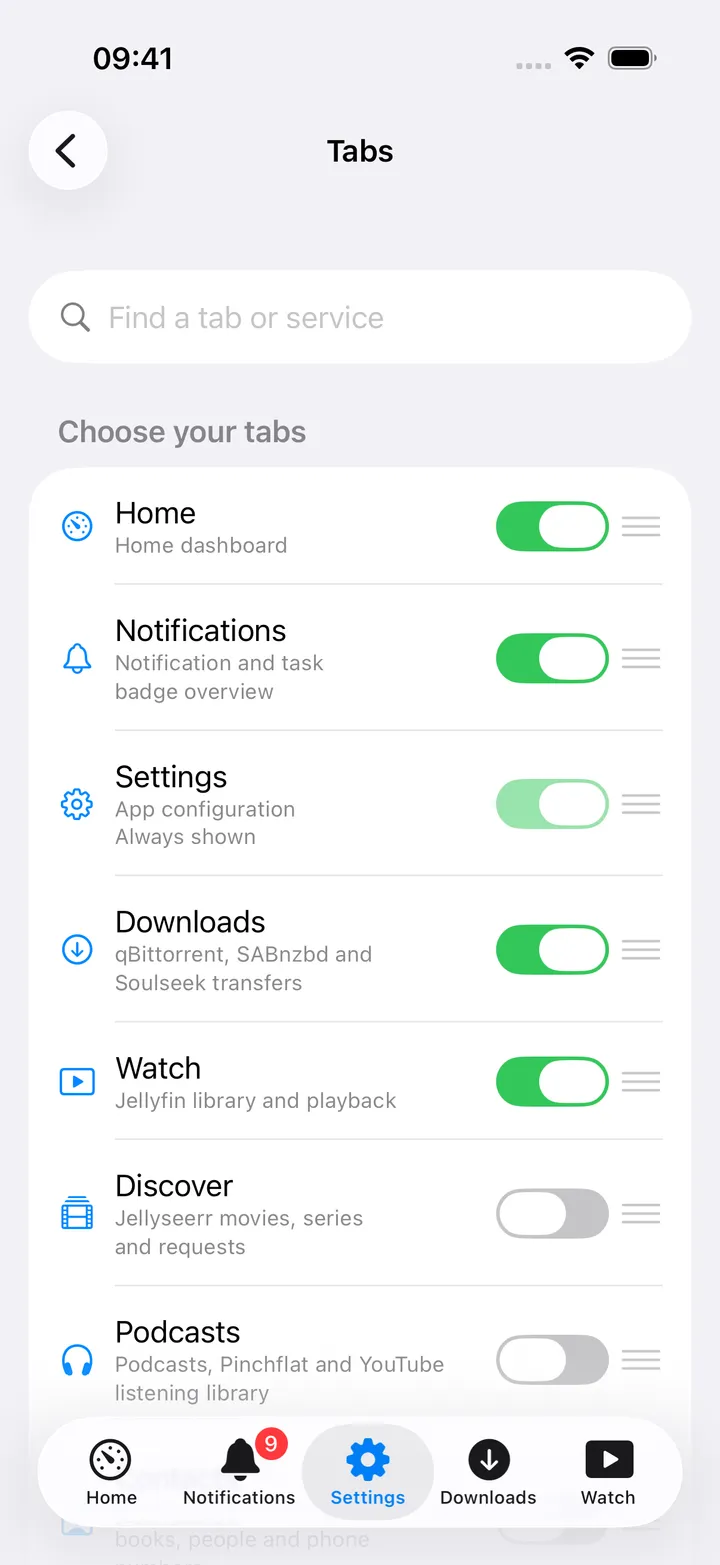
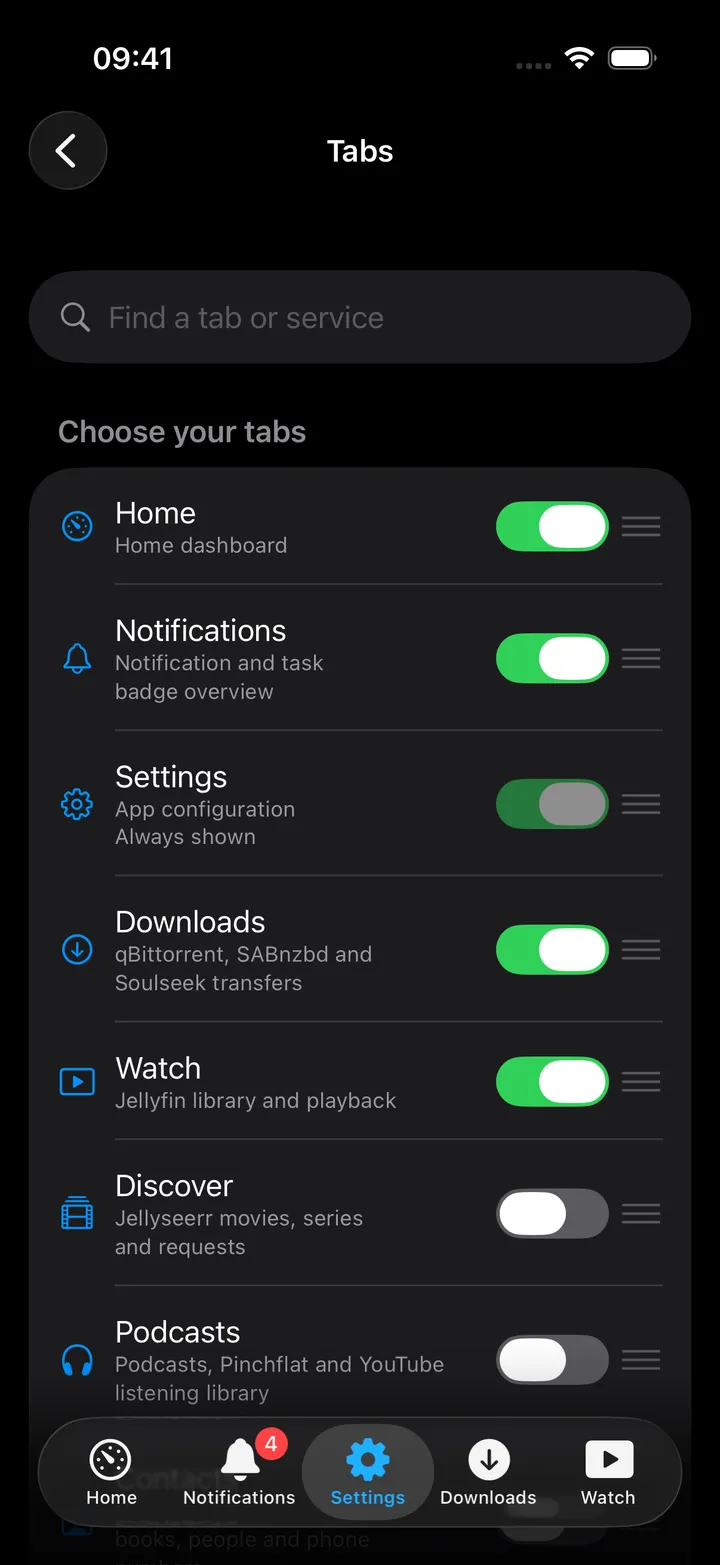
Choosing tabs
Settings → App → Tabs. The list is permanently in edit mode: every row has a drag handle, a symbol, a title and a one-line description of the service behind it.
- Core tabs (Home, Notifications, Downloads, Discover, Watch and Settings) are on by default.
- Everything else is off by default: Server, NAS, Monitors, Subtitles, Money, Photos, AdGuard, Disks, Backups, Speedtest, Web, Stats (Jellystat), Cloud (Nextcloud files), Alerts, Code, Podcasts, Notes, Contacts, Deck, Vehicles, Docs (Paperless), Books (Calibre-Web), MeTube, Music, Audiobooks, Tasks, Calendar and Indexers.
- A tab only appears while its service is configured and enabled. Rows show Not configured or Service disabled or paused when they cannot be used. Podcasts is the exception: its feeds and downloads live on this device, so it is always available.
- Notes is offered only once your Nextcloud has said it runs the Notes app. See Nextcloud Notes.
- Settings can never be hidden.
- Tabs beyond the fifth go under More.
The search field at the top (“Find a tab or service”) matches the title, the internal id and the description, so
typing kuma finds Monitors and jellystat finds Stats.
Many tabs bring a round screen action button beside the + with that screen’s own views and actions. You can switch it off per screen in Settings → App → Screen action buttons; see Floating buttons.
Swapping a tab in place
Long-press a tab bar item for about half a second and the Replace sheet opens. Available choices are listed first, tagged Current tab or Swap; unavailable ones are greyed with the reason. Tabs that are already visible swap places with the one you pressed. Long-pressing More opens the full Tabs screen as a sheet.
Hidden does not mean gone
A screen whose tab is off is still reachable: from its Home card, from search, from a quick action, from an alert
deep link, or from a widget or pockethomelab:// link. It opens on top of
Home or as a sheet instead of as a tab. A Home card always opens its screen on Home, with the Back button to return.
When you connect a service through the guided Connect form, it offers that service’s tabs under Also show as a tab, so you do not have to come here for the first ones.
Home layout
Settings → App → Home layout (titled Edit Now) is the list version of the in-place editor:
- Your layout shows a live preview grid of the active cards.
- Pinned header picks the banner above them, or None.
- Cards on Now lists each card with a summary like Half width · CPU usage. Use Edit to drag them into order, swipe a row to Hide, or open the context menu for Edit card / Move to top / Hide card.
- Add cards brings a hidden card back with its settings preserved.
- Restore default layout puts the order and the header back to the defaults.
Tapping a card opens the same editor as Edit card on Home: a preview with example values, the Show on this card options, Card width, Show supporting details, and Move to top. The Money card adds Hide values on Home.
App icon and badge
- Settings → App → App icon: eight variants of the heartbeat-line icon: Line (the default), Ember, Terminal and Amber, each in a dark and a light version. iOS confirms the change with its own alert.
- Settings → App → App badge: Show app badge, then choose which counts add up under Include in badge: Unread alerts, Today’s to-dos and Overdue to-dos. A total of zero hides the badge. If iOS has not allowed badges yet, the page offers Allow app badge.
The Notifications tab, and the bell on Home, show the same breakdown: the total and what makes it up, then the alerts and tasks behind each count, with Mark all as read for the alerts. With nothing counted it says All clear (“Nothing in unread alerts, today’s to-dos or overdue to-dos.”); with the badge off it says Badge is off and points you to Settings.
Appearance
The app ships with a light and a dark appearance. Settings → App → Theme follows the system by default (System), or pins it to Light or Dark, independently of what your phone does. The Mac app has the same choice in Settings → Appearance.