Browse and play your music library over the Subsonic API, with favourites, playlists and a background player.
iPhoneMacOn this page
Navidrome is your music server. It is the library half of the shared Music tab: Pocket Homelab plays albums,
artists, playlists and search results, and folds in Lidarr requests and Soulseek search when those are configured
too.
What you get
Home tile (“Music”): value <n> albums, caption shows an active Soulseek transfer, a Lidarr wanted count, or
the newest album.
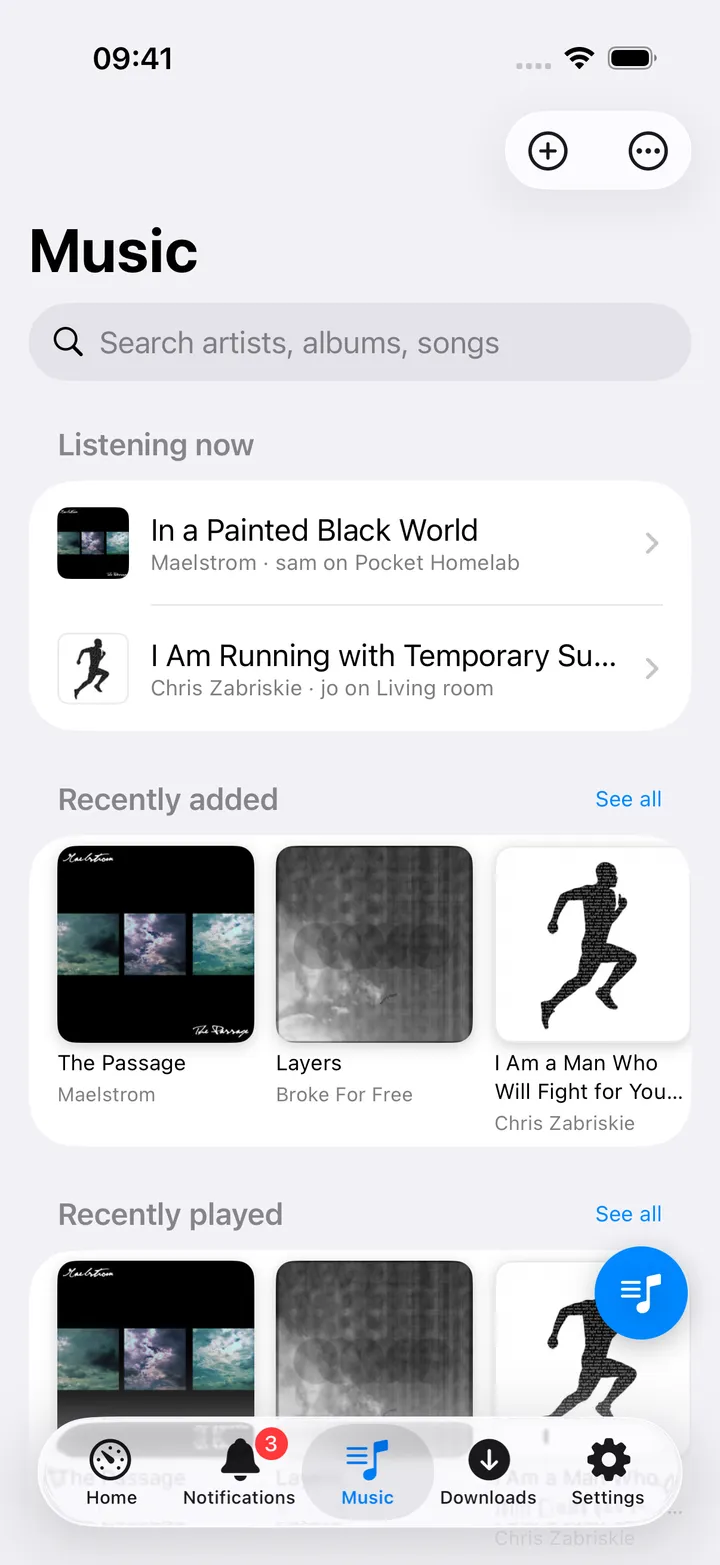
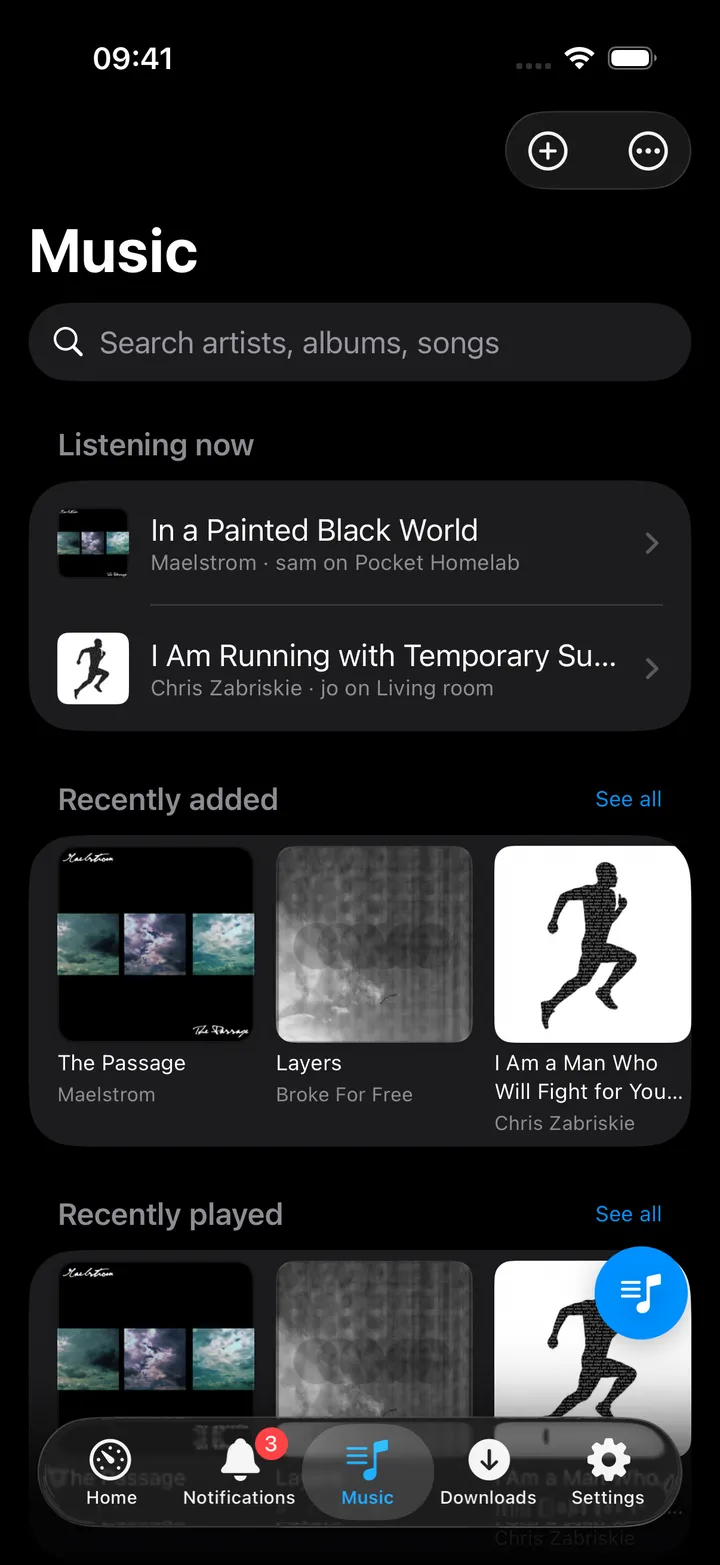
Music hub: Listening now, Recently added and Recently played strips, a Library section (Shuffle the library,
Albums, Artists, Genres, Playlists, Favourites, Most played, Random albums), and search across artists, albums and
songs.
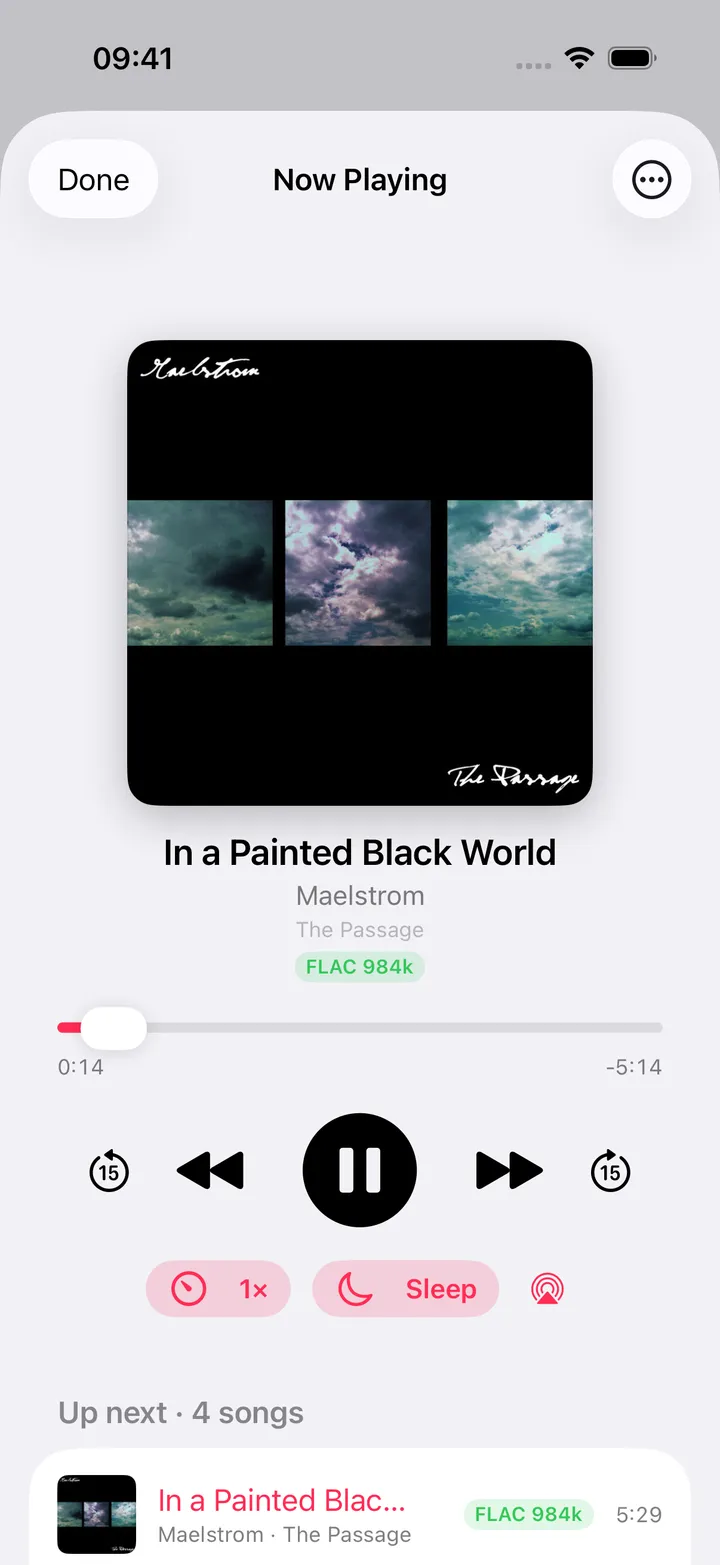
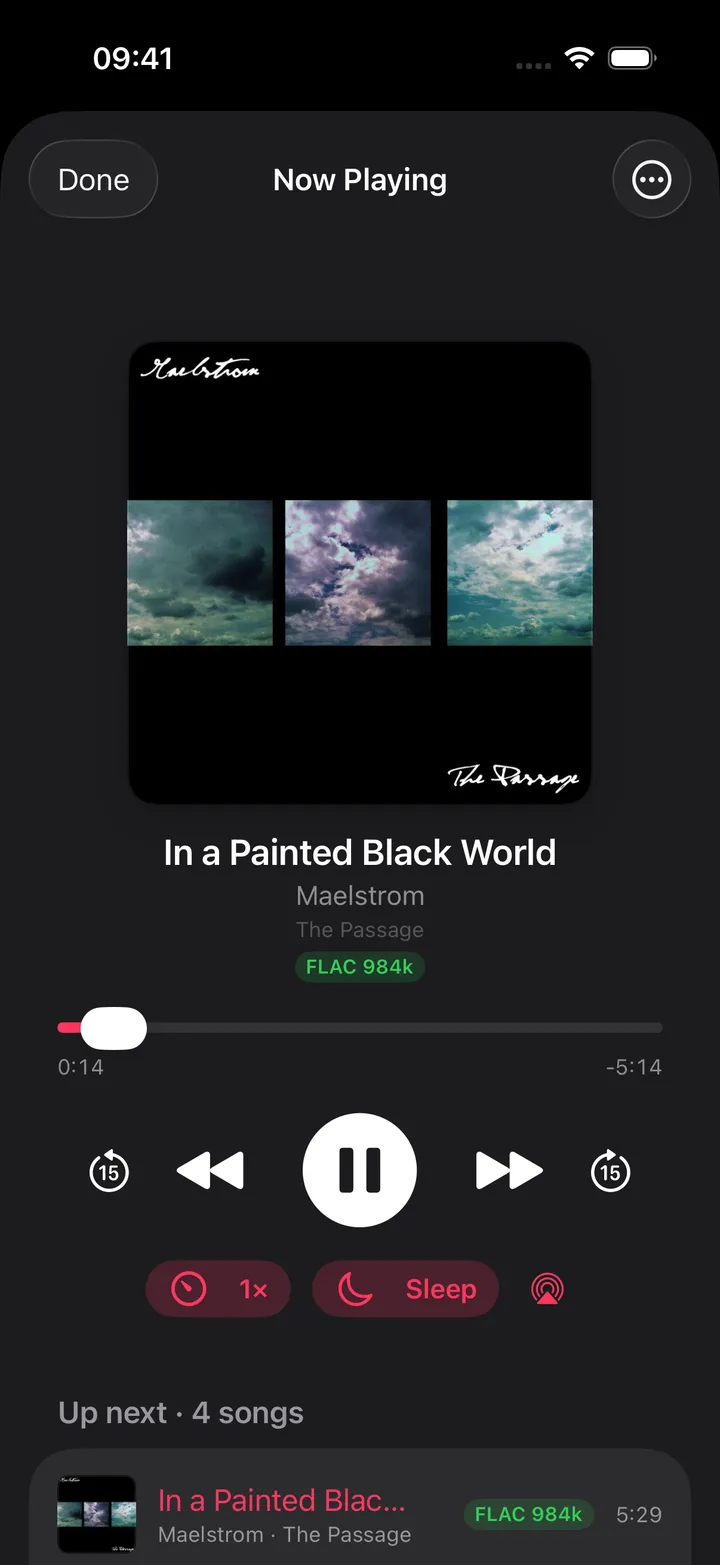
Full player: scrubber, queue with drag-to-reorder, favourite toggle, and a persistent mini bar. It also has a
speed menu (0.75× to 2×, pitch-corrected), a sleep timer (5 to 60 minutes, or End of track) and an AirPlay
picker.
Downloads: Download album on an album, or Download to this device on a song, keeps the files on this
device; a downloaded track plays from the local copy.
Quick action: Music opens the hub; Request music (needs Lidarr) opens the add flow directly.
Set up
Navidrome authenticates with any existing user account; no separate API key exists. The app uses Subsonic
token auth (a salted hash, never the plain password over the wire).
In the app, go to Settings → Services → Navidrome, enter the URL, username and password, then press
Test connection.
All three fields are required. Unlike some services, a URL alone gets you nothing here.
Key
Field
Required
Secret
Where to get it
NAVIDROME_URL
Navidrome URL
Required
—
Base URL of your instance. Leave empty to hide Navidrome features.
NAVIDROME_USER
Username
Required
—
Any user; Subsonic token auth is used.
NAVIDROME_PASSWORD
Password
Required
Secret
Password of that user.
All three fields are required. Unlike some services, a URL alone gets you nothing here.
On iPhone
Music hub: Listening now, Recently added, Library and Requests sections.
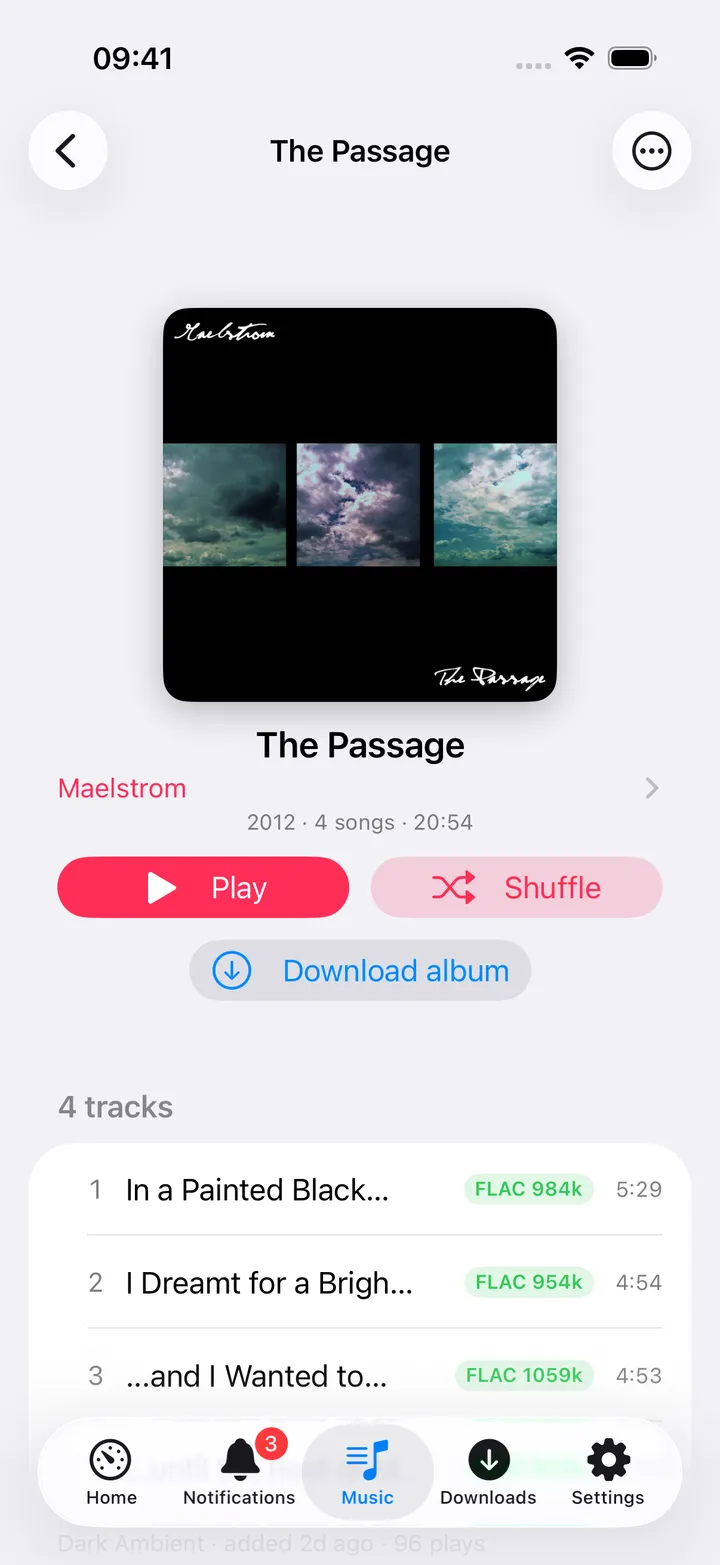
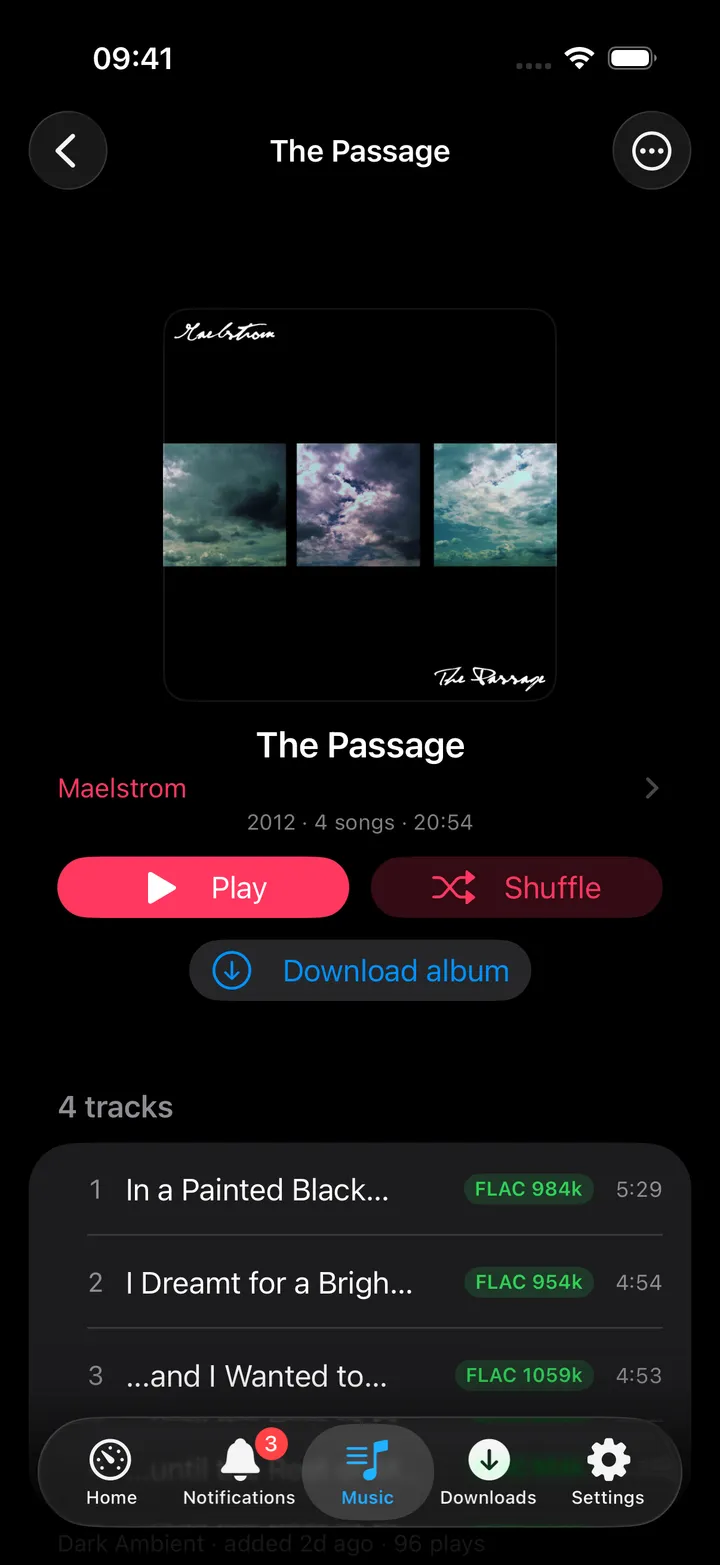
Album screen: track list, quality tag, and a Lidarr match row. Album and artist screens show a green
quality tag for FLAC/WAV/ALAC/APE files, and a Lidarr-match row when Lidarr is configured (monitored, in-library
or “Not in Lidarr · add to keep it complete”).
Now Playing: scrubber, transport, and an Up next queue you can reorder. Favourite an album, artist or song
from its toolbar menu or track context menu; the heart state is shared everywhere that item appears.
Round button: beside the +, the Music tab has a round button with the hub’s actions: Shuffle the
library, the library lists (Albums, Artists, Genres, Playlists, Favourites, Most played, Random albums, Recently
added, Recently played), Request music, Wanted, Lidarr artists, Search Soulseek, Activity,
Search, Refresh, Rescan library and Open Navidrome/Lidarr/slskd. The first five show until you pick
your own with Customise in the open menu. Turn the button off in Settings → Screen action buttons.
On Mac
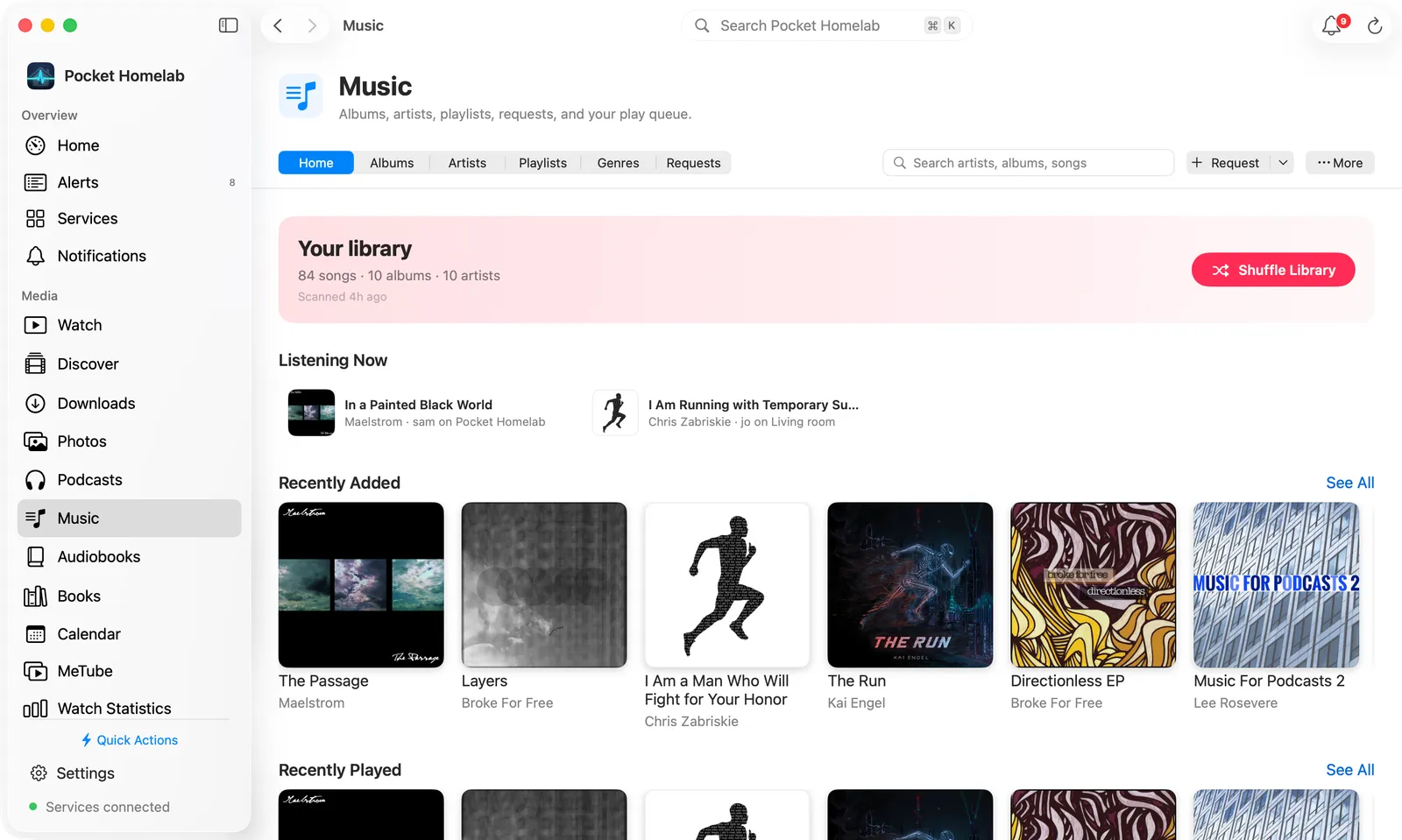
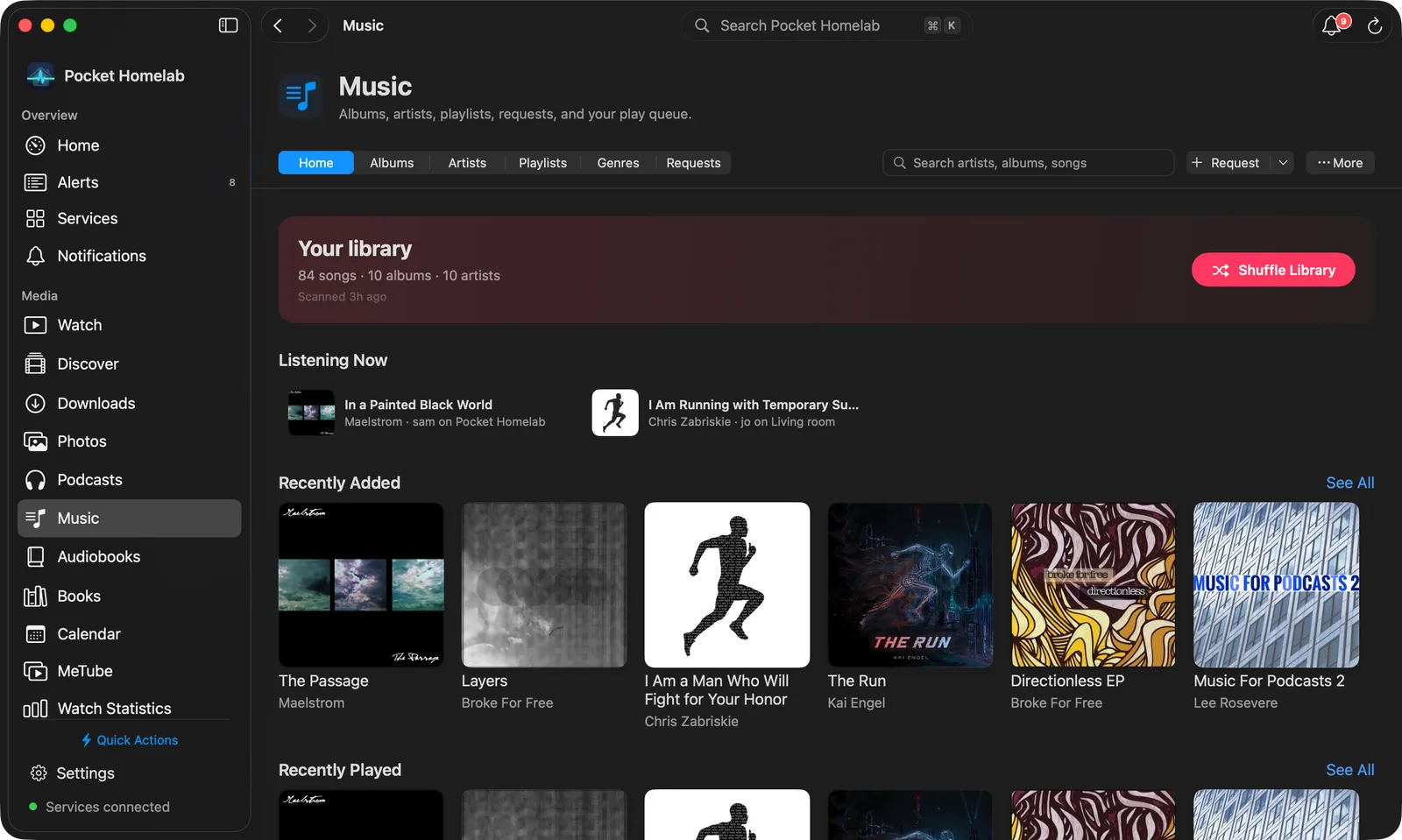
Music on the Mac: the views in one bar, a Your library hero with Shuffle Library, and full-width album shelves.
Music sits in the sidebar under Media (⌥⌘6); ⇧⌘J opens it from anywhere and
⌥⌘J goes straight to Request music. The Mac has its own layout, built for a desktop window:
One bar: the views Home, Albums, Artists, Playlists, Genres and Requests, a sort
menu while Albums is shown, the search field, Request and ⋯ (Refresh, Rescan library, Lidarr
artists, Open Navidrome/Lidarr/slskd). A click on Request opens Request music; its arrow has Request
music…, Search Soulseek… (with whatever is typed in the search field), Activity and Wanted. Without
Lidarr the button is Soulseek.
Home: a Your library hero with the song, album and artist counts, the last scan and Shuffle Library;
then Listening Now, and shelves for Recently Added, Recently Played, Most Played and Favourites, each with See
All. Request cards and recent Lidarr activity follow when Lidarr or slskd is set up.
Albums, Artists, Playlists, Genres: grids across the full width; artists are round pictures under a pinned
index letter, genres are coloured cards with album and song counts.
Album, artist and playlist pages: a hero with the artwork, the facts, Play, Shuffle, Download
album (on an album), a favourite heart and ⋯ (Play next, Add to queue, add to a playlist, Go to artist,
Search Soulseek, Open in Navidrome); the tracks follow as a table. Double-click a track to play from there;
right-click for the song’s actions. An artist page shows Top Songs, then the albums. With Lidarr set up, the hero
carries the Lidarr match as a small card.
Search: the best match as a top card, artists and albums as rows of pictures, songs as a sortable table, and
the Lidarr request and Soulseek search as cards at the end.
Player: music plays in the bar along the bottom of the window, shared with Podcasts and Audiobooks. Click the
artwork or titles for the full player; Space plays and pauses.
The Mac ⌘K palette has a “Music · Navidrome, Lidarr & Soulseek” scope once any of the three is configured, though
it only actually searches when Navidrome itself is set.
Actions
Favourite / unfavourite an album, artist or song, Subsonic star/unstar.
Scrobble: automatic: a “now playing” mark on load, then a play record once you pass half the duration or 4
minutes, whichever comes first.
Rescan library: from the hub’s More menu (or the round button), triggers a quick Navidrome scan (no
full-scan option here).
Download album / Download to this device: reads from Navidrome and writes only to this device; nothing
changes on the server.
Notes about this: an album, an artist and a playlist end with the notes that link to them and Write a note
about this, when your Nextcloud has Notes.
Works with
Lidarr: artist and album screens show whether an item is monitored, in-library or missing in Lidarr, with a
one-tap request/find flow.
slskd: “Search Soulseek” shortcuts on artist and album screens, seeded with the same name.
Podcasts and Audiobooks players: starting music pauses whichever of those was playing, and vice versa;
a Jellyfin video pauses it too. Only one can hold the lock-screen “Now Playing” card at a time.
Tips & troubleshooting
Downloads are explicit: playing a song does not save it. Browsing still needs Navidrome (there is no offline
library view), but a downloaded track plays from the device, and downloads are listed in Settings → Downloads
under “Music & media”.
The music speed is not remembered: it goes back to 1× when you close the player or relaunch the app.
Wrong credentials show as “Wrong username or password”, not Navidrome’s raw Subsonic error text.
Album grids use a plain scrolling grid rather than a list, so tapping a tile never accidentally navigates to a
neighbouring one.
Starting a song always pauses any playing audiobook or podcast/MeTube audio first.