
Immich
Browse On This Day memories, recent photos, albums and people from Immich, with a full-screen viewer, video playback and smart search.
iPhoneMacOn this page
Immich is a self-hosted photo and video library with face recognition and CLIP-powered search. Pocket Homelab turns it into a Photos screen: a photo card on Home, browsable albums and people, a smart-search grid, and a full-screen viewer with zoom, video playback, favorites and sharing. Nothing is uploaded from the app, it only reads and organizes what Immich already has.
What you get
- Photos card on Home: a strip of thumbnails that shows either On This Day (with a year badge on each, and a line such as “3 photos from 2019 · 1 photo from 2016”) or Recent photos, the newest in your library. Pick one under Show on this card in the card’s settings (Home layout). Tapping the card opens Photos on the same view. With nothing to show (no memories today, say) the card disappears; it stays as a placeholder tile only while you are editing the Home layout.
- Photos tab (optional, turn it on in Settings → Tabs) with seven views: On This Day (only on days that have memories), Recent, Favorites, Videos, Albums, People and Trash. Album contents are listed newest first.
- Default view: Photos opens on Recent unless you choose On This Day (see On iPhone and On Mac).
- Smart search: CLIP semantic search, e.g. “sunset at the beach”, starting from 2 characters. In the Trash view it searches the trash.
- Videos play in the viewer, on iPhone and on Mac.
- Quick action: Search photos (one of the default hold-fan actions).
- Spotlight/palette: a Photos entry under Home; on iPhone, the search sheet also runs a smart search once you type 3 characters and opens a hit in the viewer.
- Mac workspace: sidebar Photos (⌘5) with a timeline beside the grid (see On Mac). The Mac Home Photos widget shows On This Day or Recent; a thumbnail opens straight in the viewer.
- No push notifications and no app-badge contribution.
Set up
- In Immich, open Account Settings → API Keys and create a key. The app needs read access to assets, albums, people, memories and search, plus write access for favorites, album create/add/remove, and moving photos to and from the trash. There is no separate read-only mode.
- In Pocket Homelab, go to Settings → Services → Immich, paste the URL and key, then press Test connection. You should see “Immich OK”.
| Key | Field | Required | Secret | Where to get it |
|---|---|---|---|---|
IMMICH_URL | Immich URL | Required | — | Base URL of your Immich instance. Leave empty to hide Immich features. |
IMMICH_API_KEY | Immich API Key | Required | Secret | Account Settings → API Keys. |
On iPhone
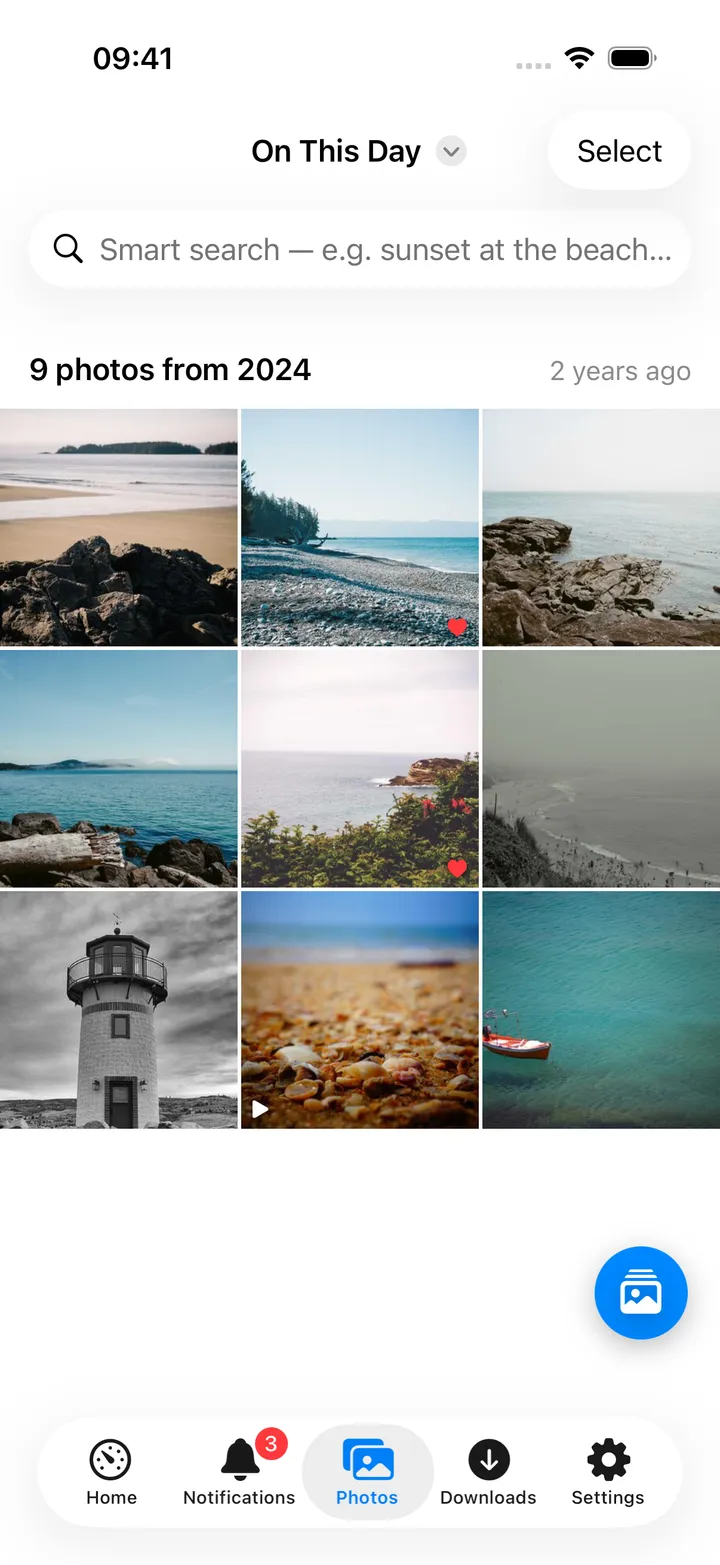
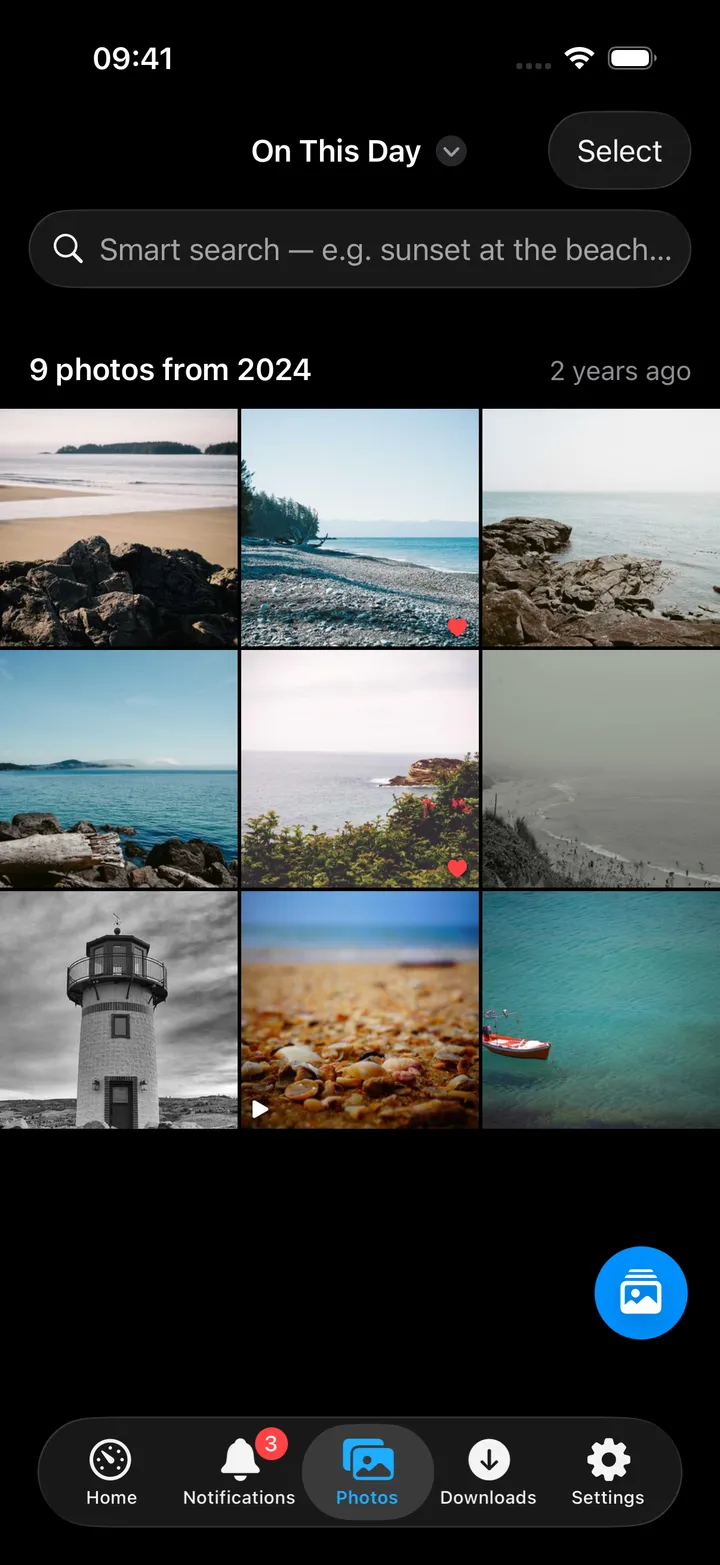
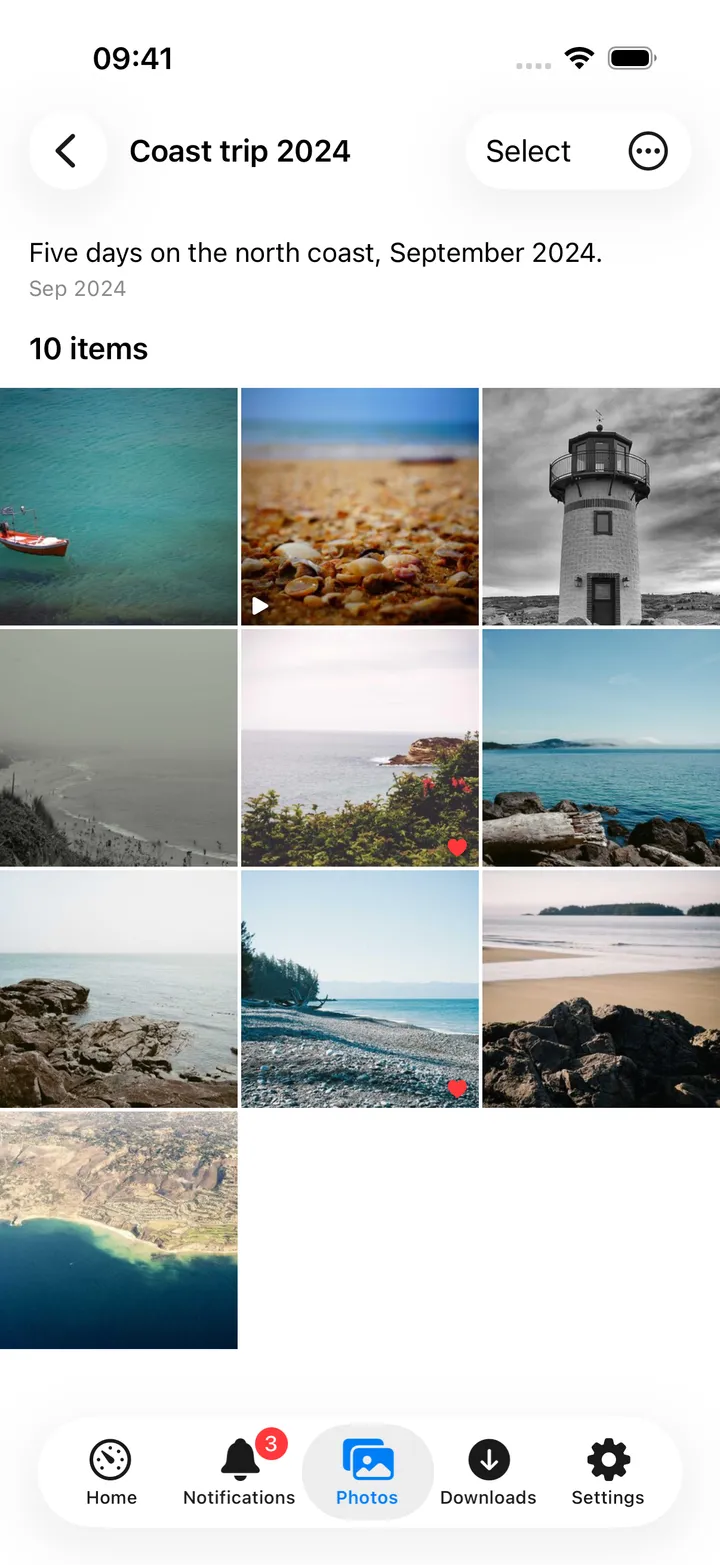
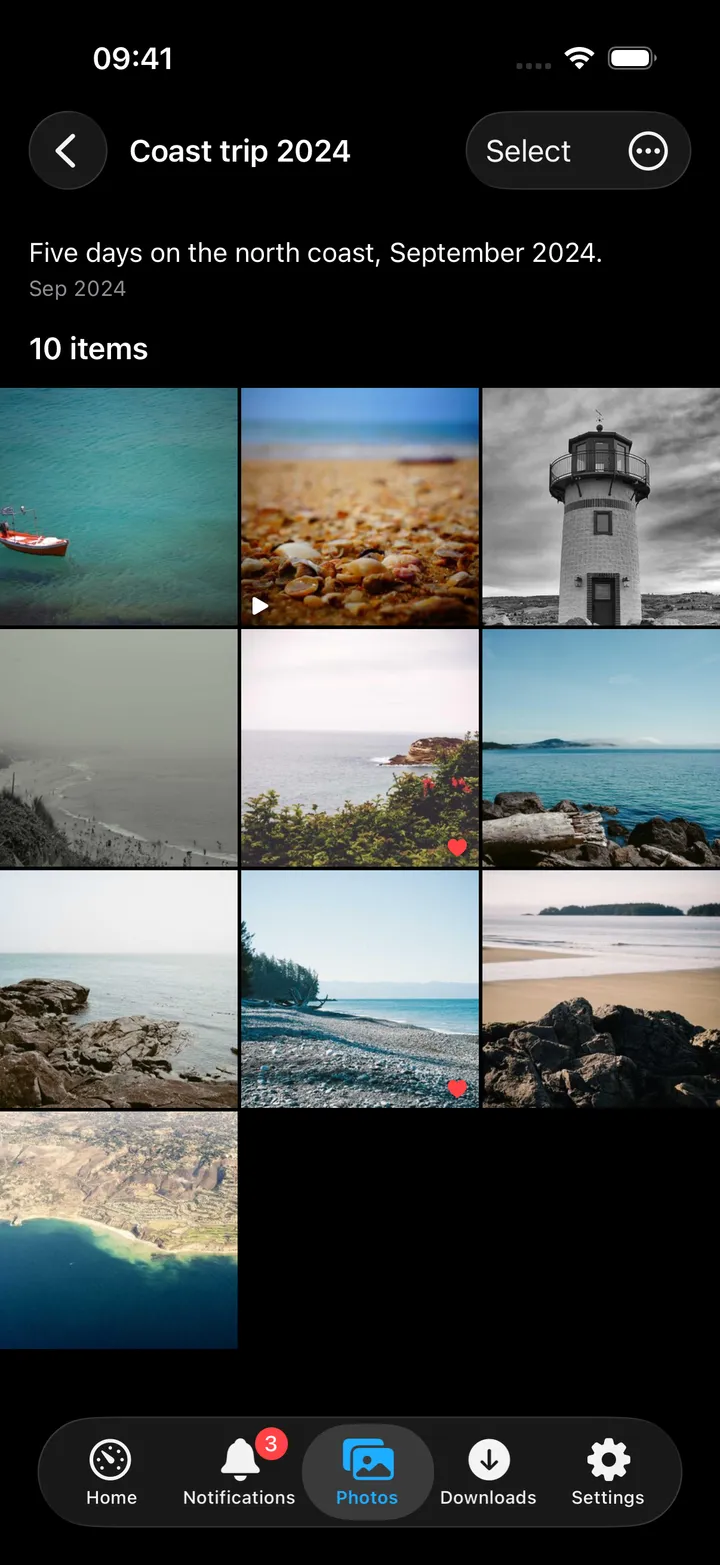
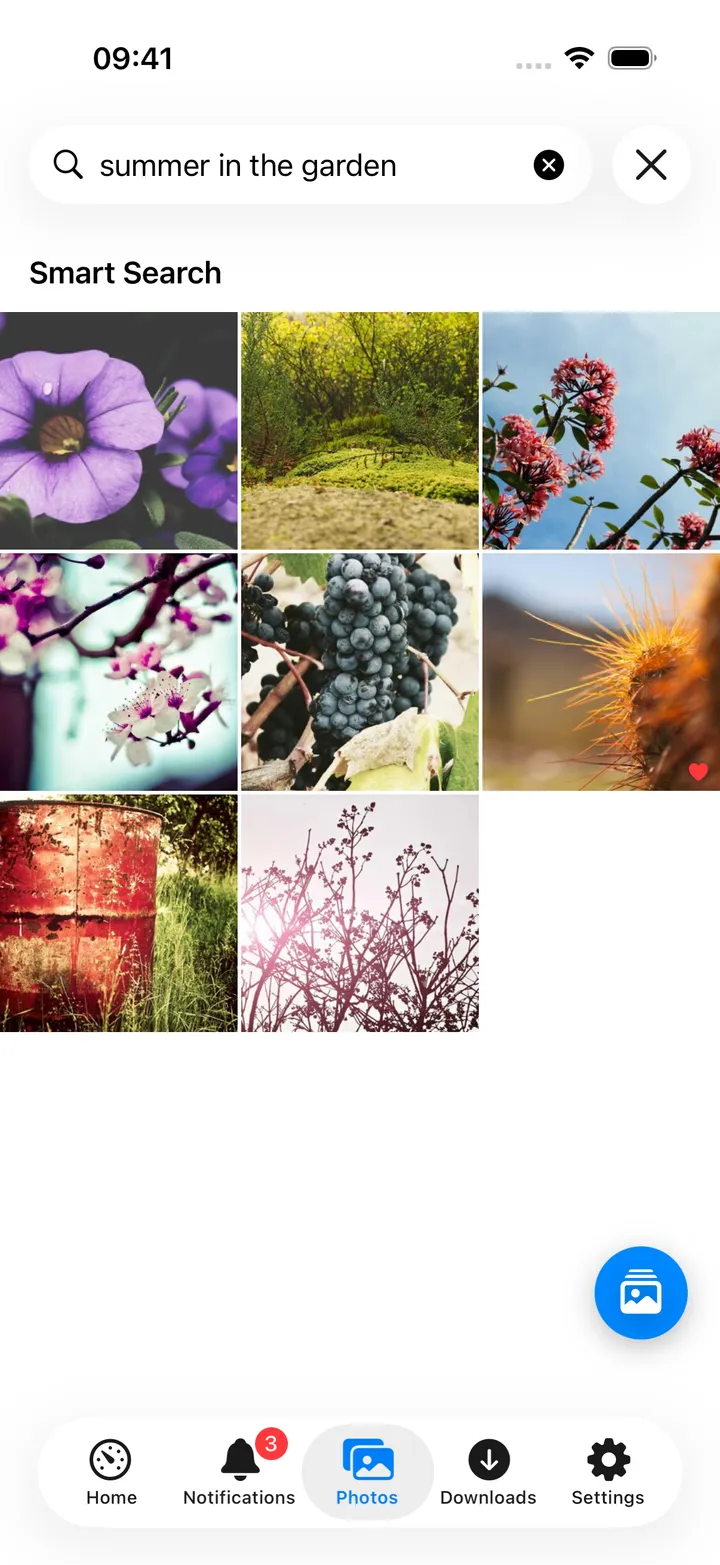
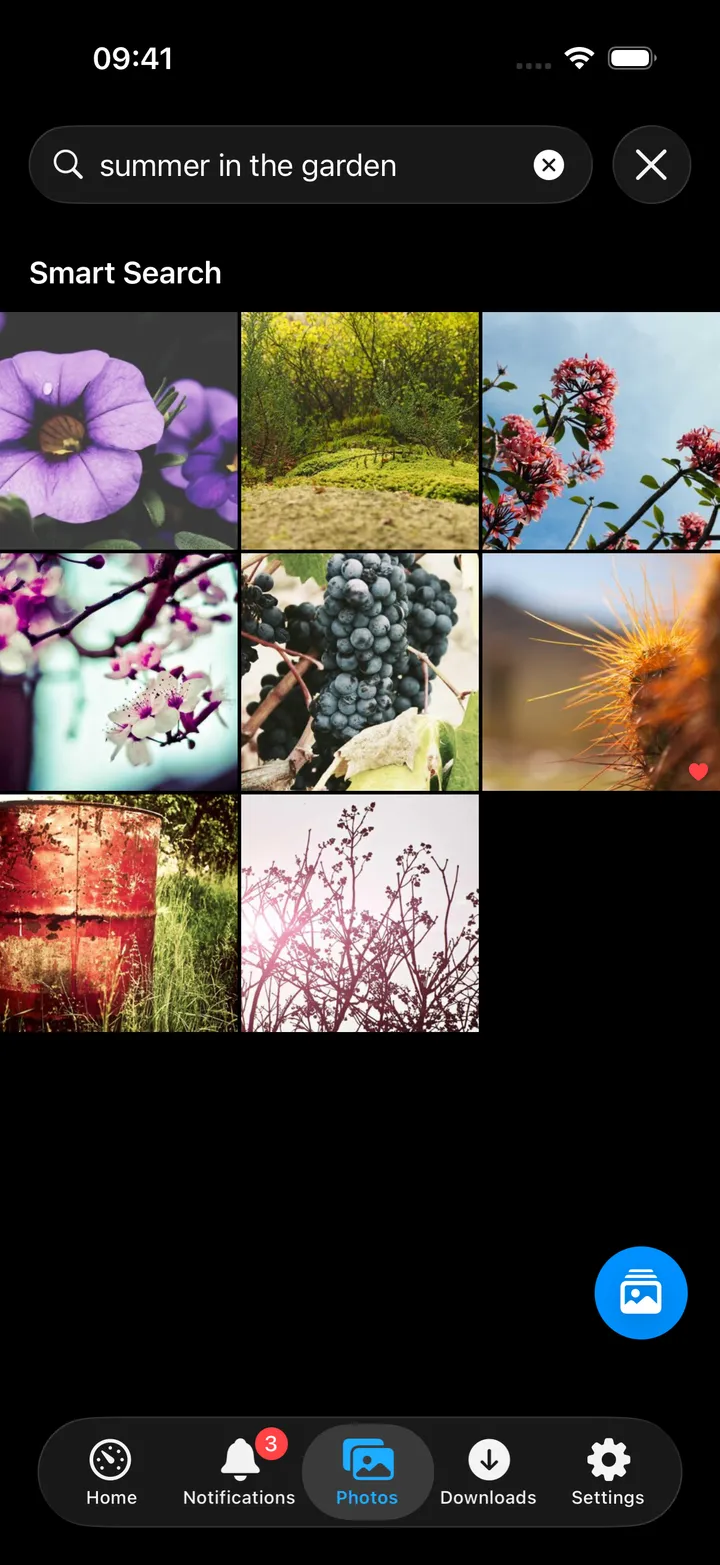
Changing views. The round Photo views button beside the + lists the views, with the one on screen marked. Choose actions… in it picks which views it shows and in what order (tap to change, drag to reorder). Every view is also in the menu under the screen’s title, so a view you removed from the button (or the button itself, turned off in Settings → Screen action buttons) is never out of reach. The smart search field stays under the title.
Default view. Settings → Photos (under Your services) → Opens on: Recent or On This Day.
Selecting. Hold a photo to start selecting with it, then keep moving the same finger: every photo you pass is selected, and the list scrolls when your finger rests near its top or bottom edge. While selecting, a tap adds or removes one photo, a drag that starts sideways selects a range (a drag that starts on a selected photo deselects instead), and a drag up or down still scrolls. Select in the top bar starts selecting without a hold.
- Selected tiles are drawn in on a tinted square with a checkmark.
- The top left shows × and the count; tap it to stop selecting. Deselecting the last photo also ends it.
- The selection bar at the bottom has finger-sized buttons with a word under each icon: Add to Album, Favorite, Download (asks for a folder), Move to Trash and Share. Inside an album it offers Remove from Album instead of Favorite; in Trash it offers Restore. The + steps aside while you select.
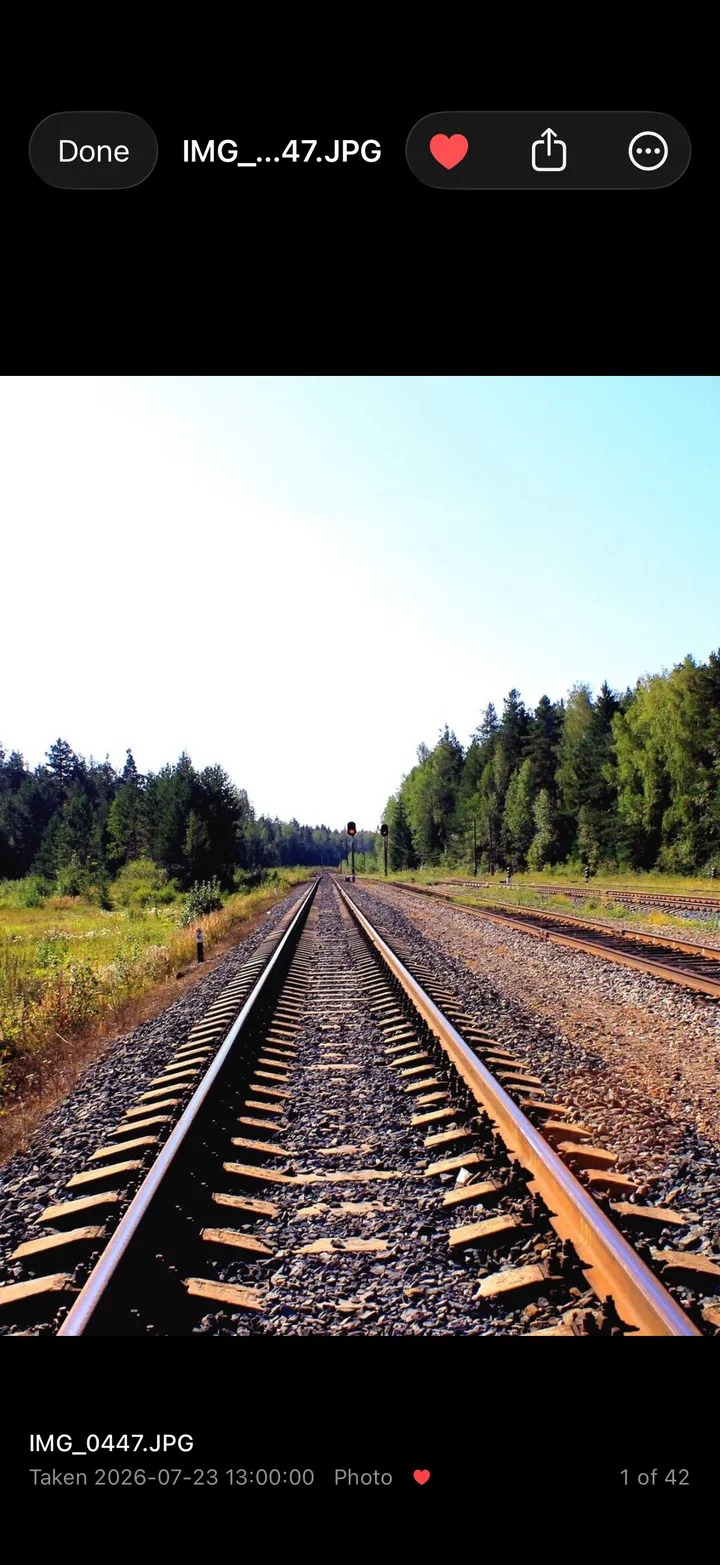
The viewer. Tap a photo to open it; swipe sideways between photos, tap to hide or show the controls, pinch or double-tap to zoom where your fingers are, and swipe down to close (the grid shows through as it goes). The top bar has the favorite heart, Share and a ⋯ menu with Add to Album…, Save to Photos, Save to Files…, Info, Open in Immich, Share Immich Link and Copy File Name. Info shows details, camera, location (with Open in Maps), people, albums and Download Original…. With the Notes app on your Nextcloud it also has Add a note, a quick note about the photo (one note per photo, in the Photos folder), and Notes about this, the notes that link to it (see Nextcloud Notes).
Videos play right in the viewer: tap Play and the header and caption get out of the way; taps while it plays leave them hidden, and pausing brings the header back. Pinch to zoom a playing video (drag to look around while zoomed), and swipe down to close it as you would a photo.
In Albums, the + button makes a New Album; an album has a filter field, Select, and a ⋯ menu with Open in Immich and Share Immich Link. An album and a person end with Notes about this when your Nextcloud has the Notes app.
Smart search starts from an empty grid, so you see it working; the hits replace the previous photos.
On Mac
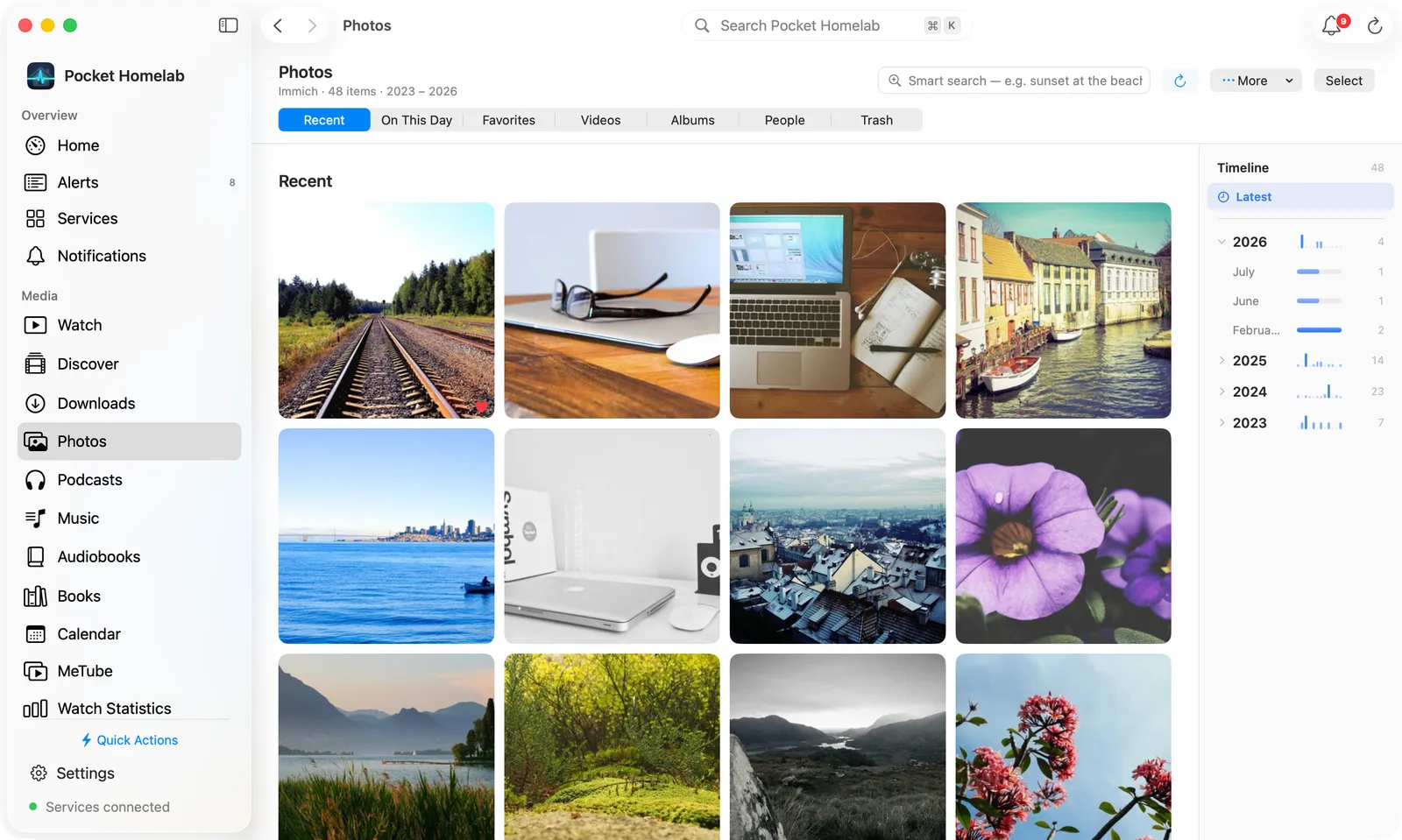
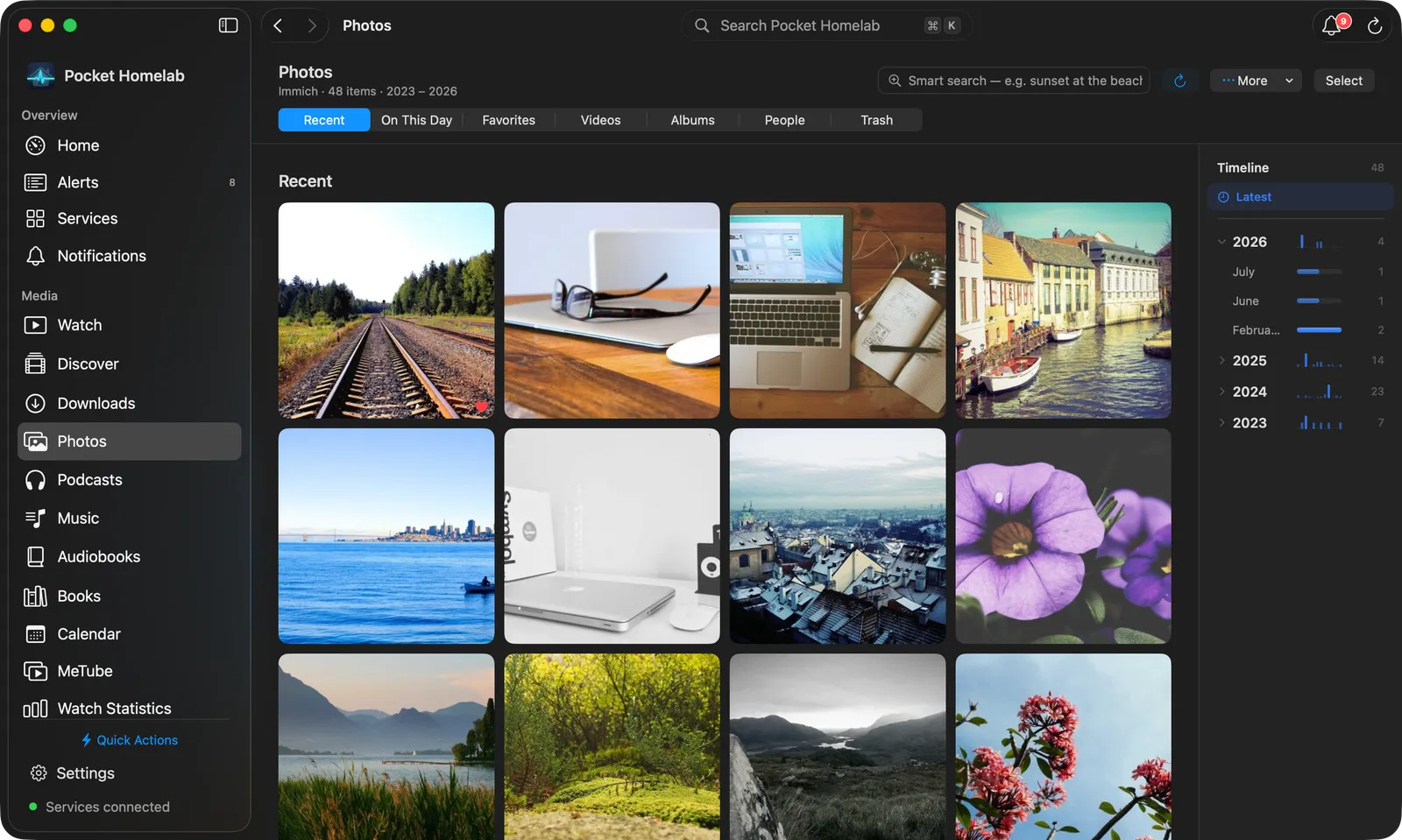
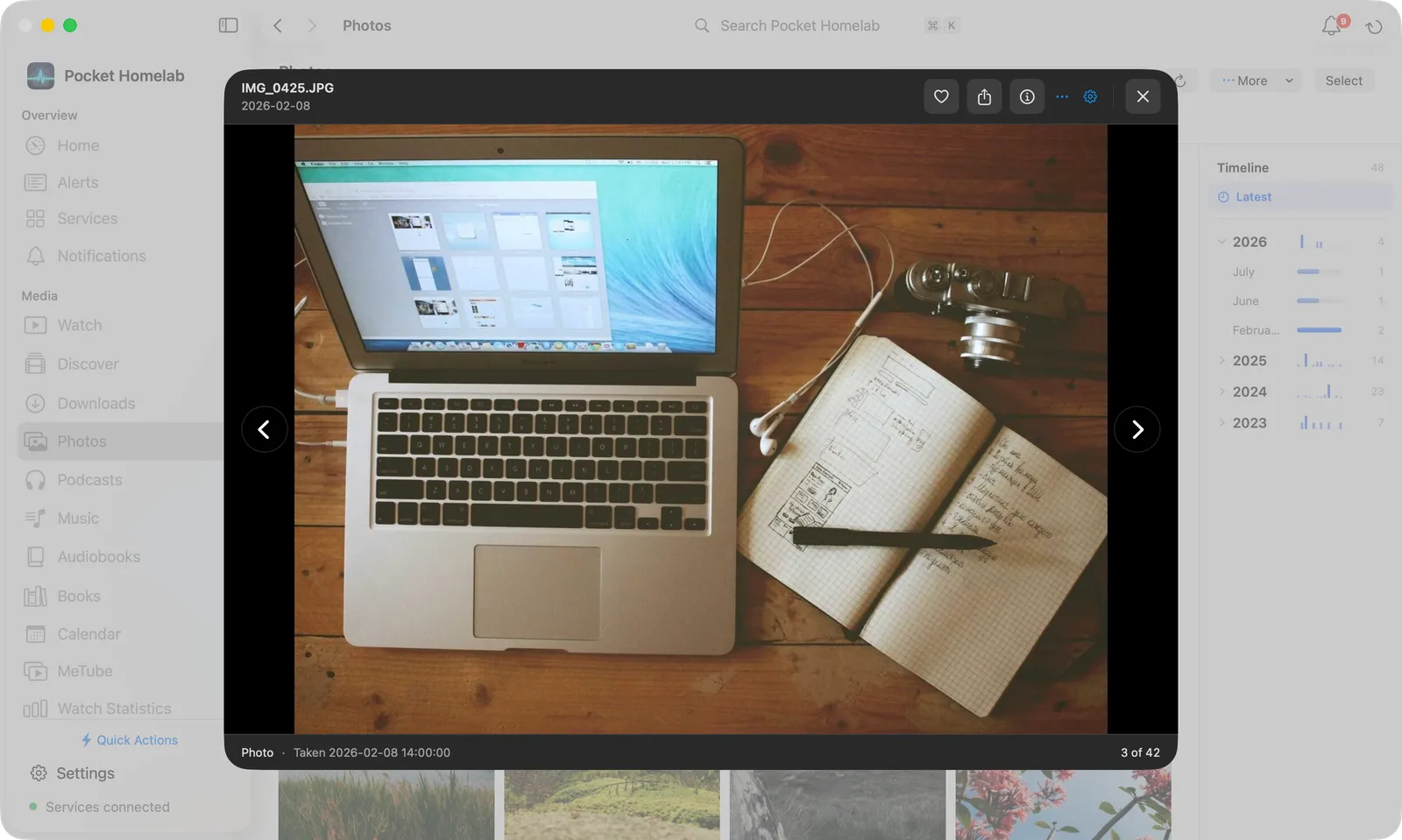
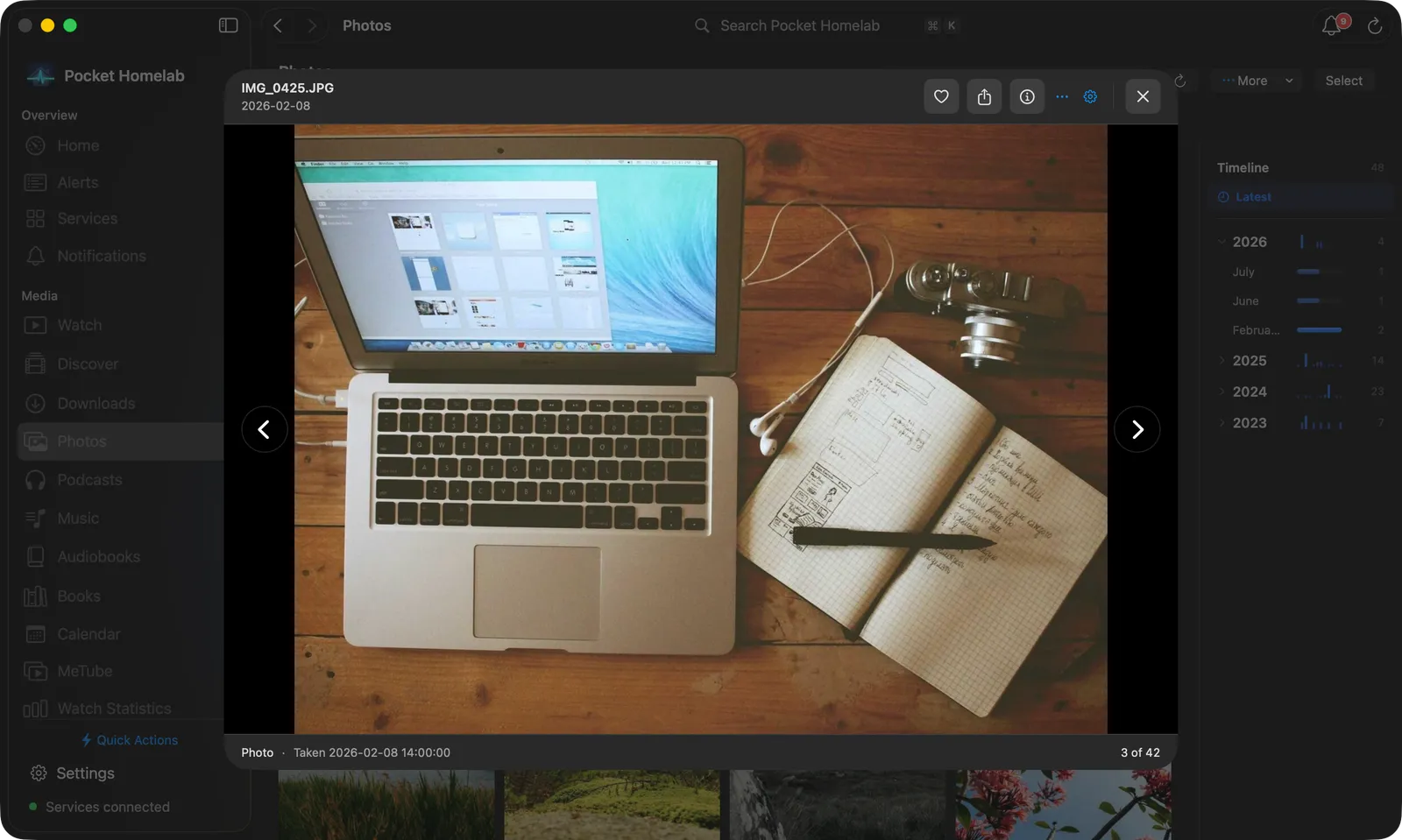
The sidebar section is Photos (⌘5). “Open in Immich” opens your default browser instead of an in-app Safari sheet. There are no scroll bars; tiles are rounded and lighten under the pointer.
- The bar, in two rows: the title with the library’s size and years (“Immich · 14,356 items · 2017 – 2026”), the smart search field, Refresh (⌘R), More, Select and, in Albums, New Album; below them the views as a segmented control, with your default view first.
- Timeline: in Recent, a full-height column to the right of the grid lists years, each with a small sparkline of its twelve months and a count. Open a year for its months, each with a bar showing its share of the year; picking a month loads that month’s photos, and Latest clears the filter.
- Albums are cards with the cover, name, item count and date range. Right-click one for Open Album, Open in Immich or Share Immich Link.
- Selecting: a click opens a photo. Hold a photo for a moment to start selecting with it, and keep dragging to select every photo you pass, all in one press. While selecting, a click adds or removes a photo and a plain drag selects a range (starting on a selected photo deselects the range). Select in the bar works too. Selected tiles look as they do on iPhone. The selection bar at the bottom shows the count and labelled buttons: Add to Album, Favorite, Download (asks for a folder and copies the originals), Move to Trash (in red) and Share.
- Right-click a tile for Share, Save to Photos, Add to Album…, Add to Favorites, Info, Open in Immich and Copy File Name (plus Remove from Album inside an album, or Restore in Trash).
- Viewer: Open photos in Modal, Full app window or Full screen, switchable from More on the Photos page or the gear inside the viewer, and saved for next time. The viewer’s toolbar has favorite, share, info and a ⋯ menu; ← and → move between photos, Esc closes. Double-click zooms in to 2.5× on that spot and back; pinch on the trackpad to zoom up to 5×.
- Videos play without AVKit’s controls dimming the picture: a bar with back 15 s, play, forward 15 s, the position and mute shows while paused and for a moment after the pointer moves. A click on the picture plays or pauses.
- Settings → Photos holds Open photos in and Opens on (Recent or On This Day). More → Default Photos tab on the Photos page can pick any view.
- Info has Download Original…, which saves the file with its original name and format.
Actions
- Toggle a photo’s favorite status.
- Create a new album (empty, or from a selection).
- Add or remove photos from an album.
- Save a photo/video to your device library, or export it to Files; download a selection of originals to a folder.
- Move to Trash: after a confirmation showing the count, the photos go to Immich’s trash (not deleted permanently). Restore brings them back from the Trash view.
Nothing else writes back to Immich: there is no upload, permanent delete, archive, or person/face editing from the app.
Works with
- Home: the Photos card is fetched alongside every other Home card and never blocks the rest of the dashboard.
- Settings → Downloads: originals downloaded for sharing or saving are listed under “Photos” and can be deleted from there.
- Nextcloud Notes: the note editor’s paperclip can attach photos from Immich, picked from a grid or by smart search; see Nextcloud Notes.
- Counts as one of your three free-tier integrations; pausing it blanks the key so every Immich surface hides.
Tips & troubleshooting
- Smart search needs Immich’s machine-learning/CLIP feature enabled on the server, a query that returns nothing from a properly indexed library usually means that feature is off.
- “On This Day” only shows when Immich has actually generated a memory for today. On other days the view is not offered and a Home card set to On This Day stays hidden; set the card to Recent photos if you want it every day.
HTTP 401/403on Test connection means the key is wrong or missing a required permission, regenerate it in Immich rather than editing the existing one.- Albums load on Immich v3, which no longer sends an album’s photos with the album, as well as on older servers.