
Floating buttons
The + and its fan of quick actions, the screen action button beside it, the hold-and-slide gesture, and every action the + can run.
iPhoneOn this page
Two round buttons can float in the bottom corner, above the tab bar:
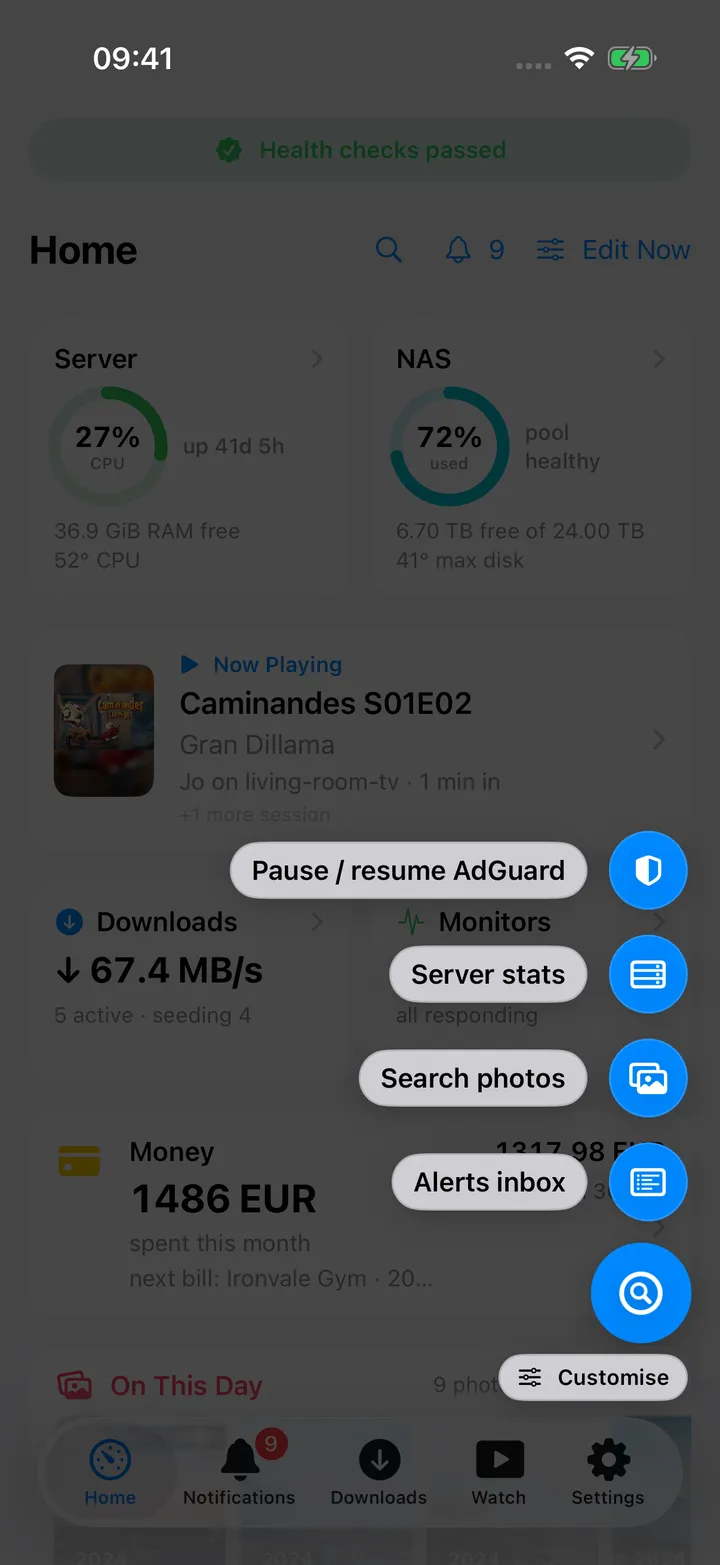
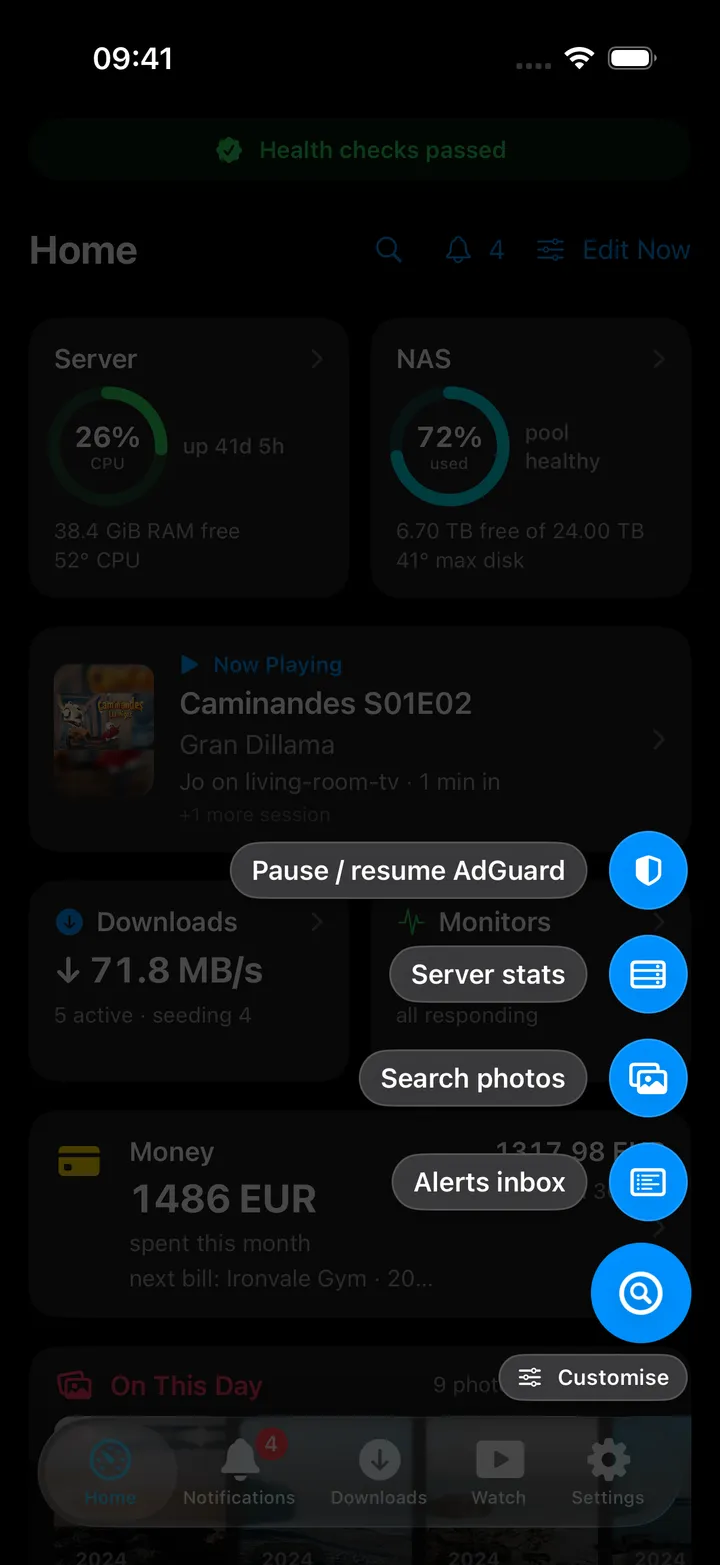
- The +, the quick-action button. Tap it to run one action; hold it and a fan of more actions spreads out above your thumb. It is the same on every screen.
- The screen action button beside it. It belongs to the screen you are on and holds that screen’s views and actions: the views of Photos, the categories of Discover, the lists of Tasks, Pause Protection on AdGuard.
Both work with the same gesture: tap, or hold, slide onto a row and let go.
The gesture
- Touch down: the hold timer starts.
- Lift early: that is a tap. On the + it performs the Tap action; on a screen action button it opens the menu.
- Keep holding: the menu opens with a haptic, stacked bottom-up above the button.
- Slide onto a row without lifting to highlight it, then release to run it. A row counts as long as your finger is level with it, however far to the side.
- Moving more than about 24 points before the menu opens cancels both; tapping the dimmed background closes it.
Hold duration is one setting for every floating button: Fast (0.12 s, the default), Medium (0.25 s) or Slow (0.45 s). It sits under Gestures in Settings → App → Quick action button and in Settings → Notes. Fast may trigger while you scroll past a button. Tap opens the fan, hold performs swaps the two gestures of the + only; a screen action button always opens on a tap.
Opening one menu closes the other.
The + and its fan
Settings → App → Quick action button.
- Show floating button: off until you turn it on. The + is hidden on the Settings tab, while editing Home, while editing a note, while selecting photos, on the Location map, and offline.
- Tap: the single action performed by a tap.
- Hold for more: the ordered list that fans out. Defaults: New task, Search everything, Pause / resume AdGuard, Server stats, Search photos. Swipe to remove, Edit to reorder, Add action for more.
- Tap destination: when the tap action is Launch screen, pick which screen it opens.
- Gestures: the hold duration and the tap/hold swap described above.
You can also edit the fan in place: the Customise pill under the open fan turns on drag handles, remove buttons and a swap menu for each row, and a tap on the + itself chooses its Tap action.
The button face is live: AdGuard shows a green shield when protection is on and an orange one with a countdown badge when it is paused; the Notifications action shows the unread badge count.
The screen action button
A screen that has one shows it on its first page, whether it is a tab or you opened it from its Home card. It sits to the left of the +, or in the +’s place when the + is off. It leaves when you open a page inside the screen, and comes back when you return.
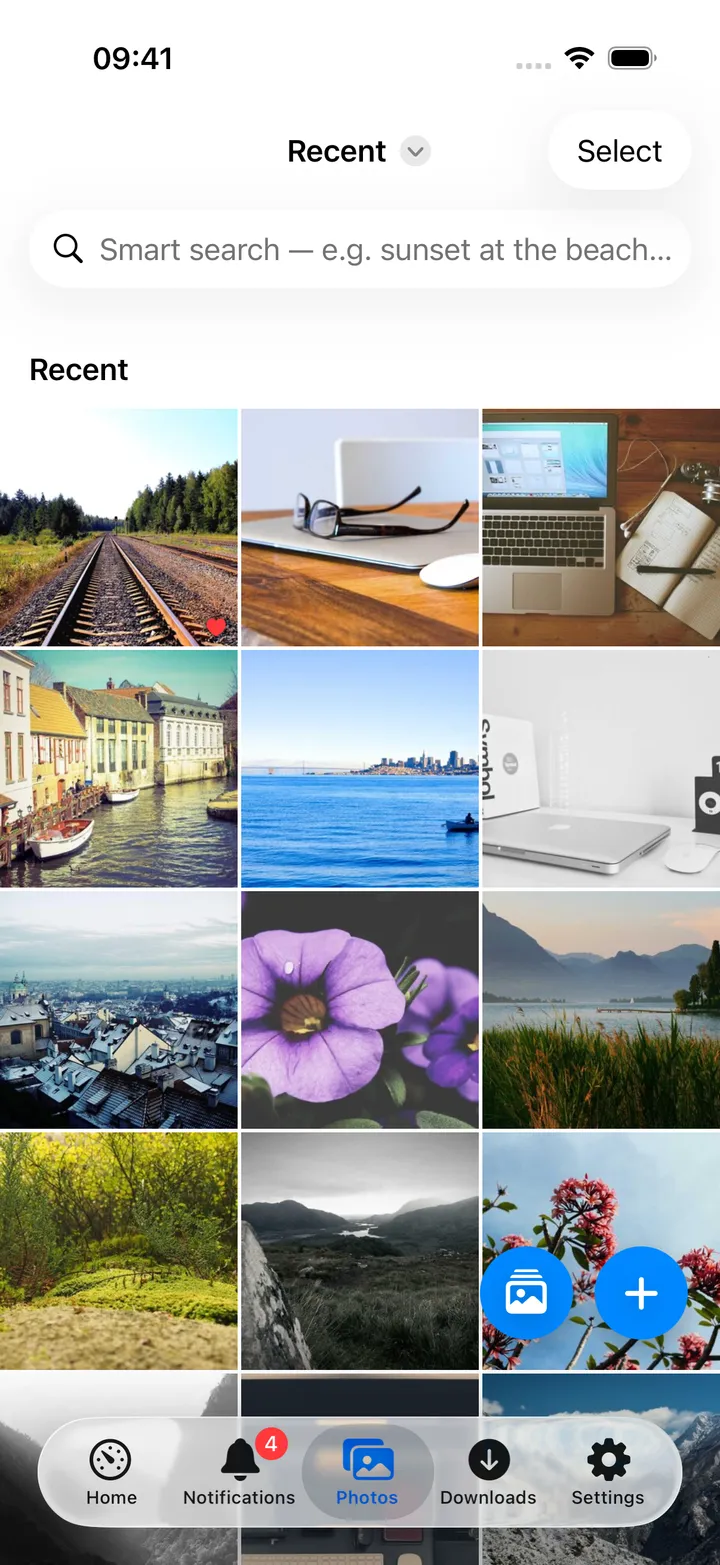
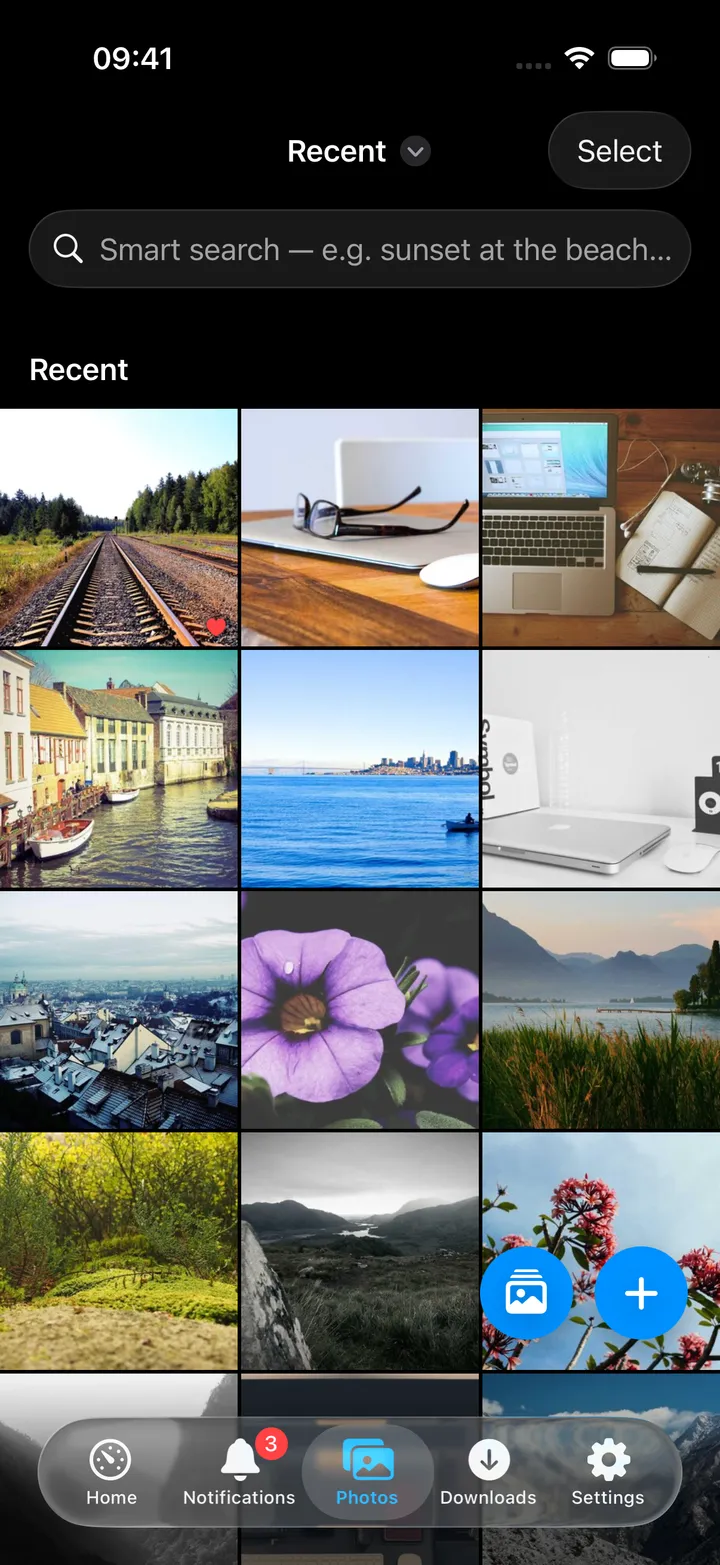
Views you can switch between are marked with a tick on the one in force.
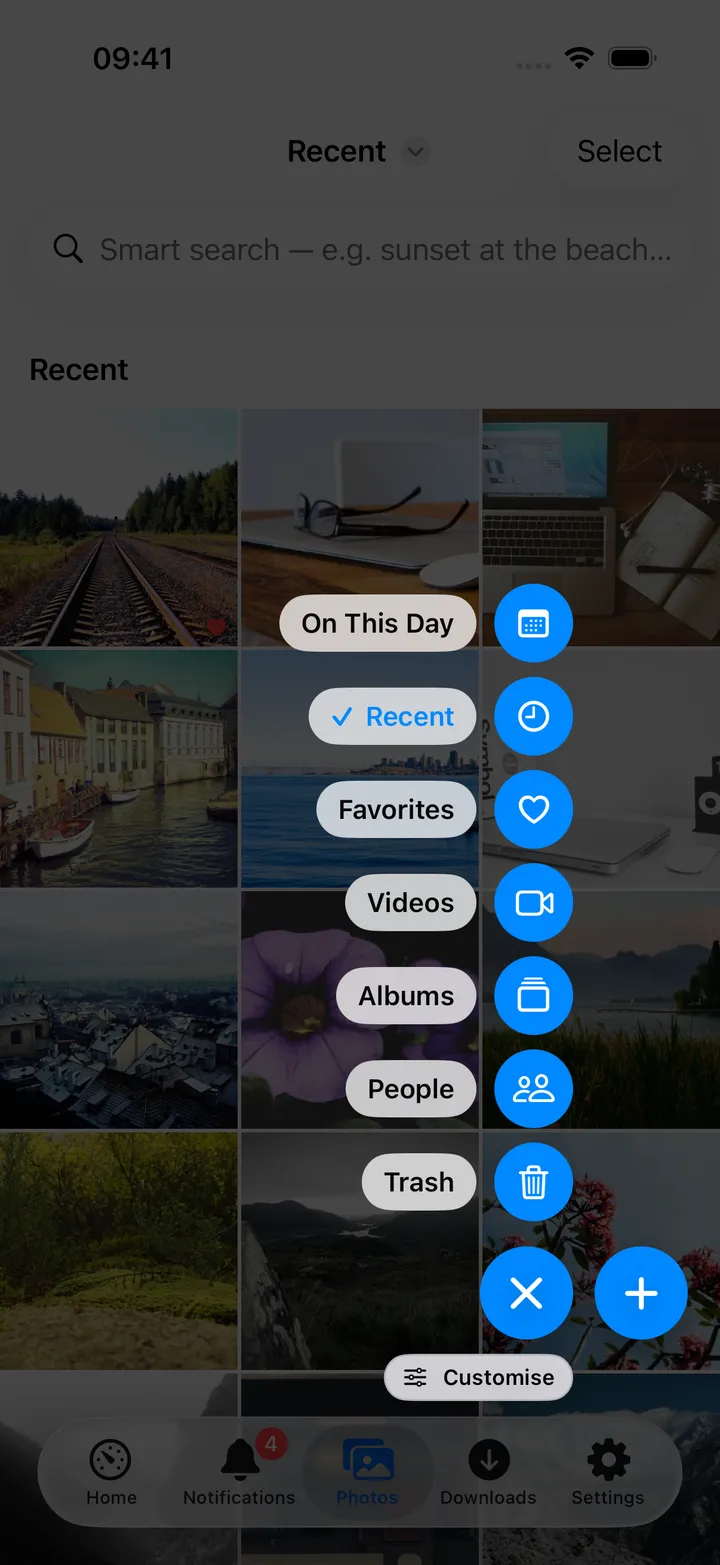
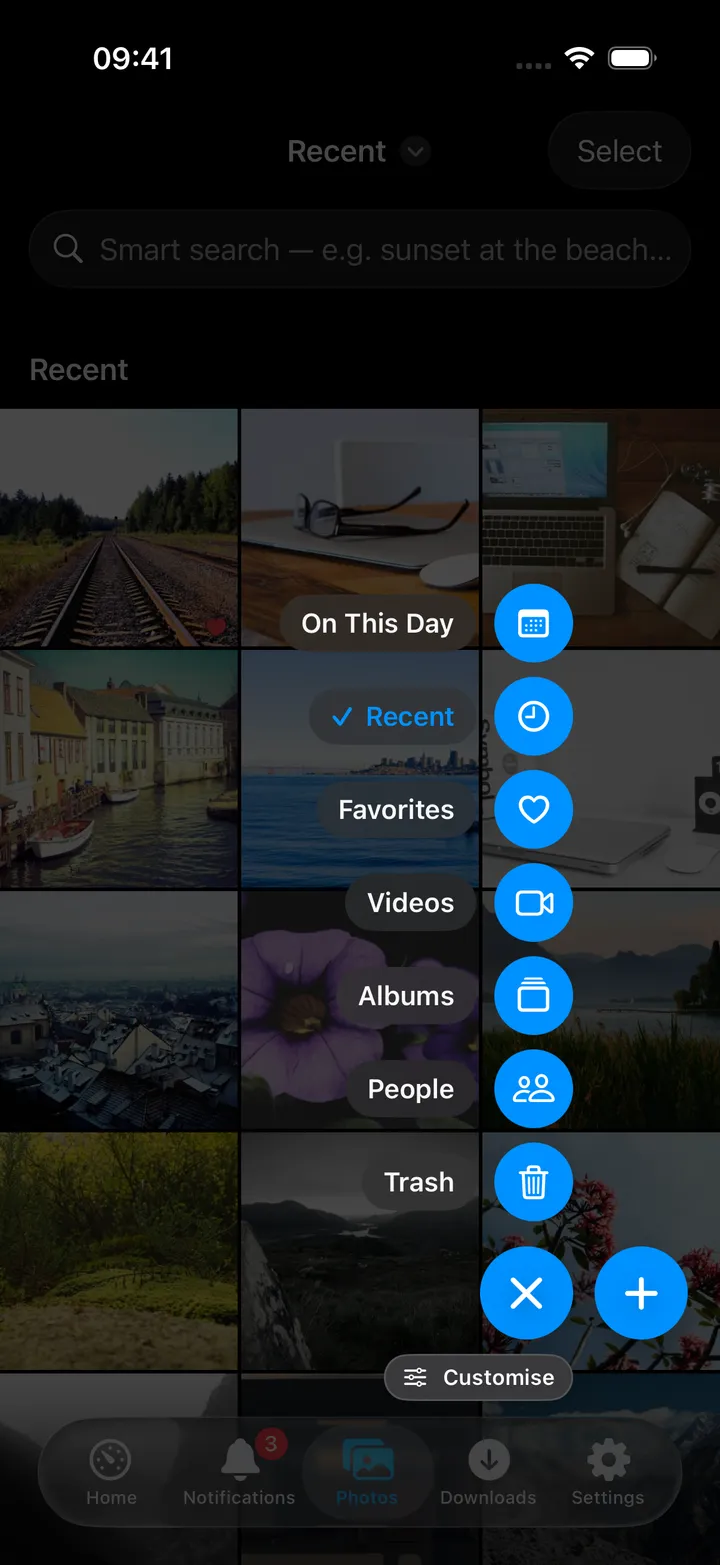
What each screen offers:
| Screen | Its button holds |
|---|---|
| Photos | Its views: On This Day (when there are memories for today), Recent, Favorites, Videos, Albums, People and Trash |
| Podcasts | Its views (Latest, Library, Downloads, Played), search, adding a feed, MeTube downloads, downloading a YouTube link, statistics, all notes, note settings and the OPML export |
| Watch | Resume and Next up, the media calendar, watch stats, your libraries, playback quality and precise seeking |
| Discover | Search, its categories, Requests and the media calendar |
| Downloads | Send to MeTube, MeTube downloads, Show seeding, and each client’s web app |
| Calendar | Today, New event, Month, Day and Agenda, previous and next month, the next 7, 14, 30 or 90 days, missing and failed episodes, the download queue, Shows, Add to Calendar, a show/hide switch per *arr app when you have several, and each app’s web app |
| Tasks | Add task, Today, Upcoming, All, No date and Completed, the calendar, new and reordered lists, and each of your lists |
| AdGuard | Pause and resume protection for several durations, the query log and the web app |
| Notes | The open note’s controls (see below) |
| Audiobooks, Books, Cloud, Code, Contacts, Docs, Indexers, MeTube, Music, Subtitles | That screen’s pages, filters, search, Refresh and Open for the service’s web app |
Most buttons also have Refresh and an Open … row for the service’s own web app (Photos, Podcasts and Notes do not). The menus at the top of each screen keep every action, so nothing is lost when you trim a button.
Choosing its actions
Open the menu and tap Customise under it. The card that appears works like the +’s: tap a row to swap it for another action, drag to reorder, remove what you do not use, and Add action for the rest. Most buttons start with the first five of their actions; Photos and Notes start with all of them. A button you emptied offers Choose actions…. Each screen keeps its own choice.
Turning them off
Settings → App → Screen action buttons lists every screen whose service is set up, each with a switch. They are all on until you change them; Turn all on and Turn all off do the lot.
The note controls
While a note is open, the screen action button carries that note’s controls: Edit note / Read note, Show Markdown / Visual editor, the three Attach from… sources, Notes settings and Delete note (Discard note for one not saved yet). They sit beside the + while you read; while you edit, the + hides and the note controls take its place. See Nextcloud Notes.
Every action on the +
| Action | What it does | Needs |
|---|---|---|
| Search everything | Opens the search sheet | always |
| Notifications | Opens the app badge breakdown | always |
| Podcasts | Podcasts, YouTube episodes, offline listening | always |
| Launch screen | A shortcut to any screen; each keeps its own destination | always |
| Add transaction | Firefly assistant with the keyboard up, and a row of amount keys above it: digits, . and + - * / ( ), so 12.50+3 is worked out for you |
Firefly III |
| Add fuel | Log a fuel-up, optionally with a payment template | LubeLogger |
| Add vehicle expense | Log an expense with an optional payment template | LubeLogger |
| Pause / resume AdGuard | Pauses DNS filtering for 30 minutes, or resumes it | AdGuard |
| Resume watching | Plays the first Continue Watching item | Jellyfin |
| Search Jellyseerr | Discover with the search field focused | Jellyseerr |
| Nudge subtitles | Opens the subtitle nudge screen | Subtitle sync |
| Server stats | Opens the Server screen | Glances / temps |
| Search photos | Immich search | Immich |
| Search the web | Web search on your SearXNG | SearXNG |
| Watch stats | Jellystat viewing statistics | Jellystat |
| Search Nextcloud | File search over names, text and OCR | Nextcloud |
| Alerts inbox | The ntfy inbox | ntfy |
| Code | Forgejo repos, PRs, reviews and Actions | Forgejo |
| Documents | Paperless search, inbox and upload | Paperless |
| Media calendar | Upcoming films, episodes, albums and books, plus stuck download queues | any *arr |
| Search indexers | Prowlarr search with grab-to-download | Prowlarr |
| Ebooks | Calibre-Web: search, send to Kindle, download | Calibre-Web |
| Send to MeTube | Queue a download from a pasted link | MeTube |
| Music | Navidrome playback, Lidarr requests, Soulseek search | Navidrome / Lidarr / slskd |
| Request music | Add an artist or album through Lidarr | Lidarr |
| Audiobooks | Continue listening and browse Audiobookshelf | Audiobookshelf |
| Contacts | Browse and add Nextcloud contacts | Nextcloud |
| Deck boards | Nextcloud Deck boards, lists and cards | Nextcloud |
| Add Deck card | Quick-add a card with dates, #list, @labels and // notes |
Nextcloud |
| Tasks | Today, upcoming, lists and labels | Nextcloud |
| New task | Natural-language quick add, such as “Pay rent tomorrow 5pm p1 #Home” | Nextcloud |
| Open daily note | Today’s note in Nextcloud Notes, ready to type; made when there is none yet | Nextcloud Notes |
| Add to daily note | Adds a line to the end of today’s note without opening it | Nextcloud Notes |
Actions whose service is not configured simply do not appear in the list. The two daily-note actions appear only once your Nextcloud has the Notes app; see Nextcloud Notes.