
Sample workspace
Look around a made-up homelab before you connect anything real: the real Home and its screens on nine sample services, with nothing sent anywhere.
iPhoneMacOn this page
You do not need a server to see what Pocket Homelab feels like. The sample is not a tour or a set of pictures: it is the real Home, running on a separate, throwaway copy of the app that is filled with made-up services.
Opening it
- iPhone: Look around first on the welcome screen, or Settings → Help & privacy → Explore sample workspace.
- Mac: Look around first on the welcome screen, or Settings → Help → Sample workspace.
What is in it
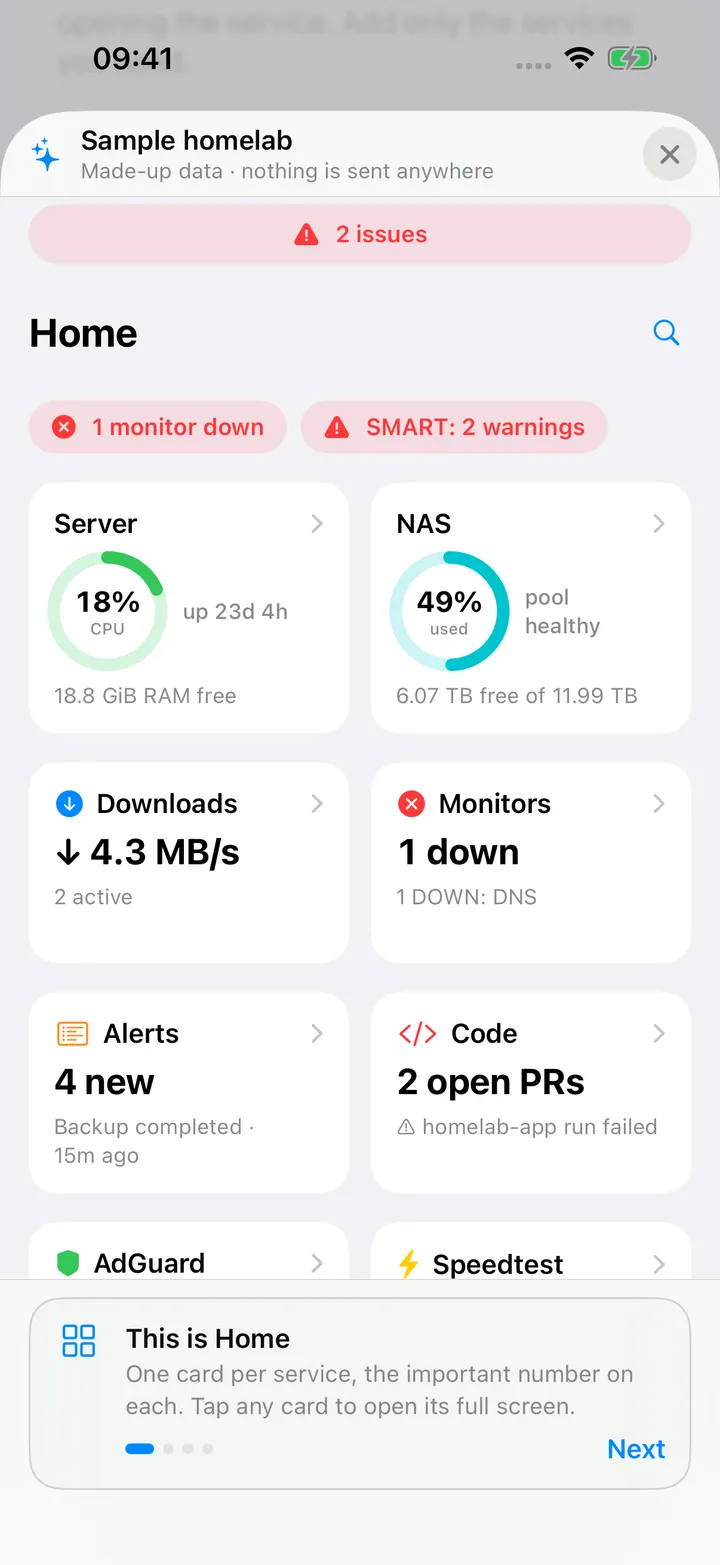
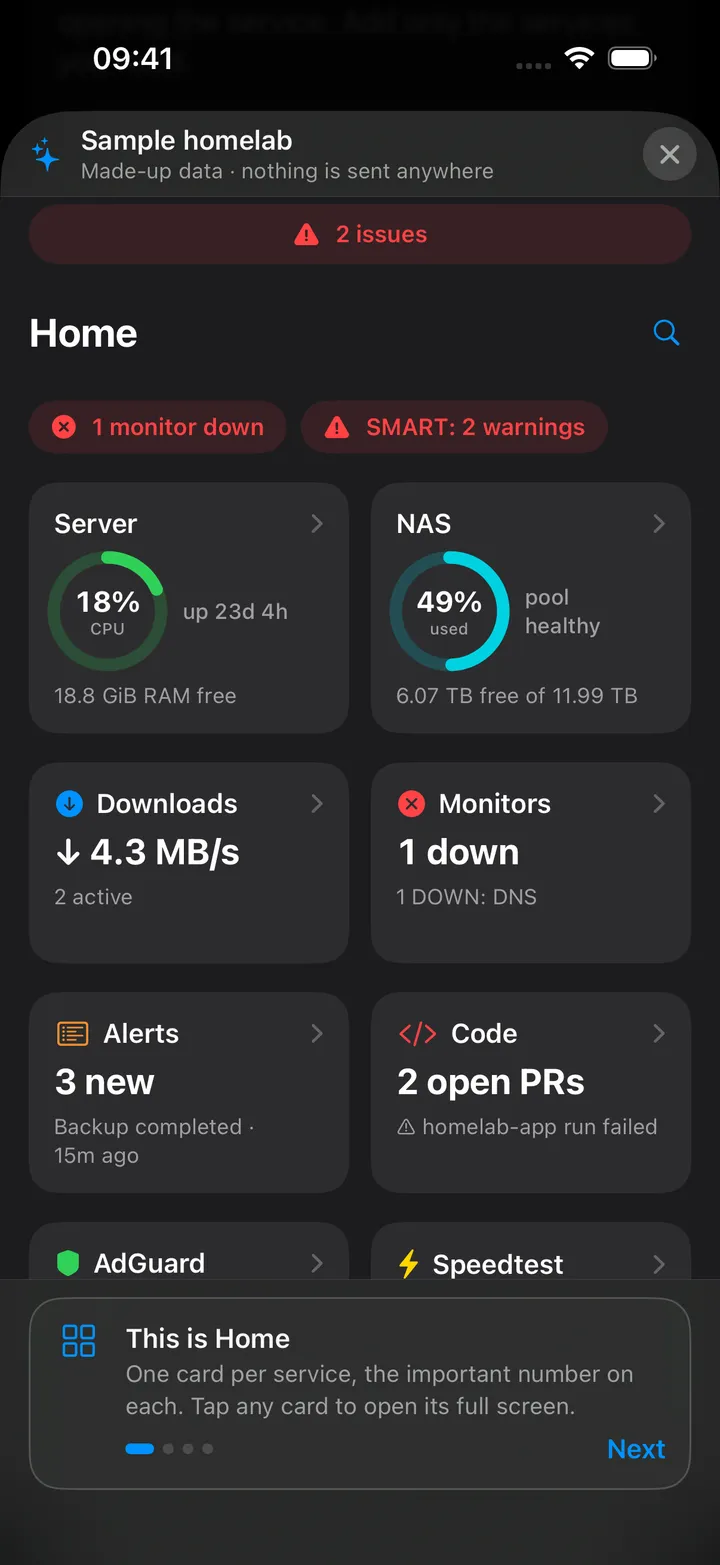
Nine made-up services, enough for Home to look like a homelab:
- Glances: Server stats with top processes.
- TrueNAS: a pool for the NAS gauge.
- Uptime Kuma: a mix of healthy and failing monitors.
- AdGuard Home: protection, the query log and filters.
- Scrutiny: disks with their details.
- Speedtest Tracker: recent speed tests.
- SABnzbd: a download queue mid-flight.
- Forgejo: repositories, pull requests and Actions runs.
- ntfy: an alert inbox on the topics
alertsanddownloads.
The issue chips, the Server and NAS gauges and the cards all work. Every card opens its real screen, and the magnifying glass searches what Home can show. A thin banner across the top reads Sample homelab · “Made-up data · nothing is sent anywhere”.
Four short tips at the bottom explain what is on screen (This is Home, What needs you comes first, Search everything, Yours stays yours), then Got it puts them away.
What is left out
The sample shares your saved Home layout, so it must not rearrange it: Edit Now, the badge bell, the card context menus, the Open in Browser row and the Getting started card are hidden. Podcasts is left out too, because it is this device’s own library and players. A tab screen other than Downloads shows “Not part of the sample”.
Leaving
On iPhone, the ✕ in the banner closes the sample. Opened from the welcome screen, it also has Connect my own services at the bottom, which closes the sample and opens the service catalogue. Nothing you did inside is saved.
On the Mac
The whole main window switches to the sample: the real sidebar, the Home widget board and every workspace the nine services bring. The banner reads “Made-up data. Nothing is sent anywhere and nothing you do here is saved.” and offers Leave the sample and Connect my own services. There is no Edit, no Getting started card and no Podcasts in the sample. Settings, the menu bar item and the menu commands stay on your real configuration.
Trying video playback
On iPhone there is also Try video playback, under Settings → Help & privacy → Explore before connecting (also reachable from the welcome screen through How it works → Help & privacy). It plays a 12-second clip that ships with the app in the same full-screen player Jellyfin videos open in, so you can try the controls and rotation before you connect a server. Nothing is loaded from the network. The clip has no subtitles, audio tracks or episodes, so the player’s Options and Episodes menus stay empty. The Mac has no equivalent.