
Nextcloud Contacts
Browse, search and edit Nextcloud address books, including phone numbers, addresses and photos.
iPhoneMacOn this page
Nextcloud’s Contacts app stores your address books over CardDAV. Pocket Homelab reads and edits them directly, one address book at a time, with call, email and website links and a full editor for every vCard field. It uses the same Nextcloud connection as Files, Notes, Deck and Tasks; there is no separate service to configure.
What you get
- Home row: a static card titled Contacts (“Address books” / “Nextcloud Contacts”); it never fetches a live count, it just opens the Contacts screen.
- “Contacts” tab (optional, off by default).
- Screen action button (iPhone): a round button beside the + on the Contacts screen with its add, address-book and group controls.
- Quick action: Contacts (⌥⇧⌘C on Mac).
- Spotlight/palette: a Contacts entry. On iPhone, the search sheet also finds individual contacts from 2 characters (by name, organization, nickname, email, phone number or group), and a hit opens the contact. Up to four address books are searched; a phone number matches however it is spaced. The Mac palette does not search contacts.
- Mac: a two-pane Contacts page (⌃⌥⌘5) in the sidebar’s Workspace section, with the chosen contact as a card page.
- A copy on the device: the address books and their contacts are kept on the device per account, so the screen opens with the last list at once and refreshes behind it. While Contacts is a tab on iPhone, the list also loads when the app starts.
- No push notifications. Edits need a connection.
Set up
Contacts shares its credentials with Nextcloud Files. If you have not already, follow Nextcloud → Set up to create an app password.
| Key | Field | Required | Secret | Where to get it |
|---|---|---|---|---|
NEXTCLOUD_URL | Nextcloud URL | Required | — | Base URL of Nextcloud, including its subpath if any. |
NEXTCLOUD_USERNAME | Nextcloud Username | Required | — | Your Nextcloud user ID (not display name). |
NEXTCLOUD_APP_PASSWORD | Nextcloud App Password | Required | Secret | Create an app password in Nextcloud → Personal settings → Security. |
Contacts opens on the address book you chose last. Until you pick one, it opens on the book called Contacts (Nextcloud’s own), not on “Recently contacted” or whichever book the server lists first.
On iPhone
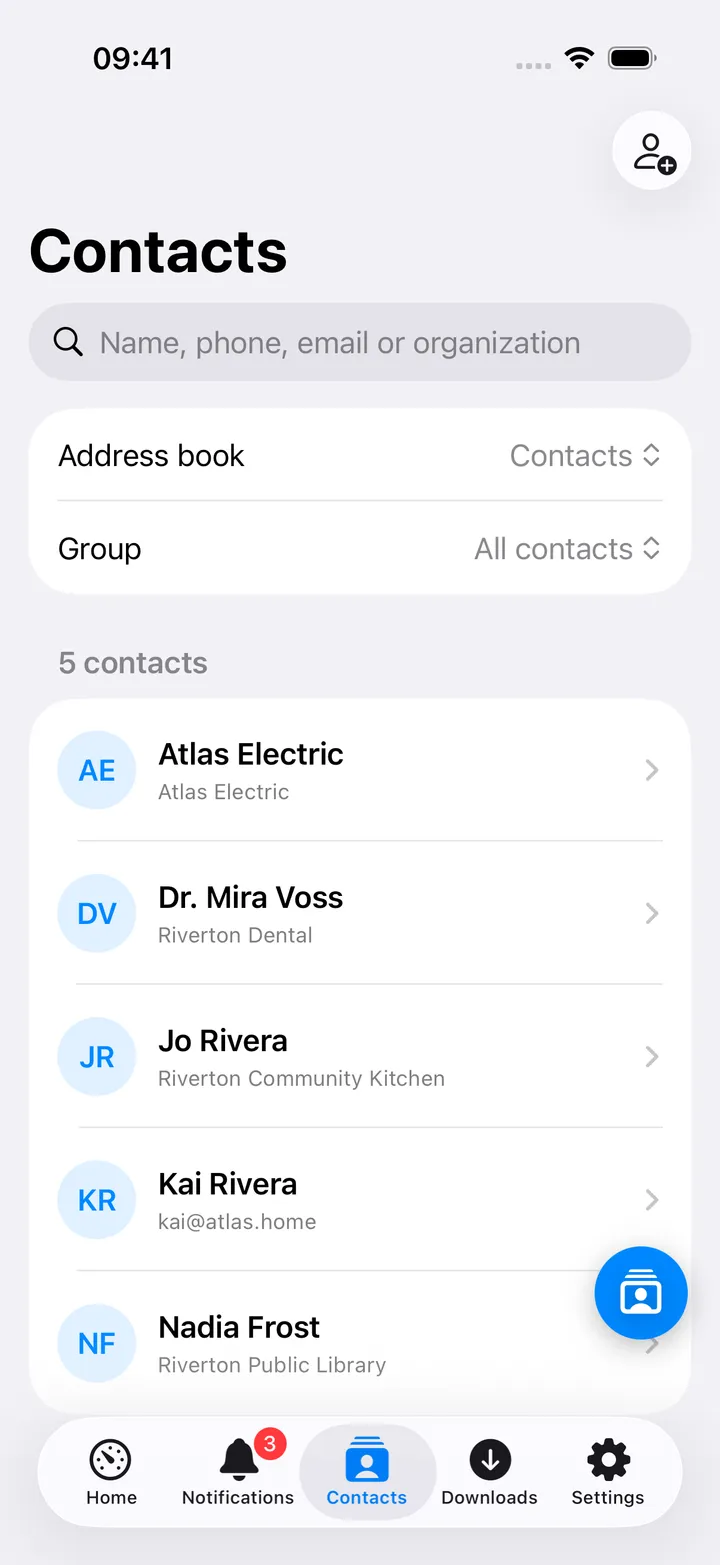
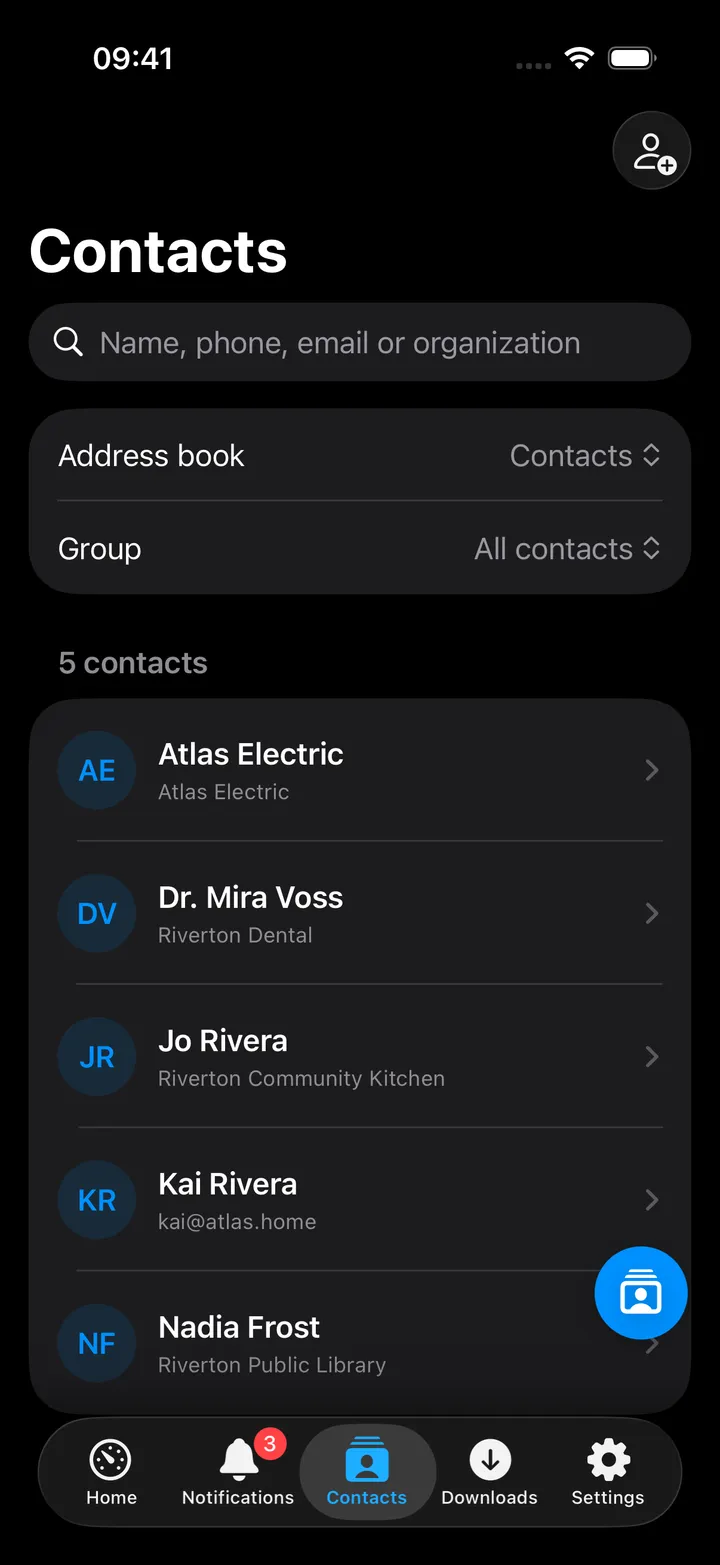
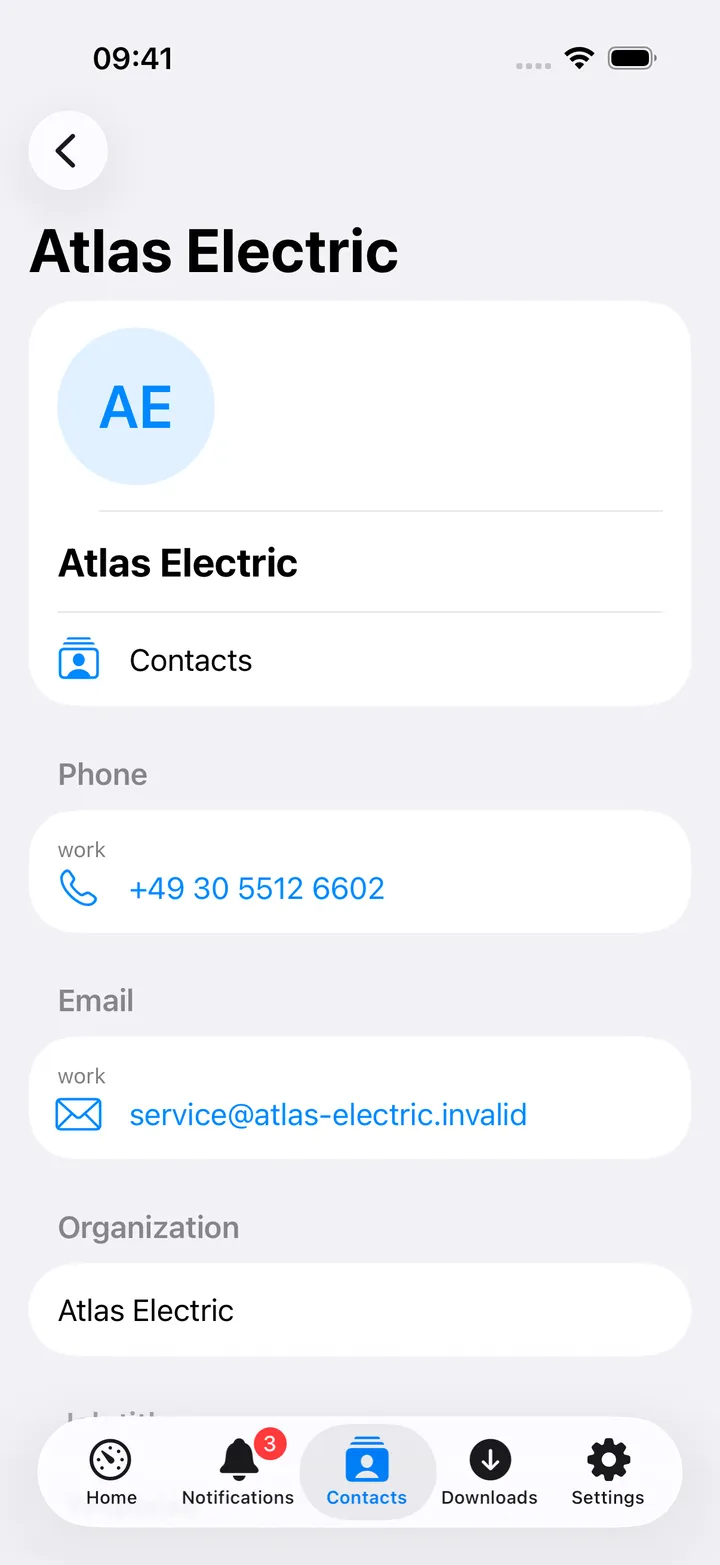
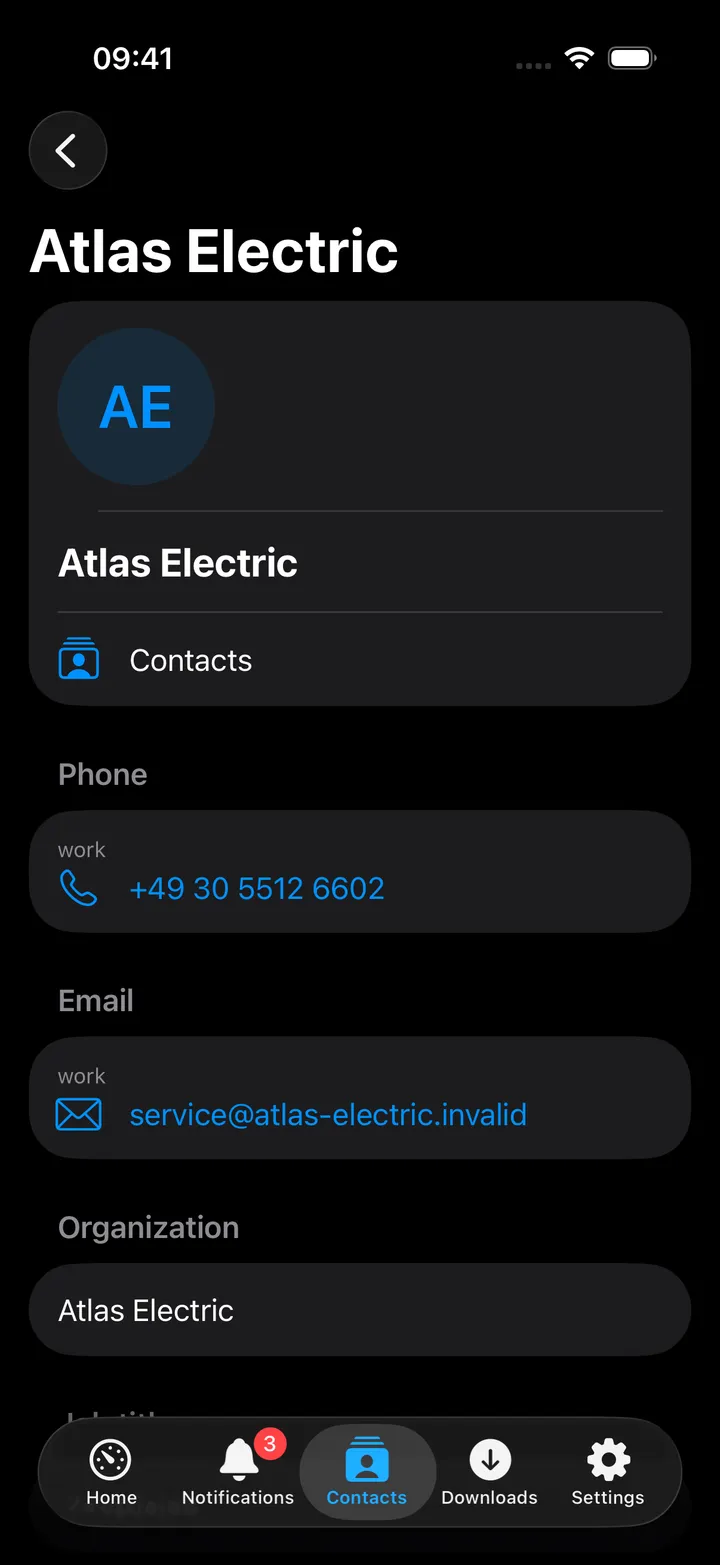
Pick an address book from the Address book picker at the top (a read-only book says so under it), filter by Group when your contacts have groups, or search by name, phone, email or organization. Each row shows the photo or initials, the name and the first organization, email or phone number. Tap a contact for its detail screen, with phone numbers, emails and websites as links, then Edit contact and Delete contact on writable books. The Add contact button sits at the top.
The round button beside the + carries Add contact, Refresh, All contacts, Open Nextcloud Contacts, then each address book (when there are several) and each group, with the ones shown marked. It shows five of them until you choose your own with Customise, and you can turn it off in Settings → Screen action buttons.
The editor supports every common vCard field (name, phone, email, address, organization, job title, website, birthday, anniversary, messaging, groups, notes and a photo) plus an Add field menu for anything not shown by default.
On Mac
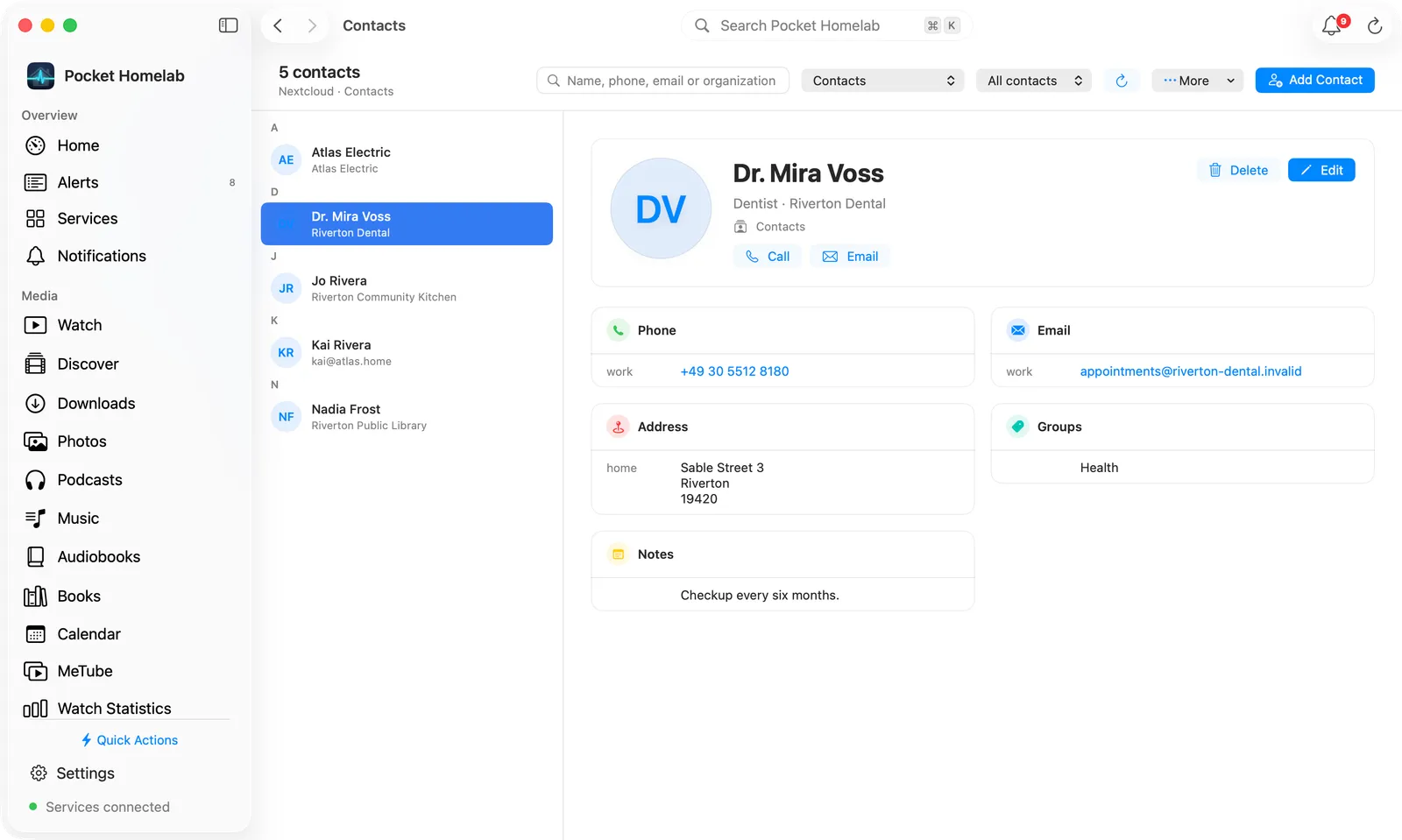
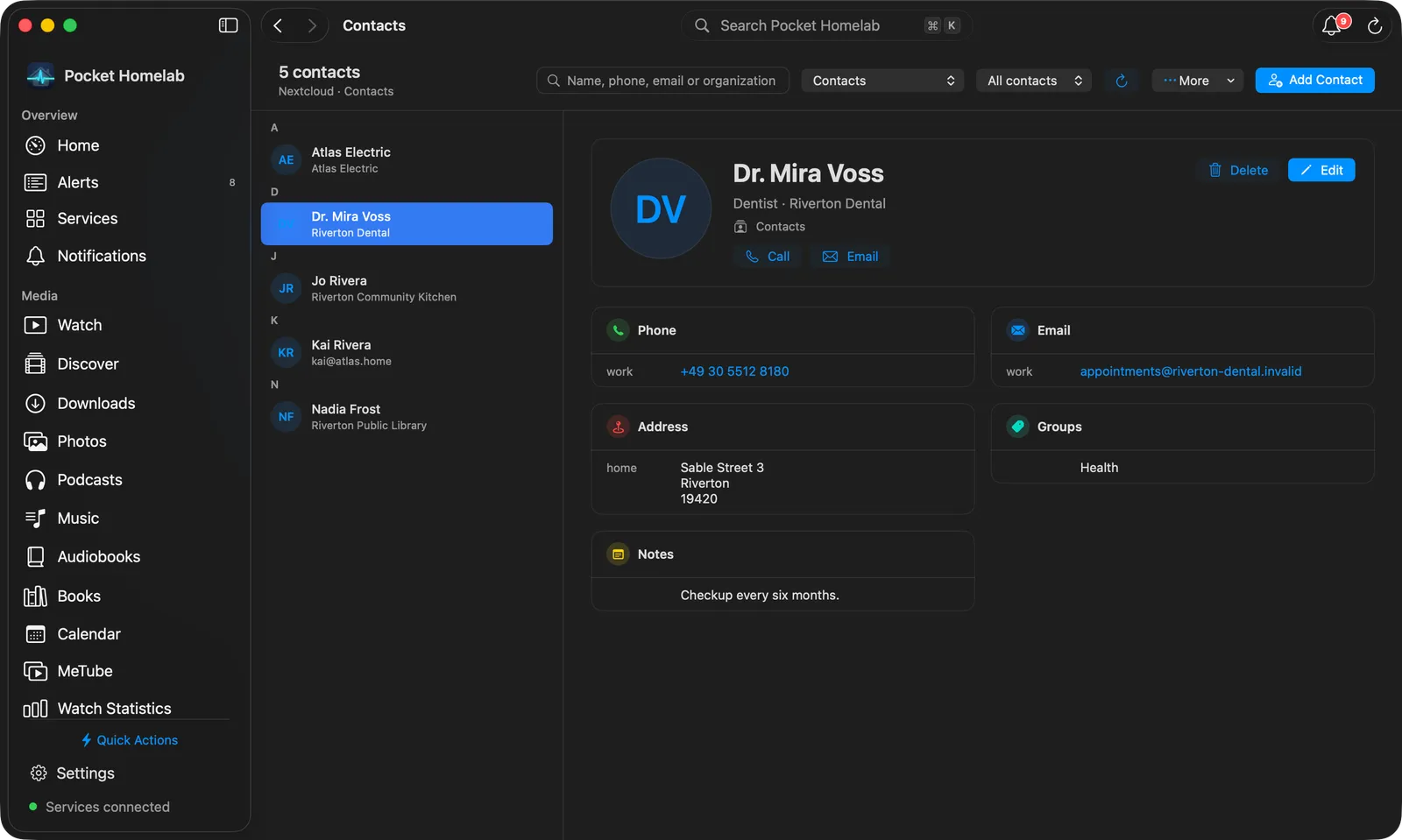
A bar across the top shows the contact count and the address book (with read-only when you cannot edit it), then a search field (name, phone, email or organization), an address-book menu when you have more than one, a group menu when your contacts have groups, Refresh (⌘R), a More menu with Open Nextcloud Contacts, and Add Contact.
The left pane lists the contacts by first letter (digits and symbols under #), each with its photo or initials, name and first detail; the letter stays pinned while its contacts scroll past. Click a contact to show it on the right as a page: a card with the photo, name, job title and organization, the address book, and Call, Email and Website buttons, with Delete and Edit on writable books. Below it, one card per kind of detail (Phone, Email, Address, Website, Messaging, Birthday, Anniversary, Nickname, Groups, Notes), with the label beside each value and phones, emails and websites as links. Edit opens the same editor as iPhone, with the macOS Photos picker for the contact photo; a new contact is selected once saved.
Actions
- Create a contact (in a writable address book).
- Edit a contact’s fields, including the photo (re-encoded as JPEG, 5 MB source limit).
- Delete a contact (confirmed).
Address books themselves cannot be created, renamed or shared from the app, and contacts cannot be moved between books. A read-only address book (shared or system-generated, without write permission in Nextcloud) shows a lock icon and hides every write action.
- Notes about this: a contact’s page ends with the notes that link to the card and Write a note about this, when your Nextcloud has Notes.
Works with
- Shares the
nextcloudcredential group and free-tier slot with Files, Notes, Deck and Tasks; pausing Nextcloud hides Contacts too. - Reuses the same CardDAV/CalDAV XML parser as Tasks, so some error text is prefixed “Nextcloud Tasks:” even for a Contacts request. That is expected, not a bug.
Tips & troubleshooting
- “This contact changed on the server. Refresh before editing again.” means someone (or another device) edited the same contact first: close the editor, refresh, and re-apply your change.
- A contact without an ETag (rare, from an unusual server response) cannot be edited or deleted until you refresh the list.
- Without a connection you still see the copy kept on the device, with an error and Retry above it; there is no offline queue for contact writes.