
ntfy
A read-only inbox for your homelab's ntfy notifications, plus the app badge that counts unread alerts and due tasks.
iPhoneMacOn this page
ntfy is a simple pub-sub notification server most homelabs already point everything at: backups, monitoring, container updates, security events. Pocket Homelab reads your topics and mirrors them into an in-app Alerts inbox, with a banner when a message arrives while you’re using the app.
What you get
- Home row “Alerts”: “3 new” / “All read”, with the latest message’s cleaned title and how long ago it arrived. Red when unread failures exist among the latest 20 messages, otherwise orange. In Settings → Home layout, the card’s Show on this card picks Unread count (the default) or Latest message.
- Home header option “Latest alert”: title, age and unread count, coloured by message kind (failure/red, success/green, info/orange).
- An in-app banner slides in for 6 seconds when a message streams in while the app is open elsewhere; tap it to open the message.
- Tab badge on Alerts = unread count; the Notifications tab/screen and the app icon badge add unread alerts on top of today’s and overdue Nextcloud to-dos.
- Quick action “Alerts inbox”; Spotlight entry “Alerts” (ntfy, notifications, inbox, messages), plus live hits from recent message titles and bodies in an Alerts section of the results.
- Deep links by category: a backup message opens Backups, a download message opens Downloads, a monitor/network message opens Monitors, a storage message opens NAS, and so on, only when that destination is configured.
- Write it up in Notes on any message, when Nextcloud Notes is set up.
- Mac: sidebar Alerts under Overview with the unread count (⌃⌘7 by default), an Alerts widget for Home, menu bar rows “Alerts” (“N unread”) and Latest alert, an Unread alerts reading for the menu bar itself, the quick action (⇧⌘B by default) and a browser link to ntfy on its card in the Services directory.
- Included in the sample workspace, with fictional messages on two topics.
Set up
- ntfy has no token field in Pocket Homelab, the server (or the specific topics) must be readable without credentials from your device. If your ntfy server requires auth for reads, either make the topics public or put ntfy behind your VPN so only trusted devices can reach it.
- In Pocket Homelab: Settings → Services → ntfy, paste the base URL and a comma-separated list of topics, then Test connection.
| Key | Field | Required | Secret | Where to get it |
|---|---|---|---|---|
NTFY_URL | ntfy URL | Required | — | Base URL of your ntfy instance. Leave empty to hide ntfy features. |
NTFY_TOPICS | Topics | Required | — | Comma-separated topics to read, e.g. alerts,downloads. |
On iPhone
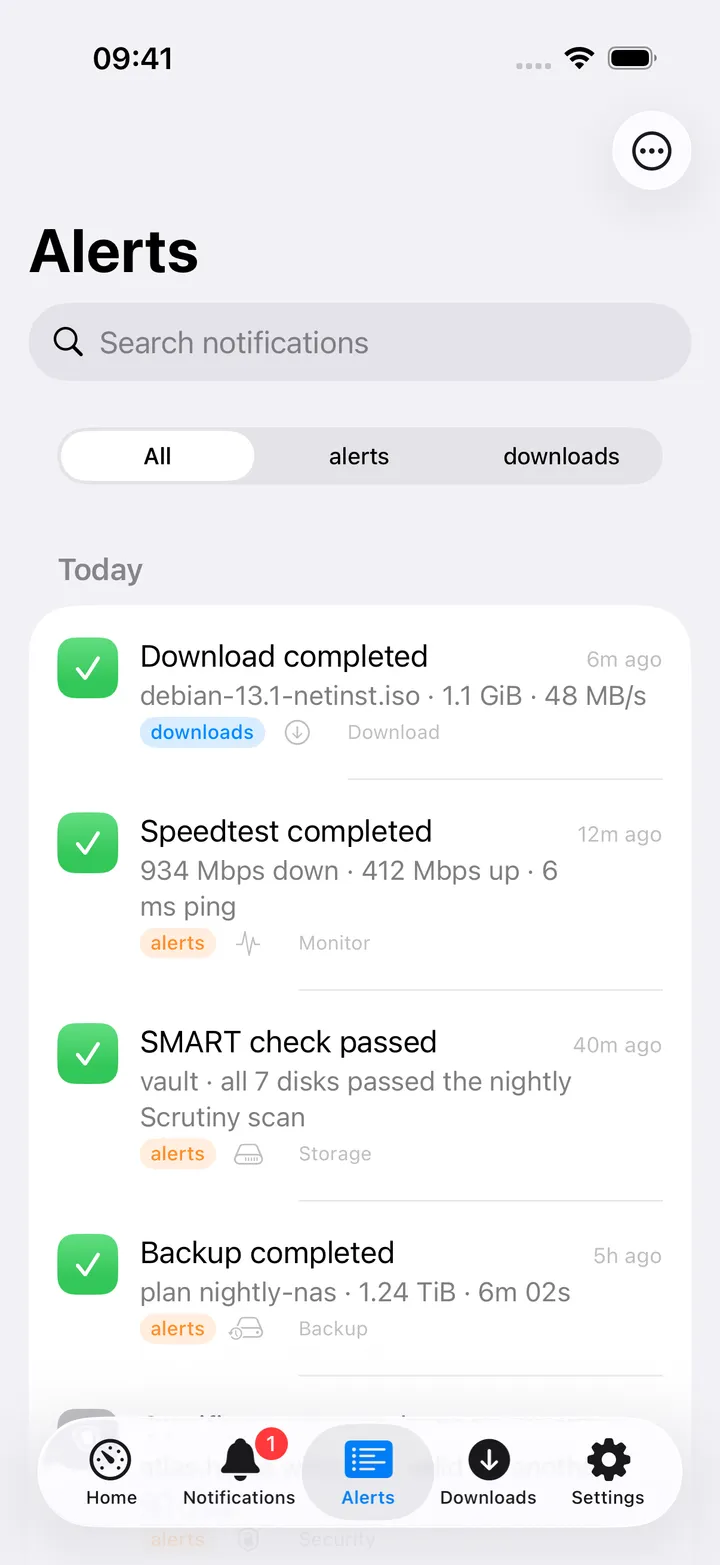
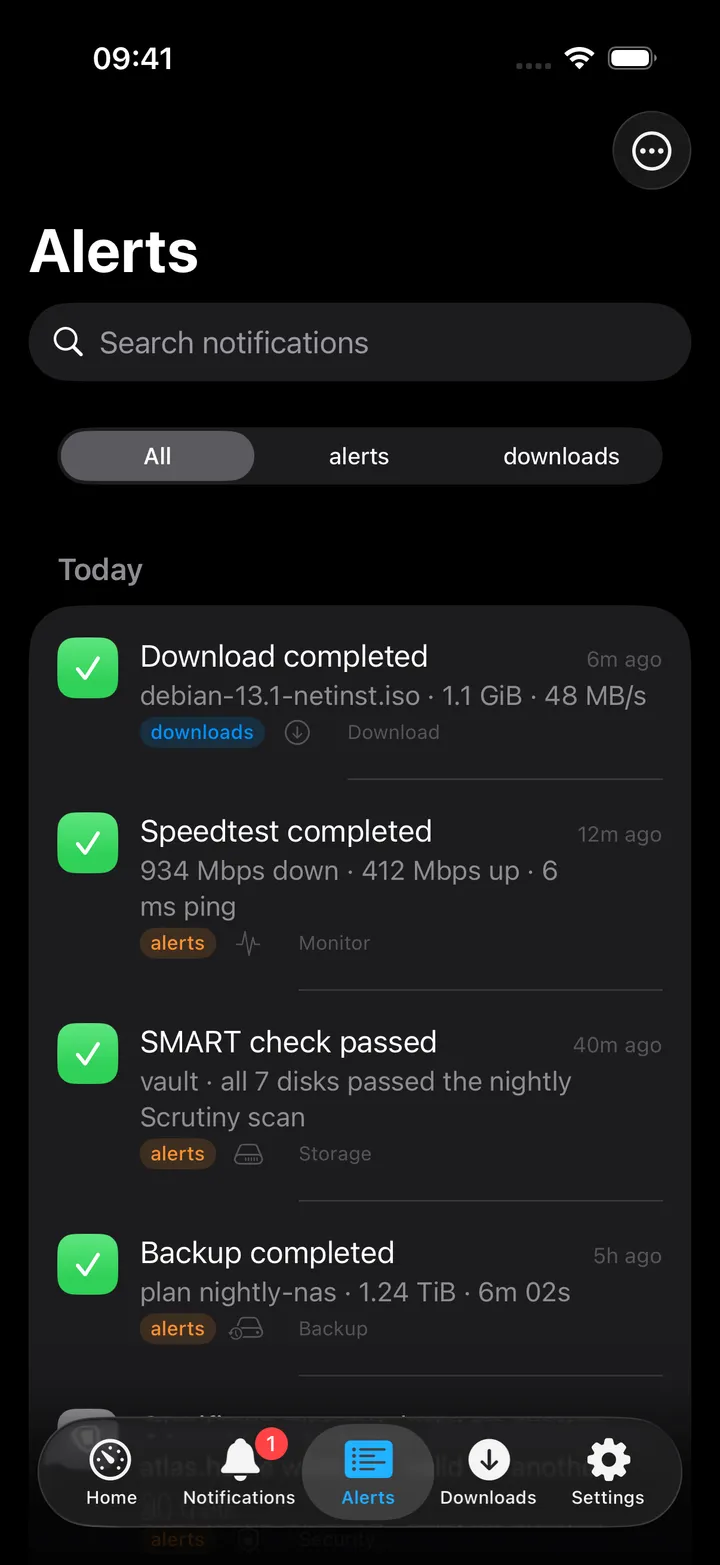
The Alerts screen groups messages by day (Today, Yesterday, then the weekday and date), with a segmented topic picker when you have more than one topic and a search field over titles and bodies. Each row shows the kind icon, the title, the first line of the body, the topic and the age. Opening the screen marks everything as read. The ⋯ menu has Mark all as read and Open ntfy. Long-press a message for Write it up in Notes.
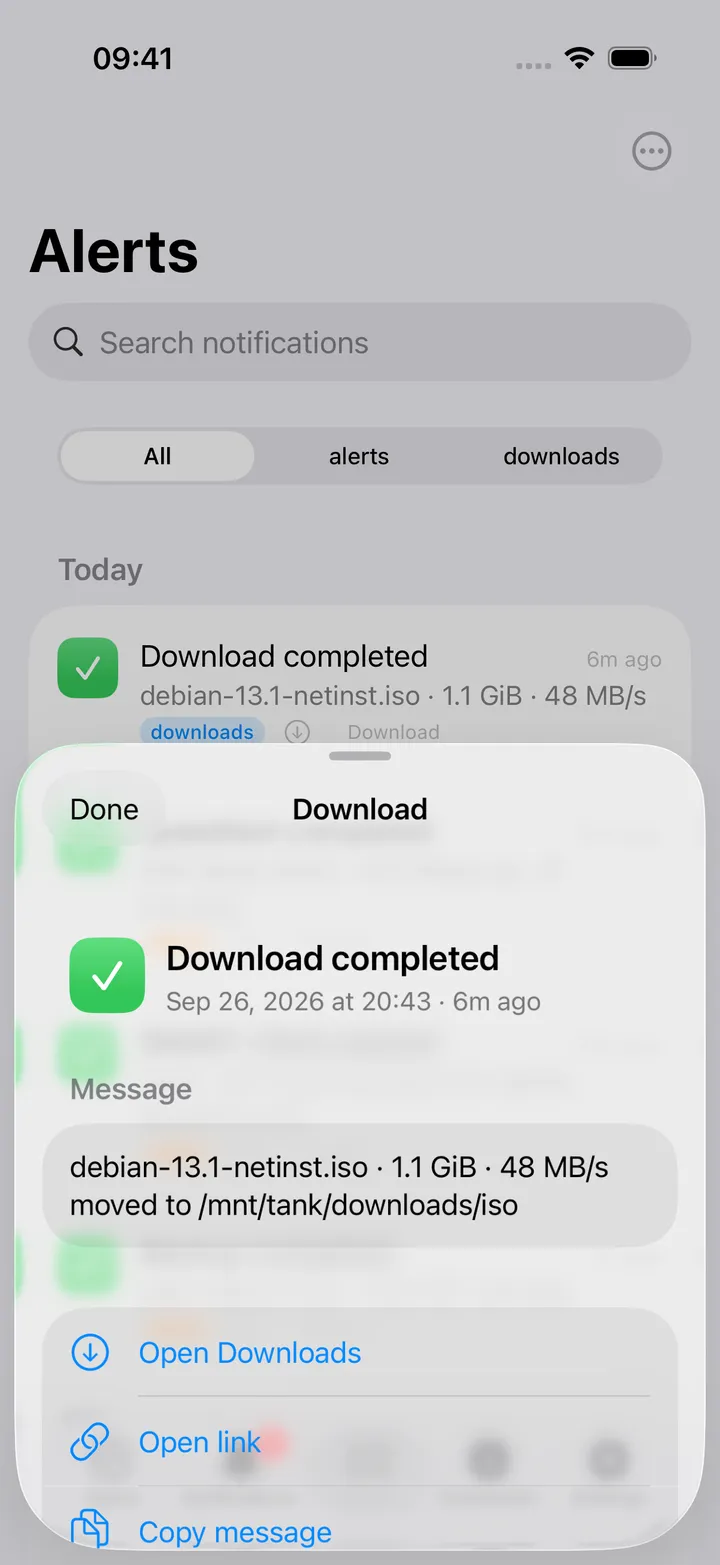
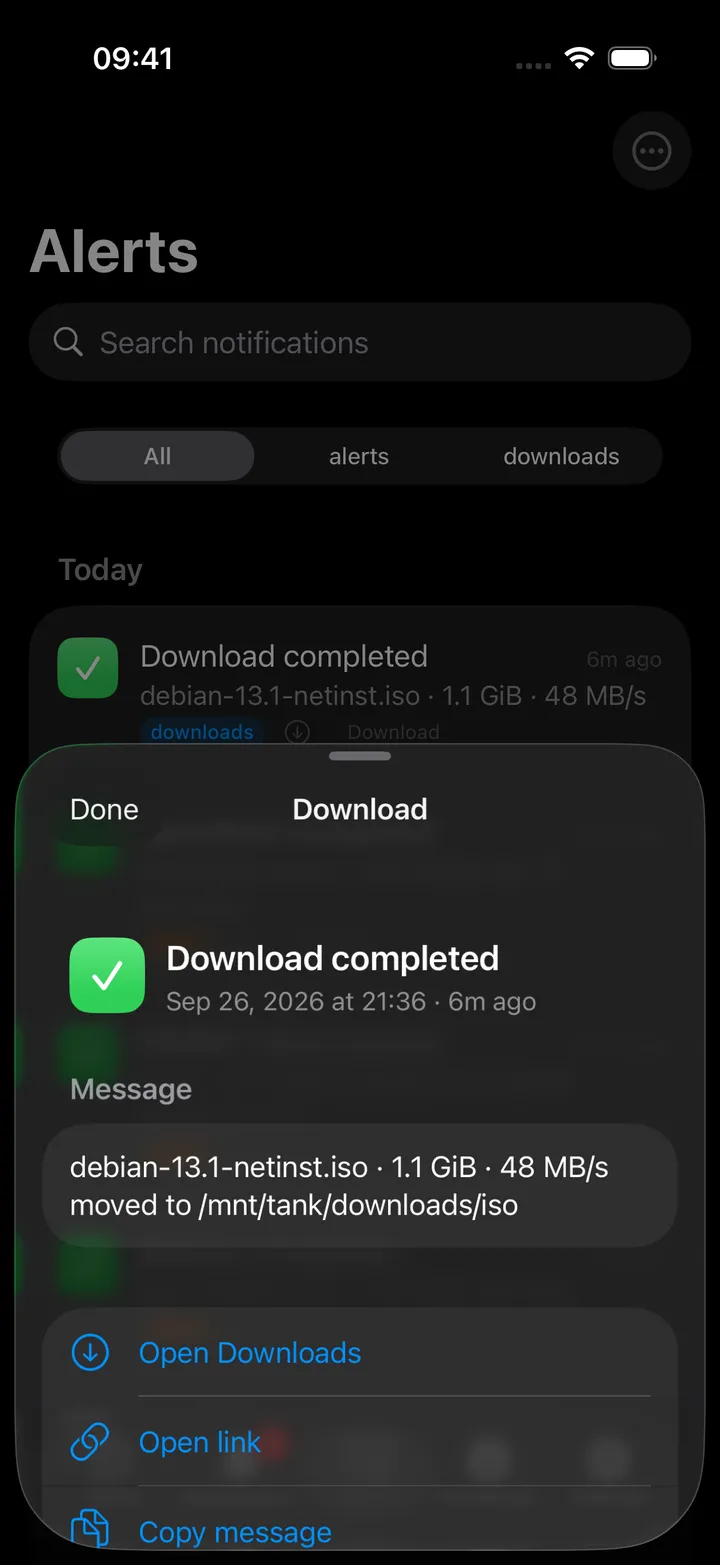
Tapping a message opens a detail sheet (at full height when the message is long) with the title, when it arrived, the full body, an “Open <Destination>” action when the message’s category maps to a configured screen, “Open link” if the message carries a click URL, “Copy message”, Write it up in Notes, and a Details section (topic, category, and the priority and tags when the message has them).
On Mac
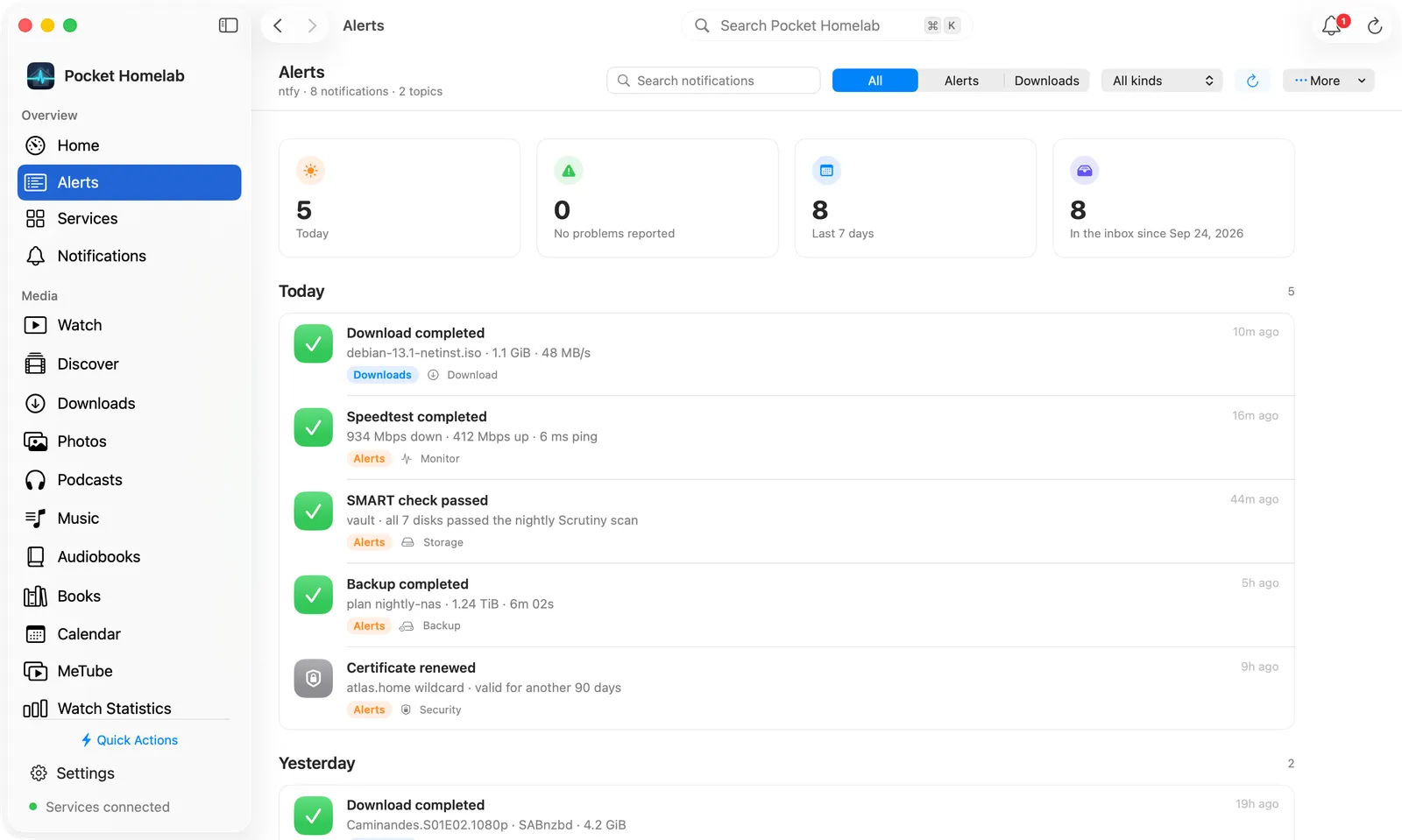
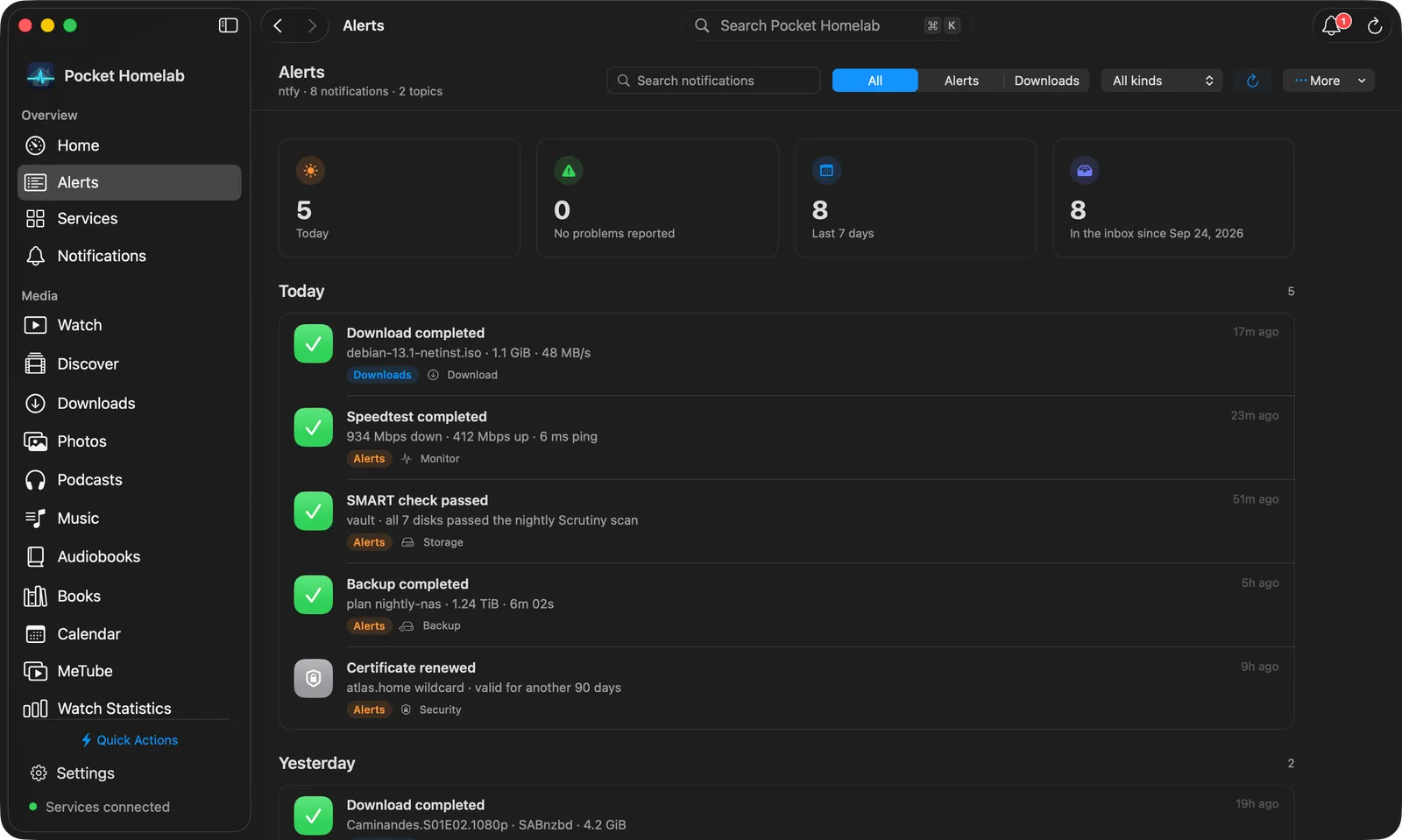
The Alerts workspace starts with a bar: Alerts, with “ntfy”, the number of notifications and your topics underneath. On the right are Search notifications, the topics as a segmented control (with more than one topic), a kind menu (All kinds, or only the kinds present, such as Backup, Download or Monitor), Refresh (⌘R) and a More menu with Mark all as read and Open ntfy.
Four tiles follow: messages Today, Problems (click it to show only the failures, click again to show everything), the Last 7 days, and everything in the inbox with the date of the oldest message. Each day is then a card headed with its date and count, with a row per message: a large kind icon, the title (bold while unread), up to two lines of the body, the topic, the kind, an unread dot and how long ago it arrived (hover for the exact time). Right-click a row for Open, Copy message and Write it up in Notes.
Clicking a message opens its detail sheet. A bar across the top has the kind icon, the title, the kind, topic, date and age, and the buttons Copy, Write It Up, Open Link (when the message has a click URL) and Open <Destination>. Below it the message sits in a card with a coloured edge (red for a problem, green when all is good), then a Details card with the topic, kind, the full date received, and the priority, tags and link when there are any. A click outside the sheet closes it.
The Home Alerts widget shows the unread count, how many messages are loaded, the number of topics, the time of the latest message and how many have high priority, then the recent messages; click one to open it.
Actions
None on ntfy itself: the read/unread marker lives only on your device and does not sync with any other ntfy client. The Notifications screen can complete Nextcloud to-dos from its task rows, but that is a Nextcloud action, not an ntfy one.
Works with
- Notifications and the app badge: the app icon badge and the Notifications tab count the sum of unread alerts, today’s incomplete Nextcloud tasks, and overdue Nextcloud tasks (today and overdue are counted separately). Disabled or unconfigured sources contribute zero. You choose which sources count and their display order in Settings → App → App badge on iPhone (inside Settings → Notifications in builds with push notifications) and in Settings → App Badge on the Mac. The Notifications screen shows the total with what makes it up, then a section for each source that has something in it; Mark all as read sits in the header of the alerts section. Sources with nothing in them are named in one line at the bottom, and when nothing is counted at all the screen just says All clear. Reorder changes the order of the sections.
- Deep links from alerts into Backups, Downloads, Discover, Subtitles, Monitors and NAS, depending on message category.
- Nextcloud Notes: Write it up in Notes starts a new incident note with the alert’s title, topic, time and text, a timeline, and a snapshot of how the homelab stood at that moment, with headings left for the cause and the fix.
- Spotlight surfaces recent alert titles/bodies as live search hits.
Tips & troubleshooting
- Native push notifications are not part of the public build. There is no push relay, no APNs registration, and no separate Notifications settings screen for delivery: this Alerts inbox (built on ntfy’s own HTTP polling and streaming, with in-app banners while the app is open) is the full notification experience. A shared push service is planned but not released; do not expect it in the current app.
- The stream that feeds the in-app banner only runs while the app is in the foreground. It stops in the background and catches up on history when you return, so treat this as an inbox you check, not a push channel.
- Message “kind” (failure/success/info) and “category” (backup, download, monitor, storage, security, …) are guessed from the message, not a field ntfy sends. The kind comes from the title, the tags and the icon (a high or max priority also counts as a failure); the category comes from keywords in the title and the first line of the body. A title mentioning “adguard” lands in the Network category and links to Monitors, not to AdGuard.
- Containers, security and other messages have no screen to open, so their detail sheet has no Open button.
- Reading a message in another ntfy client does not mark it read here; the two are independent.