
MeTube
Paste a link, pick a destination and quality, and queue a video or audio download with yt-dlp under the hood.
iPhoneMacOn this page
MeTube is a small web UI over yt-dlp. Pocket Homelab gives it a Send to MeTube sheet with a paste field, destination and format pickers, a full download history, and can hand a finished audio download straight to Podcasts.
What you get
- Home tile (“MeTube”): value
<n> downloadingor<n> downloaded, caption shows the first queued item’s title and percent, or the most recent finished download. Tapping it opens MeTube downloads. - MeTube alone is enough to unlock the Downloads tab, even with no torrent/Usenet client configured.
- Send to MeTube sheet: paste or auto-detect a clipboard link, choose a destination folder, Audio or Video, format and quality.
- MeTube downloads screen: Downloading, Pending, Failed (with Retry) and Downloaded sections, filtered by All, Audio or Video and searchable across titles, links and folders. It can be a tab of its own (MeTube, turn it on in Settings → Tabs).
- Quick action: Send to MeTube.
Set up
- MeTube needs no login of its own, it is meant to sit behind a reverse proxy, so the app sends no credentials to it at all.
- In the app, go to Settings → Services → MeTube, paste the URL, then press Test connection.
- Optional: list extra destination folders in
METUBE_FOLDERS, see the format below.
| Key | Field | Required | Secret | Where to get it |
|---|---|---|---|---|
METUBE_URL | MeTube URL | Required | — | Base URL of your instance. Leave empty to hide MeTube features. |
METUBE_FOLDERS | MeTube Destinations | Optional | — | Comma-separated extra folders as folder|Label[|video]. Add |video to download video instead of opus audio. |
On iPhone
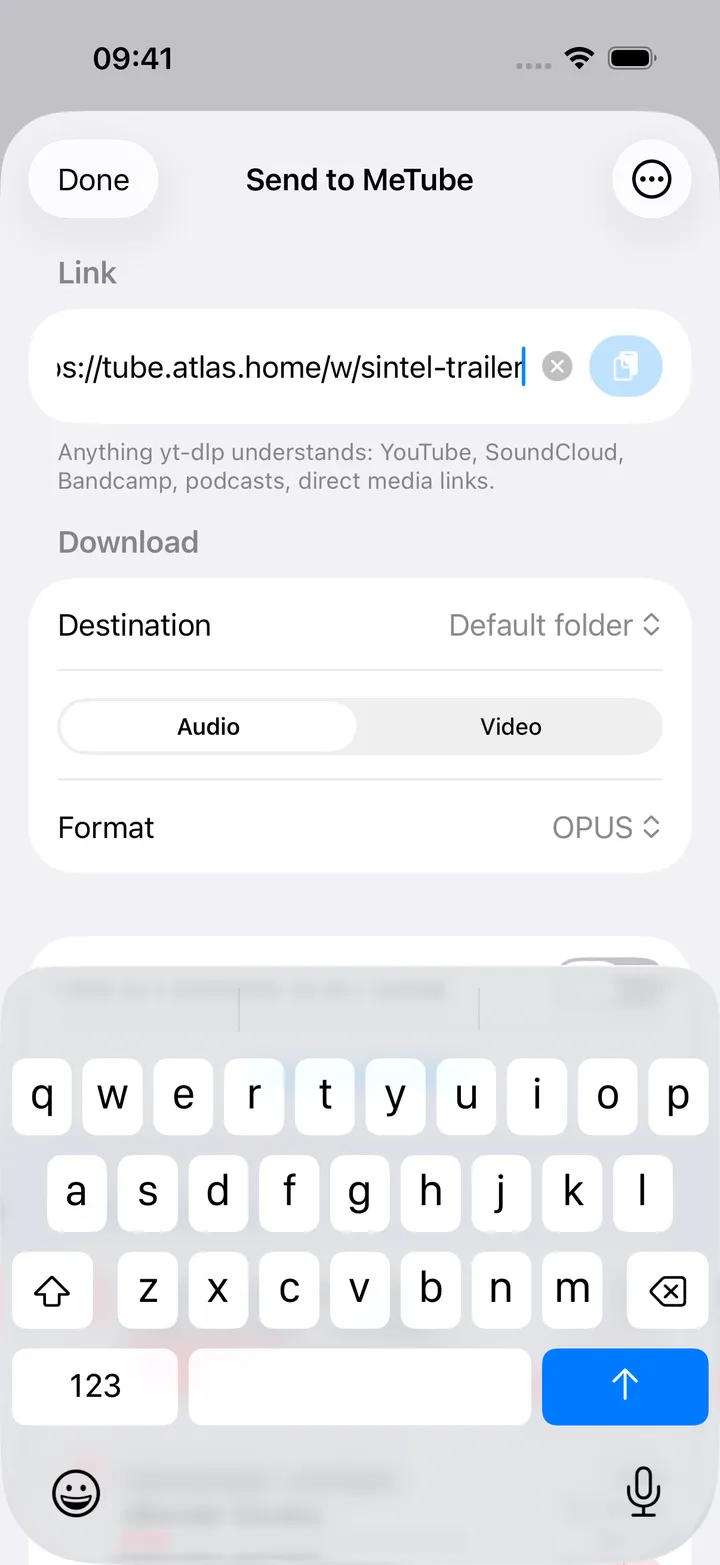
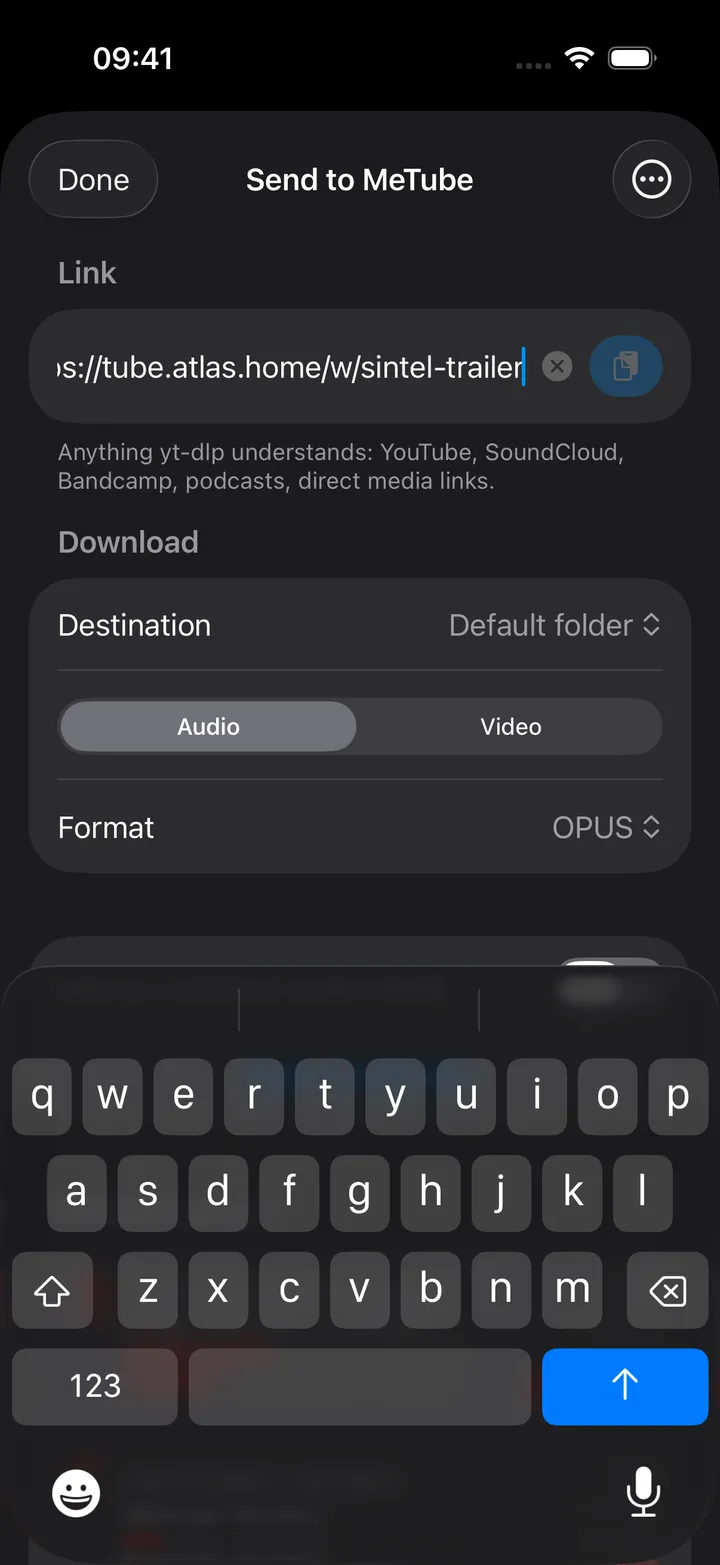
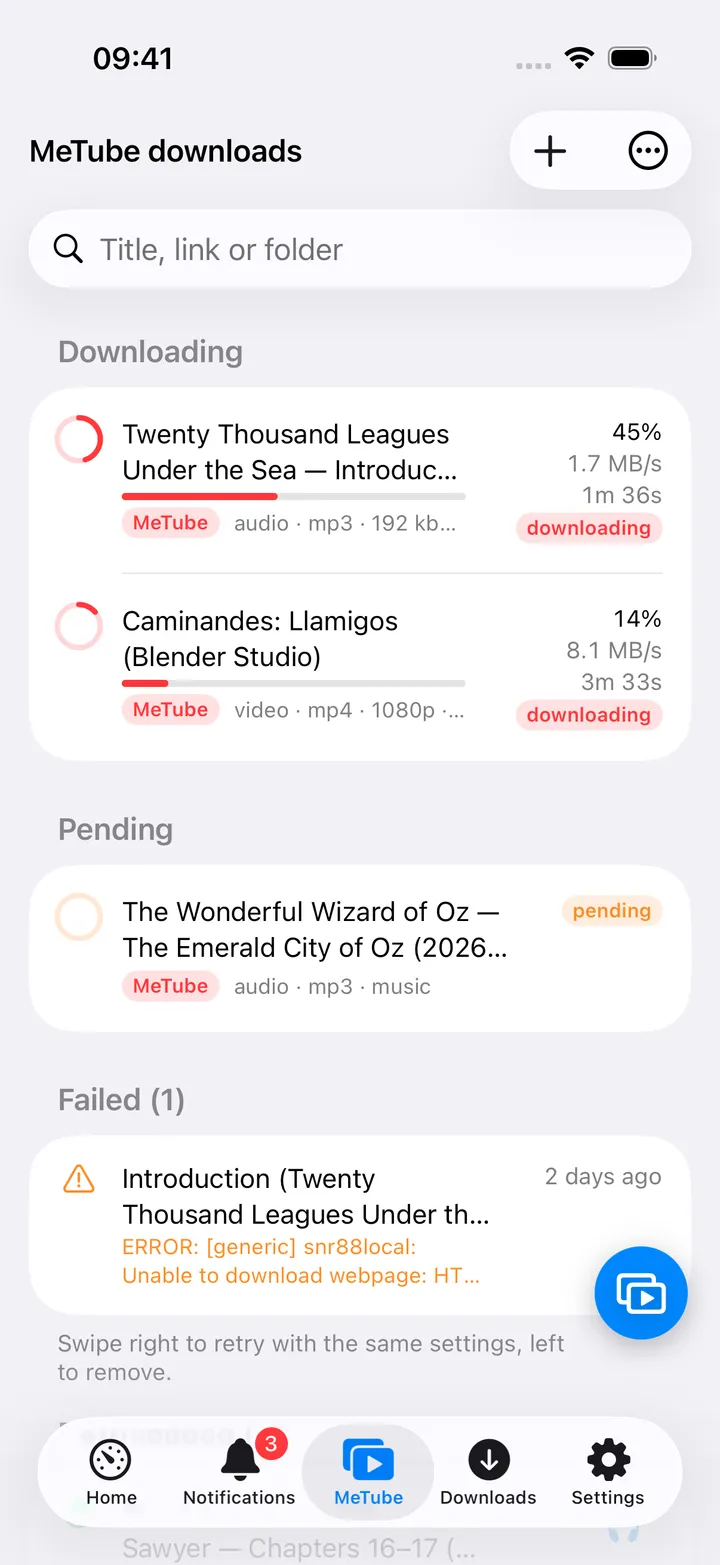
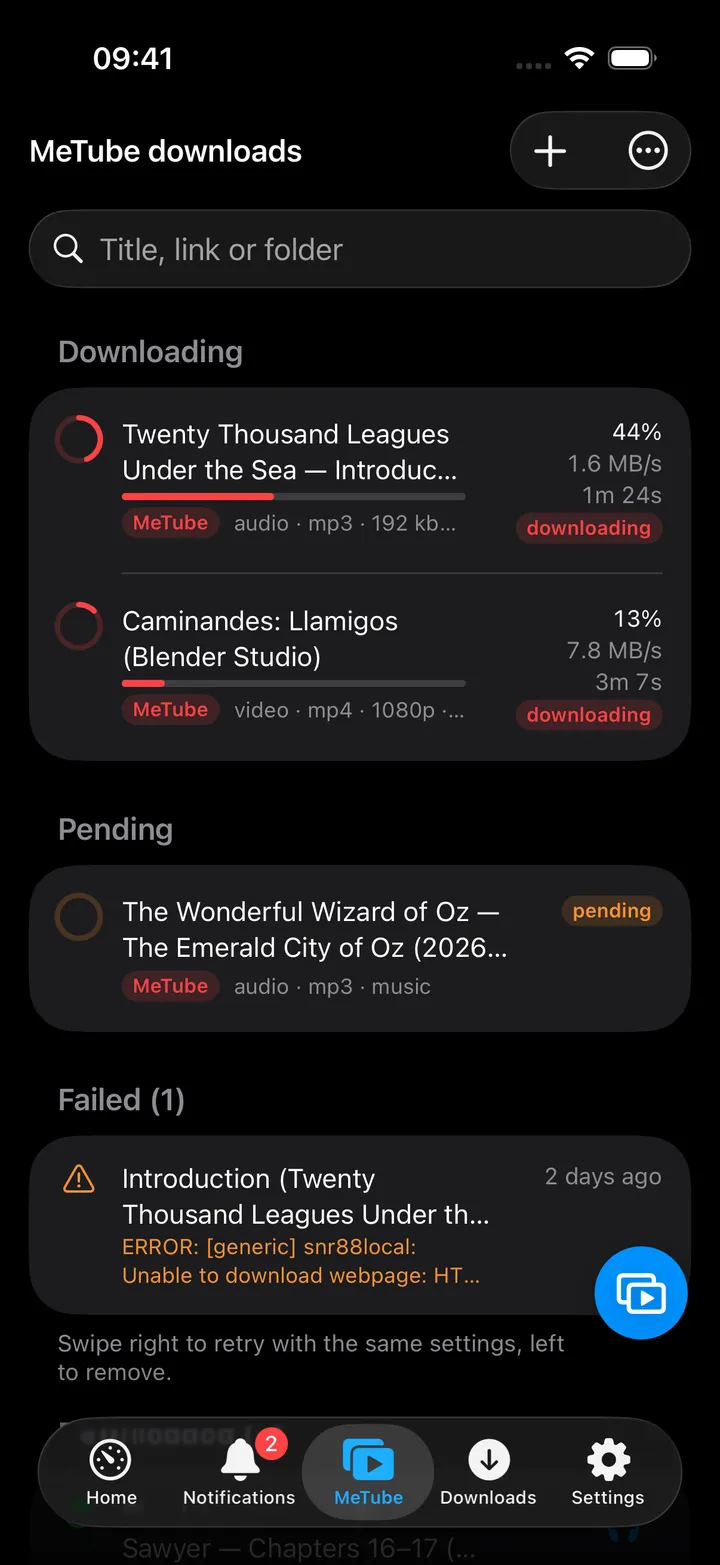
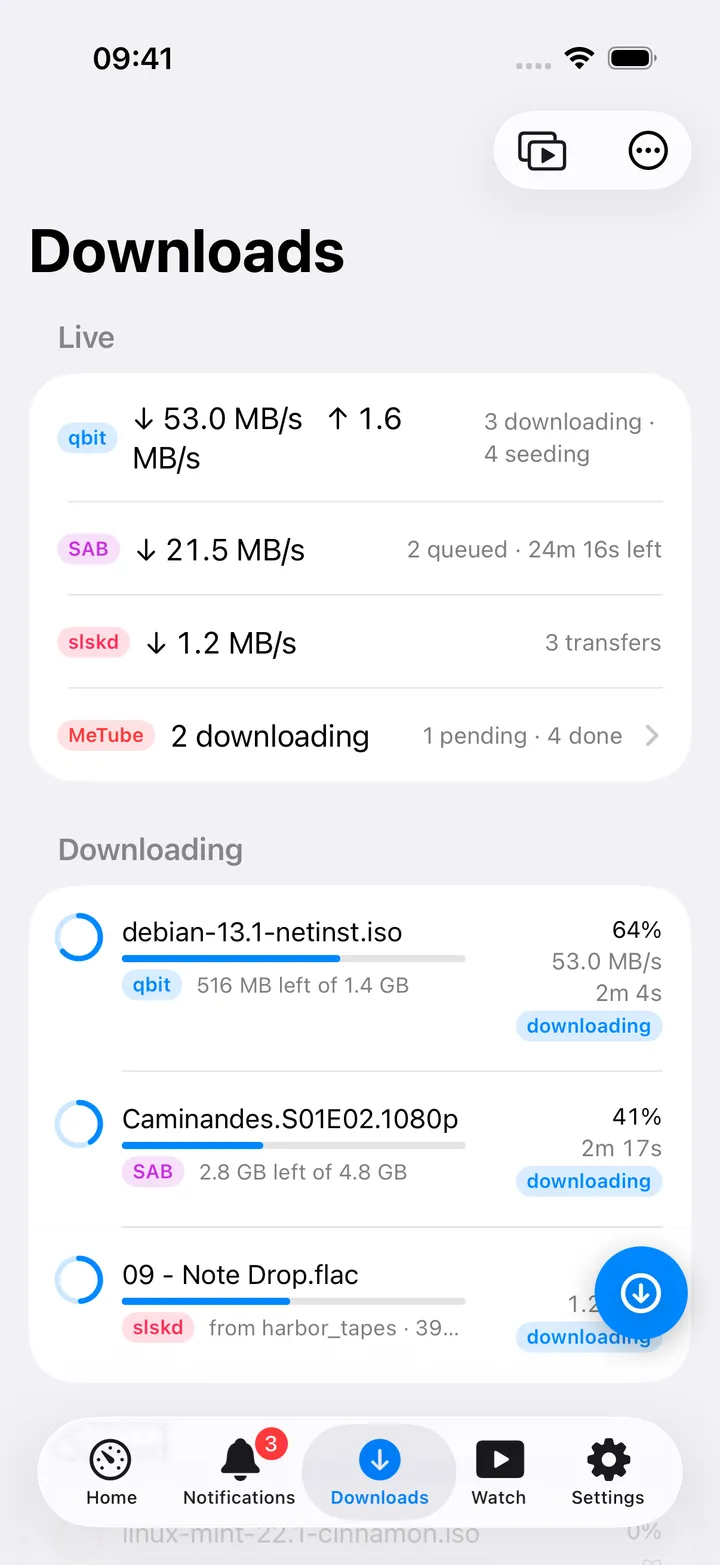
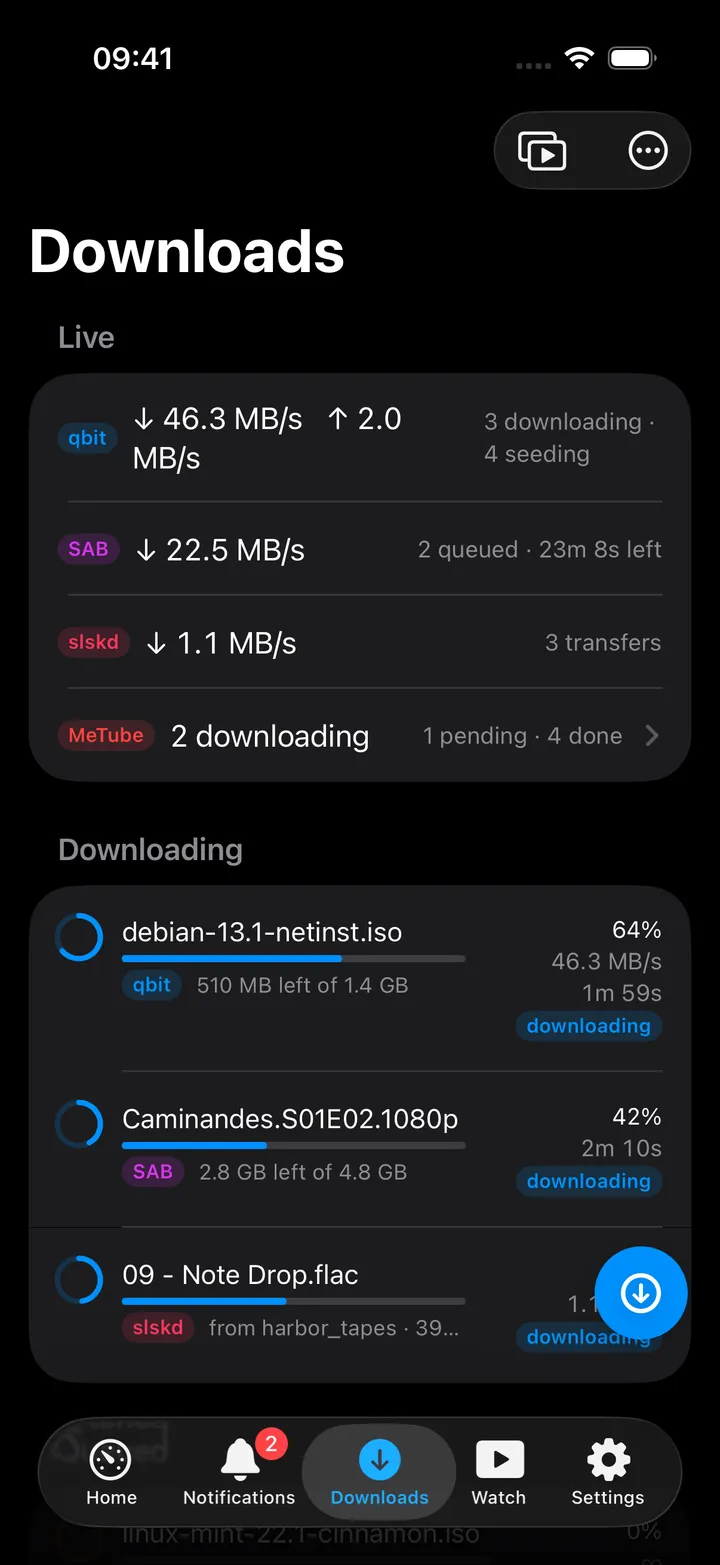
Sending a link. The sheet opens from the quick action, the Send to MeTube button on the Downloads tab and the + on MeTube downloads. Its ⋯ menu has Open MeTube, All downloads and Refresh queue, and the live queue sits below the form.
- Picking a destination flagged
|videoswitches Type to Video automatically; you can still override it. - Toggle Add to Podcasts when ready to have a finished audio download appear in Podcasts once it completes (Audio with M4A or MP3 keeps it small).
MeTube downloads opens from the MeTube tab, the Home tile, the Downloads tab’s MeTube row, and MeTube downloads in the Downloads ⋯ menu or round button. Swipe a failed download right to Retry with the same settings, or any finished entry left to Remove; swipe a queued one to Cancel, or a pending one right to Start. Finished entries show Listen, Play next and Add to Podcasts in their context menu, plus Download again, Copy link, Open link and Remove from list.
Round button. The MeTube button beside the + holds Send to MeTube, the All, Audio and Video views (the one shown is marked), Refresh, Search, Open MeTube, Clear failed and Clear downloaded list; the first five show until you choose your own with Choose actions…. Turn it off in Settings → Screen action buttons.
On Mac
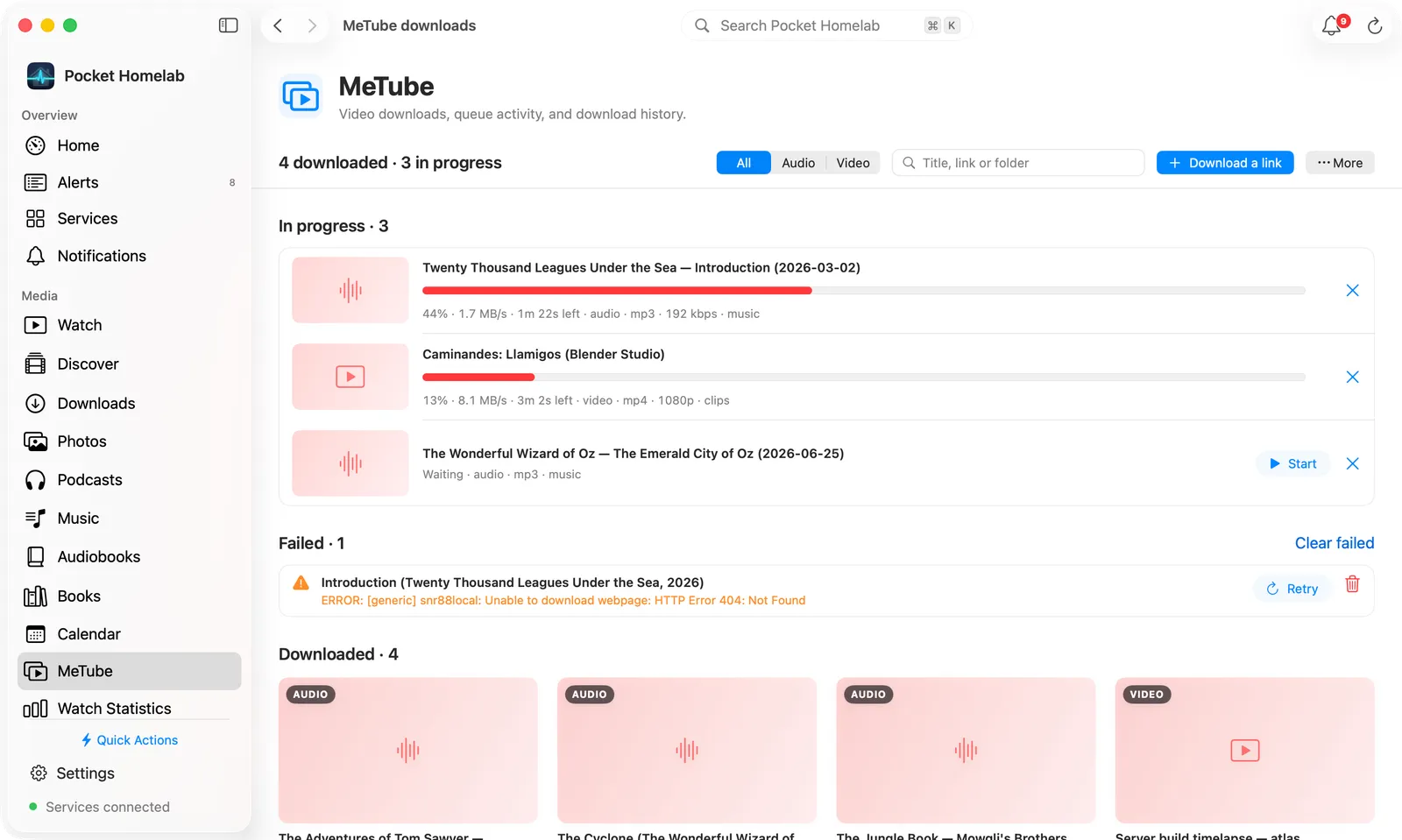
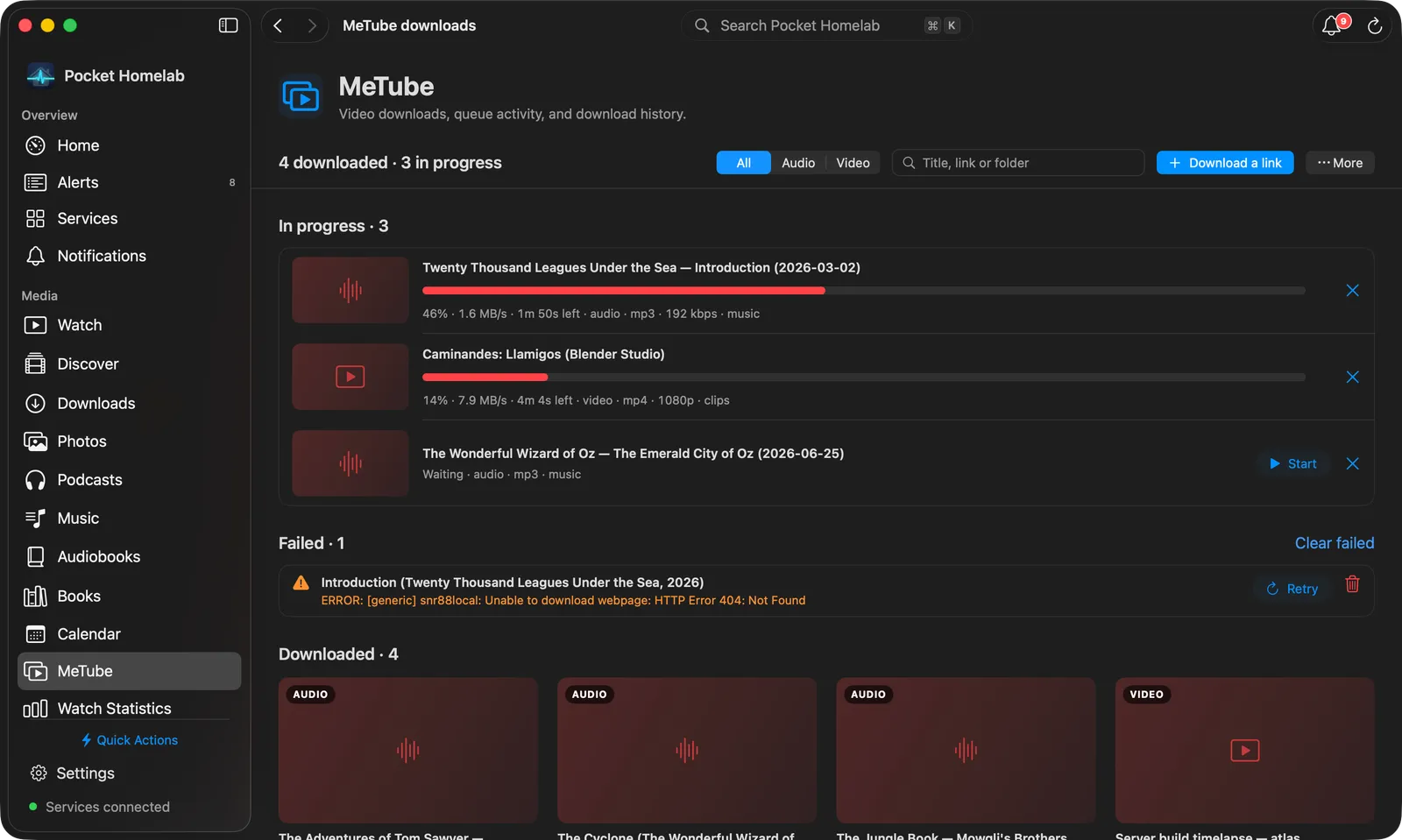
The sidebar section MeTube is a page laid out like Music:
- The bar shows the counts (“4 downloaded · 3 in progress”), All / Audio / Video, a search field (title, link or folder), Download a link (opens the Send to MeTube sheet) and More with Open MeTube, Refresh, Clear failed and Clear downloaded list.
- In progress lists downloading and waiting entries with a thumbnail, progress, speed and time left, Start for a waiting one and × to cancel.
- Failed shows why, with Retry and a trash button; Clear failed sits beside the heading.
- Downloaded is a grid of thumbnail cards: the video’s YouTube picture when the link has one, an AUDIO or VIDEO badge, the title, and format, size, age and folder. Hover a card for a headphones button that plays it in Podcasts; right-click for Listen, Play next, Add to Podcasts, Download again, Copy link, Open link and Remove from list.
MeTube rows also appear in the Mac Downloads table (client “MeTube”) alongside torrent/Usenet clients, newest first like every row there, with an Added column. The inspector shows Format, Quality, Folder, Size and Added, with Start Download, Retry Download or Download Again, Open MeTube and More Actions (Copy Link, Open Link, Cancel Download… or Remove from History…). Add Link… in Downloads opens the same sheet as iPhone, and its ⋯ menu has Clear failed MeTube entries… and Clear downloaded MeTube entries…. ⇧⌘Y is the quick-action shortcut.
Actions
- Send a link, queues it with
auto_startalways on; there is no manual-start toggle. - Retry / Download again: re-adds the entry with its own remembered folder, type, format and quality.
- Cancel an active download, Remove a finished one, or Clear failed / Clear downloaded list in bulk. Files are never deleted from disk by “Remove”, only MeTube’s list entry is.
- Start a pending entry that was queued from MeTube’s own web UI with auto-start off.
Works with
- Podcasts: “Add to Podcasts when ready” on the send sheet, or “Listen” / “Play next” / “Add to Podcasts” on a finished download, import it straight into your podcast/episode library without a second copy on disk where possible. Podcasts has MeTube downloads and Download a YouTube link (with PinePods the sheet opens with Add to Podcasts already on), and a video episode’s ⋯ menu has Get audio copy with MeTube.
- Downloads (qBittorrent / SABnzbd / slskd): MeTube is a fourth client on the same screen; it alone can unlock the Downloads tab even with nothing else configured.
Tips & troubleshooting
- MeTube has no authentication, if your reverse proxy needs its own login, the app cannot supply it.
- Sending a link can take several seconds while yt-dlp validates it on the server; the “Sending to MeTube…” message stays until a result arrives.
- OPUS only accepts “Best” quality, MeTube itself does not support a bitrate choice for that format.
- Nothing here runs in the background on iOS between app opens; a MeTube-initiated download does continue on the server once submitted, but the app only polls its status while open.